Brews
The BrewForge brew list and brew page: one place per batch with the recipe, brew day, fermentation and results tabs, statuses, progress rings, timeline, tags, pinning, sharing and export.
Every batch you brew is a brew in BrewForge. Its page holds everything about that batch: the recipe, what you measured on brew day, the fermentation readings and how the beer turned out. Open it from Brews in the sidebar.
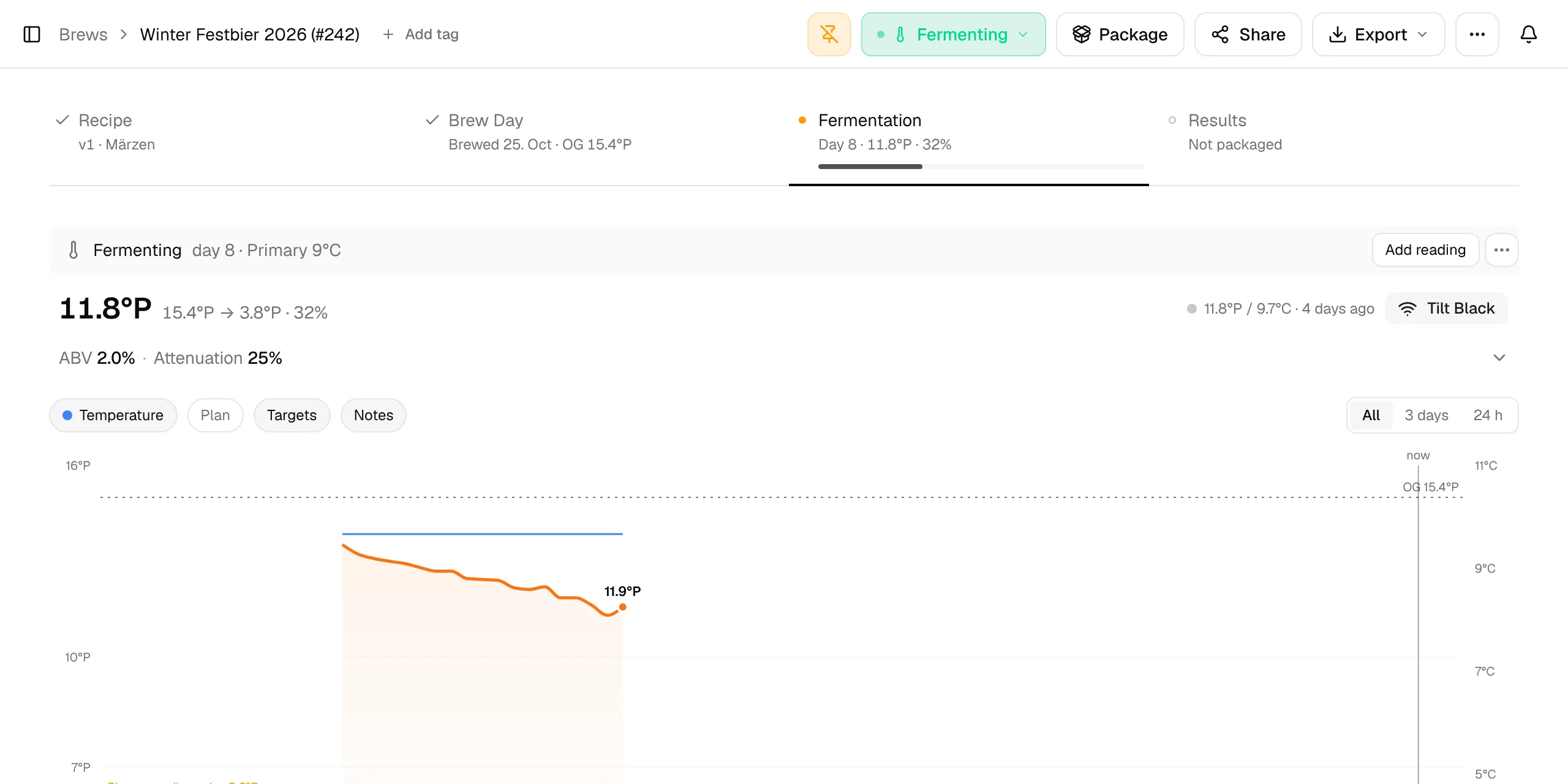
The page follows the life of the beer. Four tabs, one per phase, show what you need right now. Details and rarely used options sit behind ⋯ menus, folds and dialogs, so the page stays calm at first glance.
The brew list
Brews in the sidebar opens the list of all your brews. The line under the title counts them, for example 22 brews · 4 in progress · 1 planned. New Brew starts a brew (Your first recipe); ⋯ next to it holds Import BeerXML for BeerXML and MMuM files (Imports).
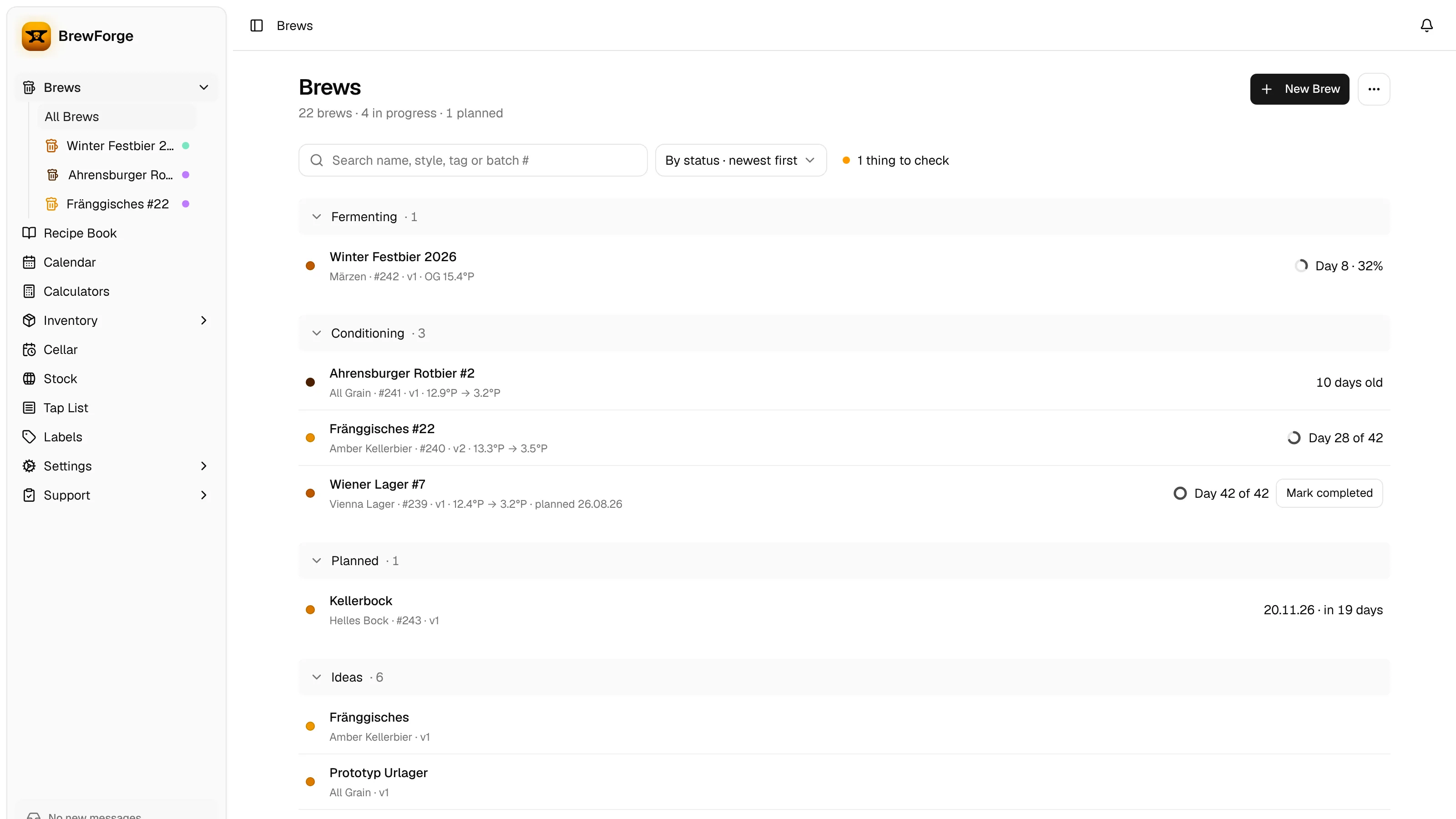
Brews are grouped by status in grey bars: Brewing, Fermenting, Conditioning, Planned, Ideas, Completed and Archived. The number after the name counts the brews in the group. Click a bar to fold the group in or out; Completed and Archived start folded. Groups with more than ten brews show the first eight and Show … more.
Each row is one brew. Click it to open the brew page.
- The dot has the beer's color from the recipe. An empty ring means the brew has no recipe yet. A small blue dot after the name marks an imported brew.
- The line under the name shows the style (or the brew type), batch number, version, folder, up to two tags, and
OG → FGonce the brew is brewed. planned … appears when the actual brew date differs from the planned one. - The value on the right shows where the brew stands:
| Status | Value |
|---|---|
| Fermenting | A ring and Day 8 · 32%: days since brew day and the fermentation progress. |
| Conditioning | A ring and Day 28 of 42: days since conditioning started out of the planned conditioning days. Without a plan: the beer's age, e.g. 10 days old. |
| Completed | The beer's age. |
| Planned, Ideas | The planned brew date and how far away it is, e.g. 20.11.26 · in 19 days. |
| Others | The brew date. |
The ring fills with the same percentage. Fermentation progress comes from your gravity readings (Fermentation progress); conditioning progress from the days since the conditioning start and the recipe's conditioning days or the conditioning stages of its schedule (Conditioning).
When a conditioning brew reaches its goal, Mark completed appears next to the row and sets the status to Completed in one click.
Search, sorting and checks
- Search finds brews by name, style, tag, folder or batch number (
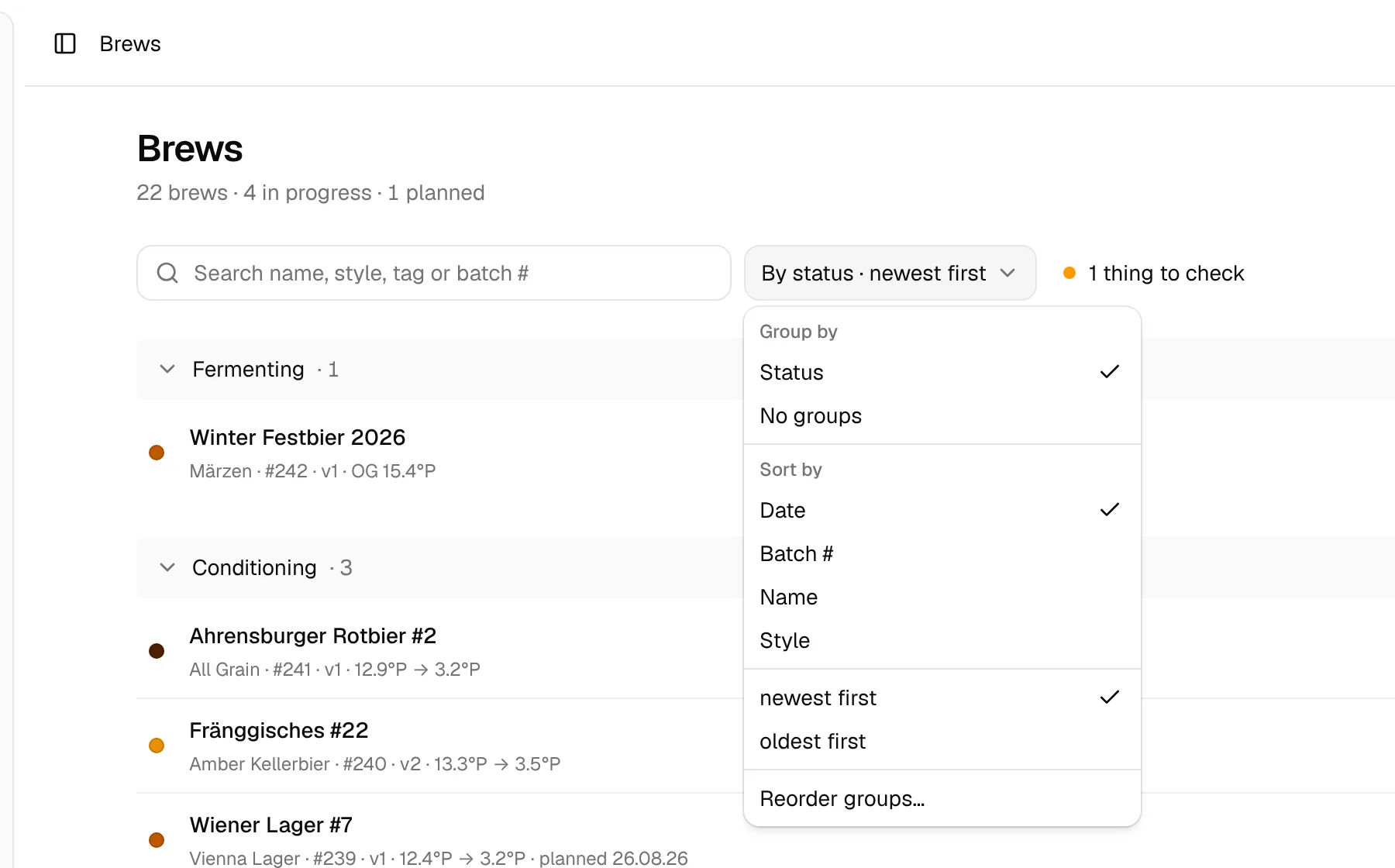
#241). All groups open while you search. - The button next to the search (it reads, for example, By status · newest first) sets the grouping and the order. Group by Status, Folder, Folder and status (the folder options appear once a brew is in a folder) or No groups. Sort by Date, Batch #, Name or Style, then pick the direction. Reorder groups… lets you drag the status groups into your own order. The list remembers your choices and which groups are open in this browser.
- Next to it, Nothing to check or 1 thing to check collects what needs your attention: conditioning brews that reached their goal, brewed batches where only some ingredients were deducted from stock, and brews that will miss their ready-by date (Kellerbock will be ready 3 days after its ready-by date). Click it for the list; each entry opens the brew. The row of such a brew also shows, for example, 2 of 9 not deducted in amber.
The four tabs
| Tab | What it is for |
|---|---|
| Recipe | Plan the beer: equipment and volumes, style, ingredients, mash, fermentation schedule, water and notes. |
| Brew Day | Start brew day, deduct ingredients from inventory, log measurements and compare the batch with the recipe. |
| Fermentation | Readings, chart, final gravity, spunding, carbonation and conditioning. |
| Results | Packaging, tasting notes, rating, evaluations and batch cost. |
Each tab shows where its phase stands in one line below the name: a tick for phases that are done, an amber dot for the current phase and an empty circle for what comes next. For example Brewed 25. Oct · OG 15.4°P under Brew Day, or Day 8 · 11.8°P · 32% with a progress line under Fermentation.
The page opens on the tab of the brew's current phase: Recipe for ideas and planned brews, Brew Day while brewing, Fermentation while fermenting or conditioning, and Results once the brew is completed. On a phone the tabs move to a bar at the bottom of the screen.
Statuses
The status button in the header shows where the brew is. Click it to change the status.
| Status | Meaning |
|---|---|
| Idea | Just an idea. No batch number, no date. |
| Planned | Brew date scheduled. The brew gets its batch number. |
| Brew Day | Actively brewing. |
| Fermenting | Fermentation in progress. |
| Conditioning | Carbonating and aging. |
| Completed | Ready to drink. |
| Archived | A past brew. |
Most changes happen on their own as you work through the tabs: setting a date plans an idea, Start Brew Day and Complete Brew Day on the Brew Day tab move the brew on, and Start conditioning on the Fermentation tab starts conditioning.
What a status change does to the dates:
- Brew Day from Idea or Planned sets today as the brew date. Moving back to Idea or Planned clears the brew date.
- Conditioning records today as the conditioning start, unless one is set already. Moving back before Conditioning clears it.
- Skipping steps, moving backwards or archiving a brew before it is completed asks you to confirm first.
Header
Besides the status, the header holds:
- Add tag: tags and one folder per brew, to find brews later in the brews list. Type to pick an existing tag or create a new one; the Folder tab sets the folder.
- Pin to sidebar: puts the brew in the sidebar under Brews, with a small square in the beer's color and its status. Useful for the beers in the fermenter. Unpin from sidebar removes it (sidebar).
- Package: moves beer into kegs, bottles or cans in the cellar (Pro plan, for fermenting, conditioning and completed brews).
- Share and Export: a public recipe page and an evaluation link in one dialog, PDFs, BeerXML and JSON. See Share, export and versions and PDF exports.
- ⋯: Duplicate Brew, Version history, Edit Name, Edit Batch Number and Delete Brew.
- Undo and Redo (while you edit the recipe).
If you adopted the recipe from someone else's shared brew, an Adopted from badge next to the tags shows where it came from.
Changes save automatically a moment after you make them. If saving fails, the page says so next to the header.
Timeline
Every tab ends with the Timeline: one line from the future down to the past, with Today in the middle.
- Above Today: the next events of your fermentation schedule (temperature changes, dry hops, stage starts) while the brew is brewing, fermenting or conditioning. Two are shown; the rest fold into "… more until …".
- Today: type a note and press Enter. It is saved with the phase of the tab you are on (planning, mash, fermentation, conditioning or packaging).
- Below Today: your notes and the milestones Brew day, Conditioning started and Packaged, newest first.
Add note opens the full form with date and time, a type (Observation, Issue, Adjustment, Note, Reminder), a phase and your note-level custom fields. Click a note to edit or delete it. Notes only hides the milestones.
Custom fields
If you defined custom fields for brews, they appear as sections on the matching tab: Brew Details on the Recipe tab, Brew Day, Fermentation, and Packaging and Tasting on the Results tab. Required fields that are still empty show a "pending" count.
Locked brews
The Free plan allows 20 brews. If you have more, only the 20 most recently updated brews can be edited; the others show This brew is locked and stay readable. In the brew list they show Read only with a lock. You can still export, duplicate or delete a locked brew. Delete brews or upgrade to Basic to unlock them.
In this section
Recipe tab
Water
Brew Day tab
Fermentation tab
Results tab
Evaluations
Share, export and versions
PDF exports
Calculations
New to BrewForge? The guide From grain to glass walks through one brew from start to finish.