Recipe Book
The BrewForge recipe book lists every recipe once, with its versions, brews, key numbers and score. Search, filter, group and sort your recipes, then brew one again or start a new version.
In BrewForge every brew carries its own recipe. The recipe book collects them: it shows each recipe once, no matter how often you brewed it or how many versions you made, so you can find a recipe and brew it again without scrolling through all your batches.
Open it with Recipe book in the sidebar.
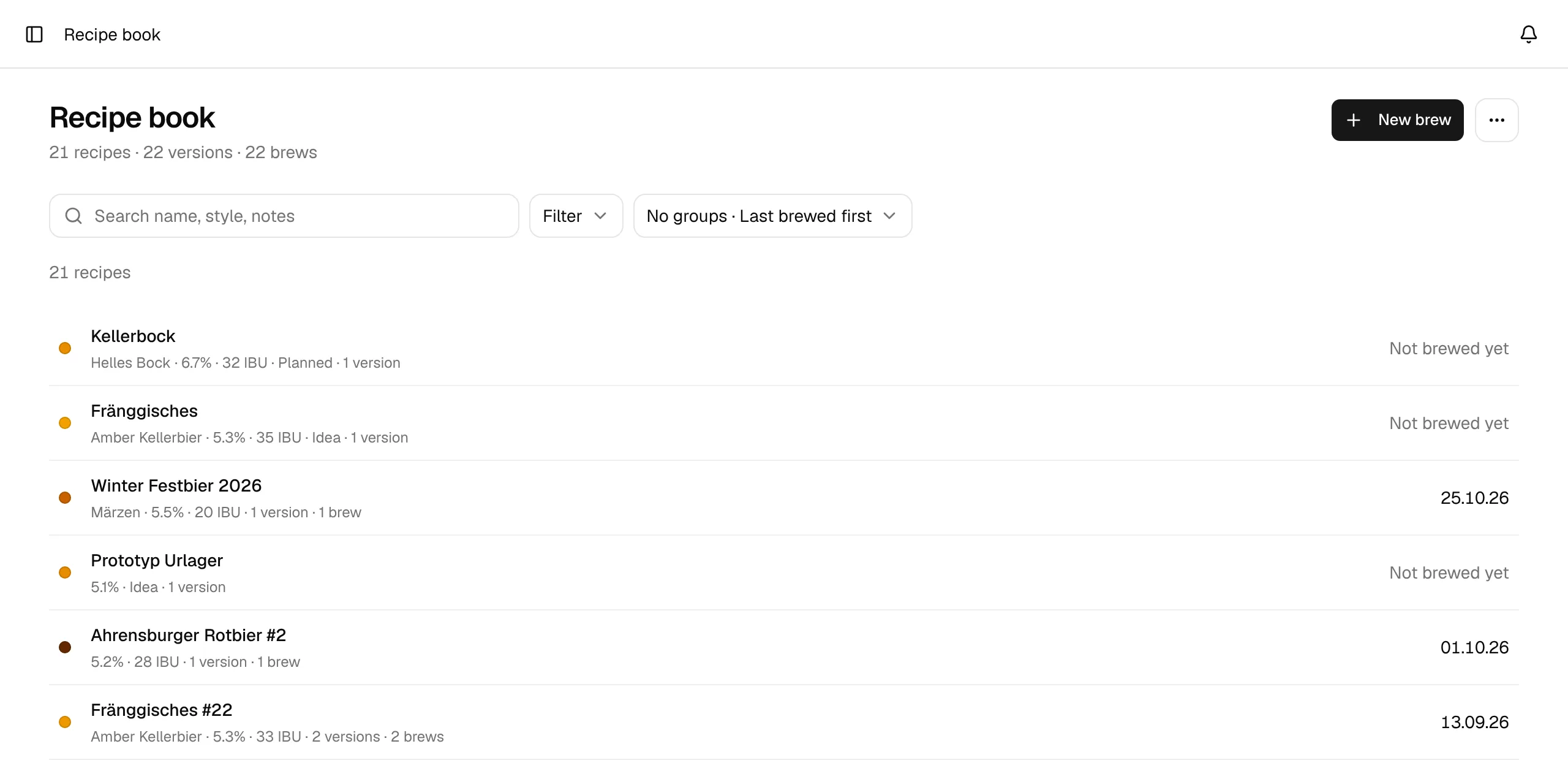
Under the title, one line counts the recipes in the book, their versions and all brews behind them, including each rebrew. New brew starts a brew with a new recipe (Create your first recipe). The ⋯ menu has Import BeerXML file… and Import from Brewfather (Brewfather import).
Open a recipe and brew it again
The recipe dialog, its versions and brews, Brew again and New version.
Versions on the brew page
Duplicate a brew, branch from an older version and compare versions.
How brews become recipes
- A new brew starts a new recipe.
- Brew again and New version create a brew that belongs to the same recipe, in the recipe book and on the brew page.
- The book shows the latest version of each recipe: the highest version number, and among brews of the same version the most recently changed one. Its name, style and numbers come from that brew.
- Dates, brew counts and the status filter follow every brew of the recipe. Starting a new version (an unbrewed idea) doesn't hide that you brewed the recipe before.
The recipe list
Each row shows:
- A dot in the colour of the beer, the name, and a small blue dot for imported recipes.
- The style, ABV and IBU of the latest version, calculated from the recipe in your units.
- The score: BJCP and the average of the submitted BJCP score sheets of the newest version that has some (out of 50), otherwise Taste with your taste rating (out of 5).
- For a recipe you haven't brewed yet, its status (Idea, Planned).
- How many versions the recipe has and, once brewed, how many brews; its folder and first two tags (
+1and so on when it has more); and from … with the source when you adopted it from a shared recipe. - On the right the date you last brewed it, across all its versions, or Not brewed yet.
Click a row to open the recipe dialog.
When the book is empty, the page explains what it is for and offers New brew, a BeerXML import and a link to the Brewfather import.
Find a recipe
Search looks in the name, style, notes (the description), folder and tags. The ✕ in the field clears it.
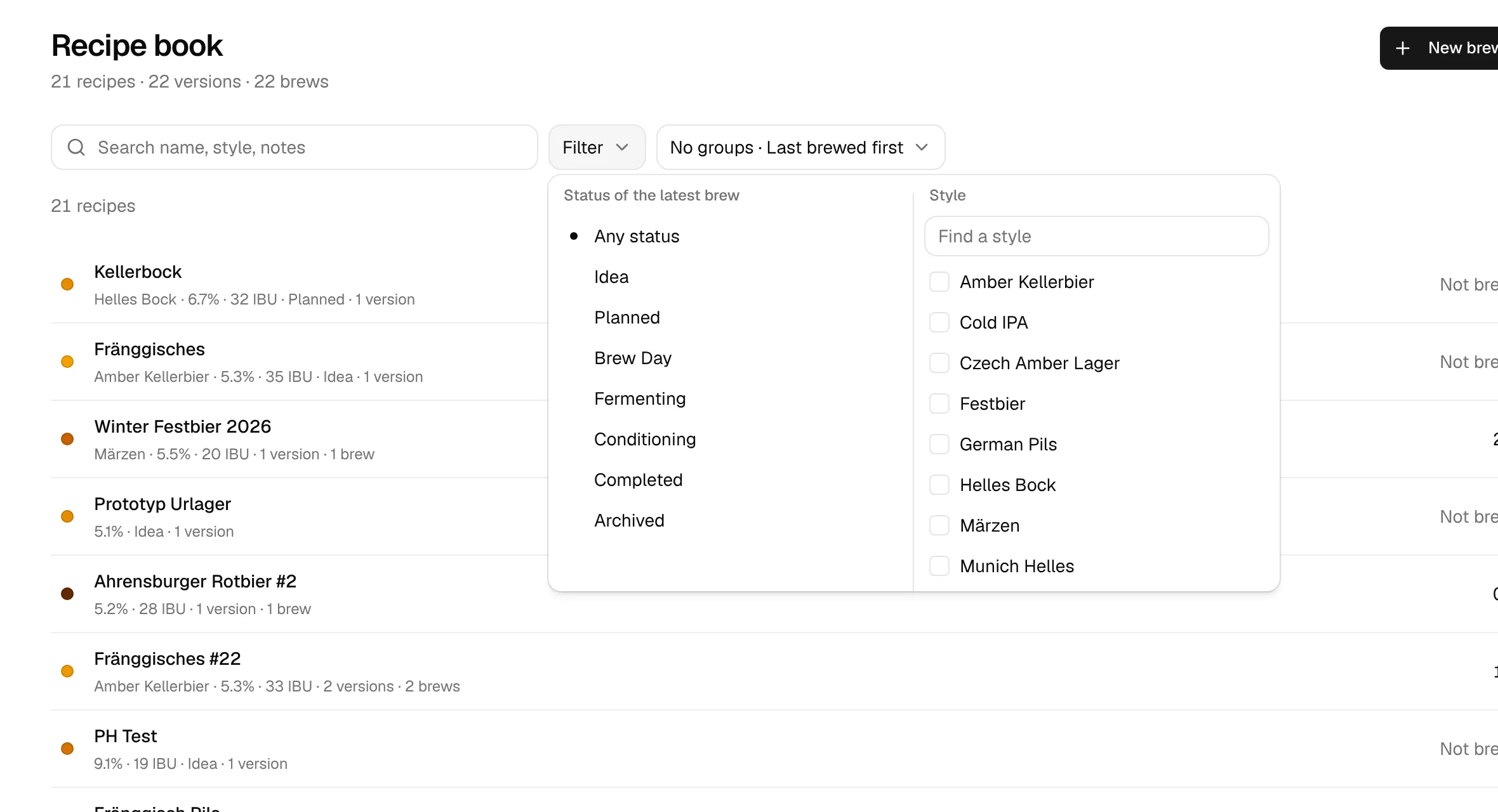
Filter opens two lists side by side:
- Status of the latest brew: Any status, or one status such as Completed. "Latest" is the recipe's most recent brew across all versions (by brew date, otherwise last change).
- Style: tick one or more styles; a recipe matches when it has any of them. With more than eight styles a Find a style field narrows the list. Clear styles unticks them all.
The button then reads Filter · 1 or Filter · 2.
The line under the toolbar always says how many recipes you see: 21 recipes, or with a search or filter 2 of 21 recipes followed by the chosen status and styles and Clear filters. When nothing matches, the list says so and offers Clear search and filters.
Group and sort
The view button shows the current choice, for example No groups · Last brewed first. It opens one menu:
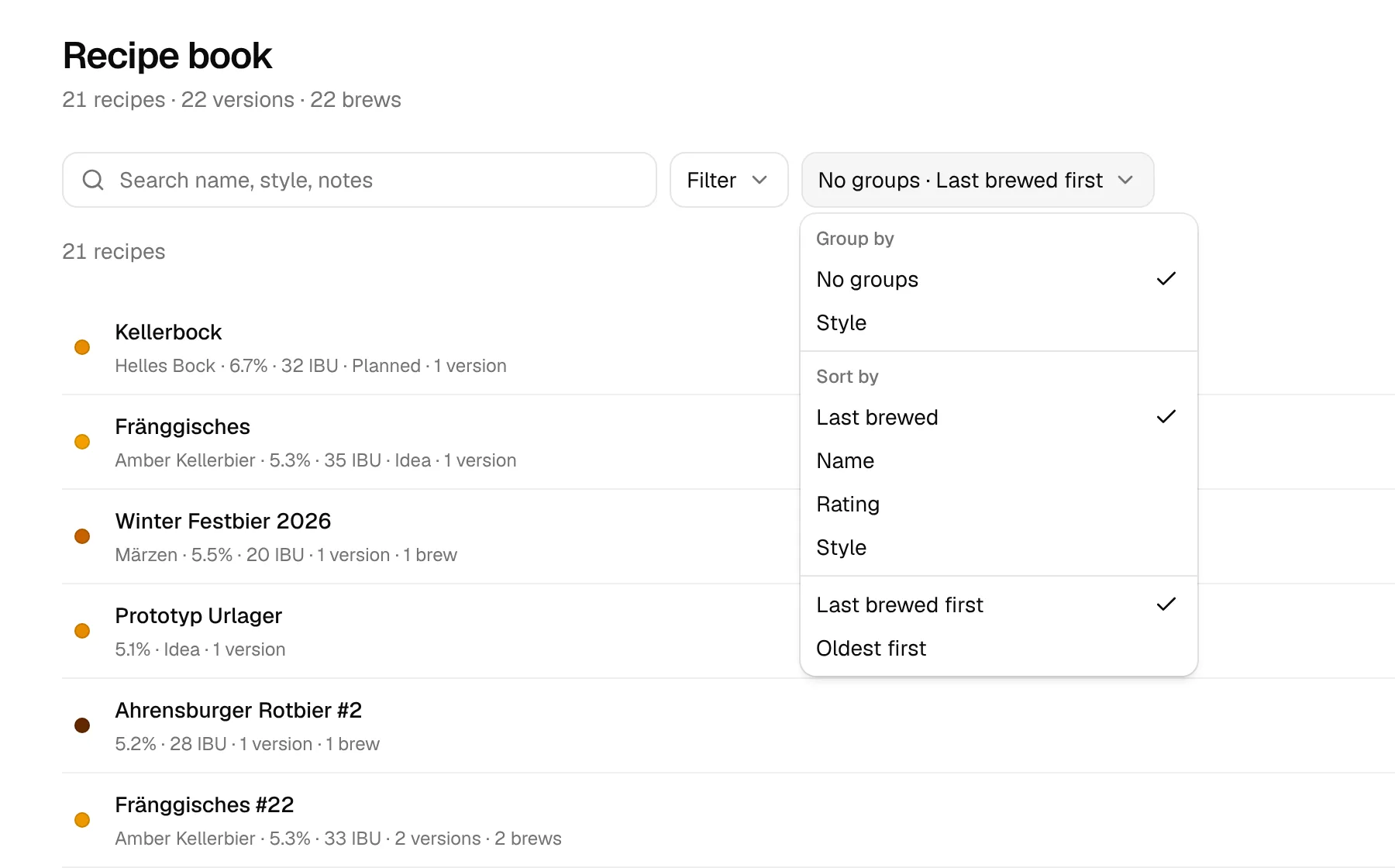
- Group by: No groups, Folder (only once at least one recipe is in a folder) or Style.
- Sort by: Last brewed (last brew date across all versions, otherwise the last change), Name, Rating (the score the row shows: BJCP average, otherwise taste rating × 10, so both are out of 50) or Style.
- The order below: Last brewed first / Oldest first, Name A–Z / Name Z–A, Best rated first / Lowest rated first, Style A–Z / Style Z–A. Picking a sort field starts with its natural order.
Grouped, each folder or style is a grey bar with its count; No folder or No style comes last. Click a bar to fold the group away. A group with more than ten recipes shows the first eight and Show N more. While you search or filter, every group stays open and shows all its matches.
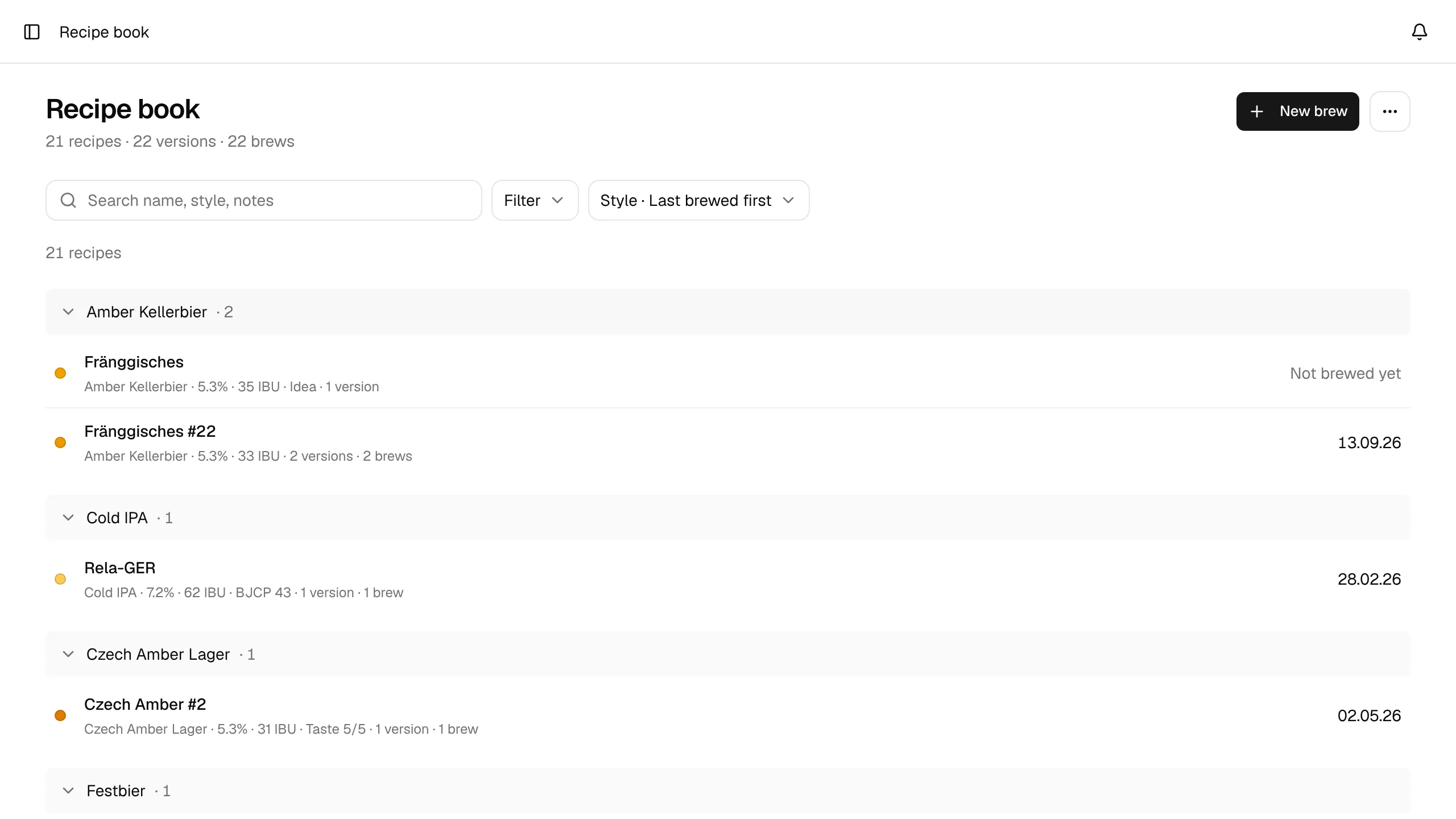
BrewForge remembers the grouping, sort order and folded groups on this device.
You set folders and tags on the brew with Add tag in its header.