Customize your sidebar
How the BrewForge sidebar works: it shows the pages you use, keeps the rest under More, and lets you show, hide or pin pages and brews. Also on phones.
The sidebar on the left is how you move around BrewForge. It stays calm on purpose: it shows the pages you work with, and everything else waits one click away under More. You don't have to set anything up; the sidebar grows with you as you start using more of the app.
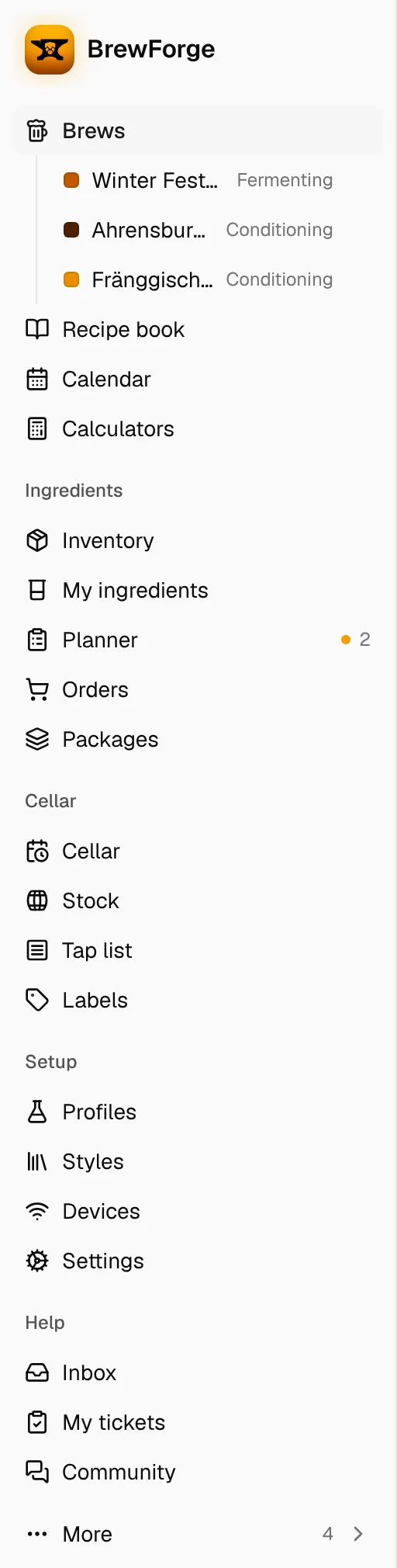
What's in the sidebar
From top to bottom:
- Brews, with your pinned brews below it, then Recipe book, Calendar and Calculators.
- Ingredients: Inventory, My ingredients, Planner, Orders and Packages.
- Cellar: Cellar, Stock, Tap list and Labels.
- Setup: Profiles, Styles, Devices, TRMNL and Settings.
- Help: Inbox & Tickets and Feedback.
- More: every page that isn't in the sidebar right now. The number next to it says how many.
- At the bottom: your name and plan, which opens the account menu.
A section only shows when it has at least one page in it. On a new account the Cellar section is empty, so it isn't there yet.
Dots and counts
A small dot with a number next to a page means something there wants your attention:
| Where | What it means |
|---|---|
| Planner (amber dot) | Ingredients you are short of for your planned brews. See Planner. |
| Inbox & Tickets | Unread messages from BrewForge, new answers to your bug reports and reports waiting for your reply. See Inbox and messages. |
If the page sits under More, the dot shows on the More row instead.
Pages show up once you use them
Pages fall into three kinds:
- Always there: Brews and Settings can't be moved.
- Shown by default: Recipe book, Calendar, Calculators, Inventory, My ingredients, Packages, Profiles, Styles, Inbox & Tickets and Feedback. You can move any of them under More.
- Shown once you use them: the pages for features not everyone needs. They wait under More until you first use the feature, then they join the sidebar by themselves:
| Page | Joins the sidebar when you … |
|---|---|
| Planner | plan a brew (set a brew to Planned), or open the planner while you have planned brews |
| Orders | create your first order |
| Cellar | add your first vessel or container |
| Stock | package beer or add beer to your stock |
| Tap list | create your first tap list |
| Labels | create your first label template |
| Devices | add your first device |
| TRMNL | connect a TRMNL |
When that happens, a short message says so, for example Tap list is now in your sidebar, with a Hide button in case you'd rather keep it under More. Using a feature counts once: deleting the tap list later doesn't move the page back.
Changelog, Documentation and User group (the WhatsApp group with other brewers) always start under More.
Find a page under More
Click More at the bottom of the sidebar. The menu lists every page that isn't in the sidebar, grouped by section, each with one line on what it is for. Pages that open another website (Documentation, User group) have an arrow icon and open in a new tab.
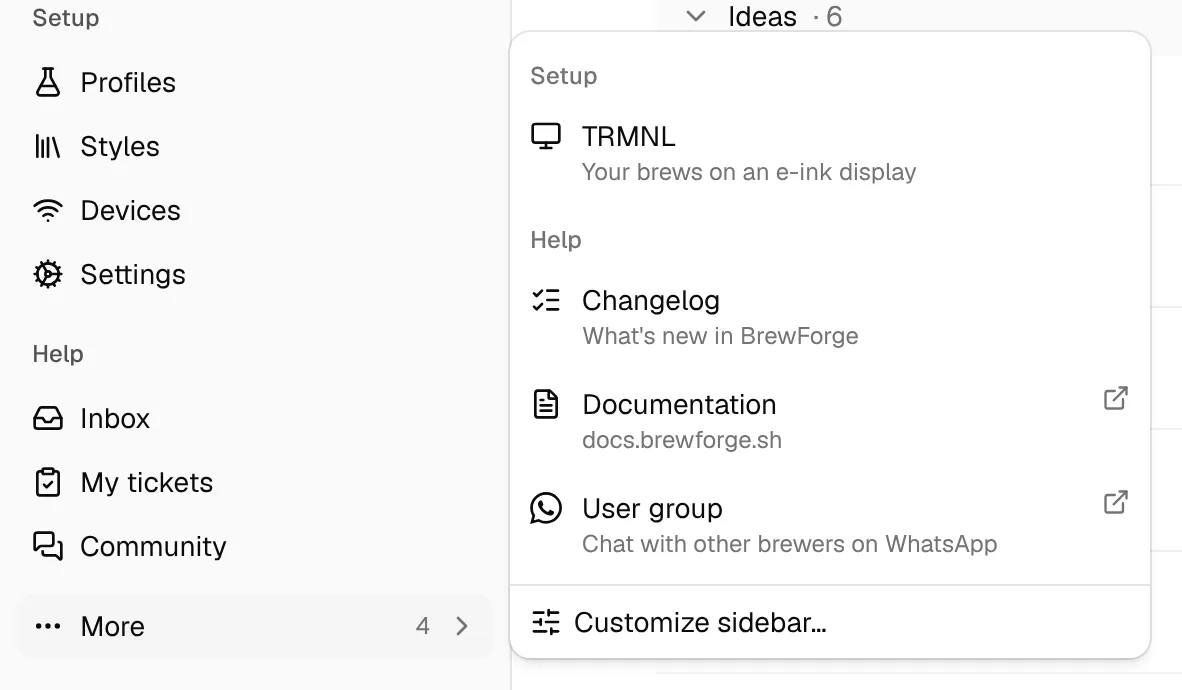
Pages your plan doesn't include show the plan they need (for example Pro) and take you to the plans page. Labels and TRMNL are left out entirely on plans without them.
Show or hide pages
Open Customize sidebar…, either at the bottom of the More menu or in the account menu. The dialog lists every page by section. Each change saves right away; Done just closes the dialog.
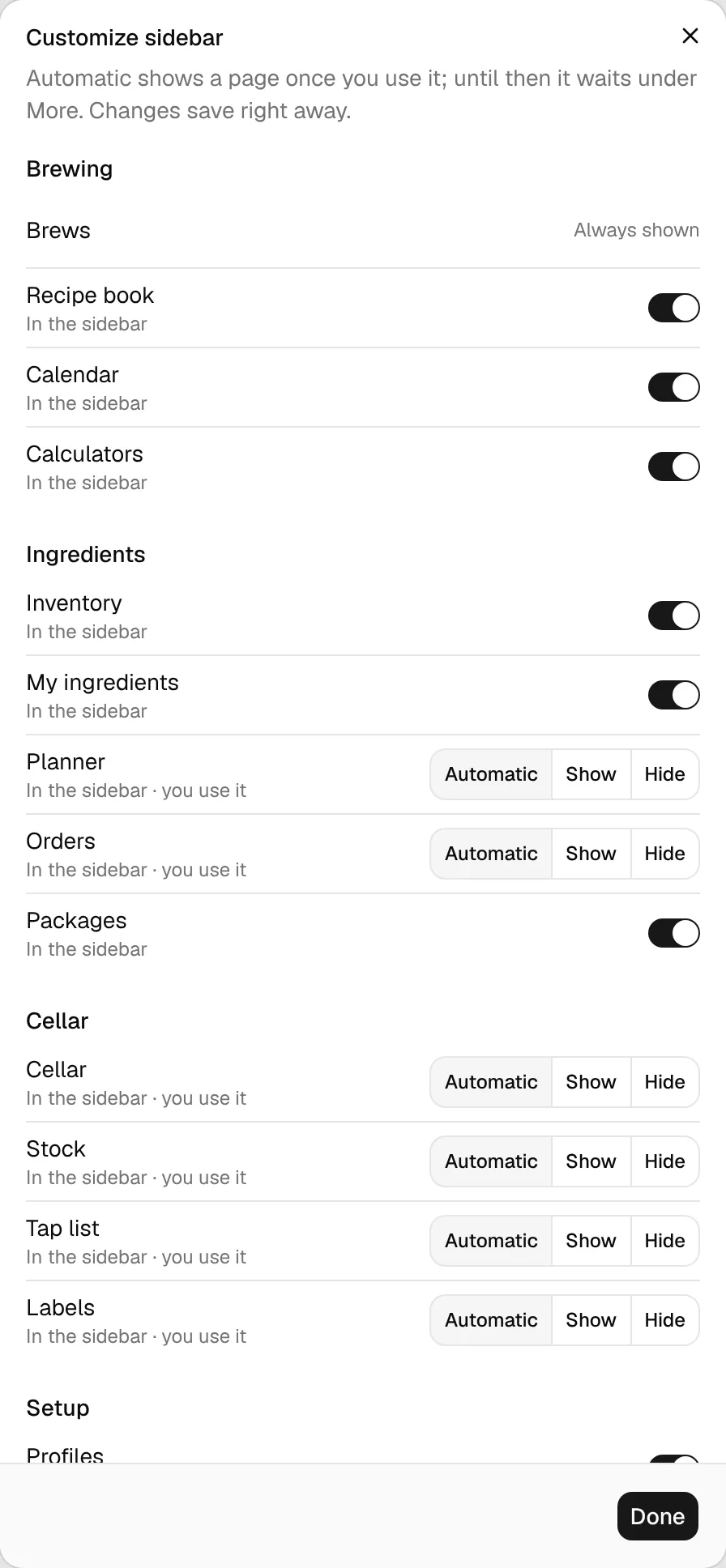
- Brews and Settings say Always shown.
- Pages shown by default (and the help links) have a switch. Off moves the page under More; on brings it back.
- Pages that show once you use them have three choices:
- Automatic (the default): in the sidebar once you use it, under More until then.
- Show: always in the sidebar, even if you haven't used it yet.
- Hide: always under More, even if you use it.
The line under each page says where it is right now and why, for example In the sidebar · you use it, Under More · not used yet or Under More · needs Pro.
You can't change the order of the pages or sections; it is the same for everyone.
Your choices are saved with your account, so the sidebar looks the same on every device you sign in with.
Pin brews
Brews you are working on can sit right under Brews in the sidebar, one click away from anywhere. Open the brew and click Pin to sidebar in its header; Unpin from sidebar removes it again. Each pinned brew shows a small square in the beer's color and its status (Fermenting, Conditioning, …). See The brew page.
Collapse the sidebar
On a large screen (1536 px wide and more) the sidebar is always open. The button at the top left of every page, or Ctrl+B (⌘+B on a Mac), shrinks it to a narrow row of icons and back. Hover over an icon to see the page name.
On a phone or tablet
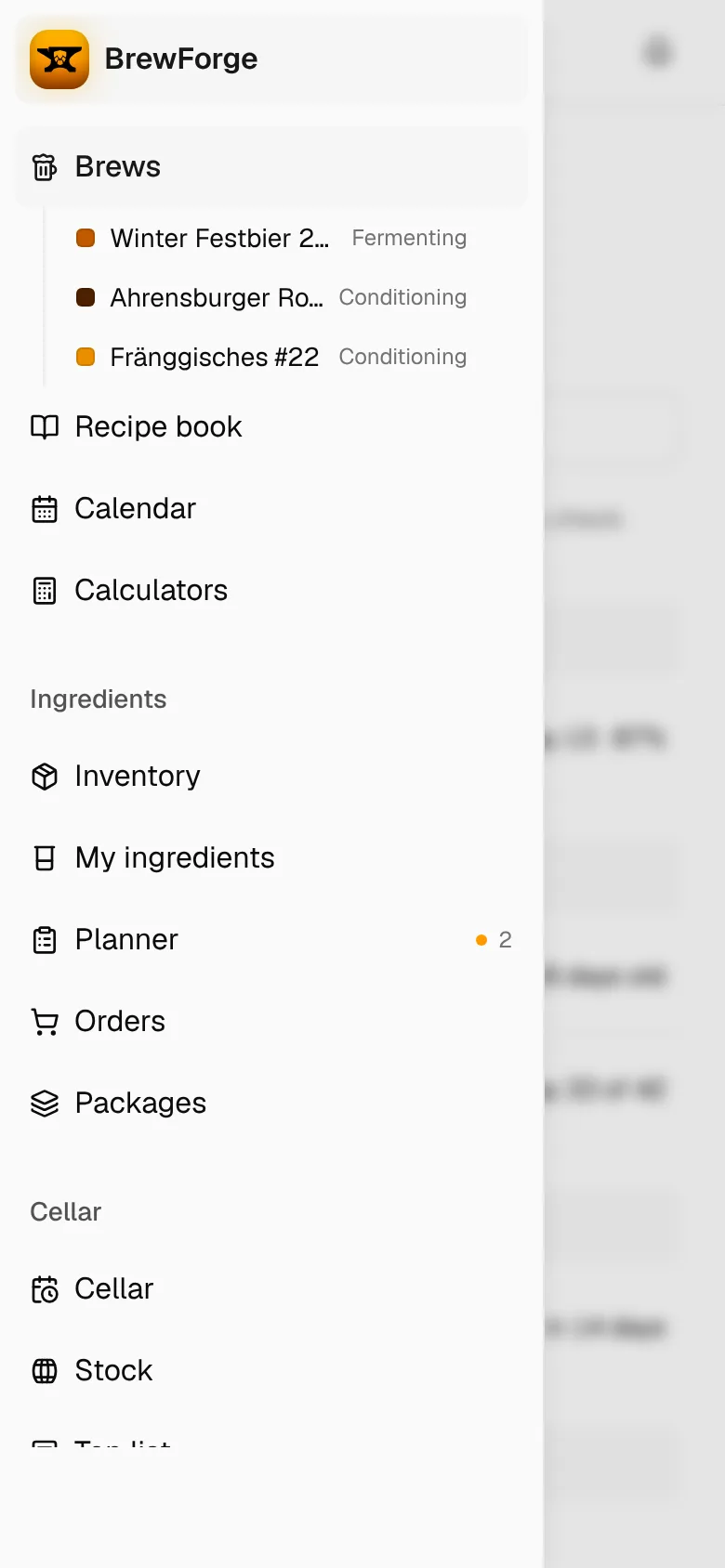
Below 1536 px the sidebar is hidden so the page gets the full width. Tap the sidebar button at the top left of the page to slide it in; tapping a page closes it again. Everything works the same as on a large screen, including More and Customize sidebar….
The account menu
Click your name at the bottom of the sidebar. The menu has:
- Account: your profile, sign-in and plan. See Account.
- Subscription, with your current plan next to it: the plans page.
- Brewfather import and Kleiner Brauhelfer import. See Imports.
- Refer a friend, with your points next to it once you have some.
- Theme: Light, Dark or System (follows your device).
- Customize sidebar…
- Sign out, and links to Privacy, Terms and Impressum.
When a page doesn't load
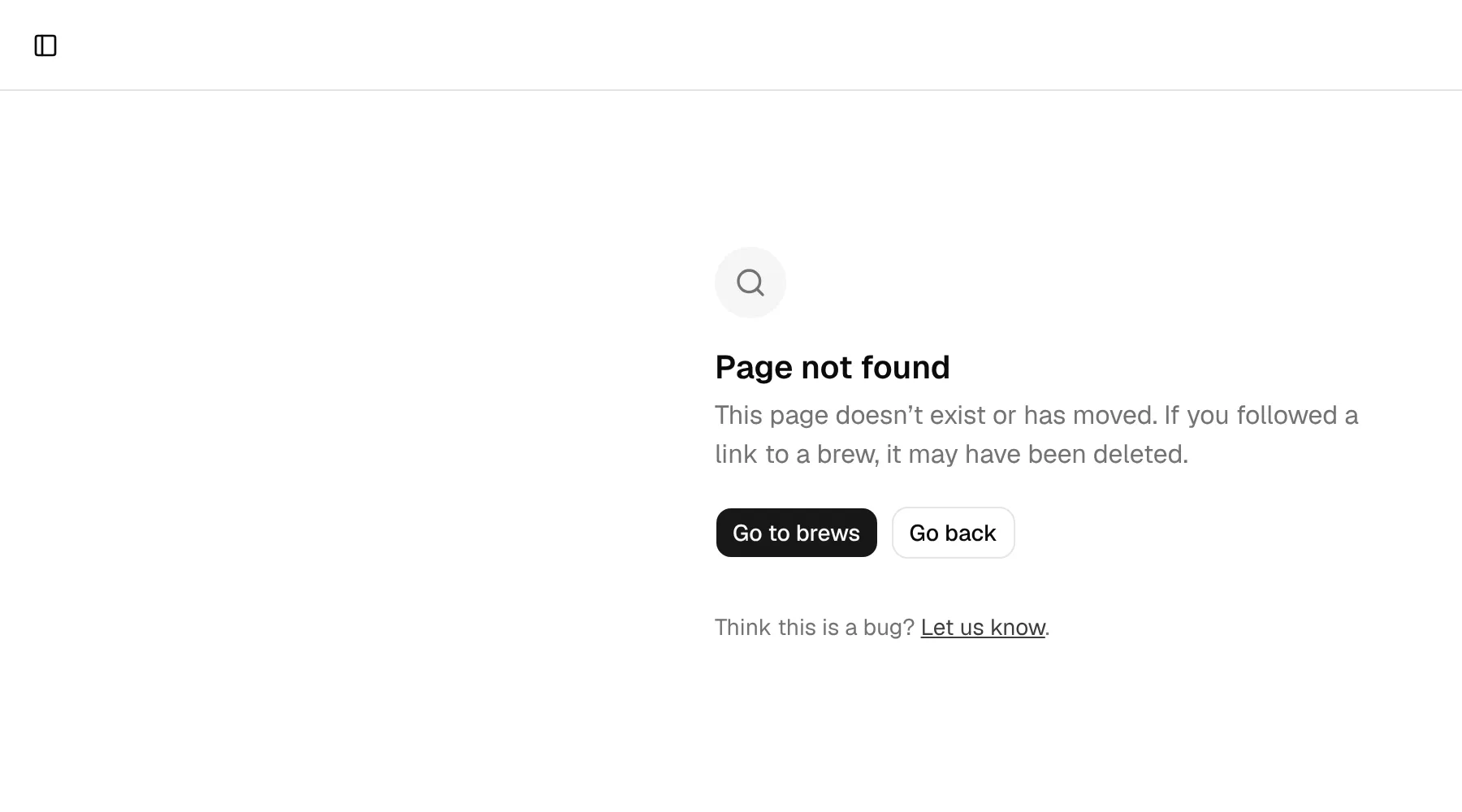
If something goes wrong, BrewForge shows a short page instead of the content, with the sidebar button still at the top left so you can go elsewhere:
- Page not found: the address doesn't exist or has moved. If you followed a link to a brew, the brew may have been deleted. Go to brews or Go back.
- This page didn't load: an error on our side; your data is safe. Try again reloads the page, Go to brews takes you to your brews. If it keeps happening, contact support (the page shows an error ID to quote) or sign out and in again.
- You've been signed out: your session ended. Sign in opens the sign-in page.
Next: set up your brewery.