Share, export and versions
Share a brew's recipe page and evaluation link, export recipe, brew day and fermentation PDFs, BeerXML and JSON, brew a recipe again, create new versions and compare them in the version history.
Share a brew
Share in the brew header opens one dialog for everything public about the brew: the Recipe page and the Evaluation link. While a link is live, the button says Shared. On smaller screens it is ⋯ → Share…; the Invite button in Evaluations opens the same dialog.
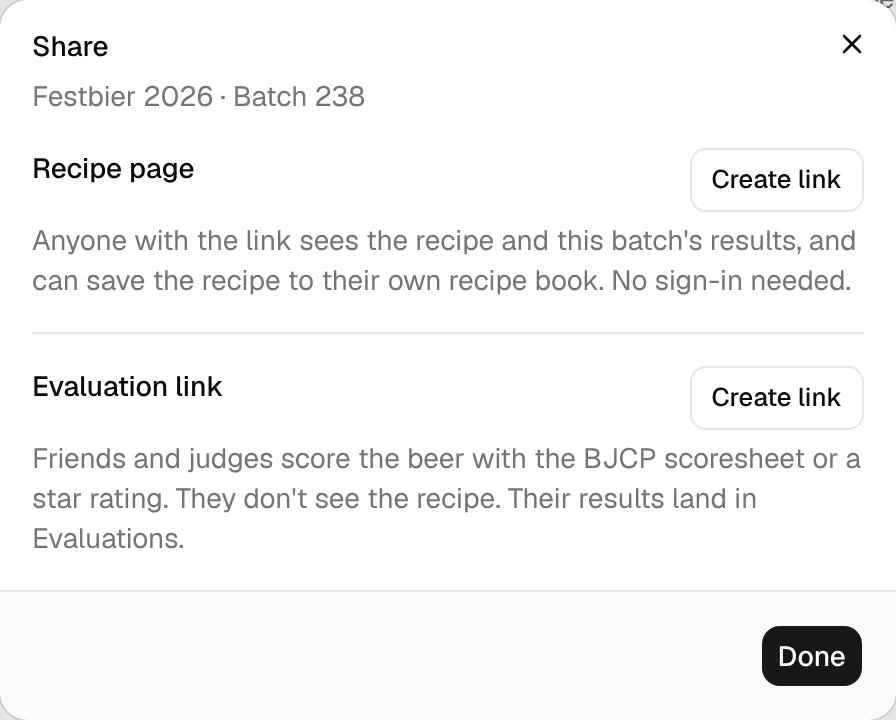
Each row works on its own:
- Create link makes the link. Changes apply right away, so the dialog only has Done.
- A live link shows its address with Copy, Open page (opens the public page in a new tab) and Stop sharing (recipe page) or Close link (evaluation link). The right side says Anyone with the link, or for the evaluation link how many evaluations came in.
- Stopping asks first, inside the dialog: Stop sharing the recipe page? The link stops working for everyone who has it. Keep sharing cancels. Sharing again gives a new link; the old one never comes back.
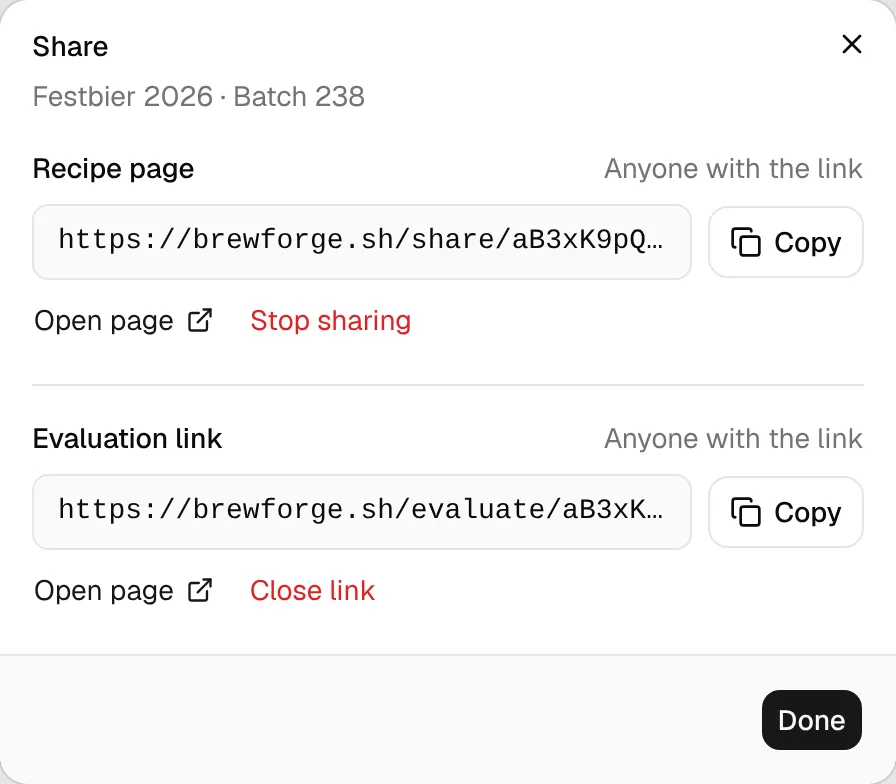
The Evaluation link needs the Pro plan; without it the row says Pro and offers See plans. A link that is already live can still be closed on any plan. What guests do with it is described in Evaluations.
The public recipe page
Anyone with the recipe page link sees the brew as a read-only page, no sign-in needed. It shows the brew in your units and is in the language of your BrewForge account.
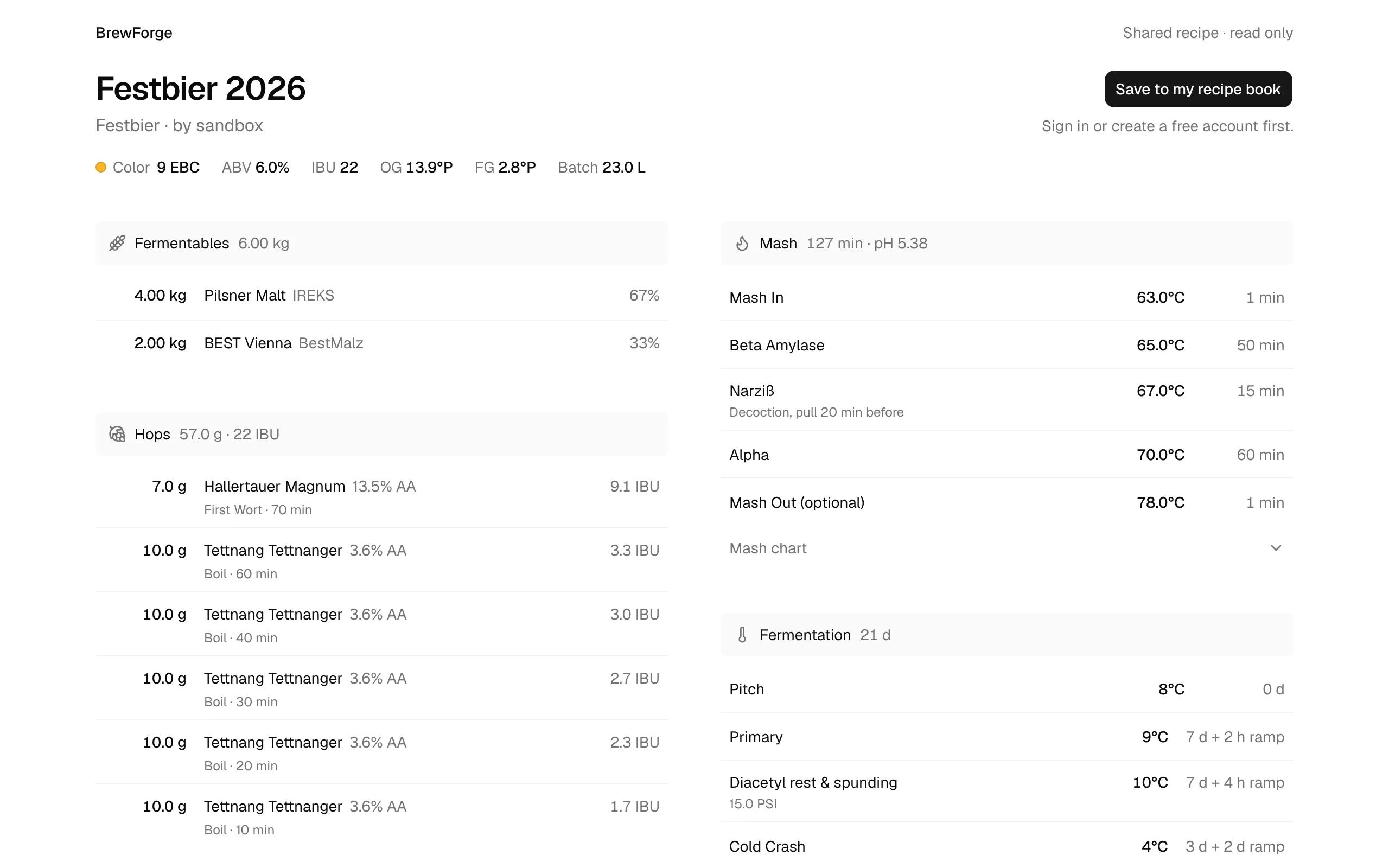
- Header: the brew's name, its style and by your brewer or account name, where the recipe came from if you adopted it, the description and one line of stats: Color, ABV, IBU, OG, FG and Batch size.
- Ingredients on the left: Fermentables with their share, Hops with alpha acid, use, time and IBU, Yeast and Other ingredients.
- Process on the right: Mash steps with total time and mash pH, Fermentation stages with their ramps, and Water with the SO₄:Cl ratio. The mash chart and fermentation chart (planned curve plus your readings) are closed folds; click them to open.
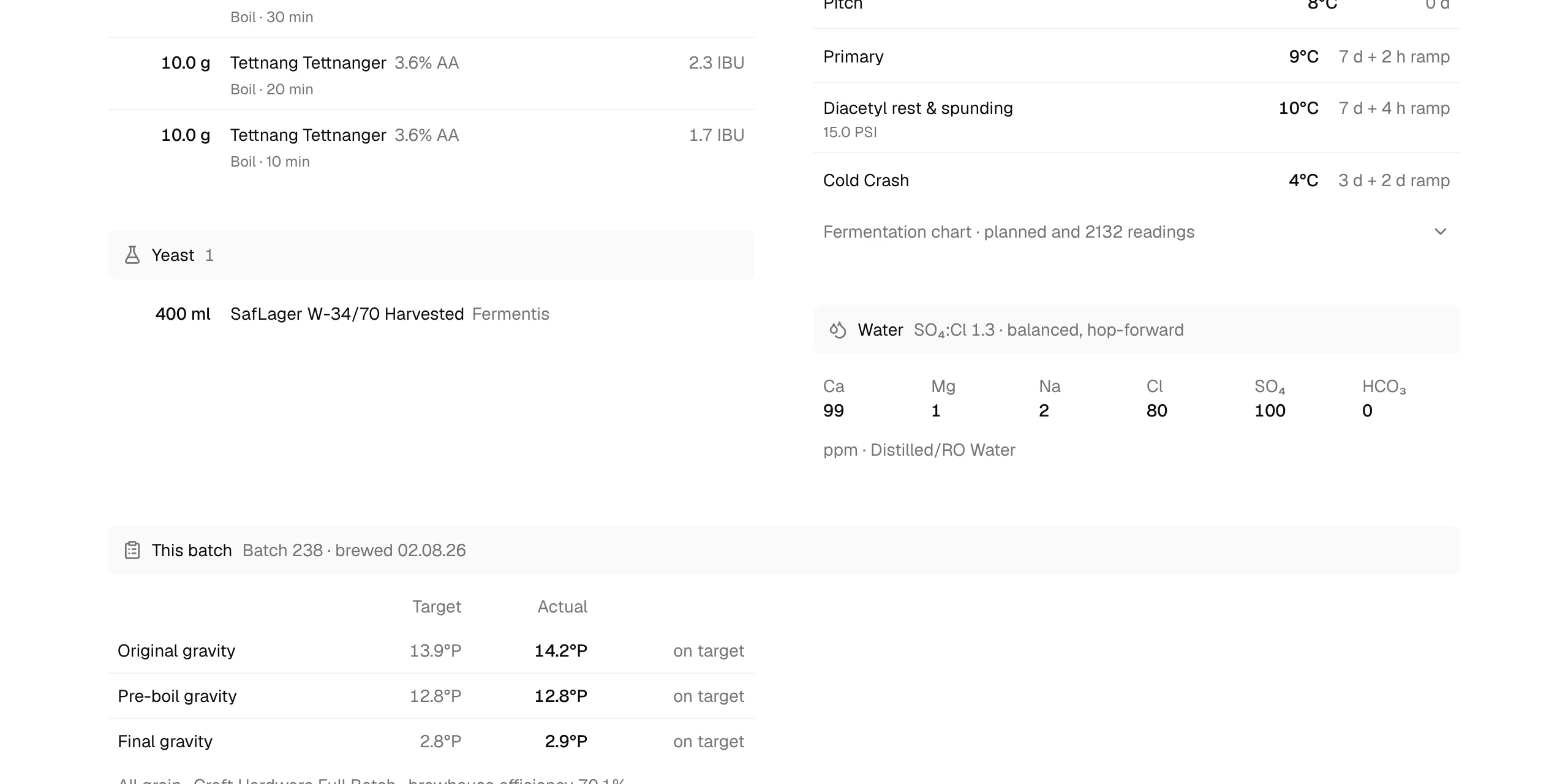
- This batch at the end: batch number, brew date and efficiencies, a table of Target against Actual for original gravity, pre-boil gravity, final gravity and mash pH with on target, above target or below target, and your Tasting rating and notes, if you have them.
The button at the top right (pinned to the bottom of the screen on phones) depends on who looks:
- Signed-in BrewForge users see Save to my recipe book. It copies the recipe into their account as a new brew with status Idea, version 1, and opens it. Their copy shows Adopted from with your brew as its source.
- Visitors without a session see the same button with Sign in or create a free account first.; after signing in they come back to the page.
- You see Open in BrewForge and This is your brew. Others see this page.
When you stop sharing, or a link was copied incompletely, the page says This link doesn't work anymore and asks the visitor to get a new link. This page is always in English, because BrewForge can't tell whose link it was.
Export
Export downloads the brew as a file:
| Group | Item | What you get |
|---|---|---|
| Recipe sheet | The plan: ingredients, mash and fermentation with a temperature chart each, and the planned volumes and gravities. No measured values. | |
| Brew day sheet | Your brew day in working order (prepare, mash, lauter & boil, into the fermenter): every ingredient to tick off where you add it, every target next to a field for the actual value. Values you already logged in the app are printed in. | |
| Fermentation log | Yeast, planned and measured gravities and ABV, the fermentation plan with a field for when each stage started, dry hops to tick off, and 16 rows for readings. | |
| Data | BeerXML | For other brewing software. |
| Data | JSON | All data of the brew, for scripts or backups. |
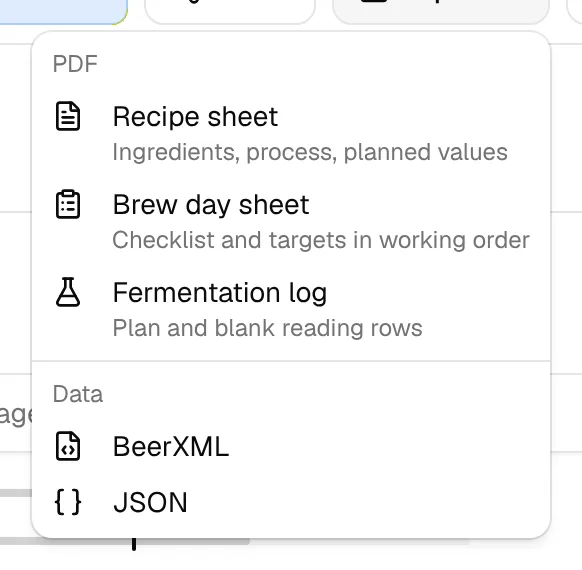
What each PDF contains, and how units, language and paper size are chosen, is on PDF exports.
On smaller screens, Export moves into the ⋯ menu, like Share. To export all brews at once, use the data export in Settings.
Brew again and new versions
⋯ → Duplicate Brew copies the brew. Choose what the copy is:
- Brew Again (Same Recipe): a new batch of the same recipe version, status Planned, with the next batch number.
- Create New Version: the next version of the recipe (v2, v3, …), status Idea. Note under What are you changing? what you want to try, for example "more late hops". If that version number exists already, BrewForge creates a branch such as v2.1.
- Start as New Recipe: a new recipe at v1 without history.
The recipe book offers the same with Brew again and New version.
Version history
⋯ → Version history appears once a recipe has more than one brew or version. It lists every version, newest first, with your notes on what changed, and below each version the batches brewed from it, with batch number, date and your tasting rating. That way you see which change made the beer better.
View opens a batch. Branch starts a new version from an older batch, for example to go back to v2 and try something else.
Rename, renumber, delete
- Edit Name and Edit Batch Number in the ⋯ menu change the brew's name and batch number.
- Delete Brew deletes the brew permanently. This can't be undone.