BrewForge for TRMNL
What BrewForge is and how the TRMNL plugin works
BrewForge is brewing software for planning, tracking, and managing beer batches. The TRMNL plugin puts key BrewForge batch and stock information on your TRMNL e-ink display.
What the Plugin Shows
Each installed BrewForge TRMNL plugin instance can show one of two screens.
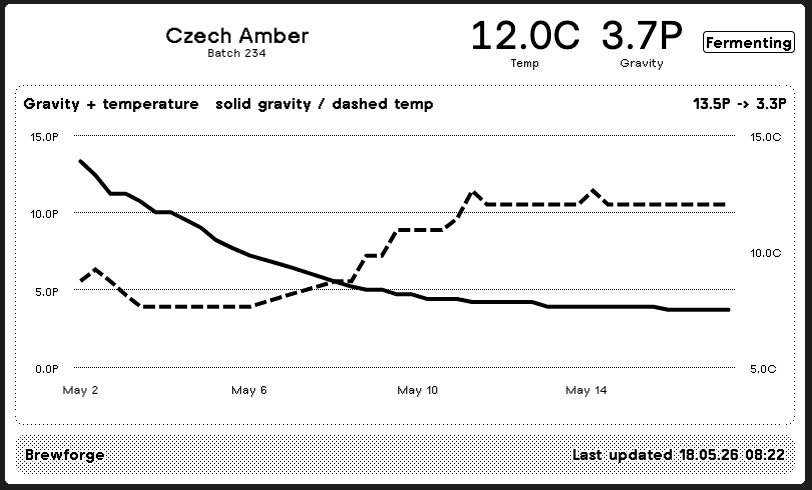
The fermentation tracking screen shows:
- selected fermenting batch
- current gravity and temperature
- fermentation progress toward final gravity
- recent gravity and temperature trend
- last updated time
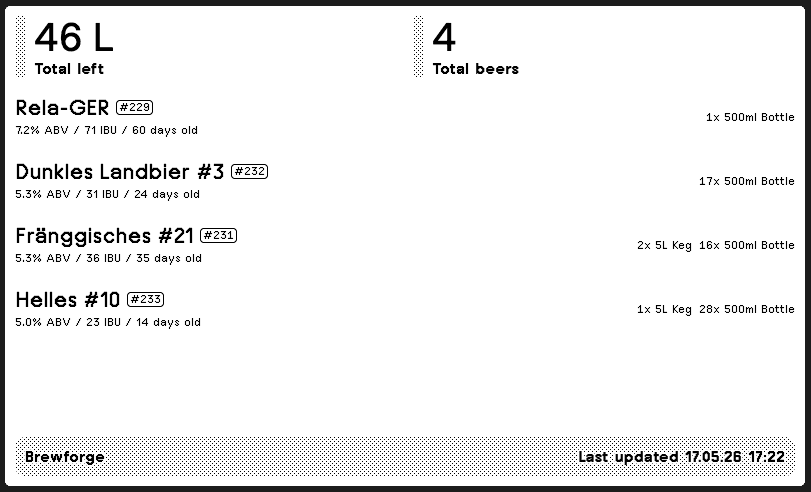
The beer stock screen shows:
- active finished beer stock
- remaining beer by batch or beer name
- low-stock beers first
- total beer left
- last updated time
Screen Examples
What You Need
- a BrewForge account
- the BrewForge plugin installed from TRMNL
- for the fermentation screen, at least one batch in the Fermenting state
- for the stock screen, active beer stock in BrewForge
If you are coming from Brewfather, you can import your existing batches into BrewForge first: Migrating from Brewfather.
How Setup Works
- Install the BrewForge plugin from TRMNL.
- Sign in to BrewForge when prompted.
- Choose whether this plugin instance should show fermentation tracking or beer stock.
- If you choose fermentation tracking, select the fermenting batch you want shown on your display.
- Return to TRMNL and add the plugin to your playlist.
You do not need to copy an API token into TRMNL. The plugin uses TRMNL's install flow to connect your TRMNL plugin instance to your BrewForge account.
Install the BrewForge plugin more than once in TRMNL if you want multiple playlist items, for example one fermentation screen and one beer stock screen.
Updating the Display
TRMNL refreshes the plugin from BrewForge on its normal playlist schedule. To change what appears, open the plugin settings in BrewForge and select a different screen or fermenting batch.
More About BrewForge
BrewForge helps homebrewers manage the full brewing workflow: recipes, brew days, fermentation, inventory, equipment profiles, packaging, and batch history.
Create an account at brewforge.sh.