Calendar
See brew days, planned brews, ready-by dates, fermentation steps, dry hops, packaging dates, vessel occupancy and reminders of all your brews in a monthly brewing calendar and a timeline per brew.
The calendar puts the dates of all your brews in one place: when you brew, when the next fermentation stage starts, when a dry hop goes in, when a batch is packaged and when a tank becomes free again. You don't enter these dates by hand. BrewForge works them out from your brews and their recipes and keeps them up to date when you change a date or a fermentation schedule.
Open it with Calendar in the sidebar. It has two views: Month shows the dates on a month grid, Timeline shows each brew as a lane over eight weeks.
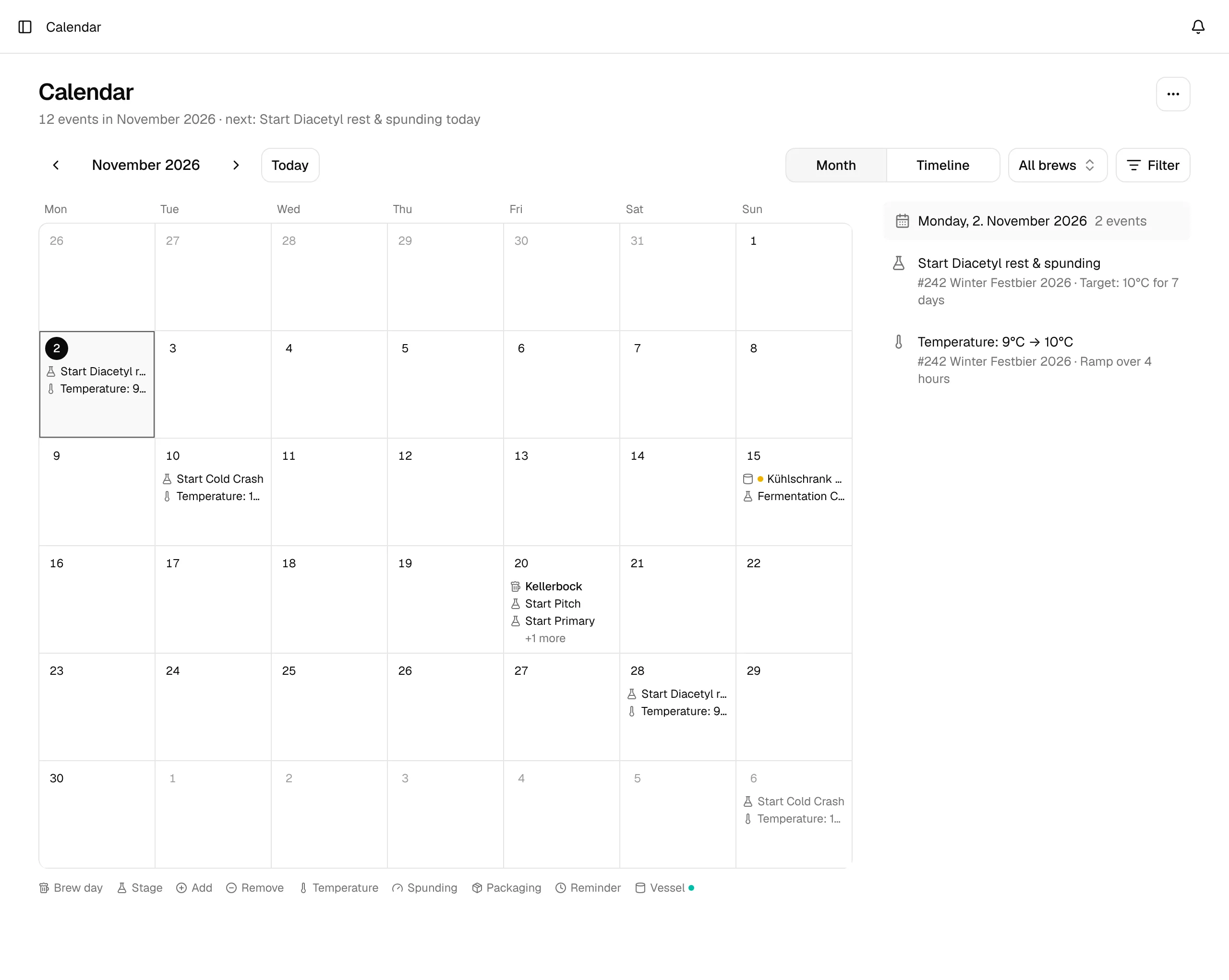
The line under the title sums up what you see: in the month view the number of events in the month and the next event (for example next: Start Cold Crash tomorrow), in the timeline the number of brews in the shown weeks and the next brew day.
Which events appear
| Event | Where it comes from |
|---|---|
| Planned brew day | The planned brew date of a brew that you haven't brewed yet. |
| Brew day | The brew date of a brew you have brewed. |
| Fermentation steps | Calculated from the recipe's fermentation schedule, starting on the brew date (or on the planned date while the brew isn't brewed yet): the start of each stage (Start Primary, Start Cold Crash …), temperature changes between stages (Temperature: 9°C → 10°C), Fermentation Complete at the end of the last stage, and ingredient additions during fermentation such as dry hops (Add … and Remove …). |
| Start spunding / Spunding trigger reached | For brews that use spunding: the time BrewForge forecasts from the gravity readings, or the time the trigger was reached. This is the only event with a time of day. |
| Packaging | The packaging date of a brew. |
| Reminders | Reminder notes in a brew's log, with the note's text as title, on the date and time of the note. |
| Ready by · brew | The ready-by date of a brew, with its occasion. Shown until the brew is completed or archived. |
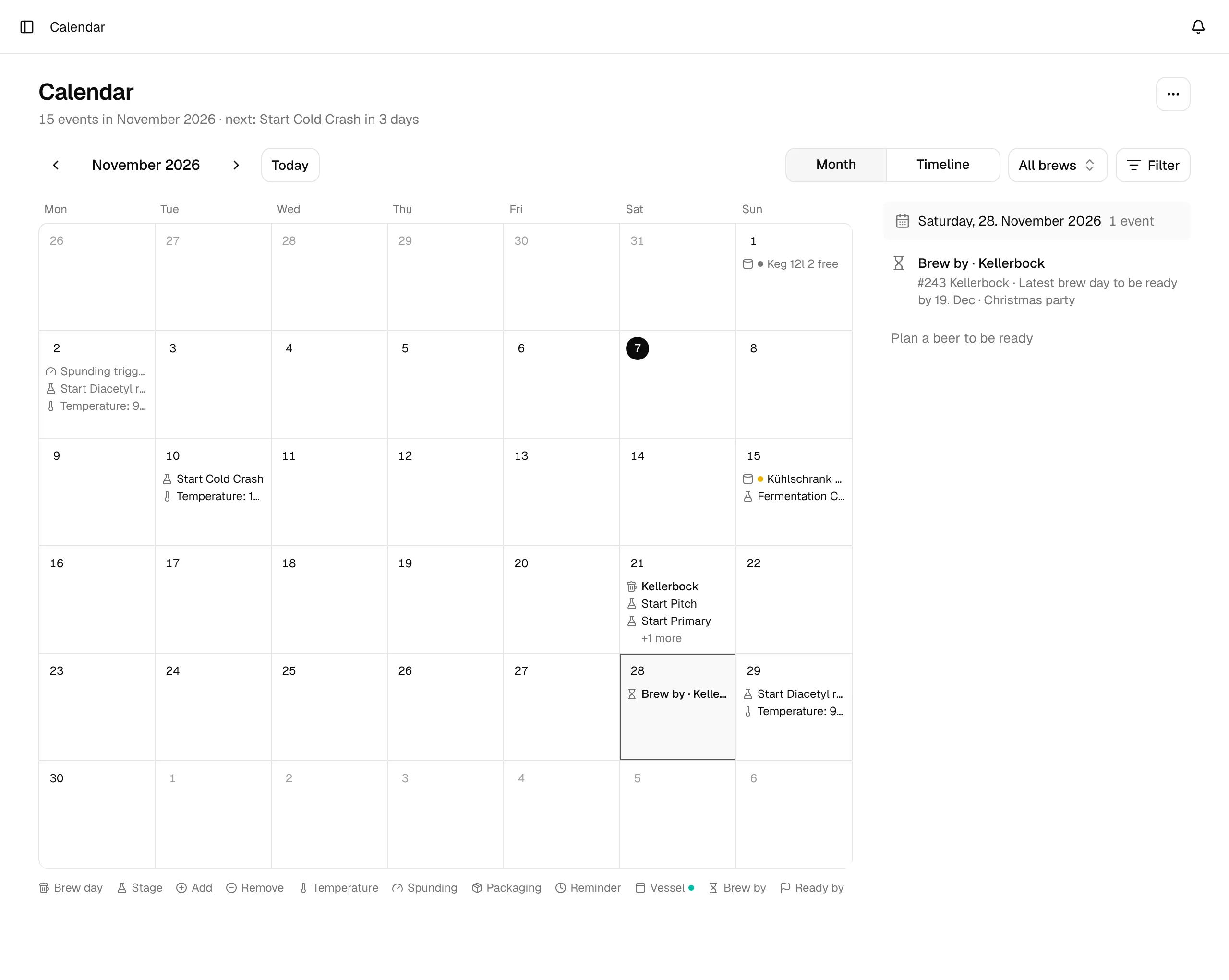
| Brew by · brew | The latest brew day for that ready-by date (Latest brew day to be ready by 19. Dec · Christmas party). Shown while the brew is an idea or planned and its recipe has a fermentation schedule or a total conditioning time. |
| vessel occupied / vessel free | When a beer moves into a vessel in your cellar and the first day it is free again. Vessels that are serving until you free them have no free event. |
Once a brew has a brew date, its fermentation events start from the actual date instead of the planned one. Fermentation stages move along when you record the actual start of conditioning.
Vessel events come from the cellar, which is part of the Pro plan. Without it, the calendar has no vessel events and the Filter menu has no Vessels entry.
Every event has an icon that says what kind of event it is. The icon key under the month lists them: Brew day, Stage, Add, Remove, Temperature, Spunding, Packaging, Reminder, Vessel, Brew by (hourglass) and Ready by (flag). Vessel events also show a dot in the colour you gave the vessel.
Month view
- Each day shows up to three events: brew days and packaging dates with the brew's name, all other events with what happens (Start Primary, Temperature: 9°C → 10°C …). Brew days are in bold and come first; ready-by and brew-by dates are in bold too. If a day has more, +1 more says how many are hidden.
- Today is marked with a filled circle. Past days and days outside the month are greyed out.
- Click a day to list all its events next to the month (below it on smaller screens), each with its brew and details such as a stage's target temperature or a ramp time. The calendar opens with today selected.
- Click an event in that list to open its details.
- On a phone the days show one dot per event instead of labels. Tap a day to see its events below the month.
- Plan a beer to be ready under the events of a selected day (today or later) opens New brew for that date, see below.
Use the arrows next to the month name to move between months and Today to jump back to the current month. If a month has no events, the day list says so and offers a link to the next event (or the last one, if nothing comes after), for example Next: Brew day · Kellerbock, 20. Nov.
Timeline view
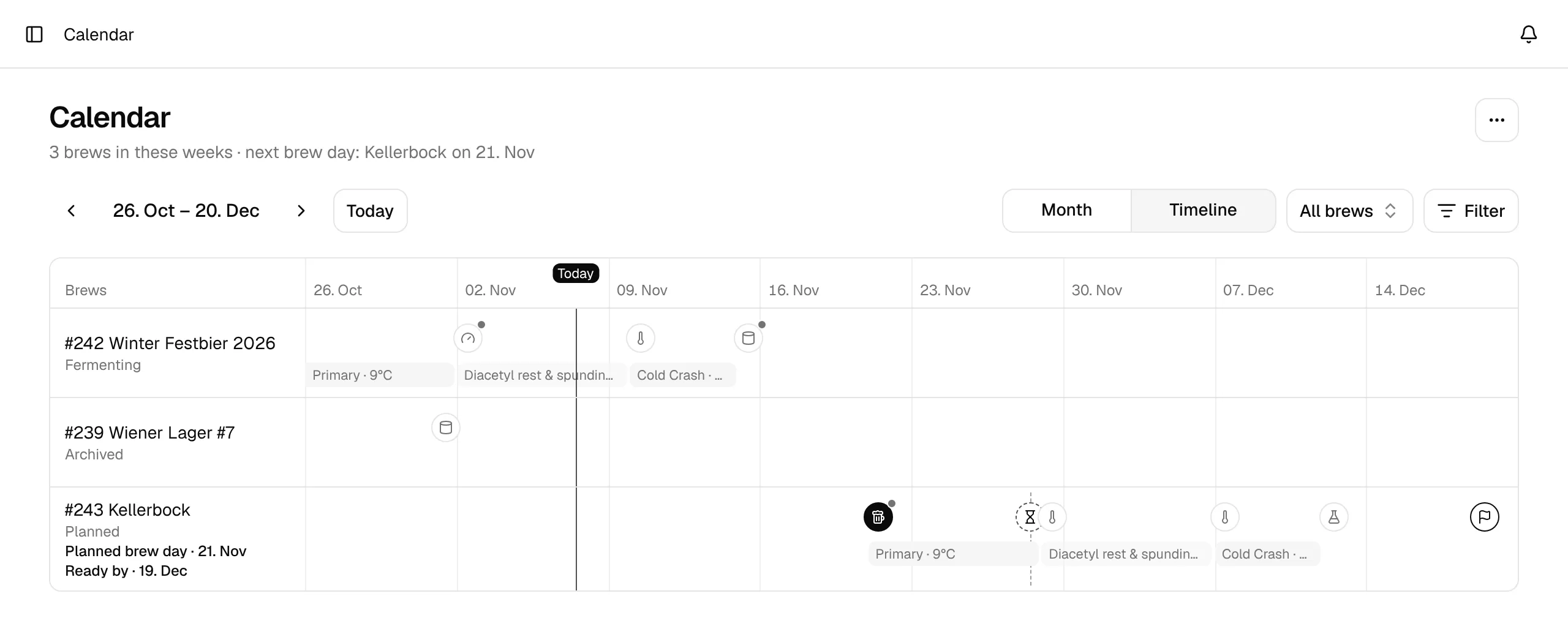
Click Timeline to see your brews side by side. The timeline shows eight weeks, starting with the week before the current one, so the recent past stays in view. The arrows move it by four weeks; Today brings it back.
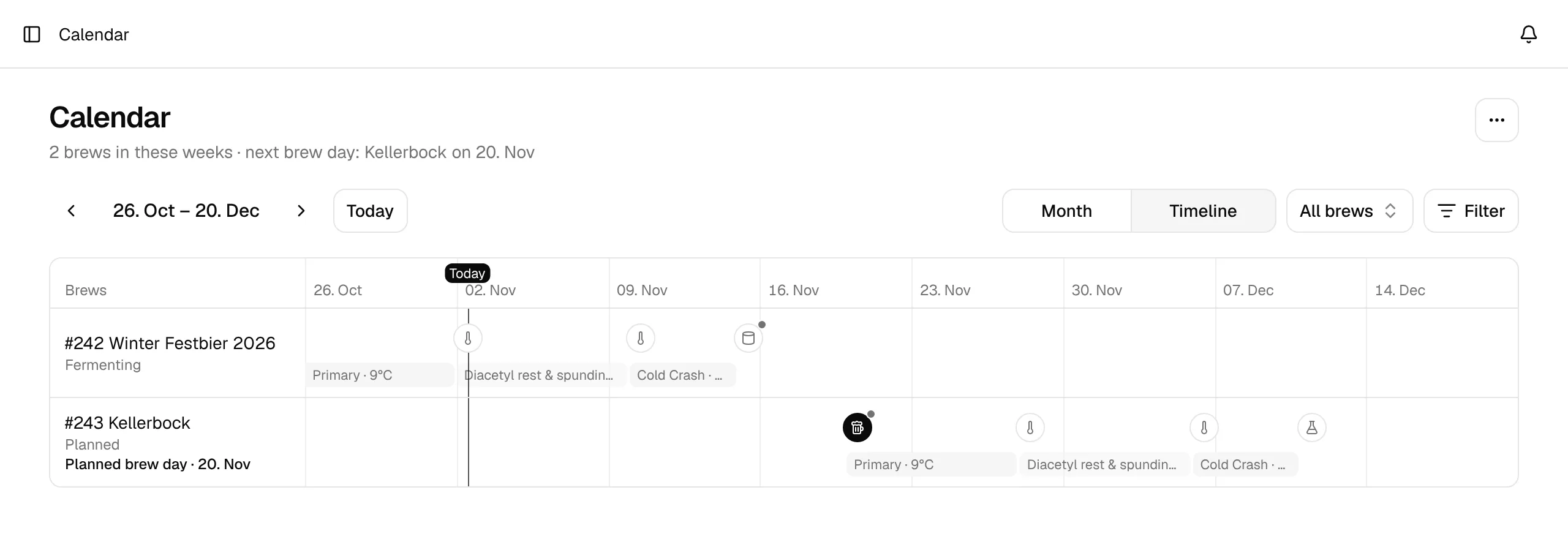
- One row per brew that has something in the shown weeks. On the left: the batch number and name (click it to open the brew), its current status and, if it falls in the shown weeks, its brew day or planned brew day.
- Fermentation stages are grey bars from the start of a stage to the start of the next one, labelled with the stage and its temperature (Primary · 9°C). A stage ends early on the brew's actual packaging date. Stages that are 0 days long show as a marker instead.
- All other events are round markers with the event's icon, one marker per day. The brew day is a filled black marker. A small dot on a marker means that day has more than one event.
- A vertical line marks today.
- A brew with a ready-by date shows Ready by · 19. Dec under its name. The ready-by date is an outlined marker with a flag, the latest brew day a marker with a dashed outline and a dashed line across the lane, so you see at a glance whether the planned brew day is before it.
- Click a bar or a marker to open its details. A marker with several events lists them all.
On narrow screens the weeks scroll sideways while the brew names stay in place. Your choice of Month or Timeline is remembered in this browser.
Event details
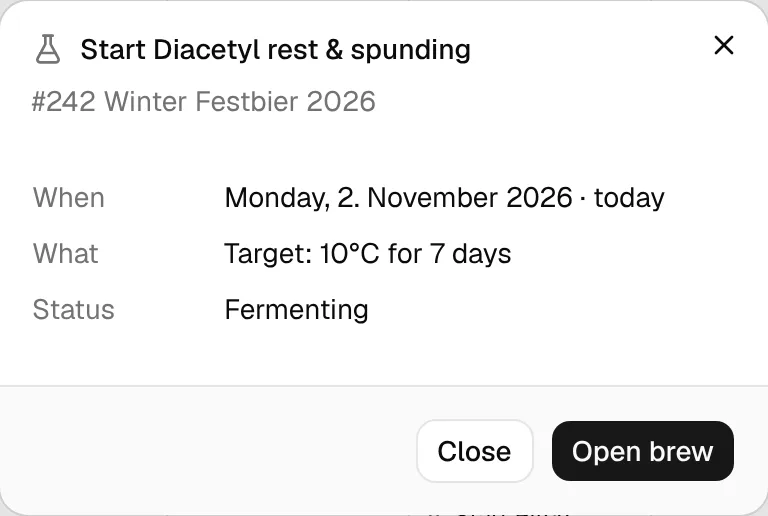
The details show the event with its brew (batch number and name) and:
- When: the date, how far away it is (today, tomorrow, in 4 days …) and, for spunding events, the time.
- What: details such as the stage's target temperature and duration or the total amount of a dry hop.
- Status: the brew's current status.
Open brew opens the brew (spunding events open its fermentation). For vessel events the button is Open cellar schedule and opens the cellar. The calendar itself is read-only: you change dates on the brew.
Filter the calendar
- All brews: pick one brew to show only its events. You can search by batch number, name or status. Brews with the status Idea or Archived aren't in this list.
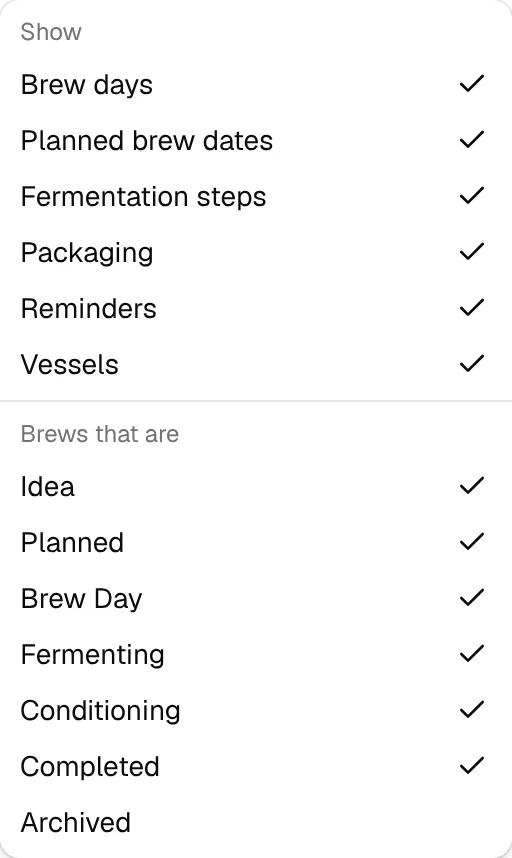
- Filter: under Show, choose which events appear: Brew days, Planned brew dates, Fermentation steps, Packaging, Reminders, Vessels and Ready-by dates (ready-by and brew-by dates). Under Brews that are, choose which brew statuses to show. All statuses except Archived are on by default.
When a filter differs from the default, the button shows how many (Filter · 2) and a line under the toolbar says what is filtered, for example Packaging, Reminders hidden · 5 of 7 statuses. Clear on that line or Reset filters in the menu brings back the defaults. If the filters hide everything, the calendar says Nothing matches your filters.
The Filter menu settings are saved to your account. The brew picker resets when you reload the page.
Ready-by dates
When a brew has a ready-by date, the calendar shows two events for it: Ready by on the date the beer must be ready and Brew by on the latest brew day. Both are worked out from the brew: change the ready-by date or the recipe's fermentation schedule and the brew-by date moves along. Moving the brew day doesn't move it, so a planned brew day after the brew-by date means the beer will be late. Once the brew is brewed, only the ready-by date stays.
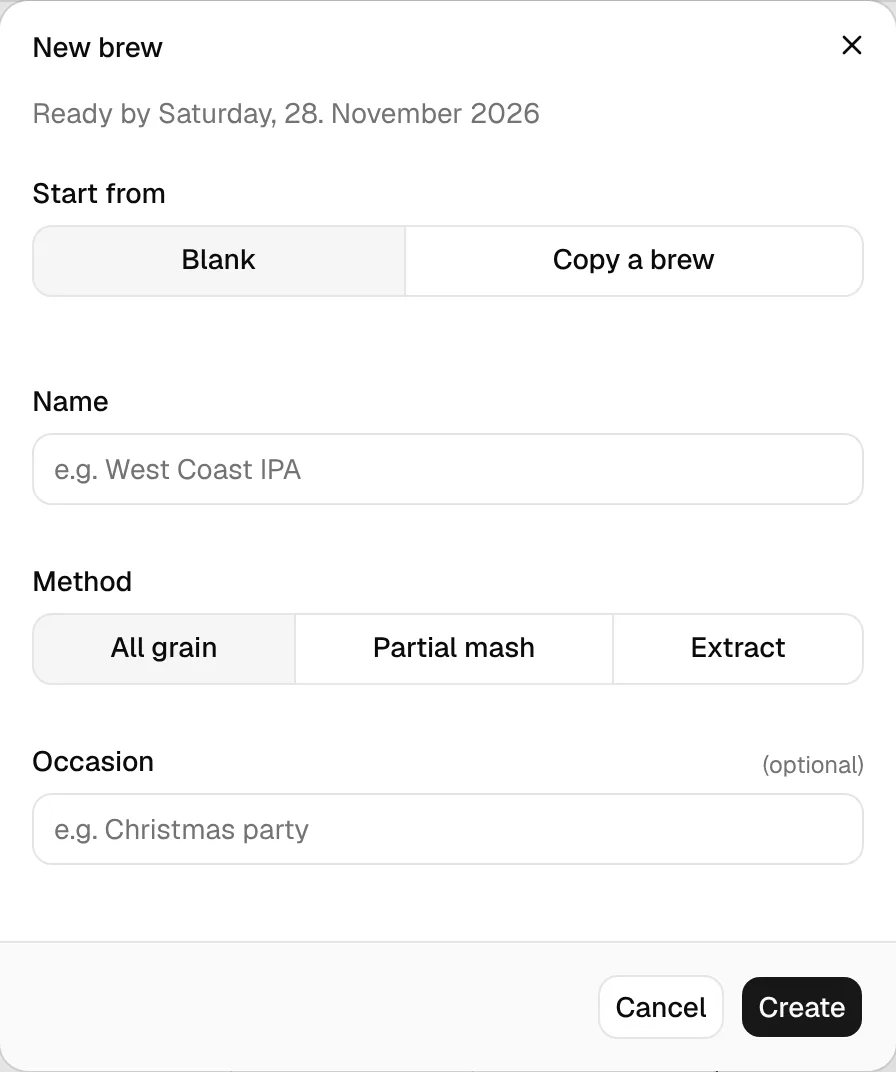
To plan a new beer for a date, click the day in the month view and then Plan a beer to be ready. New brew opens with Ready by and the date at the top and an optional Occasion field. Start blank or from a copy of one of your brews (importing a file isn't offered here). The new brew is an idea with that ready-by date; on its Brew Day tab BrewForge then suggests the brew day.
No brews yet
Until you have a brew, the calendar shows a short note and a button to create your first brew. Plan a brew with a date (see Plan the brew) and its dates appear.
Use the calendar in other apps
⋯ (top right) → Subscribe to calendar gives you a private calendar feed (ICS) that Google Calendar, Apple Calendar, Outlook and other calendar apps can subscribe to. See Subscribe to your calendar.