Inventory
Track the malt, hops, yeast and other ingredients you have at home in BrewForge, with amounts, lot numbers, best-before dates and prices per item.
The inventory is the list of ingredients you actually have on the shelf, in the fridge and in the freezer: how much of each, which lot, when it is best before and what you paid. When you add an ingredient to a recipe, BrewForge shows how much of it you have, and on brew day it can take the recipe amounts out of your inventory again.
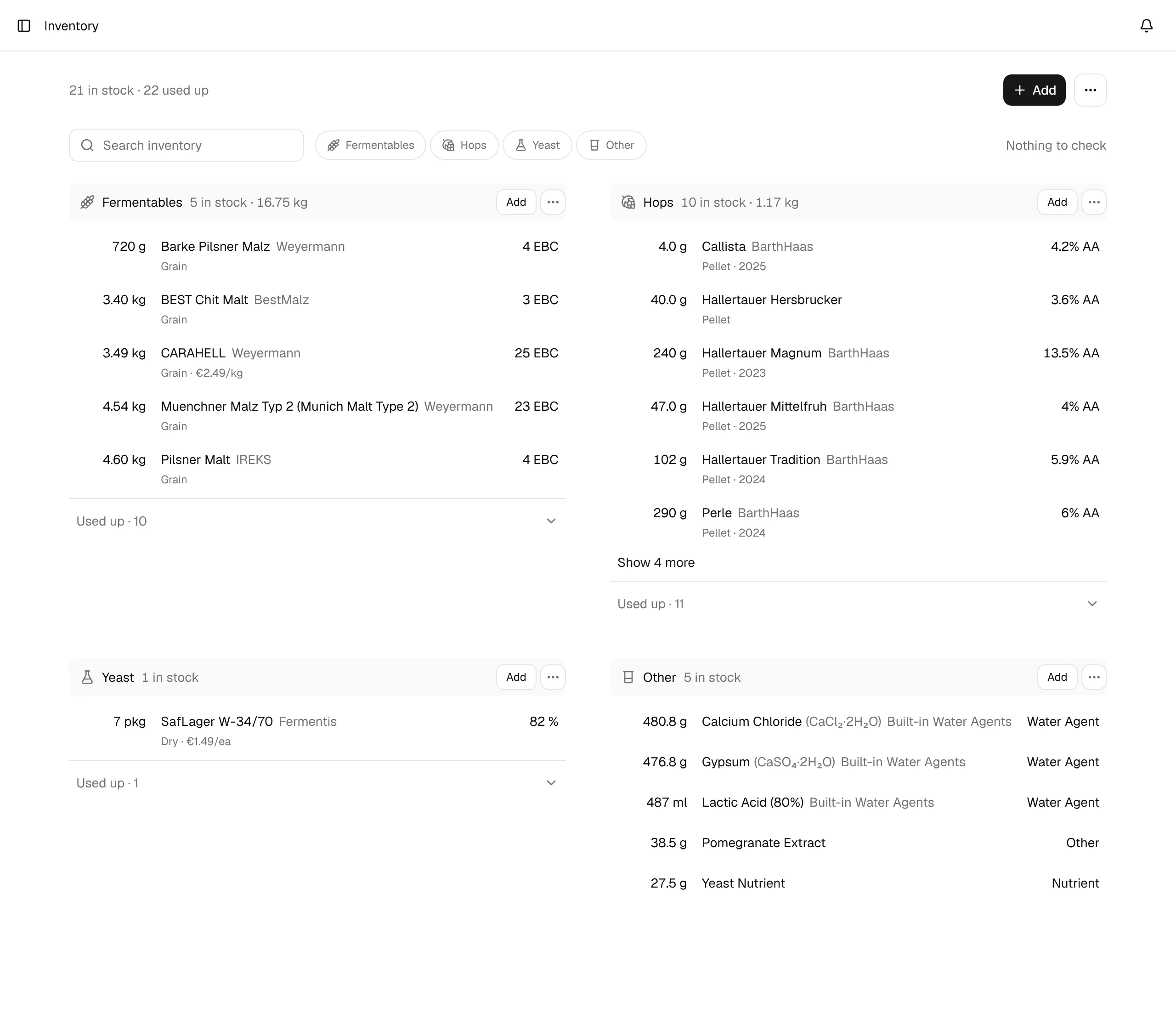
You find it under Inventory in the sidebar (section Ingredients). The inventory is part of every plan, including Free.
One page, four sections
The page shows all your ingredients at once, in one section per type: Fermentables, Hops, Yeast and Other (water agents, finings, nutrients, spices and anything else). The line at the top counts what is in stock and what is used up, for example "23 in stock · 41 used up".
Each section title shows how many items are in stock, and for fermentables and hops their total weight ("8 in stock · 26.8 kg"). A section lists the first six items in stock; Show N more shows the rest.
Every row is one inventory item:
- the amount you have, on the left (units),
- the ingredient name and its supplier (the lab for yeast), or My ingredient if it comes from your own My Ingredients library,
- a second line with the type, the hop form and harvest year, and the price, if you entered one,
- one key value on the right: the color for fermentables, the alpha acid for hops, the attenuation for yeast and the type for other ingredients,
- under that value, in amber, expired or best before and the date when an item in stock is past or close to its best-before date.
The same ingredient can appear more than once, for example two bags of hops from different harvest years or two lots of yeast with different best-before dates. See when items are merged.
Used up
An item with an amount of 0 is used up. It stays in your inventory, so its lot, price and other details are kept for the next restock, but it moves out of the list into the Used up · N fold at the bottom of its section. Open the fold to see those items, and click one to restock it.
Things to check
Next to the search, BrewForge shows N things to check with an amber dot when items need a look, or Nothing to check. Click it to open a list of those items, grouped into:
| Group | Meaning |
|---|---|
| Expired | The best-before date has passed. |
| Best before soon | The best-before date is within the next 90 days. |
Only items in stock count: a used-up item is never flagged. Click an item to open it.
Find items
- Search inventory filters by ingredient name, supplier and the chemical formula of water agents. While you search, used-up matches show in the list too, greyed out, and sections without a match disappear.
- The type chips Fermentables, Hops, Yeast and Other show only that section. Click the chip again to see all four.
- The ⋯ menu of a section sorts it: Sort by Name, Sort by Amount, Sort by Supplier, Sort by Cost and that type's values (Color and Type for fermentables; Alpha Acid, Form and Year for hops; Attenuation, Form, Lab and Type for yeast; Type for other ingredients). The active sort shows an arrow; choose it again to switch between ascending and descending. Each section keeps its own sort, and BrewForge remembers it in your browser.
Work with items
- Click a row to open the item: one dialog shows its details and lets you change them (edit an item).
- Add at the top, or Add in a section title, adds stock (add an item).
- Select items (in the ⋯ menu at the top or of a section) turns on selection mode: click rows to select them (or Select all), then Remove N removes them all at once.
Removing shows a message with Undo, so you can bring an item back right away. If you only used something up, set its amount to 0 instead: the item stays with its details in Used up.
Where the ingredients come from
The ingredients you can add to the inventory come from the packages you activated and from your own My Ingredients library. If an ingredient is missing, activate the supplier's package or create the ingredient while you add it (how).
Shopping lists, purchase planning, orders and package management are covered in Purchasing.