Evaluations
Evaluate your beer with a star rating, the BJCP 50-point score sheet or the Lagerbernd 60-point score sheet, and invite friends or judges to score it by link, without an account.
Evaluations turn "tastes good" into something you can compare across batches. Score a brew yourself, or send a link to friends, club members or judges and collect their results on the brew.
Pro plan
Evaluations and evaluation links are part of the Pro plan. On other plans the Evaluations section on the Results tab shows Upgrade to Pro, and the Evaluation link row in the Share dialog shows See plans.
Evaluations live in the Evaluations section of the Results tab. Each row shows the date, the week after the conditioning start, who evaluated (My Evaluation or the guest's name), tags such as External and Lagerbernd, and the result: stars, 38 / 50 with the BJCP range, or 50 / 60 with the school grade.

Three ways to evaluate
| Method | Result | Choose it when |
|---|---|---|
| Star rating (Simple Rating) | 1 to 5 stars, a comment and a date | You want a quick verdict, or the person tasting isn't into score sheets. Takes a minute. |
| BJCP Scoresheet | 50 points and a range from Problematic to Outstanding | You want feedback in the format of homebrew competitions, judged against a beer style. |
| Lagerbernd scoresheet | 60 points and a German school grade from 1 to 6 | You want a structured sheet without judge training: every aspect is one cross on a scale, and the sheet works out the points. |
All three can be used for your own evaluations and by guests on the evaluation link.
Evaluate a brew yourself
On the Results tab, click Add in Evaluations.
Choose BJCP Scoresheet, Lagerbernd scoresheet or Simple Rating.
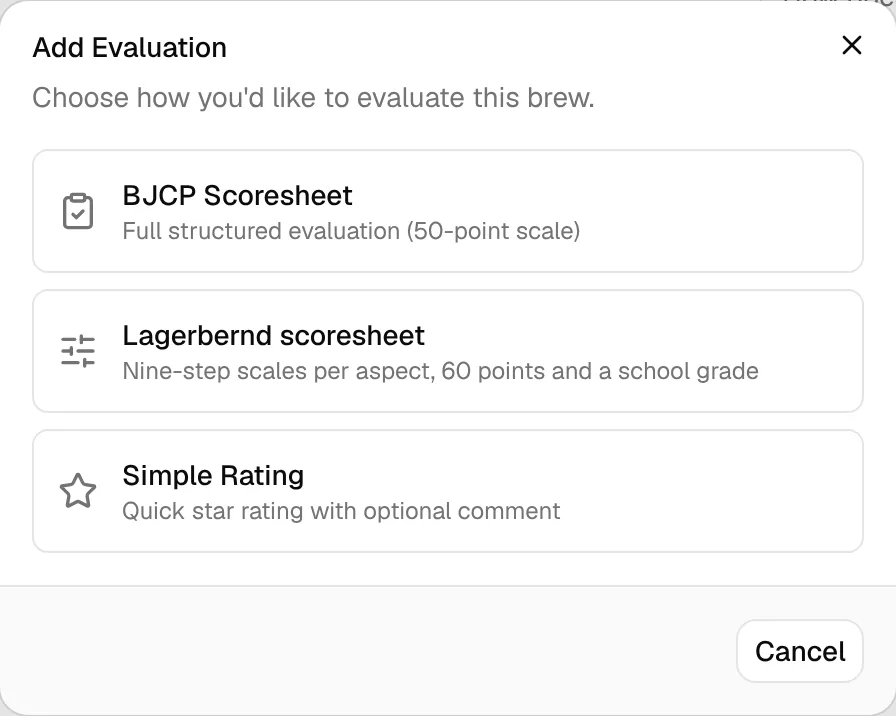
A score sheet opens right away on its own page, filled in with the brew's style and today's date. Fill it in; every change saves automatically. A simple rating takes your stars, an optional comment and the date, and is saved with Save Rating.
The evaluation page
Click a row in Evaluations to open it. Your own evaluations are always editable and save as you go: the status next to the total says Saving…, Saved, or Not saved · Try again when the connection dropped. Change the tasting date with Tasted.
The ⋯ menu has Back to the brew and Delete evaluation. Deleting asks first, with the score that will be lost, and can't be undone.
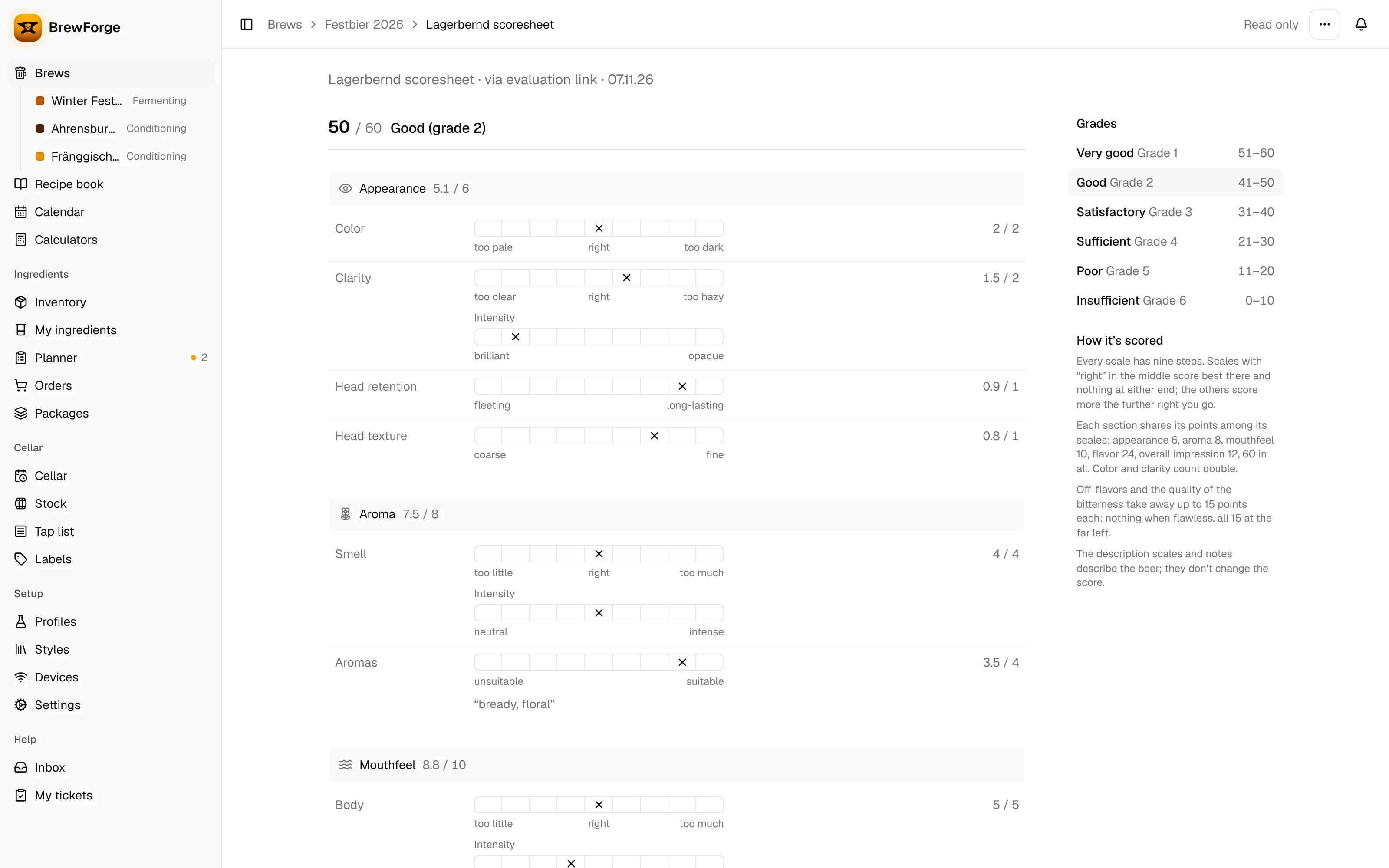
Evaluations from guests say Read only in the header and show the sheet as text: every filled field with its value, empty fields left out. You can read and delete them, not change them.
The BJCP score sheet
The sheet follows the BJCP format, all on one page. The line at the top stays pinned while you scroll: the total with its range, the tasting date, the save status and, on phones, Guide.
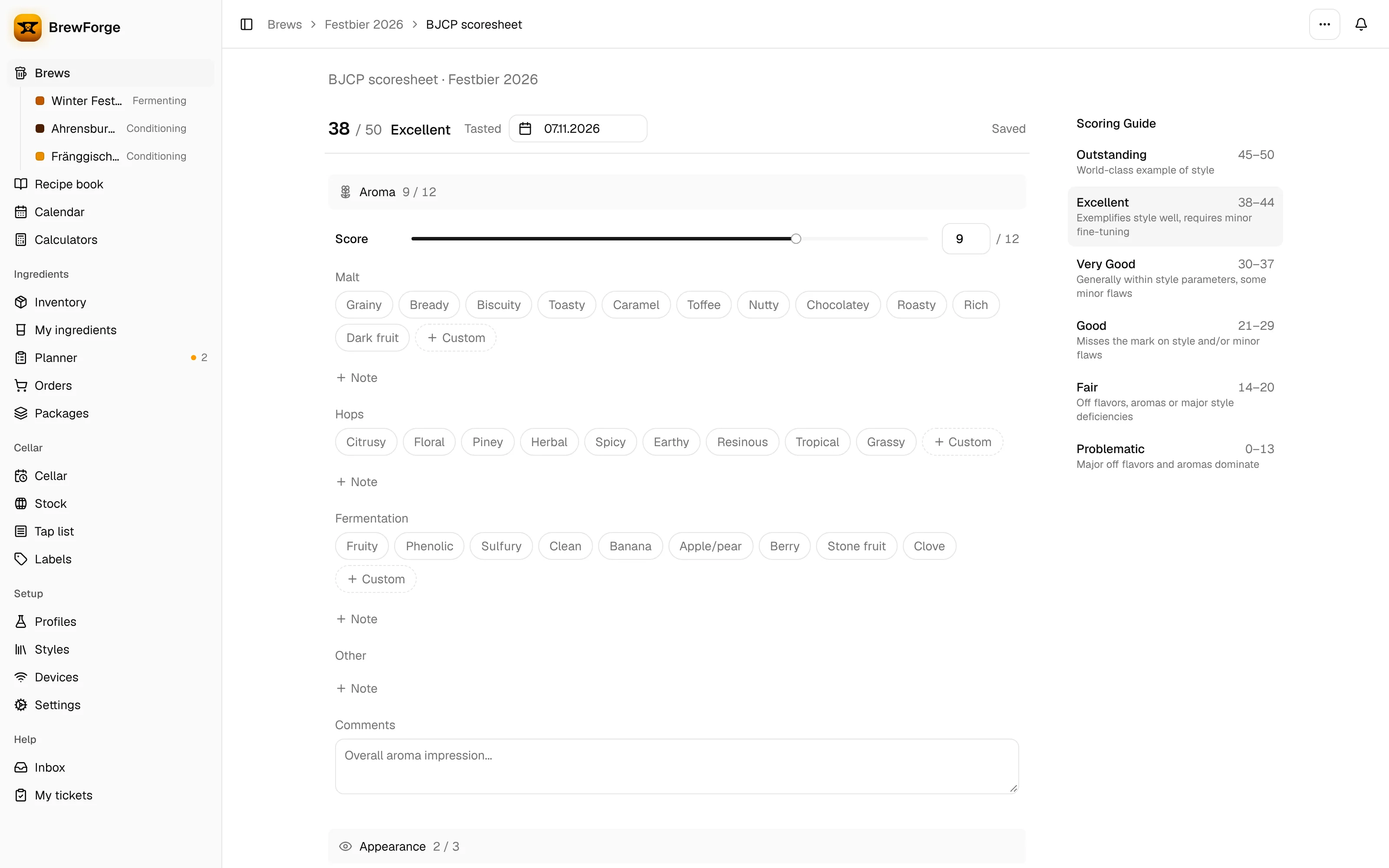
Each section has a Score (slider or number field) and the section's points in its bar:
| Section | Points | What you describe |
|---|---|---|
| Aroma | 12 | Malt, hops, fermentation, other, comments |
| Appearance | 3 | Color, clarity, head color, head retention, comments |
| Flavor | 20 | Malt, hops, fermentation, bitterness, balance, finish, comments |
| Mouthfeel | 5 | Body, carbonation, warmth, creaminess, astringency, comments |
| Overall Impression | 10 | Your overall comments and feedback for the brewer |
- Descriptors are chips, for example Bready or Floral. Tap one to pick it; it gets an intensity row underneath (from Low to High). Tap it again to remove it. + Custom adds your own word.
- + Note opens a free-text note under a group of descriptors.
- Off-Flavors lists 20 common faults, from acetaldehyde and diacetyl to oxidized and sulfur. Pick the ones you notice and set their intensity. The section bar shows what you noted.
- Final Rating has three scales from 1 to 5: Stylistic Accuracy (not to style … classic example), Technical Merit (significant flaws … flawless) and Intangibles (lifeless … wonderful). They describe the beer but don't count towards the score.
The Scoring Guide next to the sheet (Guide on phones) lists the ranges and highlights the one your total is in.
total = aroma + appearance + flavor + mouthfeel + overall impression (max. 50)
| Total | Range |
|---|---|
| 45–50 | Outstanding: world-class example of style |
| 38–44 | Excellent: exemplifies style well, requires minor fine-tuning |
| 30–37 | Very Good: generally within style parameters, some minor flaws |
| 21–29 | Good: misses the mark on style and/or minor flaws |
| 14–20 | Fair: off flavors, aromas or major style deficiencies |
| 0–13 | Problematic: major off flavors and aromas dominate |
Each section score is a whole number between 0 and its maximum. Example: 9 + 2 + 15 + 4 + 8 = 38 → Excellent.
The Lagerbernd score sheet
The Lagerbernd sheet comes from the Lagerbernd lager competition. Instead of points you set a cross on a scale for every aspect, as on the paper sheet; BrewForge works out the points from where the crosses sit.
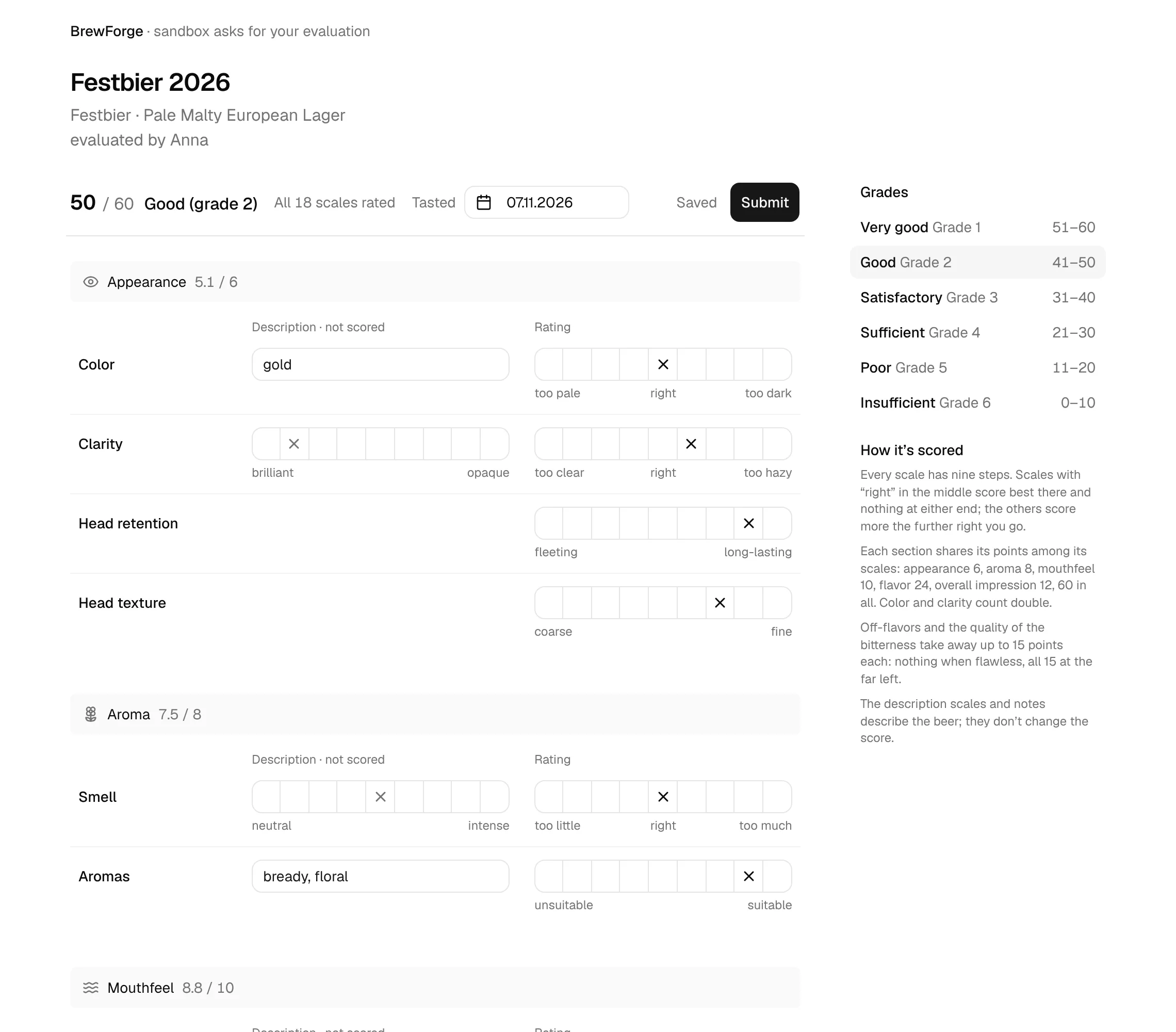
Every row has up to three parts:
- Rating: nine empty boxes from left to right with the ends labelled, for example too pale · right · too dark or unsuitable … suitable. Click a box to set the cross; click another box to move it. A cross can be moved but not removed. The boxes have no numbers on purpose: you judge by feel, not by points.
- Description · not scored: a second scale for how strong something is (for example brilliant … opaque for clarity or thin … full for body), or a short note (e.g. bready, caramel). It describes the beer and doesn't change the score.
- The section bar shows the section's points with one decimal, for example 5.1 / 6.
| Section | Points | Rows (rating scale) |
|---|---|---|
| Appearance | 6 | Color (too pale · right · too dark, note), Clarity (too clear · right · too hazy, description brilliant … opaque), Head retention (fleeting … long-lasting), Head texture (coarse … fine) |
| Aroma | 8 | Smell (too little · right · too much, description neutral … intense), Aromas (unsuitable … suitable, note) |
| Mouthfeel | 10 | Body (too little · right · too much, description thin … full), Carbonation (too little · right · too much, description low … high) |
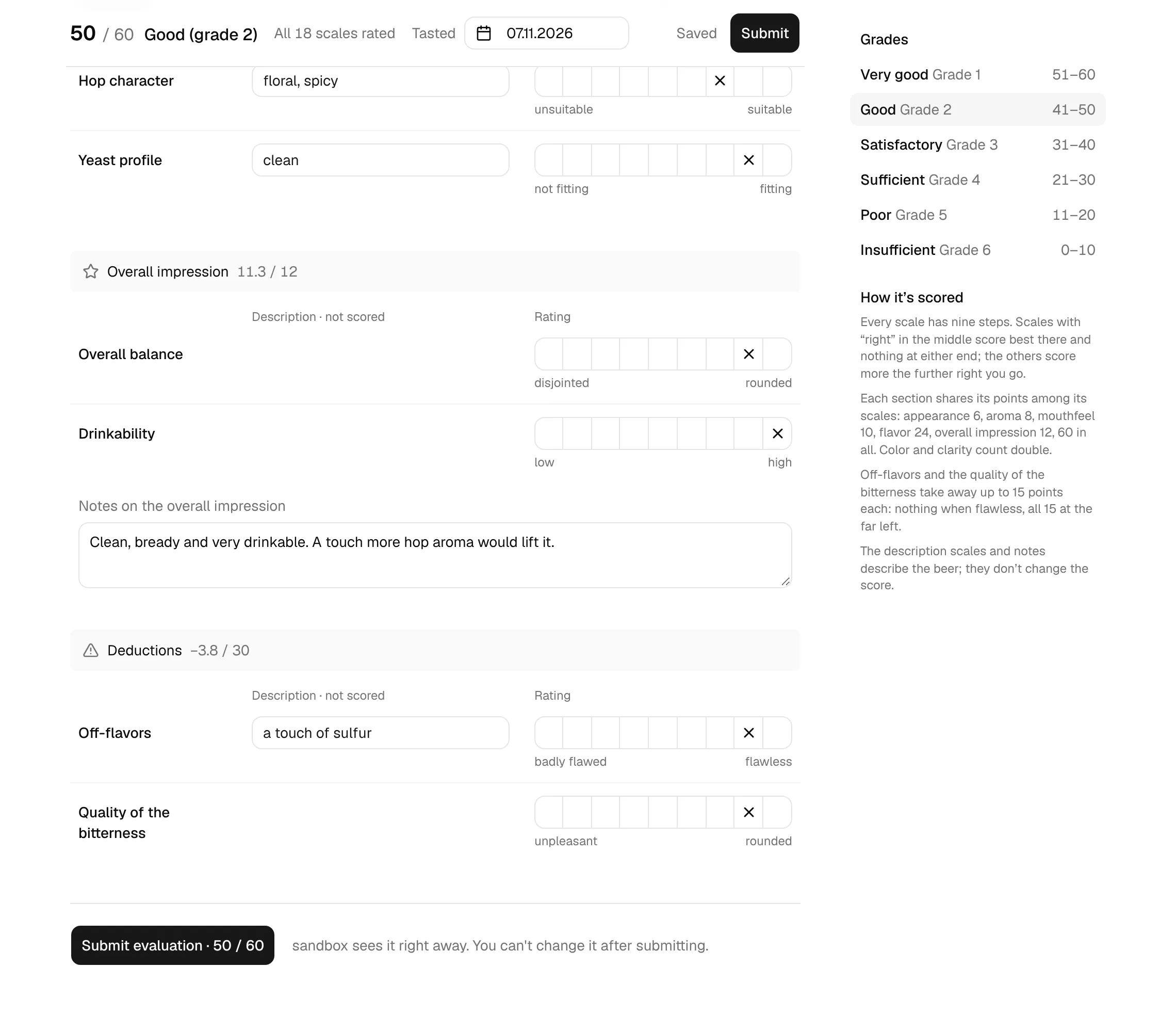
| Flavor | 24 | Maltiness (too low · right · too high), Malt character (unsuitable … suitable, note), Bitterness (too little · right · too much), Hoppiness (too low · right · too high), Hop character (unsuitable … suitable, note), Yeast profile (not fitting … fitting, note); maltiness, bitterness and hoppiness also have a low … high description |
| Overall impression | 12 | Overall balance (disjointed … rounded), Drinkability (low … high), Notes on the overall impression |
| Deductions | up to −30 | Off-flavors (badly flawed … flawless, note), Quality of the bitterness (unpleasant … rounded) |
The pinned line at the top shows the total with its grade (for example 50 / 60 Good (grade 2)), how many of the 18 scales are rated, the tasting date and the save status. On wide screens Grades and How it's scored sit next to the sheet; on phones they are behind Guide.
BrewForge counts the nine boxes as positions x = 1 (far left) to x = 9 (far right). The sheet never shows these numbers.
Scales with "right" in the middle (color, clarity, smell, body, carbonation, maltiness, bitterness, hoppiness) score best in the middle and nothing at either end:
points = row maximum × max(0, 1 − |x − 5| / 4)
All other rating scales score more the further right the cross is:
points = row maximum × (x − 1) / 8
Row maximums: color 2 and clarity 2 (they count double), head retention 1, head texture 1; smell 4, aromas 4; body 5, carbonation 5; each flavor row 4; overall balance 6, drinkability 6. They add up to the section points: 6 + 8 + 10 + 24 + 12 = 60.
Deductions: off-flavors and the quality of the bitterness each take away 15 × (9 − x) / 8: nothing at the far right (flawless, rounded), all 15 at the far left.
total = max(0, sum of all rows − deductions), rounded to whole points. Section points are shown with one decimal. A scale without a cross counts 0.
| Total | Grade |
|---|---|
| 51–60 | Very good (grade 1) |
| 41–50 | Good (grade 2) |
| 31–40 | Satisfactory (grade 3) |
| 21–30 | Sufficient (grade 4) |
| 11–20 | Poor (grade 5) |
| 0–10 | Insufficient (grade 6) |
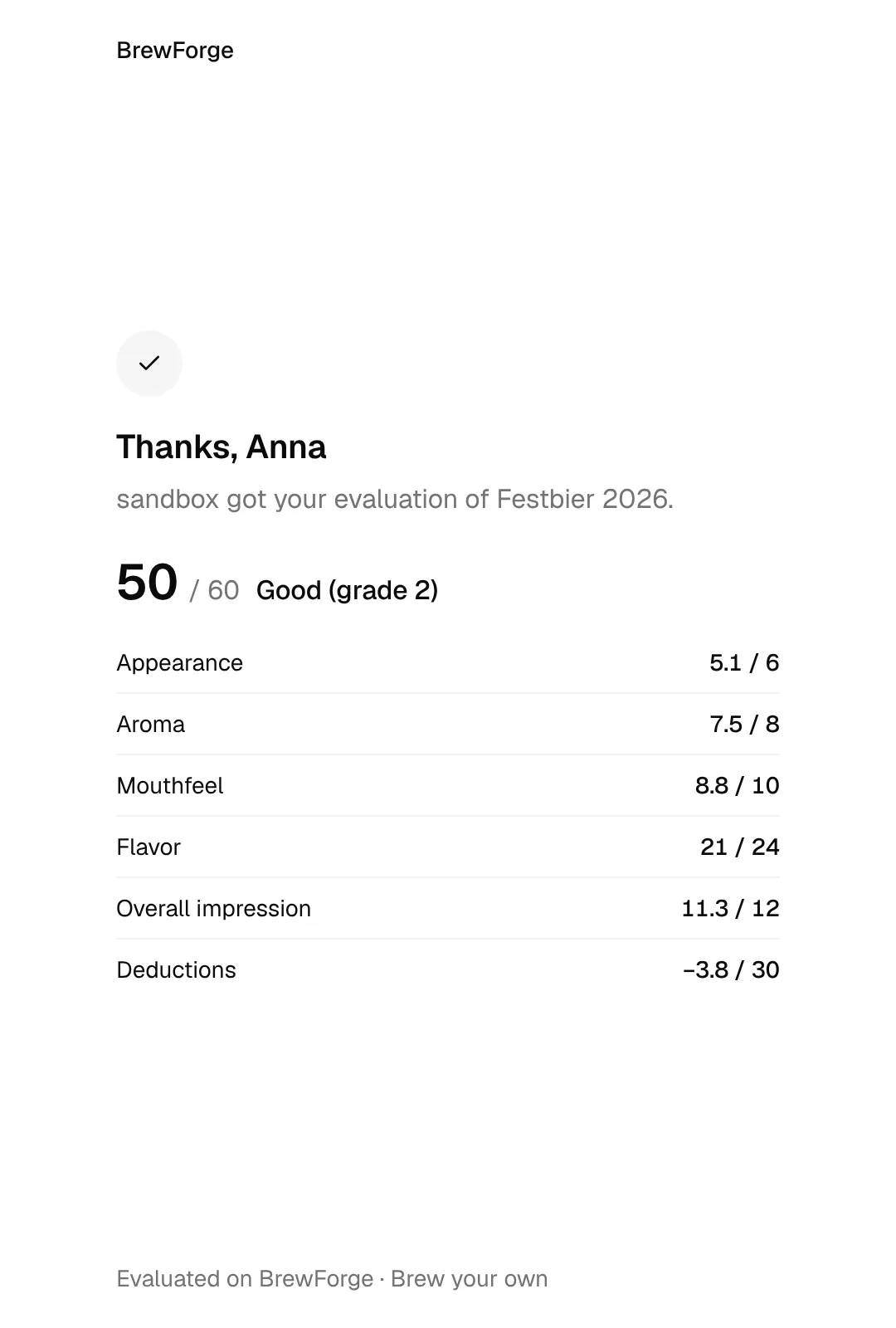
Example (the sheet in the screenshots): color in the middle box gives 2 × 1 = 2 of 2; clarity one box towards hazy gives 2 × (1 − 1/4) = 1.5; head retention in box 8 gives 1 × 7/8 = 0.875. The sections come to 5.1 + 7.5 + 8.8 + 21 + 11.3 = 53.6 points. Off-flavors and bitterness quality one box left of the end take 15 × 1/8 = 1.875 each, 3.75 in all. 53.6 − 3.75 = 49.9, rounded 50 → Good (grade 2).
Source: apps/web/lib/evaluations/lagerbernd-score.ts.
Invite others to evaluate
The evaluation link lets anyone evaluate the beer without an account. They see the brew's name, style and description, not your recipe.
In Evaluations, click Invite (or Share in the brew header). The Share dialog opens.
Under Evaluation link, click Create link, then Copy, and send the link.
Once evaluations come in, the row says how many, for example 2 evaluations so far. Close link stops the link after you confirm (Close the evaluation link?): nobody can start or submit an evaluation with it anymore, submitted evaluations stay, and a new link will be different.
What your guests see
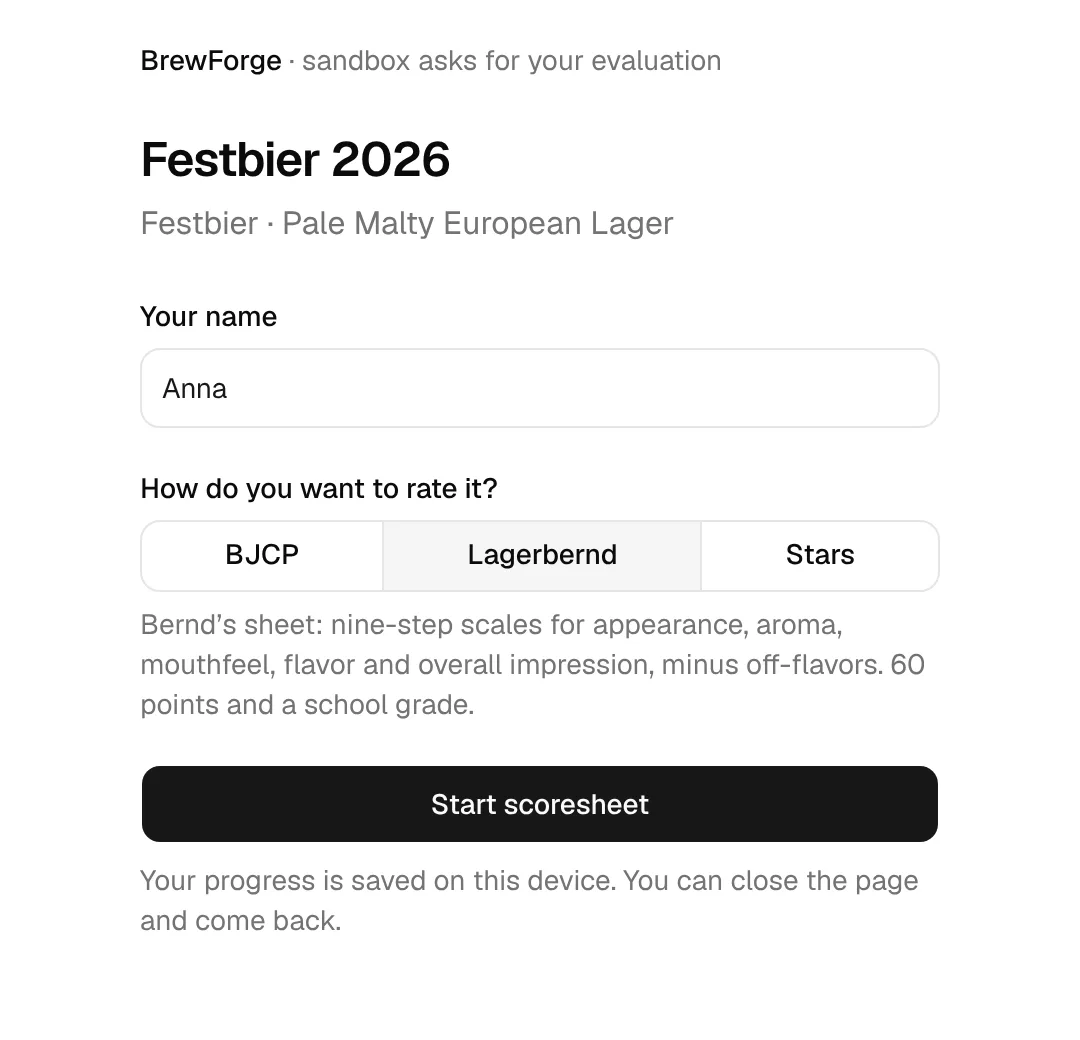
The page says who asks ("Bernd asks for your evaluation", with the brewer name of the brew or your account name) and shows the brew's name and style.
The guest enters Your name and picks How do you want to rate it?: BJCP, Lagerbernd or Stars. A short line under the choice says what each is. With BJCP they can add their BJCP rank (optional).
Start scoresheet opens the sheet; Continue opens the star rating.
- Score sheets save as they go. The guest's progress is kept on their device, so they can close the page and finish later; when they come back, the page says Your draft from … is back. Submit in the pinned line or Submit evaluation · 38 / 50 at the end sends it to you. A Lagerbernd sheet can only be submitted when all 18 scales are rated; until then the end of the sheet says how many are still to rate. After submitting, the guest can't change anything.
- Stars: How did you like it? (1 to 5 stars, with a word from Needs work to Outstanding), an optional Comment and Tasted on. Send rating sends it straight to you.
The thank-you page shows what was sent: the stars, or the total with each section's points.
When the link stops working
- If you close the link while someone is filling in a sheet, their page says This evaluation link was closed (with your name if you have one). Changes can't be saved or submitted anymore; they need a new link.
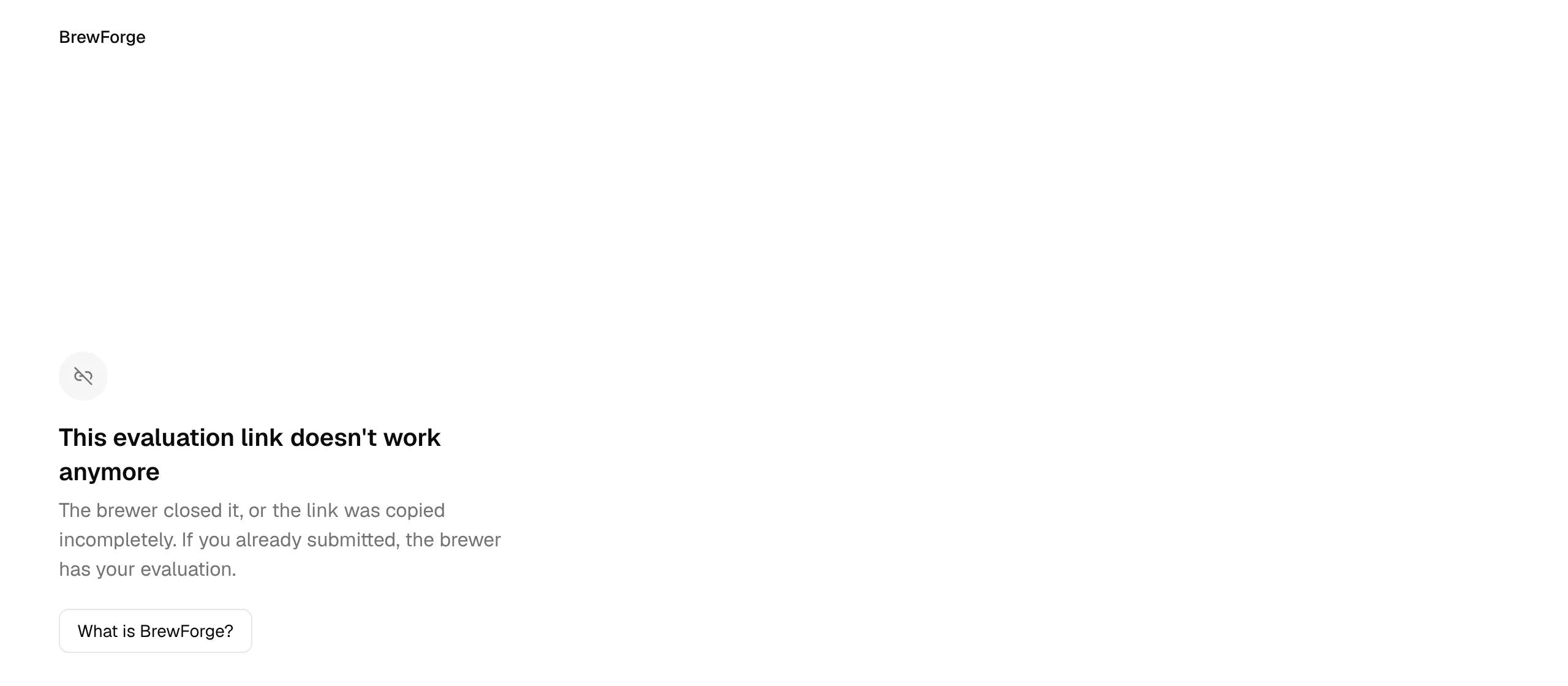
- Opening a closed link, or one that was copied incompletely, shows This evaluation link doesn't work anymore. If the guest already submitted, you have their evaluation.
- Opening the link again on the same device after submitting shows the thank-you page.
This page is always in English, because BrewForge can't tell whose link it was:
Submitted evaluations appear in your list with External, the guest's name, the method and, for BJCP, their rank. Opened, they are read only:
Score sheets a guest started but never submitted don't show up in your list.
Tracking a beer over time
Each evaluation shows the week after the conditioning start, for example "Week 6". Evaluate the same beer every few weeks to see how it develops, or compare across versions of a recipe in the version history.