Account
Manage your BrewForge account: name, email, community name, plan and billing, password, signed-in devices, data export and deleting your account.
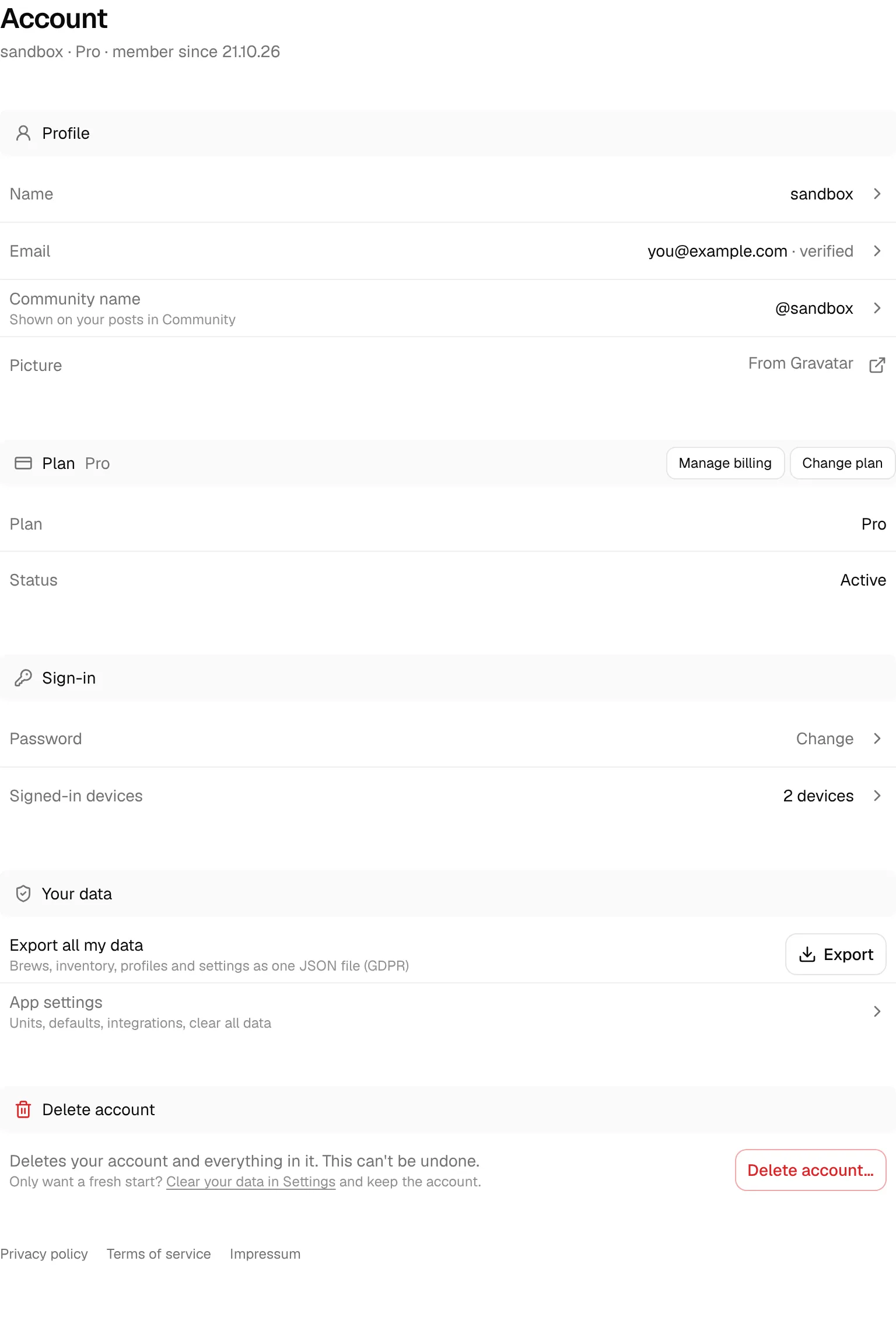
The Account page holds everything about you as a user rather than your brewing: who you are, which plan you are on, how you sign in, and your data. Open it from the menu at the bottom of the sidebar (click your name, then Account).
At the top, a short line sums up your account: your name, your plan and the date you joined. Below it the page has five sections: Profile, Plan, Sign-in, Your data and Delete account. Each row shows the current value; click a row to change it in a dialog.
Units, defaults and integrations are not here. They are in Settings, which applies to your brewing data rather than to your login.
Profile
| Row | What it is |
|---|---|
| Name | Shown in the app, for example at the bottom of the sidebar. Click it to change it. Shows Not set if you haven't entered one. |
| The address you sign in with, marked verified once you have confirmed it. Click it to change it (see below). | |
| Community name | Your @name on your posts and replies in BrewForge Feedback. |
| Picture | Your picture comes from Gravatar, based on your email address. The row opens Gravatar in a new tab, where you change it. |
Change your community name
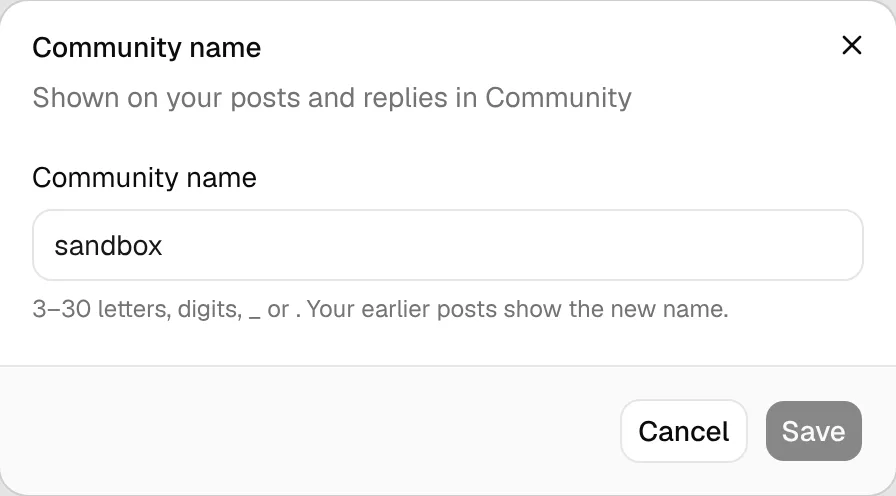
Click Community name, type the new name and click Save. A community name has 3–30 characters: letters, digits, _ or .. Names that are already taken and reserved names (such as names starting with "brewforge", "admin" or "support") are rejected. Your earlier posts show the new name. How Feedback works: Feedback.
Change your email address
Click Email. The dialog shows your Current address.
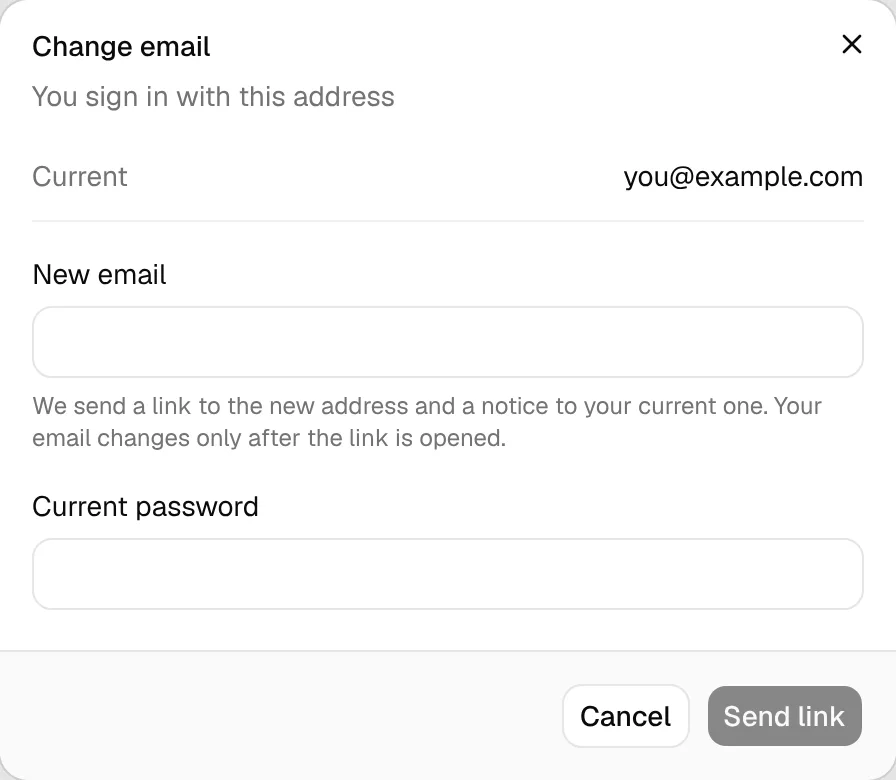
Enter the New email and your Current password, then click Send link.
BrewForge sends a link to the new address and a notice to your current one. Open the link from the new inbox. If it doesn't arrive, click Send again in the dialog.
Your email only changes once the link is opened. Until then you keep signing in with your current address. When you open the link, BrewForge shows Email changed and you sign in with the new address from then on. The link is valid for 24 hours.
If you get the notice but didn't ask for a change, the change does nothing until someone opens the link in the new inbox. Change your password to be safe.
Plan
The Plan section shows your plan and its status, with buttons in the section bar:
- Free plan: Brews shows how many of the 20 brews on the free plan you use (for example 4 of 20). Upgrade plan opens the plans page.
- Paid plan (Basic, Pro and higher): Status (for example Active), the Current period, and the date of the Next payment. Manage billing opens the billing portal of our payment provider, Polar, where you manage your subscription and payment method. Change plan opens the plans page.
- Cancelled plan: the status reads cancelled, ends with this period, and Access until shows the last day of your plan.
- Payment problem: if a payment failed, the status is marked in amber (Past due or Unpaid) with the hint Update your payment method in billing. Use Manage billing to fix it.
What each plan includes, how upgrading, changing and cancelling work, discounts and the Brewfather migration discount: Plans and checkout. You can also reach the plans page from the account menu at the bottom of the sidebar: Subscription (your plan shows next to it).
Bounty points lower the price of Basic or Pro: each point is 10% off, applied automatically at checkout. See Bounty points and referrals for how to earn them, redeem reward codes and refer friends.
Sign-in
Can't sign in, or an email or link doesn't work? See Sign-in help.
Change your password
Click Password. Enter your Current password and a New password with at least 8 characters, then click Change password.
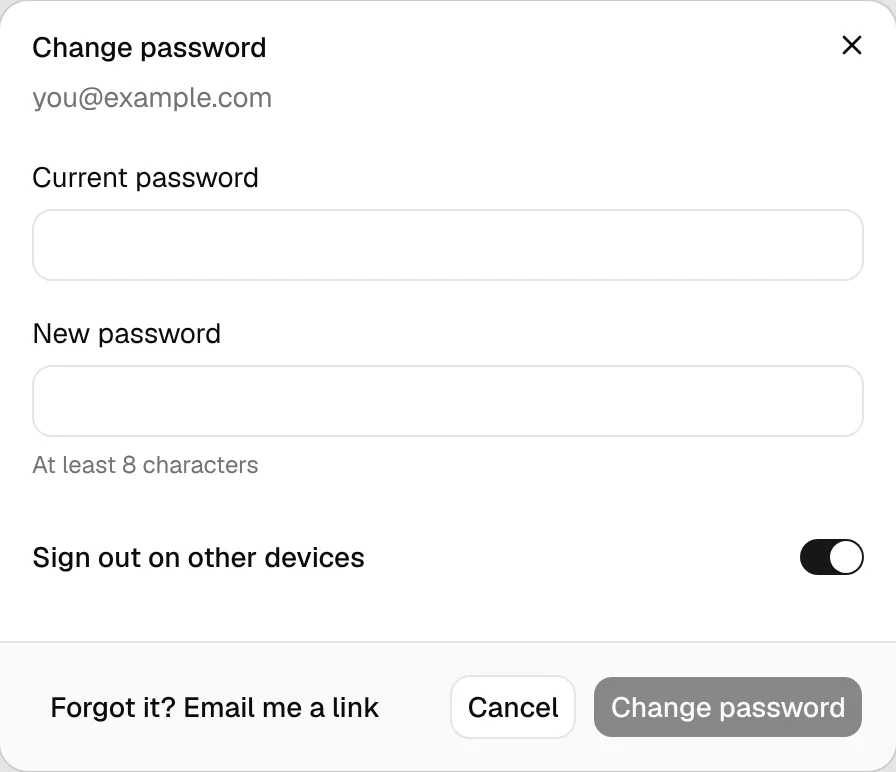
Sign out on other devices is on by default: every other browser and phone where you are signed in is signed out, and you stay signed in here. Turn it off to stay signed in everywhere.
Forgot your current password? Click Forgot it? Email me a link. BrewForge sends a link to your email address where you set a new password, the same link as Forgot password? on the sign-in page.
Signed-in devices
Signed-in devices shows on how many devices your account is signed in. Click it for the list: each entry shows the browser and system (for example "Chrome on macOS"), when it was last active and since when it is signed in. The device you are using is marked This device · active now.
- Sign out next to a device signs out that device.
- Sign out all other devices signs out everything except the device you are using.
Use this if you signed in on a shared or lost computer or phone.
Your data
- Export all my data downloads everything you stored in BrewForge as one JSON file: brews, inventory, profiles, settings and more. It is the same export as in Settings, see Data export.
- App settings opens Settings: units, defaults, integrations, and clearing all data.
Delete your account
Deleting your account removes your login and everything in it for good. It can't be undone.
Only want a fresh start?
To start over and keep your login (for example after a test import), delete your data in Settings instead.
Click Delete account… at the bottom of the page.
The dialog lists what will be deleted, counted from your data: brews with their recipes, readings and notes, inventory items, shopping lists, profiles, custom fields, devices and their data logs, and your account, settings and community name.
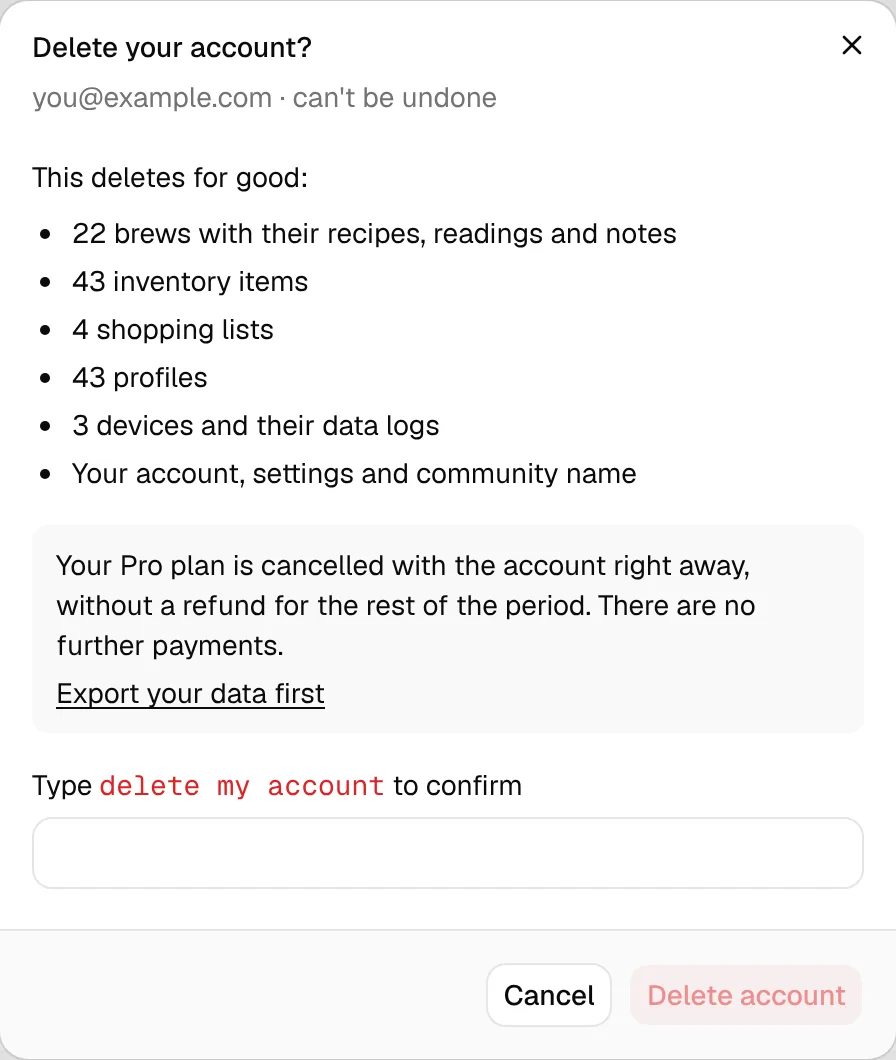
If you want a copy, click Export your data first in the dialog.
Type delete my account into the field and click Delete account. BrewForge deletes everything and signs you out.
If you are on a paid plan, the dialog tells you: the plan is cancelled together with the account right away, without a refund for the rest of the period, and there are no further payments.
If deleting fails, the dialog says so and nothing has been removed. Try again.
Legal
The links at the bottom of the page open the Privacy policy, the Terms of service and the Impressum.