Import from Kleiner Brauhelfer
Move from Kleiner Brauhelfer 2 to BrewForge: find your kb_daten.sqlite database and import your Sude, recipes, fermentation readings, tastings, setups, water profiles and stock in a five-step wizard.
Kleiner Brauhelfer (KBH) is a popular open-source brewing app in German-speaking countries. It keeps everything in one database file on your computer. BrewForge reads that file in your browser and brings your Sude over: recipes, brews with their measurements, fermentation and pressure readings, notes and tastings, your setups, water profiles and stock. A five-step wizard lets you choose what comes over. Nothing is changed in Kleiner Brauhelfer, and nothing is saved in BrewForge until you click import in the last step.
Before you start
- A BrewForge account: sign up if you haven't yet.
- Room on your plan: the Free plan holds up to 20 brews. Every imported brew counts, and so does every imported recipe. The wizard shows how much room you have left (see Free plan limit).
- Kleiner Brauhelfer 2. A database from Kleiner Brauhelfer 1.x has to be opened once in version 2 first, which updates it.
- Your database file (step 1 below).
Step 1: Find your Kleiner Brauhelfer database
Kleiner Brauhelfer has no export for everything at once. You don't need one: BrewForge reads the database file itself, normally called kb_daten.sqlite.
Kleiner Brauhelfer's buttons sit in its toolbar. The labels below are the German ones, with the English label in brackets for when you run Kleiner Brauhelfer in English.
- In Kleiner Brauhelfer, click Speichern (Save) if you have unsaved changes. Kleiner Brauhelfer keeps changes in memory until you save, so unsaved changes aren't in the file yet.
- Click Einstellungen (Settings). Under Datenbank (Database), the field Pfad (Path) shows where your database is. The Datenbank (Database) button in the toolbar shows the same path.
- Close Kleiner Brauhelfer. If it still has unsaved changes, it asks whether to save them first.
- Open that folder in Explorer or Finder. The file is
kb_daten.sqlite, unless you gave it another name when you created it.
Where the file is depends on what you chose the first time you started Kleiner Brauhelfer: it asks whether to create a new database or open an existing one, and suggests the folder of its settings file. If you kept that folder, the database is usually here:
| System | Folder |
|---|---|
| Windows | %APPDATA%\kleiner-brauhelfer\ (type it into the Explorer address bar) |
| macOS, Linux | ~/.config/kleiner-brauhelfer/ (on macOS, press Cmd+Shift+G in Finder and paste the path) |
The portable Windows version keeps its settings next to the program instead. When in doubt, use the path from Einstellungen.
BrewForge only reads the file, so you don't need a copy. If you want one anyway (for example to import on another computer), copy kb_daten.sqlite while Kleiner Brauhelfer is closed.
Only one Sud
To bring over a single Sud, export it from Kleiner Brauhelfer: on the Sudauswahl (Batch Selection) tab, select the Sud and click Exportieren (Export). In the dialog, choose the format kleiner-brauhelfer (json) and save the file. It is a .json file with the Sud's recipe, readings and tastings, and the wizard reads it like the database. The wizard calls it a ".kbh export".
The formats BeerXML (xml) and MaischeMalzundMehr (json) in the same dialog carry the recipe only. They go through New brew › Import a file instead (see Single recipes as BeerXML or MMuM).
Step 2: Open the import
You find the Kleiner Brauhelfer import in three places:
- On the Brews page while you don't have any brews yet: Coming from Kleiner Brauhelfer? Import your database.
- In the account menu at the bottom of the sidebar (your name): Kleiner Brauhelfer import.
- In Settings → Integrations: Import from Kleiner Brauhelfer.
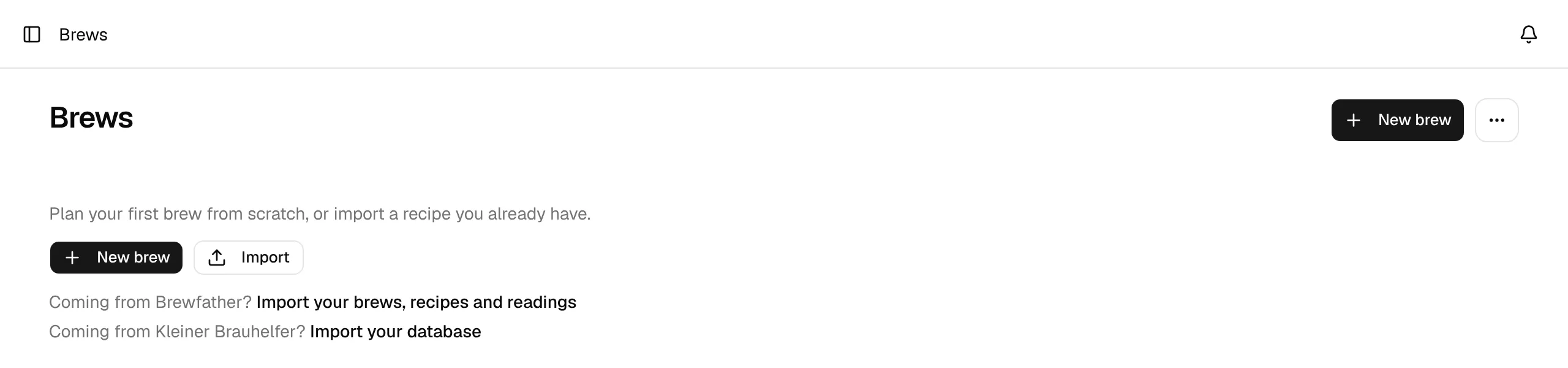
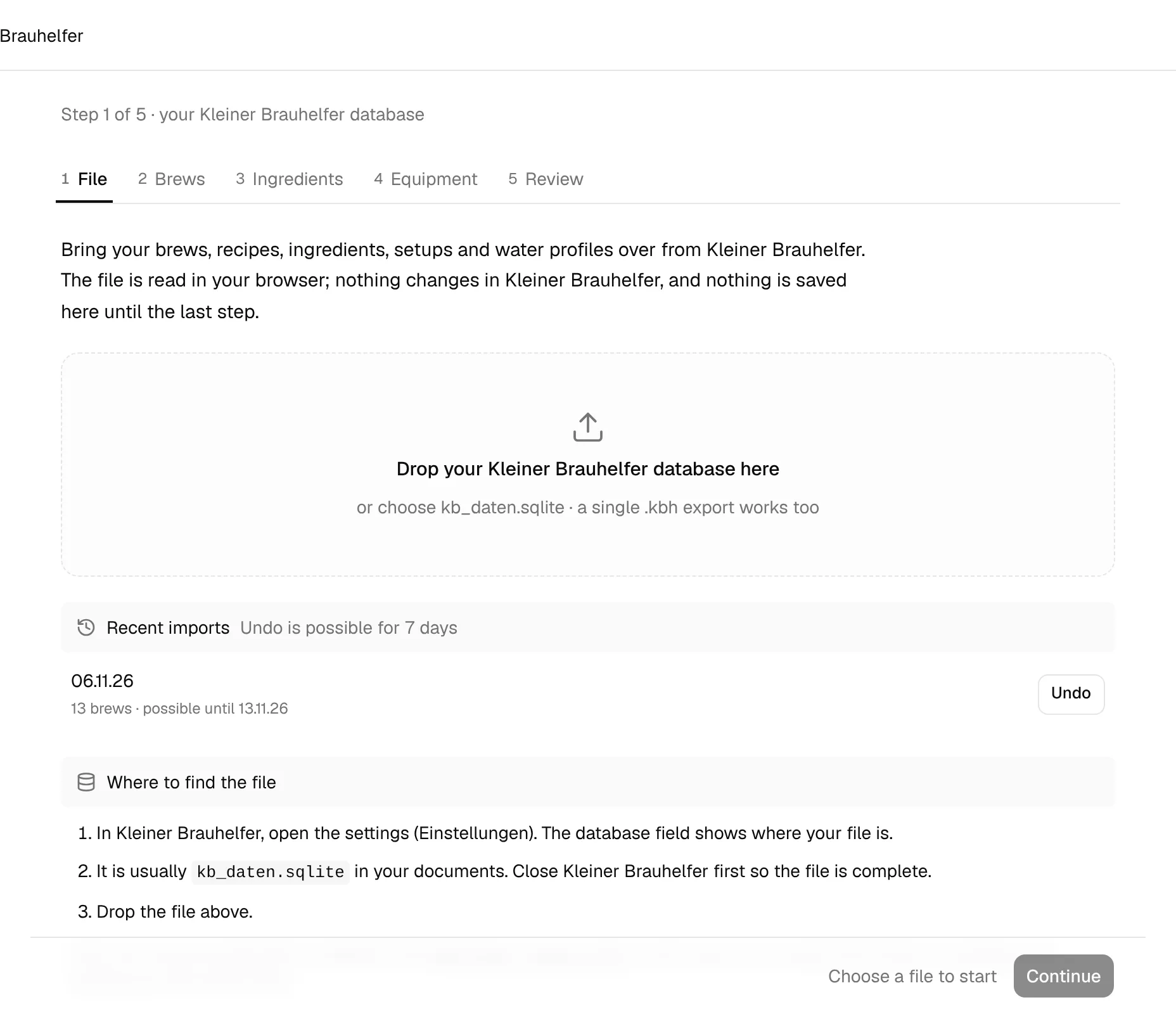
The wizard has five steps: File, Brews, Ingredients, Equipment and Review. The step bar at the top shows where you are. Once a file is loaded you can click any step to go back to it, and Back and Continue at the bottom of the page move one step at a time.
Step 3: Choose the file (File)
Drag kb_daten.sqlite onto Drop your Kleiner Brauhelfer database here, or click it and choose the file. The wizard takes .sqlite, .sqlite3 and .db databases and single-Sud exports (.kbh or .json). Where to find the file below repeats the short version of step 1.
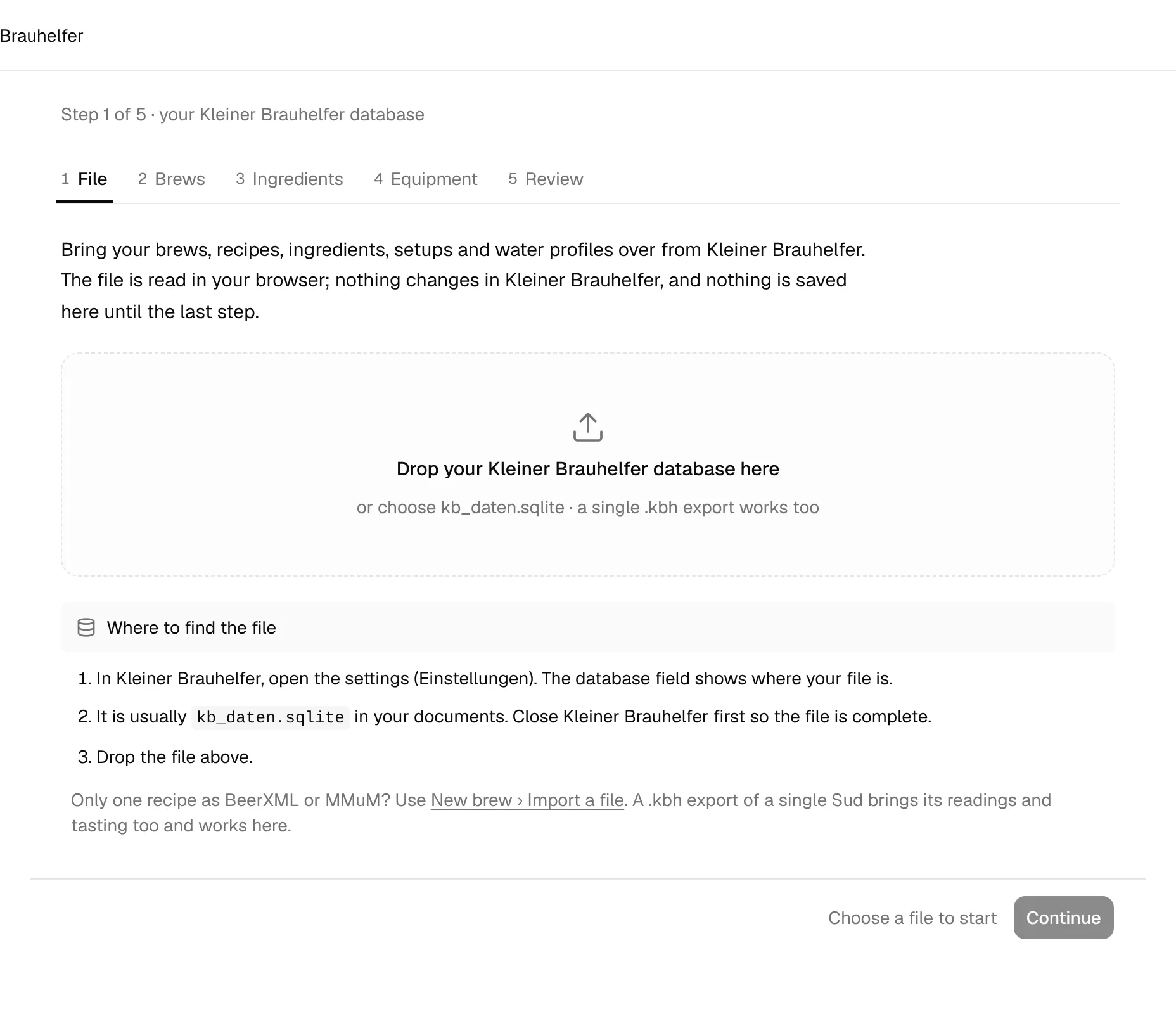
BrewForge reads the file in your browser. Then In this file lists what it contains:
- Brews: how many recipes, brews in progress and finished brews, and which years they cover.
- Fermentation readings: in how many brews, and how many of them are pressure readings.
- Tastings: stars and notes, and in how many brews.
- Brewing setups (by name), Water profiles and Ingredients in the stock list (malts, hops, yeasts, other, and how many have an amount). A single-Sud export has none of these.
- Labels and attachments, if your Sude have any. They stay in Kleiner Brauhelfer, because they point to files on your computer.
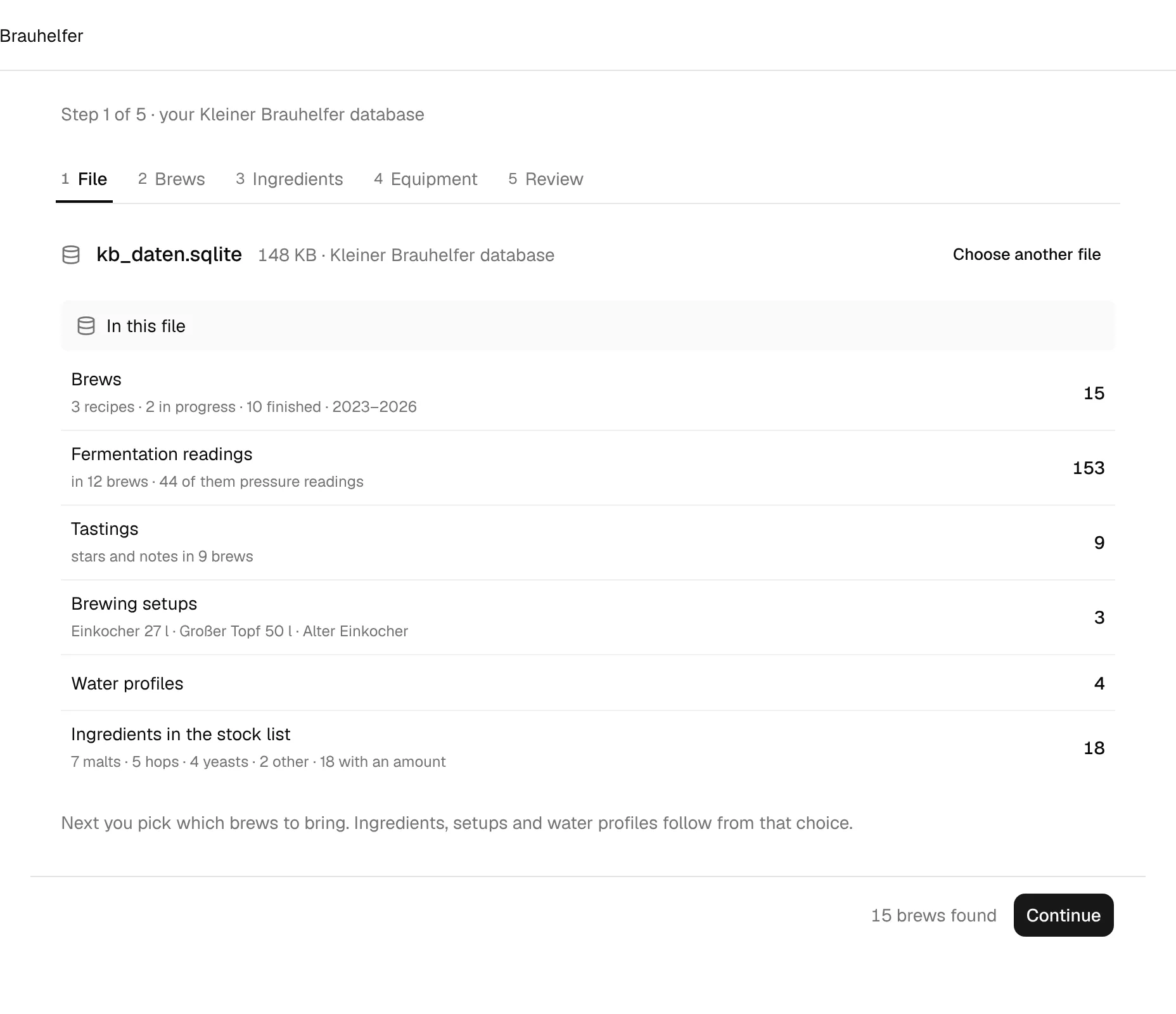
If the database is from a newer Kleiner Brauhelfer than BrewForge knows, a note says so. The import should still work; check the review before importing. Choose another file starts over with a different file. Click Continue.
Step 4: Pick brews and recipes (Brews)
In Kleiner Brauhelfer, a Sud is recipe and brew in one. This step decides which Sude come over. Ingredients, setups and water profiles in the next steps follow from your choice.
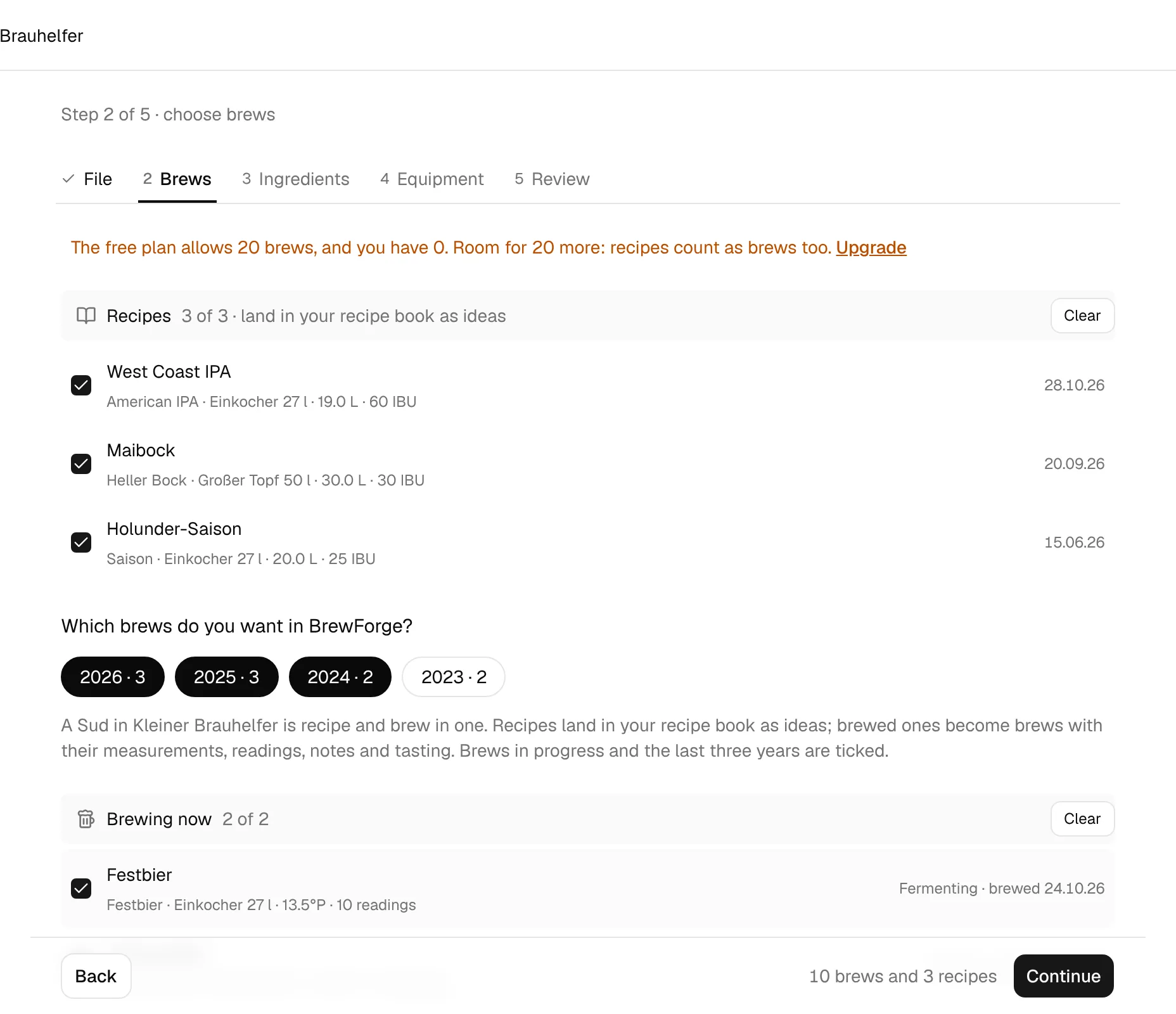
- Recipes come first: Sude with the status Rezept that you haven't brewed. They land in your recipe book as ideas. All of them are ticked; the list shows five and Show N more opens the rest. Each row shows style, setup, batch size and IBU.
- Below, Which brews do you want in BrewForge? has year chips for your finished brews (for example 2026 · 3). A chip ticks or unticks a whole year. The last three years are ticked by default.
- Brewing now lists Sude that are brewed or bottled but not finished. They are always ticked and show Fermenting or Bottled with the brew date.
- Finished brews are grouped by brew year, newest first. A year that isn't ticked stays folded. Brews without a brew day are grouped under Without a brew day.
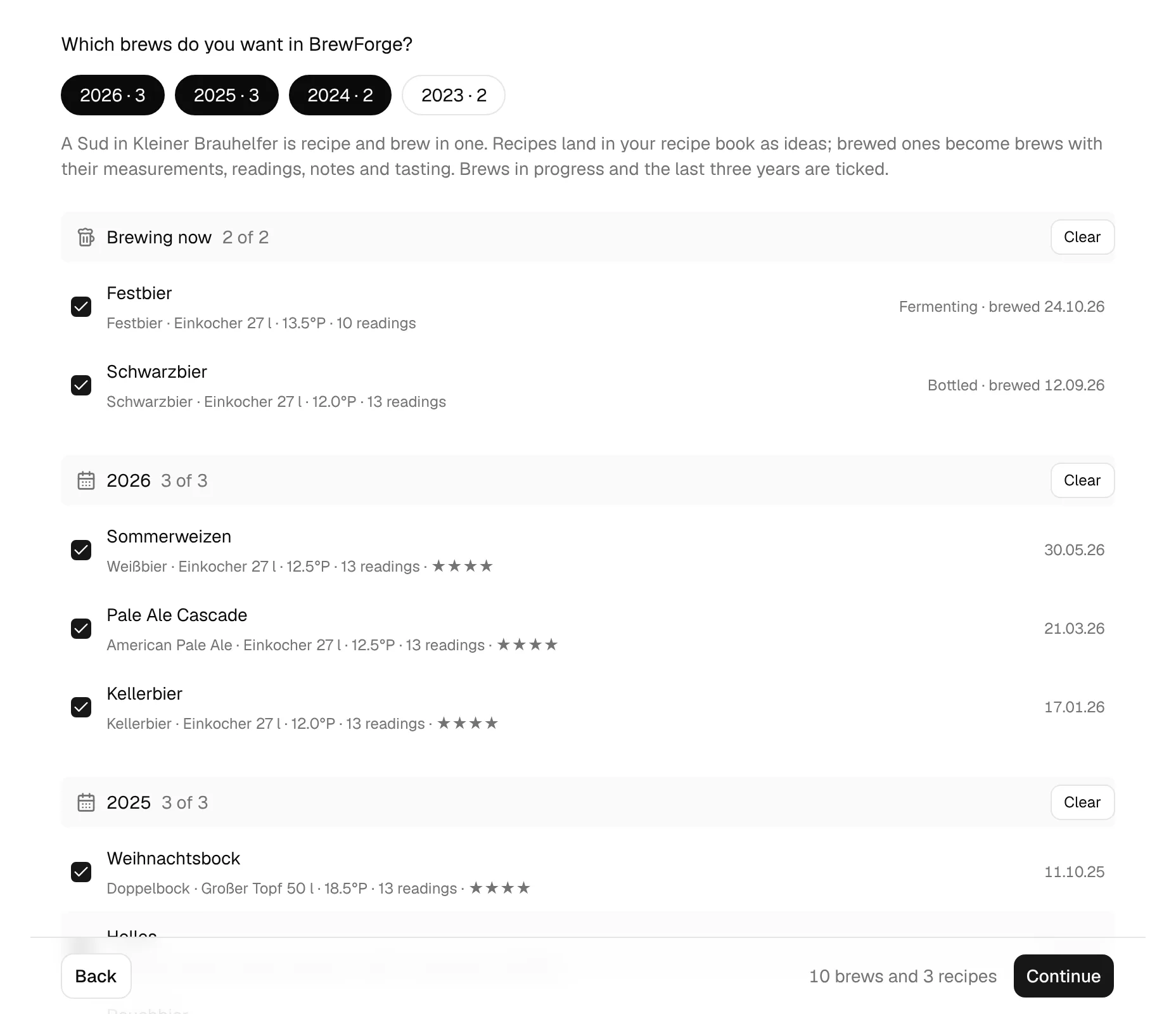
Every group has Select all or Clear, and every Sud has its own checkbox. A row shows style (or No style), setup, original gravity, the number of readings and the stars of the newest tasting.
The bottom bar counts your selection, for example "10 brews and 3 recipes". You don't have to bring everything at once: when you import the same database again later, the Sude already in BrewForge show already imported and are skipped. BrewForge recognizes them by their creation time and name.
Free plan limit
On the Free plan, a note at the top of the step says how many brews you have and how much room is left, for example "The free plan allows 20 brews, and you have 0. Room for 20 more: recipes count as brews too." If your selection doesn't fit, the note turns red, the bar says how many are too many and Continue stays disabled. Untick brews or recipes, delete brews you don't need, or upgrade for unlimited brews.
Step 5: Match ingredients (Ingredients)
BrewForge looks up every malt, hop, yeast and other ingredient your selected Sude use in its ingredient packages, by German or English name, and for close candidates by color, alpha acid or attenuation. A match gives you full specs and supplier data, and stock that works across all your brews. The first lines count how many ingredients were found in packages, how many are to check and how many become your own ingredients.
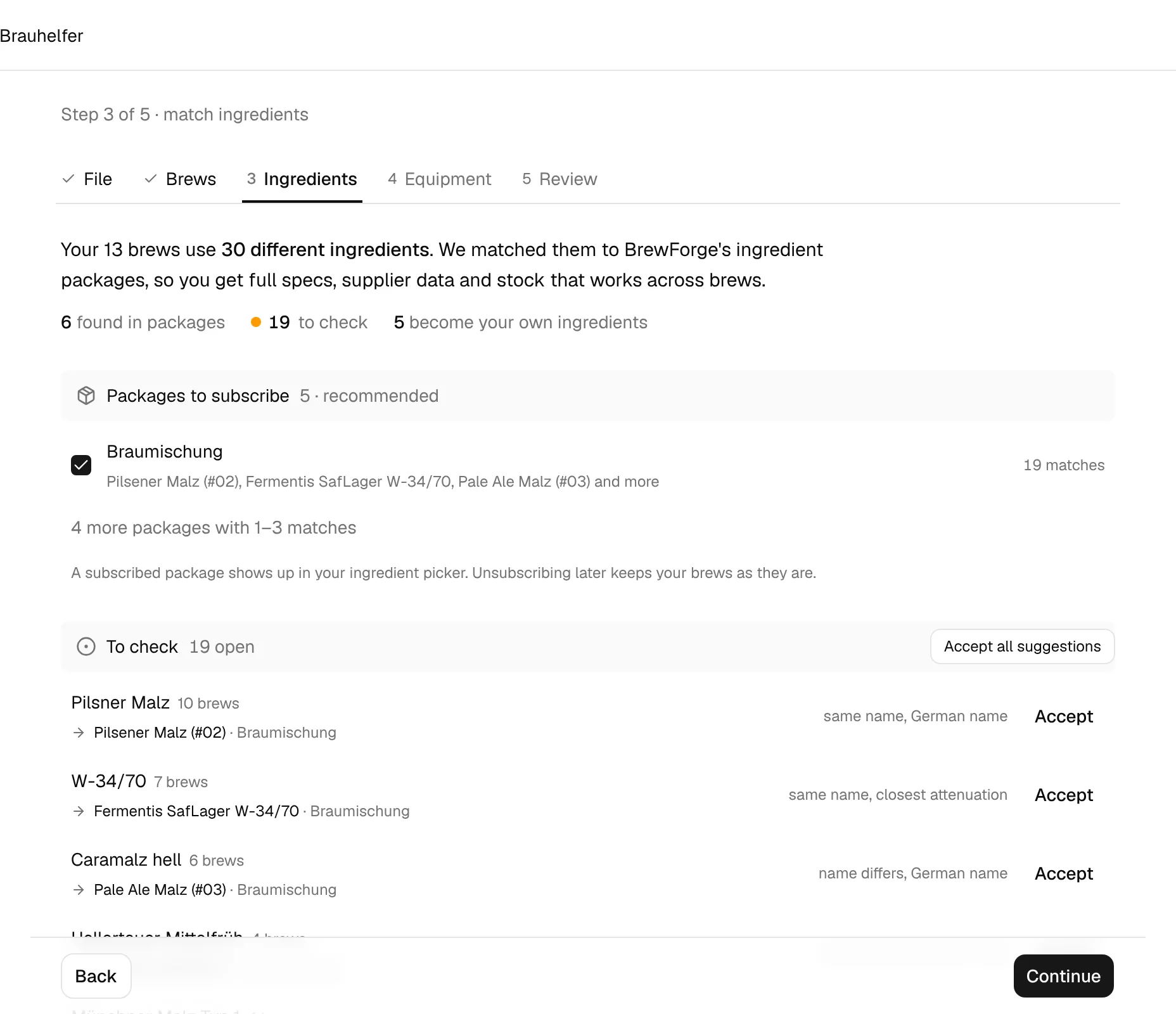
The step has four sections:
- Packages to subscribe: the packages your matches come from, recommended and ticked. Each shows example ingredients and how many matches it brings. Packages with only one to three matches sit behind one line. A subscribed package shows up in your ingredient picker; unsubscribing later keeps your brews as they are.
- To check: ingredients where BrewForge isn't sure, with the reason on the right (for example same name, German name or closest attenuation). Accept takes the suggestion, Pick one means several fit and you choose. Accept all suggestions accepts every open suggestion at once.
- Matched: ingredients matched by name, supplier or product ID. The list is folded; Show opens it, and clicking a row lets you change the match.
- Your own ingredients: ingredients no package has, for example a smoked malt from a local maltster. They are created with Kleiner Brauhelfer's values (color, potential, alpha acid, attenuation) and marked with a sky dot until you edit them. Find a match lets you link one to a package ingredient instead.
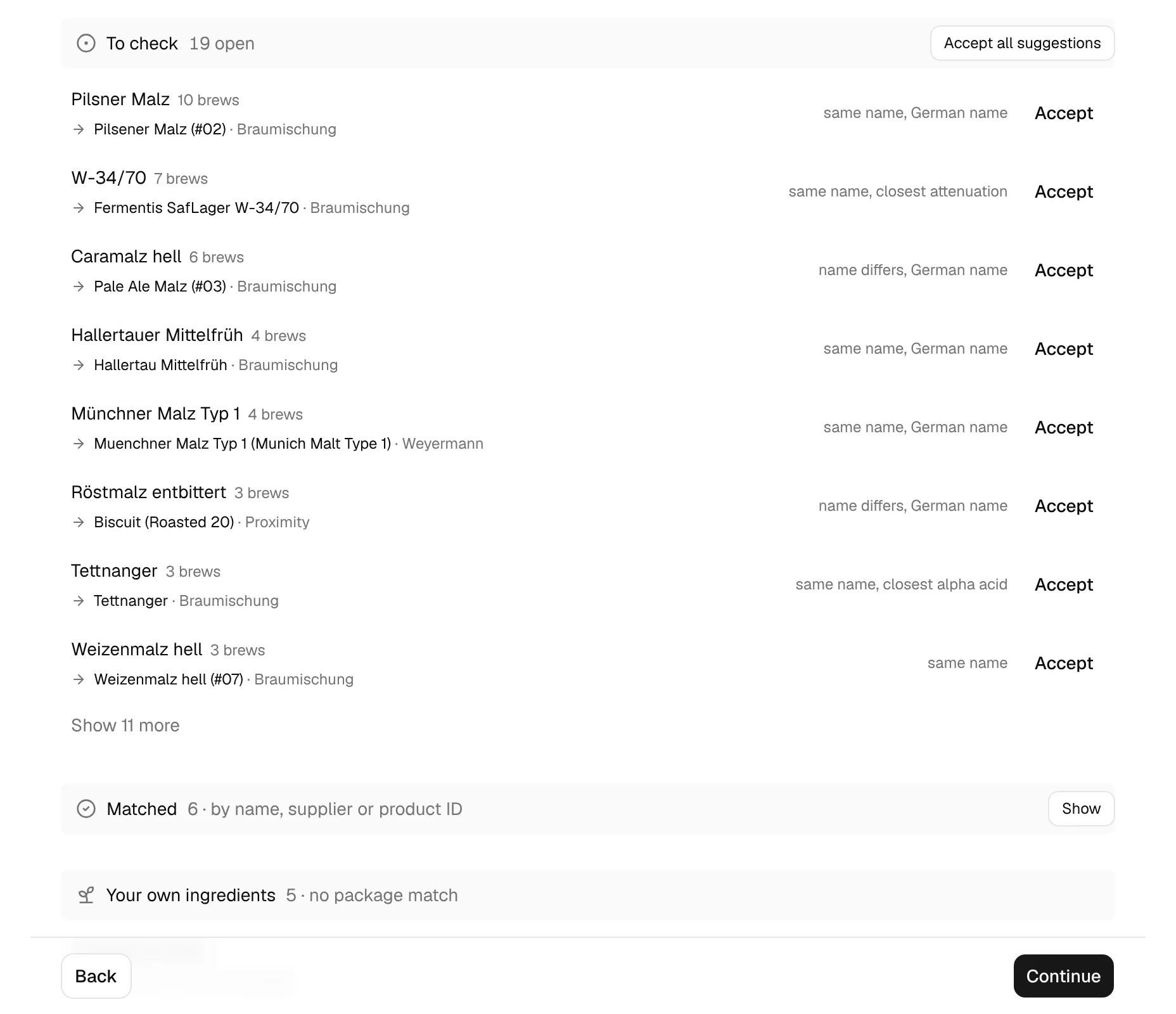
Look through To check before accepting: a suggestion can be a different malt with a similar name. Clicking an ingredient opens a dialog with the candidates, best match first. For malts, hops and yeasts it sorts by the closest color, alpha acid or attenuation and shows Kleiner Brauhelfer's value. Search all ingredients finds any ingredient by name or supplier, and Keep as my own ingredient skips the match. Use this applies your choice to every brew that uses the ingredient.
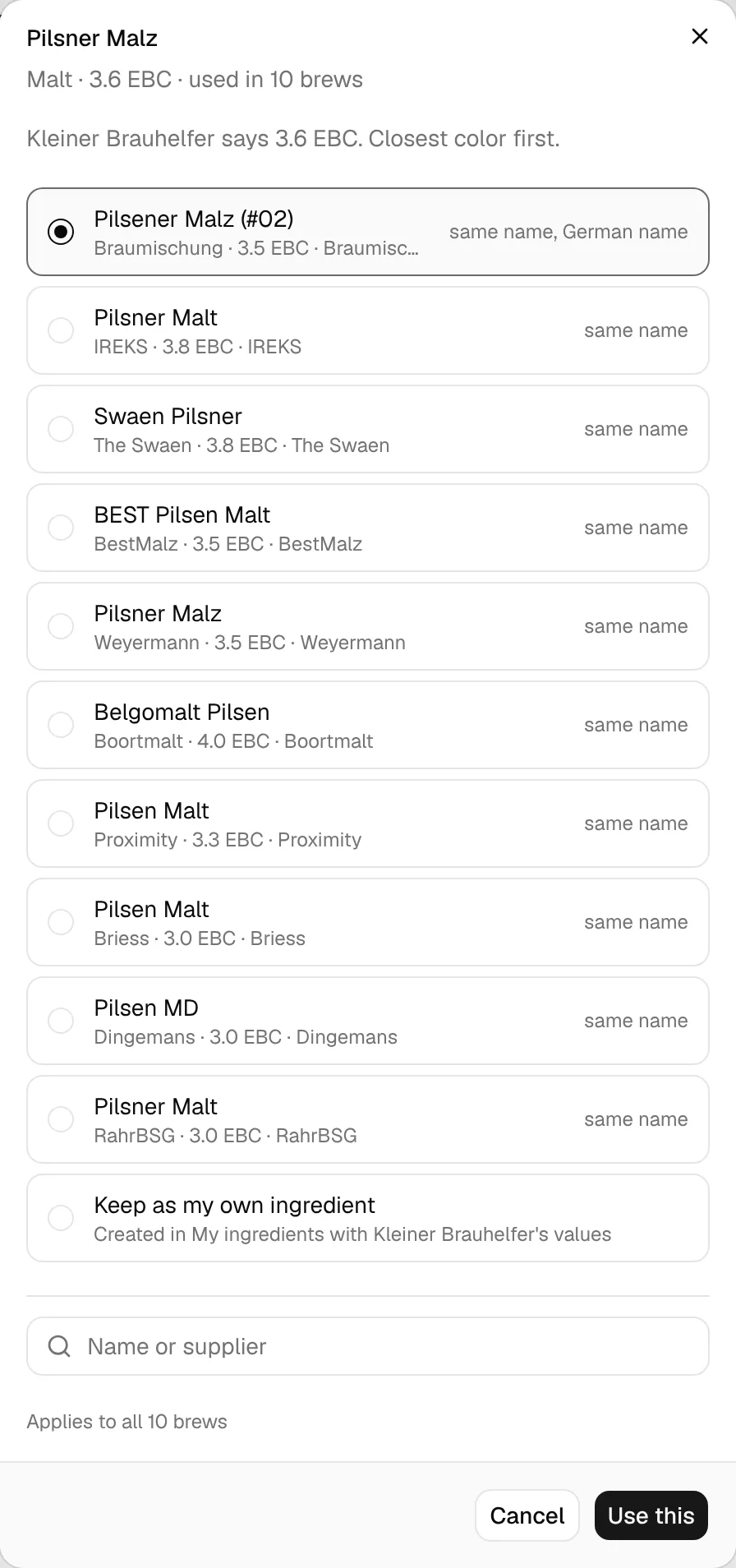
The bar shows how many matches still need a pick. You can continue anyway: an ingredient you haven't accepted or picked becomes your own ingredient.
Step 6: Setups and water (Equipment)
Every imported brew keeps the values it was brewed with in Kleiner Brauhelfer. In this step you only decide which setups (Anlagen) become equipment profiles for your next brews, and which water profiles come along.
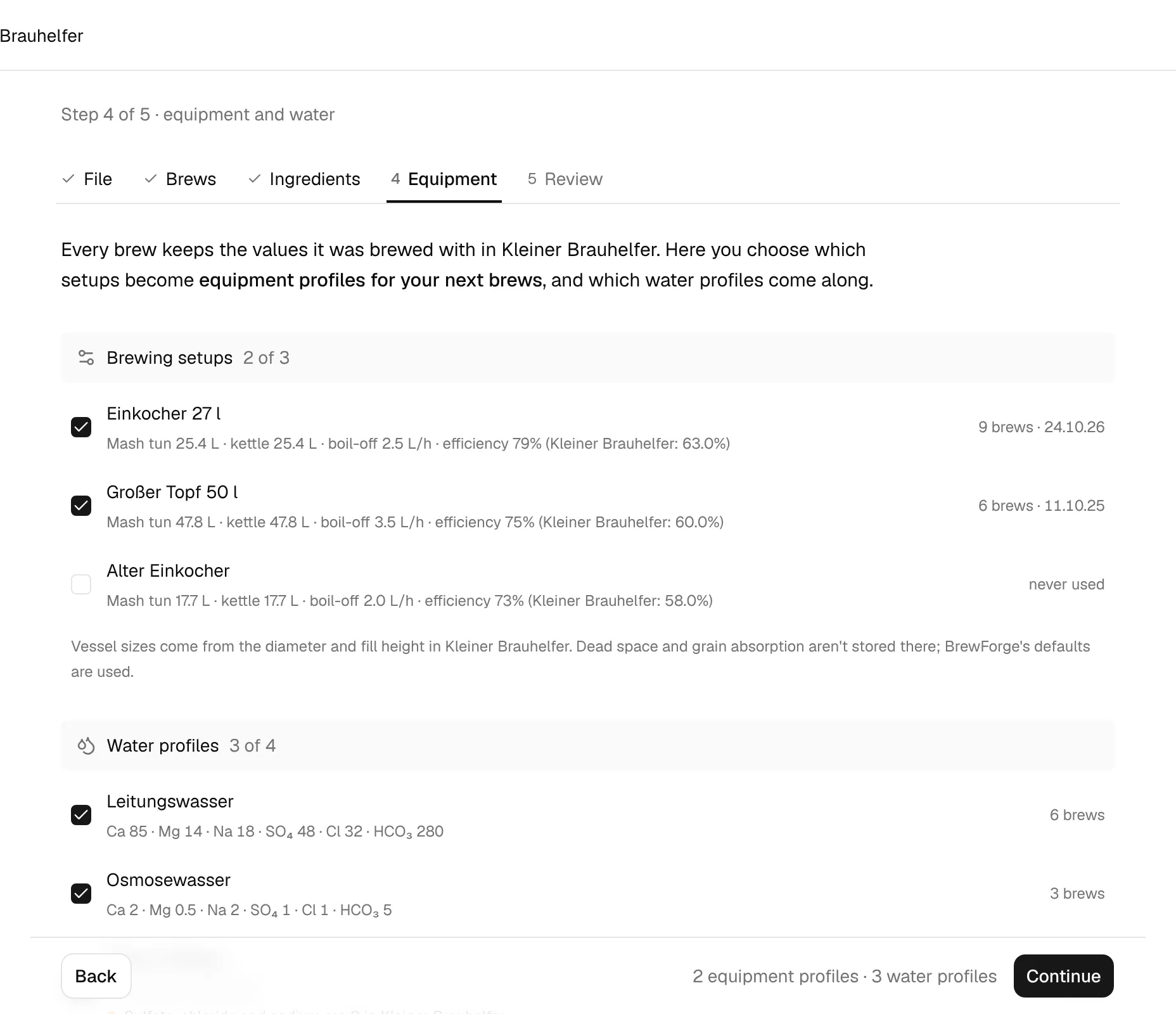
- Brewing setups: every setup in the database with mash tun and kettle volume, boil-off per hour and mash efficiency (with Kleiner Brauhelfer's Sudhausausbeute in brackets, see How the values are converted). On the right: how many brews used it and when, or never used. Setups your selected Sude use are ticked. A setup a Sud names that is no longer in the setup list gets the values of its newest brew.
- Water profiles: the profiles your selected Sude use, with their ions, ticked. Show N profiles no selected brew uses opens the rest. A profile where sulfate, chloride and sodium are all 0 gets a note: Kleiner Brauhelfer lets you leave them empty.
- Same values under several names: appears when several water profiles have exactly the same values. Tick it to create only one profile; the brews keep the water they were brewed with.
- Mash schedules stay with each brew. Kleiner Brauhelfer has no saved mash or fermentation profiles; you can save one from any brew as a profile later.
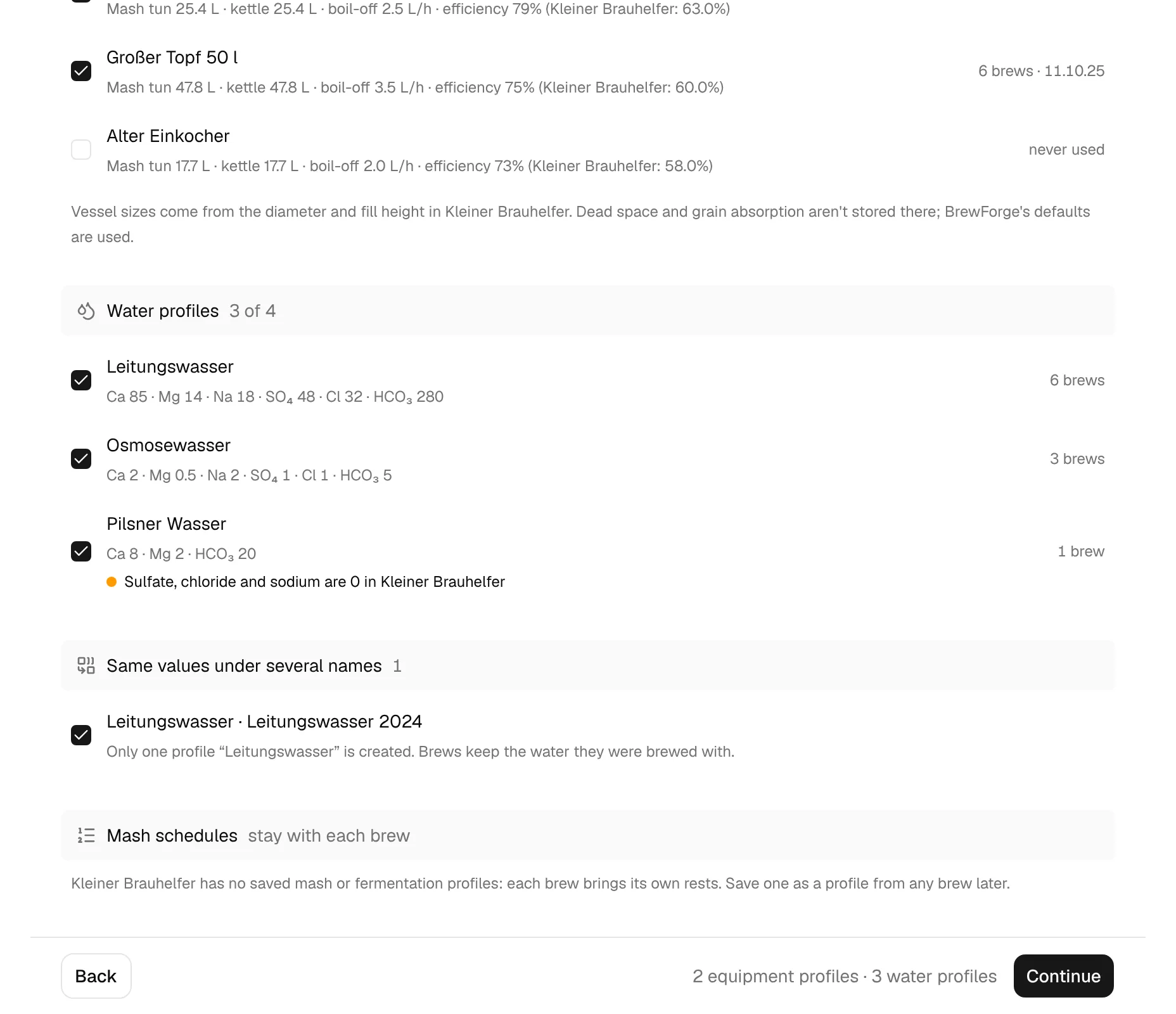
The bar counts the equipment and water profiles that will be created.
Step 7: Check and import (Review)
The last step sums up the import.
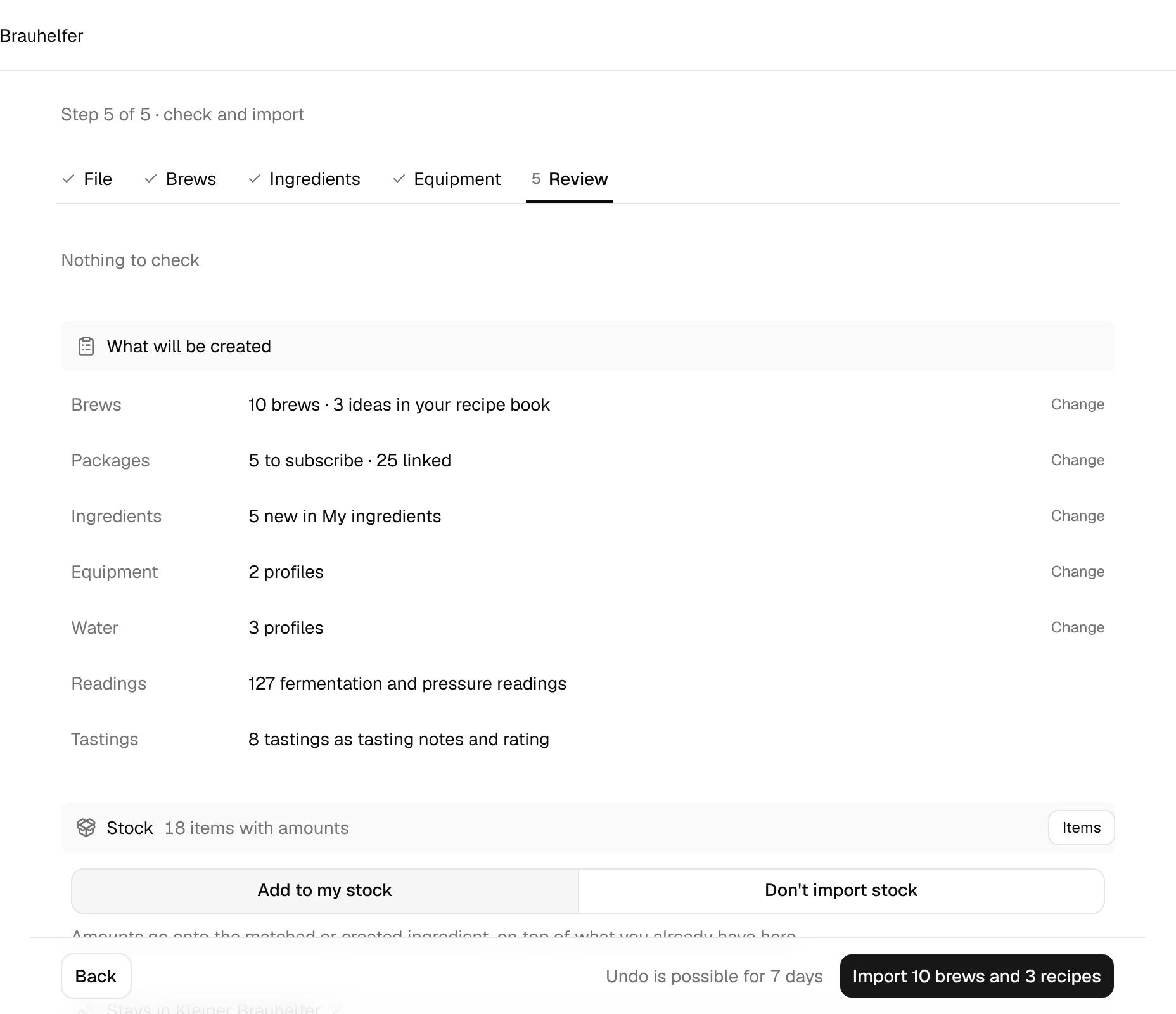
- The first line says how many matches still need a pick, or Nothing to check. Click it to go back to the Ingredients step.
- What will be created lists brews and ideas in your recipe book, packages to subscribe and linked ingredients, new ingredients in My Ingredients, equipment and water profiles, and the number of fermentation and pressure readings and tastings. Change jumps to the step where you set it.
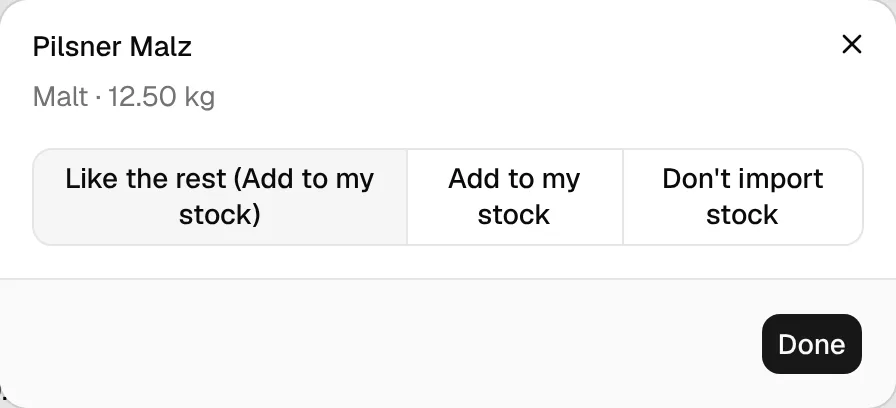
- Stock decides what happens with the amounts from your Kleiner Brauhelfer stock list (Rohstoffe): Add to my stock puts them onto the matched or created ingredient, on top of what you already have; Don't import stock brings only brews and recipes. Items lists every item with its amount and best-before date.
- Stays in Kleiner Brauhelfer lists what doesn't come over (see What stays in Kleiner Brauhelfer).
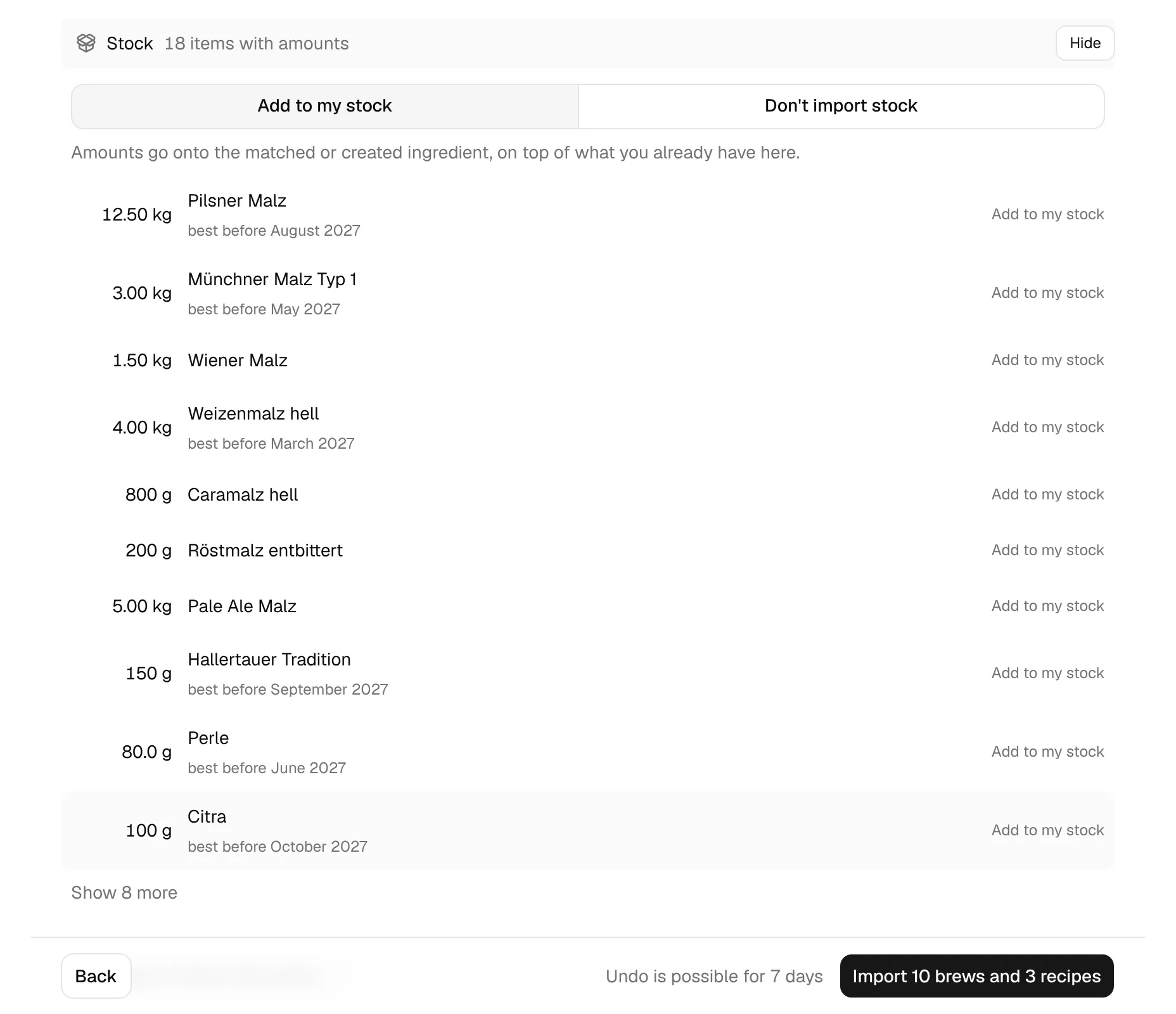
Click an item to set it differently from the rest: Like the rest, Add to my stock or Don't import stock.
Click Import N brews and N recipes (or Import N recipes if you only picked recipes).
Step 8: The import runs
The import runs in phases: subscribing to packages, creating ingredients, creating equipment and water profiles, importing the brews, adding stock and adding the fermentation readings. The current phase shows its progress.
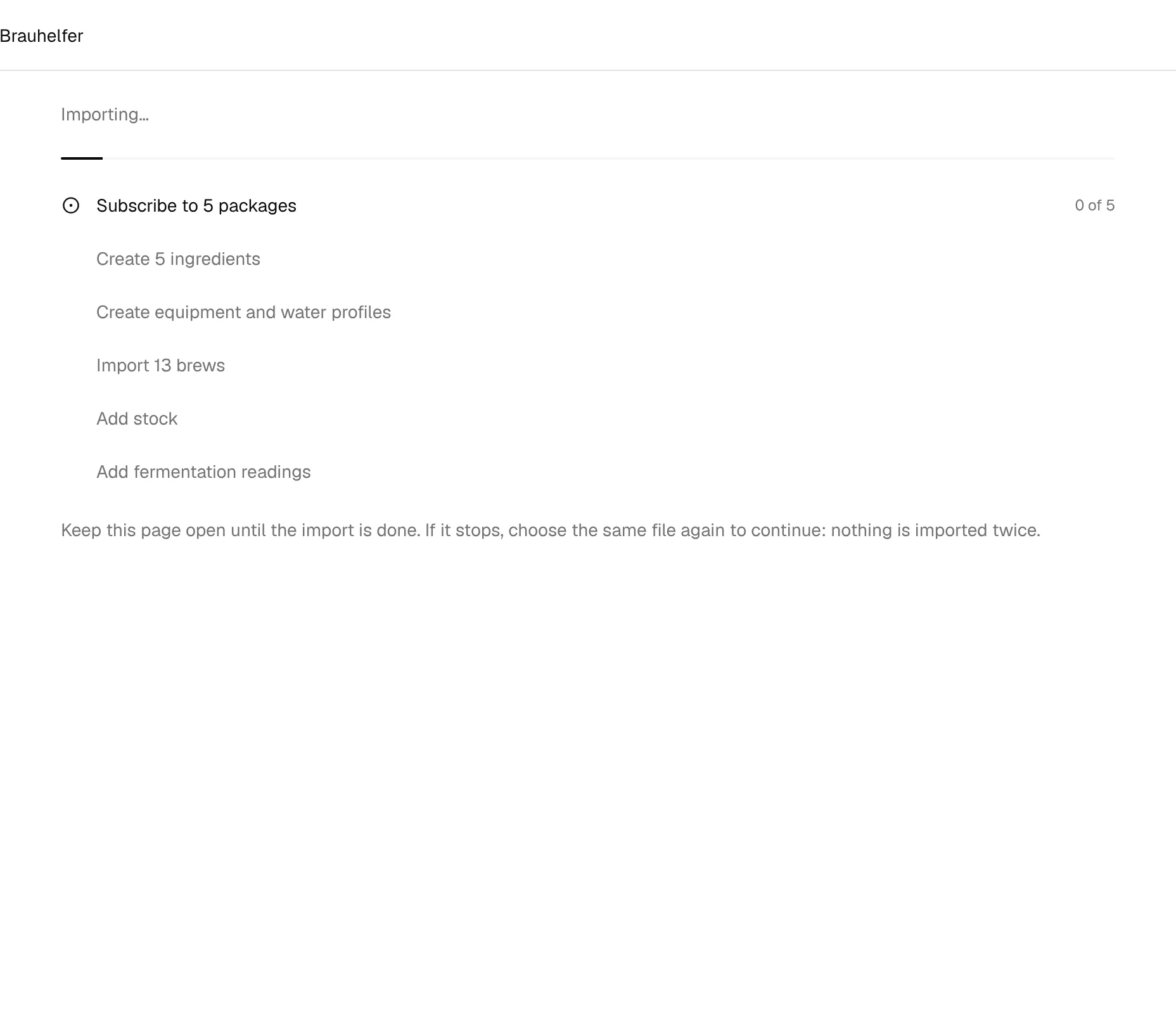
Keep the page open until the import is done. If you close it, your browser asks first. If the import stops, open the import again and choose the same file: An import didn't finish offers Continue that import, and nothing is imported twice.
Step 9: Done
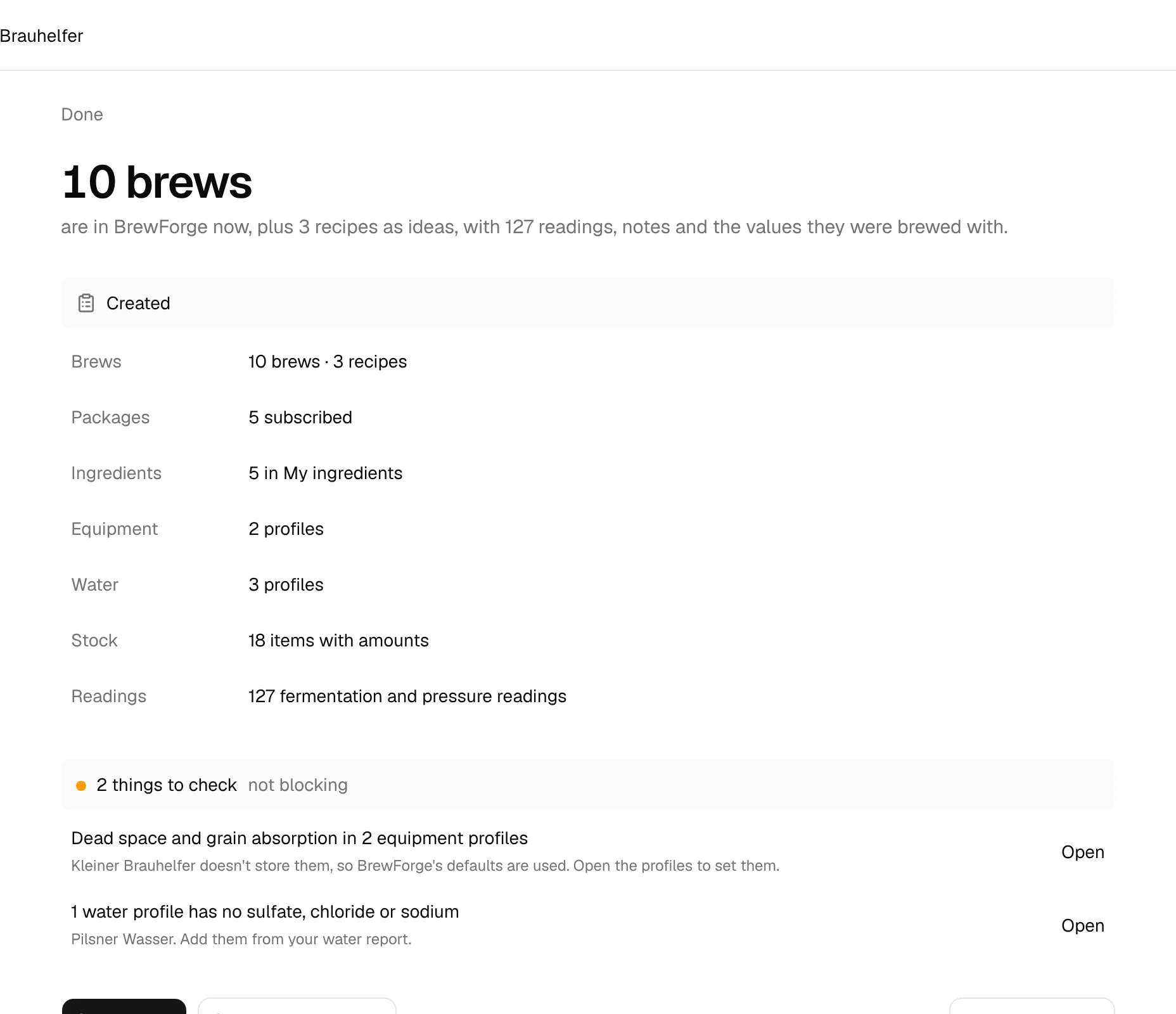
The done page shows how many brews (or recipes) are now in BrewForge, what was Created, and things to check that don't block anything:
- Dead space and grain absorption in the new equipment profiles: Kleiner Brauhelfer doesn't store them, so BrewForge's defaults are used. Open takes you to the equipment profiles.
- Water profiles without sulfate, chloride or sodium: add them from your water report in water profiles.
- Brews without a style: they had no category (Kategorie) in Kleiner Brauhelfer.
Open brews takes you to your brews, Open my ingredients to My Ingredients. If an item didn't come over, the page names it; run the import again with the same file to retry it.
Undo an import
For 7 days you can take an import back with Undo this import, on the done page or later under Recent imports on the File step. Undo removes the brews with their readings, and the ingredients, profiles, package subscriptions and stock the import added. Brews with beer left in the cellar are kept.
What is imported
| Kleiner Brauhelfer | BrewForge | Notes |
|---|---|---|
| Sud with status Rezept | Brew with status Idea in the recipe book | |
| Sud brewed (gebraut) | Brew with status Fermenting | With brew day |
| Sud bottled (abgefüllt) | Brew with status Conditioning | With bottling date, start of conditioning and bottled volume |
| Sud consumed (verbraucht) | Brew with status Completed | |
| Sud name, number, category, comment | Name, batch number, style, description | Tagged kbh-import |
| Malt bill (Malzschüttung) | Fermentables | The amounts Kleiner Brauhelfer calculated; the shares are kept |
| Hop additions incl. first wort, flame-out and whirlpool | Hops | |
| Dry hops and mash hops (from the other ingredients) | Hops | Alpha acid from the stock list |
| Yeast | Yeast | Ale/lager, dry/liquid and attenuation from the stock list |
| Other ingredients (Weitere Zutaten) | Miscs | Sugar, honey and fruit with an extract yield, by weight, become fermentables |
| Mash schedule (Maischplan) | Mash steps of the brew | |
| Water profile and water treatment (Wasseraufbereitung) | Brew water and water adjustments | |
| Measured °P and volumes (boil start, boil end, pitching, green beer) | Measured values (OG, FG, volumes) | |
| Fermentation readings (Hauptgärverlauf) | Fermentation readings | °P as specific gravity |
| Pressure readings (Nachgärverlauf) | Fermentation readings | bar as PSI, CO₂ in g/l as volumes |
| Tastings (Bewertungen) | Taste rating and tasting notes | Stars of the newest tasting; all tastings as text, newest first |
| Notes (mash plan, water, ingredients, brew day, fermentation, bottling) | Notes on the brew | |
| Setups (Ausrüstung) | Equipment profiles | Only the ones you tick; each brew keeps its own equipment values |
| Water profiles (Wasser) | Water profiles | Only the ones you tick |
| Stock list (Rohstoffe): amounts, prices, best-before dates | Stock on the matched ingredient | Optional, step Review |
Your own ingredients from the import show Kleiner Brauhelfer import as their source in the inventory. See Ingredient library to move them to My Ingredients.
What stays in Kleiner Brauhelfer
| Not imported | Why |
|---|---|
| Labels and attachments (Etiketten, Anhänge) | They point to files on your computer |
| Forced fermentation tests (Schnellgärprobe) | A separate sample; its gravity would confuse the fermentation curve |
| Cost per liter | BrewForge calculates costs from your stock prices, which come along |
| Dead space and grain absorption | Kleiner Brauhelfer doesn't store them; equipment profiles get BrewForge's defaults |
| Saved mash or fermentation profiles | Kleiner Brauhelfer has none; each brew brings its own mash schedule |
Kleiner Brauhelfer's numbers vs. BrewForge's numbers
BrewForge stores Kleiner Brauhelfer's calculated values for each imported brew (original gravity, IBU, color, ABV, attenuation, efficiency and the main, sparge and total water) as import overrides. Your imported brews therefore show the same numbers you saw in Kleiner Brauhelfer. An import icon marks these values. The gravities you measured on brew day are imported separately and take priority over the calculated values.
How the values are converted
mash efficiency % = Sudhausausbeute % / extract yield
extract yield = average potential of the mashed malts (PPG) / 46.21
Kleiner Brauhelfer's Sudhausausbeute is the extract per grain weight in the wort at the end of the boil. BrewForge stores it as mash efficiency, relative to the grain bill's extract potential (46.21 PPG is pure sucrose). With the German efficiency setting a brew shows Kleiner Brauhelfer's Sudhausausbeute again. Equipment profiles have no grain bill, so a setup's Sudhausausbeute uses an extract yield of 80 %.
Example: 60 % Sudhausausbeute with Pilsner malt at 37 PPG: extract yield 37 / 46.21 = 80.1 %, mash efficiency 60 / 0.801 = 74.9 %. A setup with 60 % becomes a profile with 60 / 0.8 = 75 % mash efficiency.
Source: apps/web/lib/brewing/sudhausausbeute.ts, apps/web/lib/kbh/convert.ts
cast-out wort L = Menge L + Korrektur der Sollmenge L
batch volume L = cast-out wort L − trub loss L × (1 − cooling shrinkage % / 100)
Kleiner Brauhelfer sizes the grain bill for Menge plus the setup's Korrektur der Sollmenge, measured at 20 °C at the end of the boil. That is the wort the Sudhausausbeute refers to. BrewForge's batch volume is the wort in the fermenter, so the kettle's trub loss comes off: 1 L and 4 % cooling shrinkage, BrewForge's defaults (set your own in the equipment profile).
Example: Menge 20 L without correction: 20 − 1 × 0.96 = 19 L in the fermenter. The kettle holds 20 / 0.96 = 20.8 L hot at the end of the boil, and the original gravity stays at Kleiner Brauhelfer's.
Source: apps/web/lib/brewing/sudhausausbeute.ts
volume L = π × (diameter cm / 2)² × max. fill height cm / 1000
Example: a pot of 34 cm diameter filled to 28 cm holds π × 17² × 28 / 1000 = 25.4 L.
Used for the mash tun (Maischebottich) and kettle (Sudpfanne) of each setup. Without both values, the volume stays empty.
Source: apps/web/lib/brewing/kbh.ts
malt PPG = (potential − 1) × 1000
sugar PPG = 46.21 × extract yield % / 100
Examples: a malt potential of 1.037 becomes 37 PPG; honey with an extract yield (Ausbeute) of 80 % becomes 46.21 × 0.8 = 36.97 PPG. 46.21 PPG is pure sucrose.
Source: apps/web/lib/brewing/kbh.ts
Readings in °P (apparent extract) become specific gravity, pressure in bar becomes PSI, and carbonation in g/l becomes volumes of CO₂.
Single recipes as BeerXML or MMuM
Kleiner Brauhelfer can also export a recipe as BeerXML (xml) or MaischeMalzundMehr (json). Both import through New brew › Import a file (BeerXML, MMuM). BrewForge recognizes these files and fixes Kleiner Brauhelfer's quirks: the placeholder style "Unknown", water profiles with only zeros, the Sudhausausbeute in the efficiency field and the Menge as batch size (both converted as above). These formats carry the recipe only; for readings and tastings use the database or a kleiner-brauhelfer (json) export.
Troubleshooting
| Problem | Solution |
|---|---|
| "That's not a Kleiner Brauhelfer file" | Choose kb_daten.sqlite or a single-Sud export in the format kleiner-brauhelfer (json). |
| "That's not a Kleiner Brauhelfer database" | The file is a database, but not Kleiner Brauhelfer's. Choose the file from the path in Einstellungen (Settings). |
| "This database is from Kleiner Brauhelfer 1.x" | Open the file once in Kleiner Brauhelfer 2, which updates it, then choose it again. |
| "The file couldn't be read completely" | Save and close Kleiner Brauhelfer, then choose the file again. |
| "This file is too big to import here (over 200 MB)" | The import reads files up to 200 MB. |
| Recent changes are missing | Kleiner Brauhelfer writes changes only when you click Speichern (Save). Save, close it and import the file again; brews already imported are skipped. |
| Continue is disabled on the Brews step | Pick at least one brew or recipe. On the Free plan, the selection must fit into your remaining brews. |
| "Matching didn't work" | Click Try again. Your choices are kept. |
| The import stopped | Open the import and choose the same file, then Continue that import. Brews already imported are skipped. |
| An equipment profile has the wrong dead space | Kleiner Brauhelfer doesn't store dead space and grain absorption. Open the profile in Profiles and set them. |
| Values differ from what BrewForge calculates | Imported brews keep Kleiner Brauhelfer's calculated values until you switch them to BrewForge's calculations. |
Other imports
From Brewfather: Brewfather import. Recipes from BeerSmith, Brewer's Friend and other tools: BeerXML import. Recipes from MaischeMalzundMehr: MMuM import.
About the screenshots
The screenshots show a made-up Kleiner Brauhelfer database imported into an empty account on the Free plan.