My Ingredients
Create your own fermentables, hops, yeasts and misc ingredients in BrewForge, find them with search and type filters, edit their brewing data, and remove them safely.
My Ingredients is your personal ingredient library: malts, hops, yeasts and misc ingredients that aren't in a supplier package, or that you want with your own values (a hop lot with this year's alpha acid, a home-harvested yeast). Your own ingredients are always available in recipes, the inventory and orders, without subscribing to anything.
Open My ingredients under Ingredients in the sidebar.
Where your ingredients come from
- Created here: with New ingredient at the top of the page, or Add on a type's section.
- Created while adding stock: Create new hop (and the other types) in the inventory's add dialog saves the ingredient here too (how).
- Forked in the recipe editor: when you copy an existing ingredient into your own library to change its values (Create editable copy in My ingredients in an ingredient dialog).
- Copied from a package: from an inventory item's Ingredient library fold (how).
- Imports: ingredients that came in with an import (for example from Brewfather) can be moved here from their inventory entry with Move … to My Ingredients. If a matching ingredient already exists in My Ingredients, the two are merged and recipe and inventory links point to the existing one.
The list
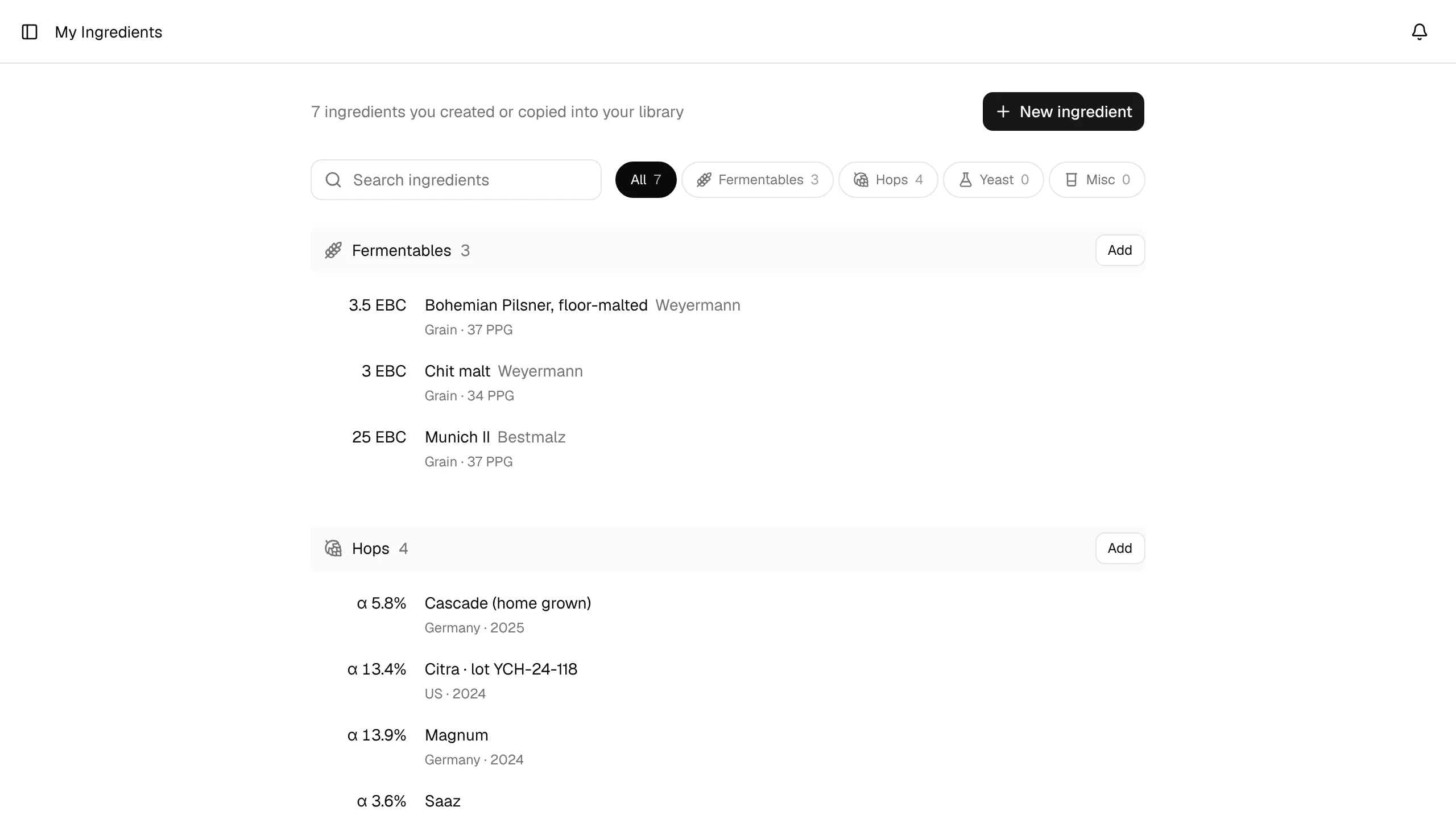
The line at the top counts your ingredients. Below it, the list has one section per type: Fermentables, Hops, Yeast and Misc, each with its count and an Add button. Sections without ingredients say so (for example No yeasts yet.). With more than six ingredients of a type, Show N more opens the rest.
Every row puts the value that tells ingredients apart first, then the name, then details in grey:
| Type | First value | Next to the name | Details |
|---|---|---|---|
| Fermentables | Color, in your color unit | Supplier | Type, potential in PPG, origin, non-fermentable |
| Hops | Alpha acid (α) | Supplier | Origin, purpose, harvest year |
| Yeast | Attenuation range | Lab and product ID | Type, form |
| Misc | – | – | Type, default unit |
Click a row to open the ingredient.
Search and filter
- Search ingredients looks through names, suppliers, labs, product IDs, origins and descriptions. While you search, all matches are shown and empty sections are hidden.
- The chips next to the search (All, Fermentables, Hops, Yeast, Misc, each with a count) show only one type. The chosen type is part of the page address (
/my-ingredients?tab=hops), so you can bookmark it and the browser's Back button returns to the previous filter. - If nothing matches, the page offers Create "…", which opens a new ingredient with your search text as its name, and Clear search.
If you have no custom ingredients yet, the page explains what My Ingredients is for and shows only New ingredient.
Create an ingredient
New ingredient opens the form. Choose the kind at the top (Fermentable, Hop, Yeast, Misc); Add on a section opens the form with that kind already chosen. If you switch the kind, the name you typed is kept.
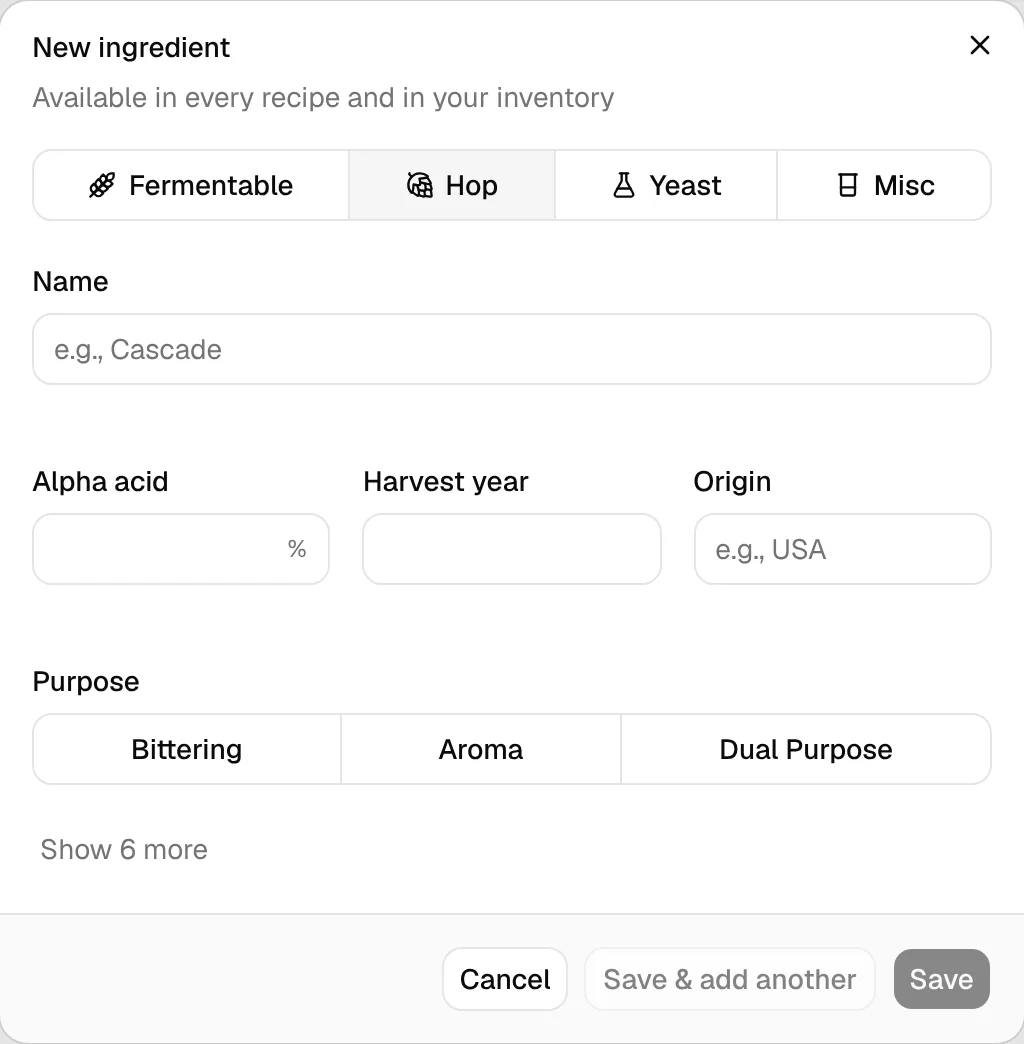
Only Name is required. The form shows the essentials first; the rest sits behind Show N more. Fields that already hold a value are always shown.
| Kind | Essentials | Behind Show N more |
|---|---|---|
| Fermentable | Name, type, color (in your color unit), potential (PPG), origin, supplier, Non-fermentable | Max usage, protein, moisture, diastatic power, flavor profile, description |
| Hop | Name, alpha acid, harvest year, origin, purpose | Beta acid, cohumulone, Oils (total oil, myrcene, humulene, caryophyllene, farnesene), aroma profile, flavor notes, description |
| Yeast | Name, lab, product ID, type, form, attenuation (from … up to), temperature (from … up to, in your temperature unit) | Flocculation, alcohol tolerance, description, special notes |
| Misc | Name, type, default unit, description | – |
Save creates the ingredient and closes the dialog. Save & add another creates it and clears the form for the next one, so you can enter several in a row.
The values become the defaults whenever you add the ingredient to a recipe. If you enter only a minimum or a maximum attenuation for a yeast, BrewForge uses that value; with both, it uses the midpoint.
Create new hop (and the other types) in the inventory's add dialog uses the same form (Add and edit items).
Edit an ingredient
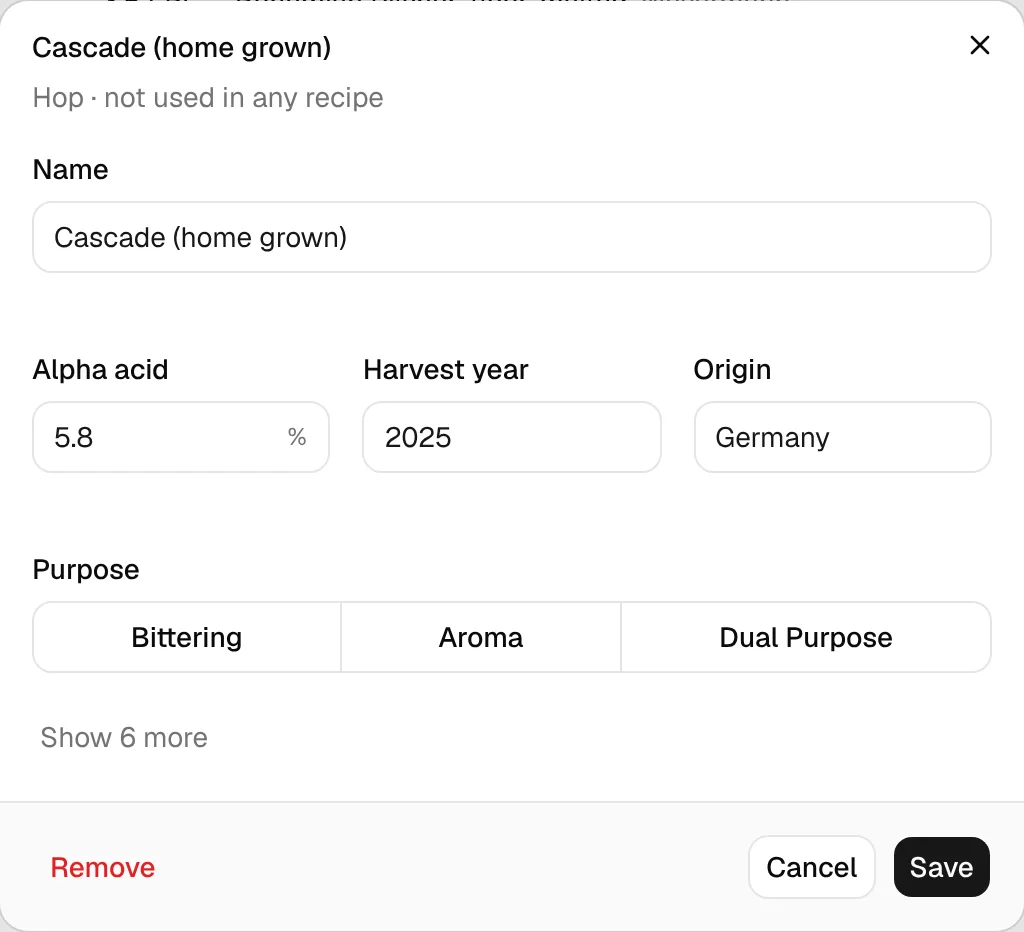
Click a row. The dialog's title is the ingredient's name; the line under it shows the kind, how many recipes use it and how many inventory entries it has. Change what you need and click Save.
Remove an ingredient
Click Remove in the ingredient's dialog. BrewForge checks where the ingredient is used and asks you to confirm, naming what else changes:
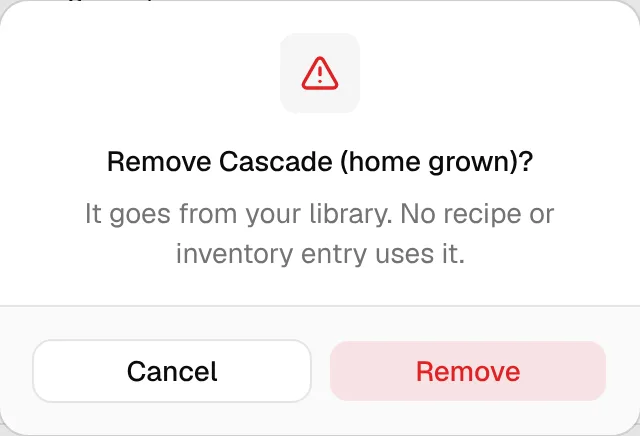
- Recipes using it keep all of the ingredient's values, but are no longer linked to your library (link them again). The confirmation lists them by name. The Planner then shows those recipe lines as Unlinked and can't match them to your stock.
- Inventory entries for the ingredient are removed with it.
Removing can't be undone.
Related
- Packages: supplier ingredient databases
- Inventory: stock levels of your ingredients
- Ingredient library: copy package ingredients into My Ingredients
- Ingredient dialogs: use your ingredients in a recipe, link unlinked recipe lines