Ingredient dialogs
Add, edit and swap fermentables, hops, yeast and other ingredients in a BrewForge recipe: the ingredient picker and its stock filter, amounts and units, hop and addition timing, specs, stock hints, linking imported ingredients and editable copies.
Every ingredient on the Recipe tab is added and changed in the same kind of dialog. Add on the Fermentables, Hops, Yeast or Other section opens it in two steps, Choose and Amount & use (for yeast: Amount). A click on an ingredient row opens it on the second step, ready to change.
The dialogs change the recipe only while it is in Editing. In Viewing (brewed recipes) they open read-only and show Switch to editing instead of Save; see Editing and viewing.
The picker
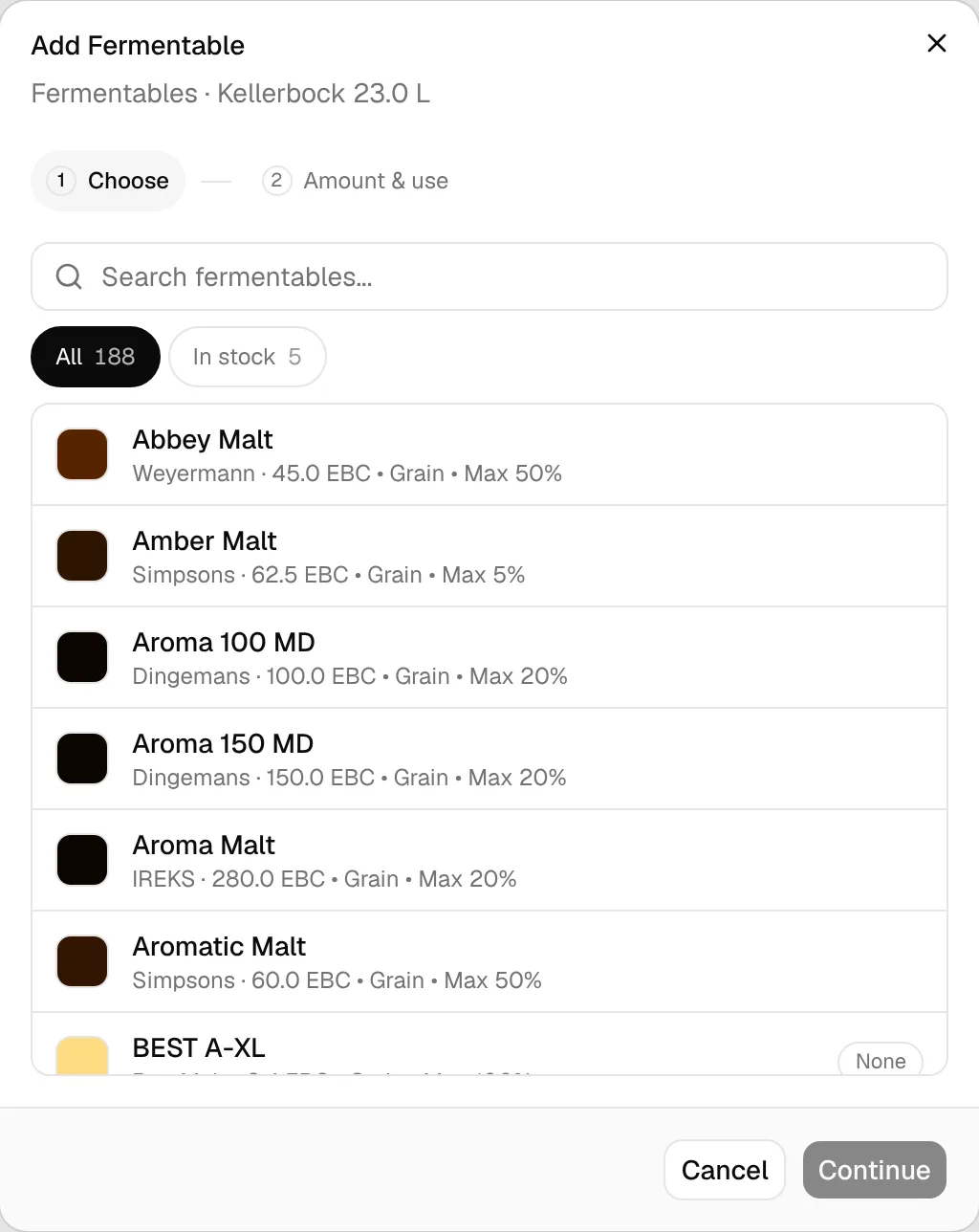
The first step lists the ingredients you can pick:
- Your picker: the ingredients of the packages you added (whole packages or single ingredients), everything in My Ingredients and packages created by an import. Other supplier ingredients appear here once you add them to your picker on the package page.
- Other also always lists the Built-in Water Agents (gypsum, calcium chloride, acids, …).
What you can do in the list:
- Search (for example Search fermentables…) looks through the name, maltster or lab, supplier, package and the grey details line.
- All shows every ingredient in your picker, In stock only those with stock in your inventory. Each chip shows its count. If you have nothing in stock, the list says Nothing in stock. Show all to pick from the catalog.
- Each row shows the details that tell ingredients apart: fermentables a color square, maltster, color, type and maximum share (Max 50%); hops the alpha acid, origin and purpose; yeasts the lab, attenuation and temperature range; other ingredients their package.
- A pill on the right shows your stock (720 g, None when the ingredient is in your inventory but used up). Ingredients that were never in your inventory have no pill.
Click a row to go on to Amount & use. Continue does the same for the row you picked before; Choose at the top (or Change on the ingredient card) takes you back.
Hops: inventory entries and recipe hops
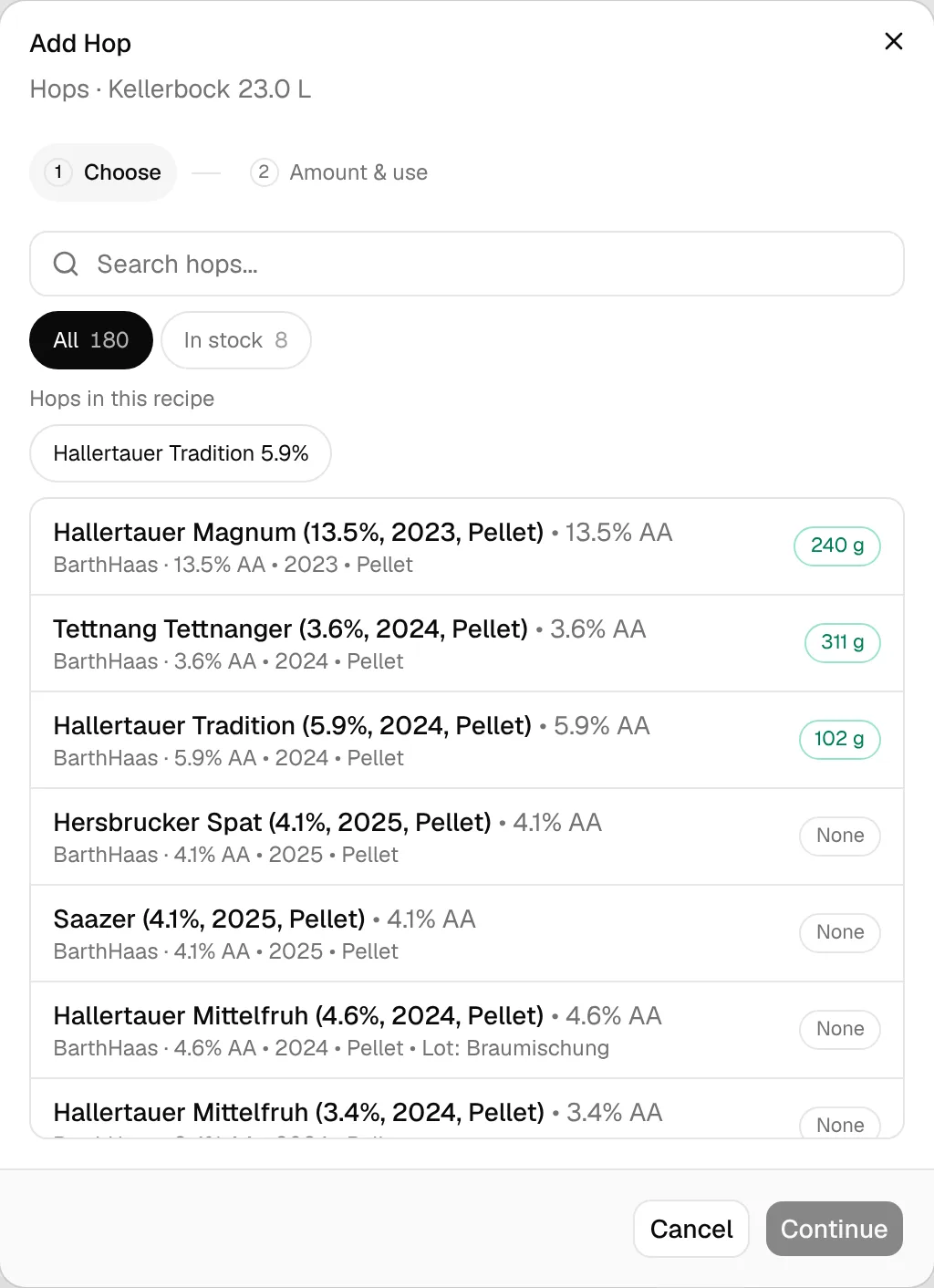
The hop picker knows more about your stock:
- Each hop inventory entry with its own alpha acid, harvest year, form or lot is a row of its own, for example Hallertauer Magnum (13.5%, 2023, Pellet) with the stock of exactly that entry. Picking it takes over its alpha acid and form, and the recipe remembers which entry you meant.
- The same hop is also listed as Hallertauer Magnum (Package AA: …), without stock, for when you want the supplier's alpha acid.
- If you have the same hop in stock in several forms (pellets and whole cones, without lot details), each form is a row of its own.
- Hops in this recipe shows the hops already in the recipe as chips, so a second addition of the same hop is one click. While editing a hop, the chips read Swap for a hop in this recipe.
Amount & use
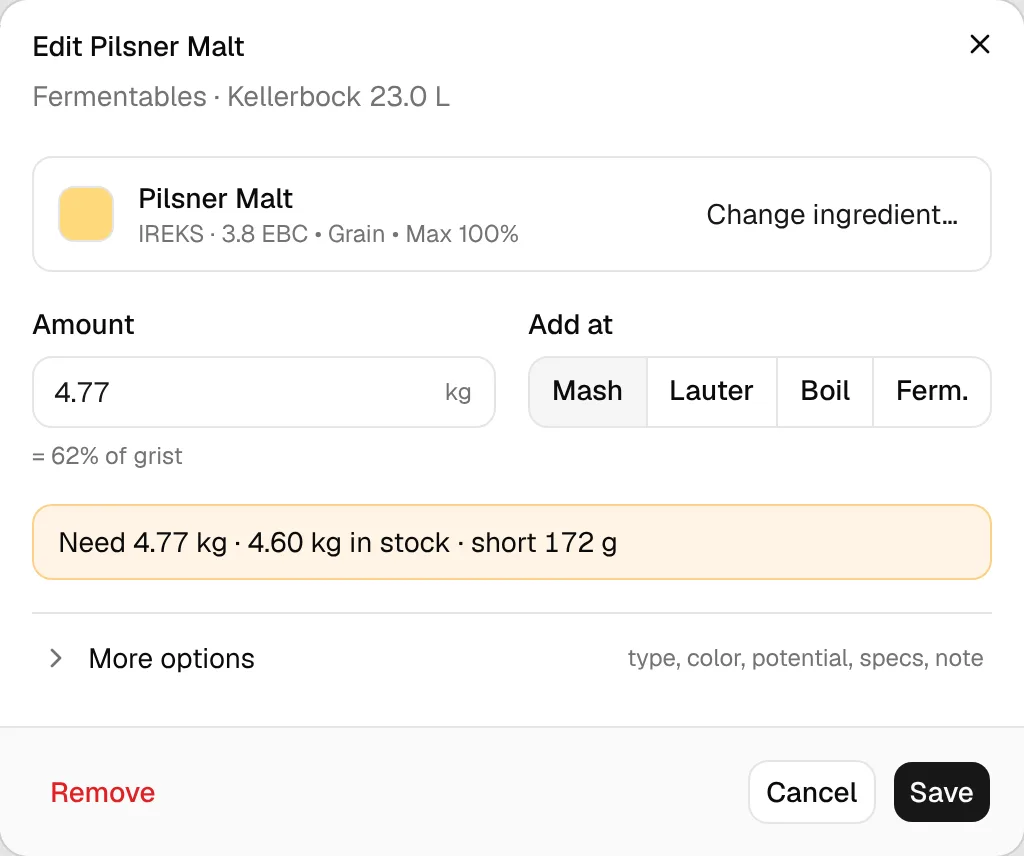
At the top, the card shows the chosen ingredient. Below it are the fields you need for every ingredient; less common settings, the specs and a note sit behind More options (the line next to it says what is inside). The fields per type:
| Type | Fields | Behind More options |
|---|---|---|
| Fermentables | Amount in your weight unit, Add at: Mash, Lauter, Boil or Ferm. | Type, color, potential and fermentability of the recipe line, specs, note |
| Hops | Amount in g (or oz), Use and its timing (below) | Alpha acid, Form (Pellet, Whole/Leaf, Cryo, Extract), Enter amount as g or g/L, specs, note |
| Yeast | Amount and Unit: Grams (g), Milliliters (ml), Packages, Billion Cells | Lab, product ID, type, form, attenuation, temperature range, specs, note |
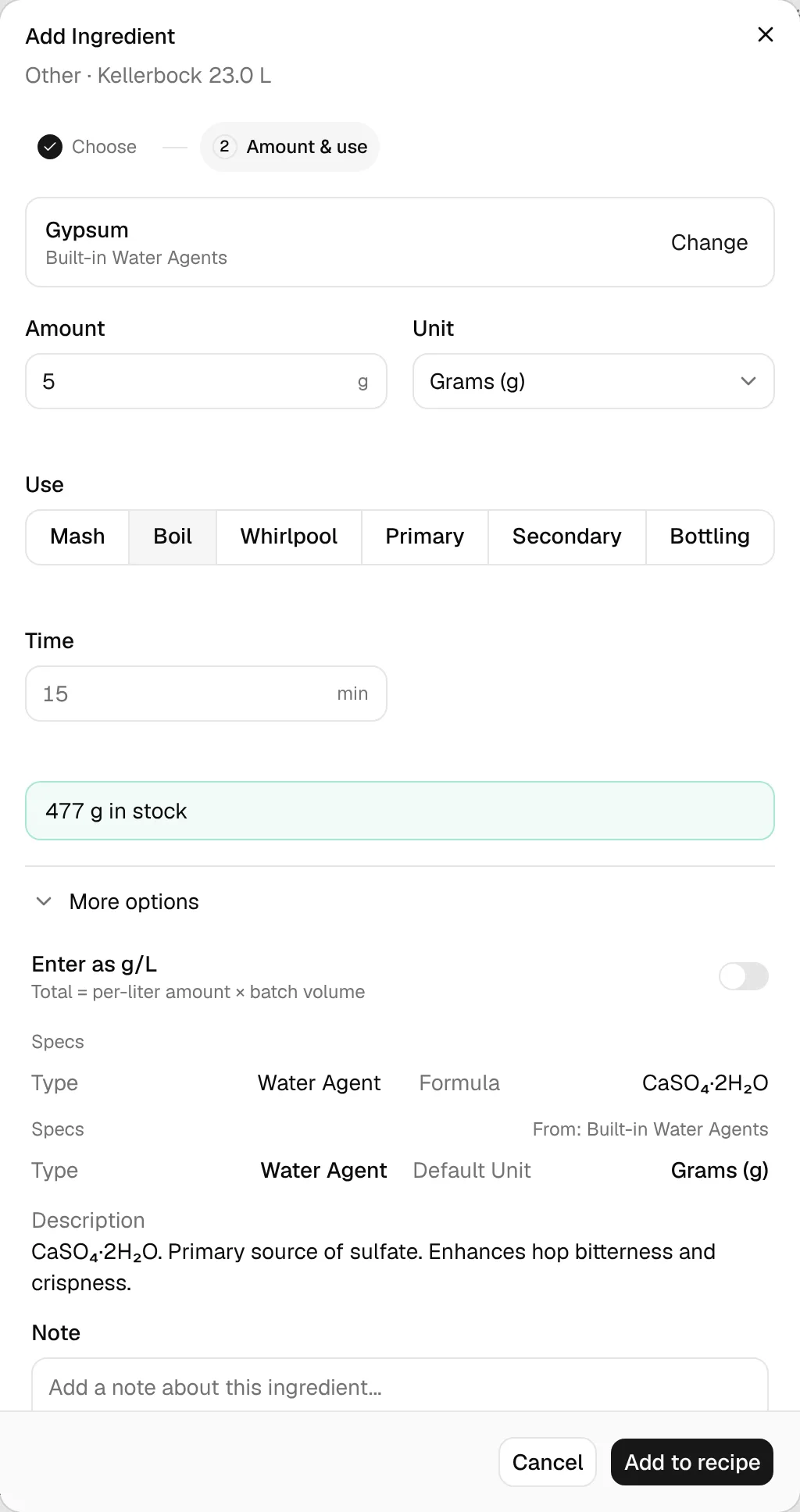
| Other | Amount, Unit (g, mg, ml, teaspoons, tablespoons, each), Use and Time or Add on day | Enter as g/L (for g and mg), type, formula of water agents, supplier, specs, note |
Add to recipe adds the ingredient, Save saves your changes. In the hop dialog, Add Another adds the hop and keeps the dialog open with the same hop picked, ready for the next addition.
When it goes in
Fermentables (Add at):
- Mash and Lauter (at sparge) count towards OG with your brewhouse efficiency.
- Boil counts with 100 % (for sugar or extract added to the kettle). Sugars and extracts count with 100 % wherever they go in.
- Ferm. (fermentation, for example fruit or sugar in the fermenter) doesn't count towards OG.
Hops (Use):
| Use | Timing field | What it means |
|---|---|---|
| Mash Hop | – | Hops in the mash. Counts for IBU with the recipe's boil time + 10 minutes, then 20 % of that. |
| First Wort | – | Hops in the kettle while lautering; counts with the recipe's boil time + 10 minutes. |
| Boil | Boil time (Minutes before flameout) | The classic boil addition; new boil additions start at 60 minutes. |
| Whirlpool | Temperature and Added after flameout, both optional | Added after flameout is the minute the hop goes in, counted from flameout; it stays until the hopstand ends. Empty = at flameout, so it steeps the whole hopstand. Example: a 30-minute hopstand and 10 → the hop steeps 20 minutes. An empty temperature uses the recipe's hopstand; a temperature here wins over the recipe's for this hop's IBU. Imported hops and hops saved before this field show their steep time ("20 min steep") until you edit them; saving converts it to the minute it implies. |
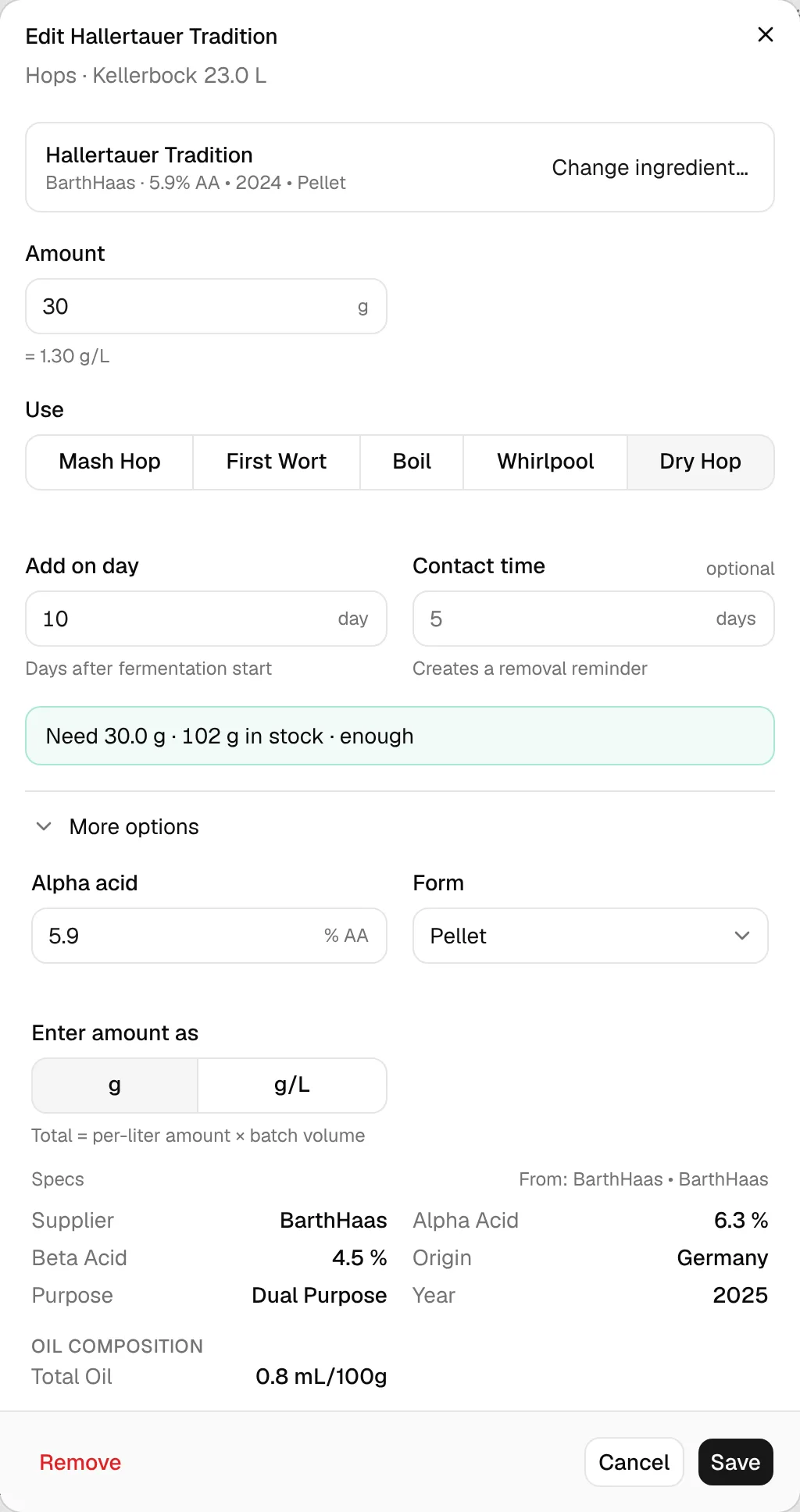
| Dry Hop | Add on day (Days after fermentation start, default 3) and Contact time (optional) | No IBU. A contact time creates a reminder to take the hops out. |
Other ingredients (Use): Mash, Boil and Whirlpool take a Time in minutes; Primary, Secondary and Bottling take Add on day in days. Primary and Secondary also have an optional Contact time, which creates a removal reminder like for dry hops.
Water salts
For water chemistry, add salts and acid in the water calculator (Water → Adjust): only there do they change the ion profile and the estimated mash pH. A water agent added under Other is a plain recipe line with an amount and timing; it is not part of the water calculation.
Amounts per litre
Hop amounts and other ingredients in g or mg can be entered per litre of batch, so they follow the batch size when you scale the recipe or change the batch volume. Switch with Enter amount as → g/L (hops) or Enter as g/L (other ingredients) under More options. The hint under the amount then shows the total (= 29.9 g for 23.0 L); in grams mode it shows the dose instead (= 1.30 g/L).
g/L = grams / batch volume in L
grams = g/L × batch volume in L, rounded to 0.1 g
When you switch to g/L, the current amount is converted and rounded to 0.01 g/L. Example: 30 g in 23 L → 1.30 g/L; 1.30 g/L × 23 L = 29.9 g.
Share of the grist
Under a fermentable's amount, = 62% of grist shows its share of all fermentables in the recipe, including the amount you are typing. To enter malts as percentages instead, use Grist targets (Recipe tab).
share = amount / (amount + all other fermentables) × 100
Every fermentable counts, also those added at boil or in the fermenter. Example: 4.77 kg Pilsner Malt in a grist of 7.66 kg → 4.77 / 7.66 = 62 %.
Stock line
When the ingredient is in your inventory, a line under the fields compares the recipe with your stock:
- Need 651 g · 720 g in stock · enough (green) or Need 4.77 kg · 4.60 kg in stock · short 172 g (amber) for fermentables and hops.
- 477 g in stock or Not in stock for yeast and other ingredients, which are only compared on the Planner.
short = max(0, needed − in stock)
"Needed" is the amount in the dialog, "in stock" the sum of your inventory entries of this ingredient (for a hop inventory entry, just that entry). Example: need 4.77 kg, 4.60 kg in stock → short 0.17 kg (172 g). Other brews that need the same ingredient are not subtracted here; the Planner does that.
Nothing is taken from your inventory when you add an ingredient. On brew day, Deduct from inventory… books the amounts off; see Ingredients and inventory.
More options: specs and note
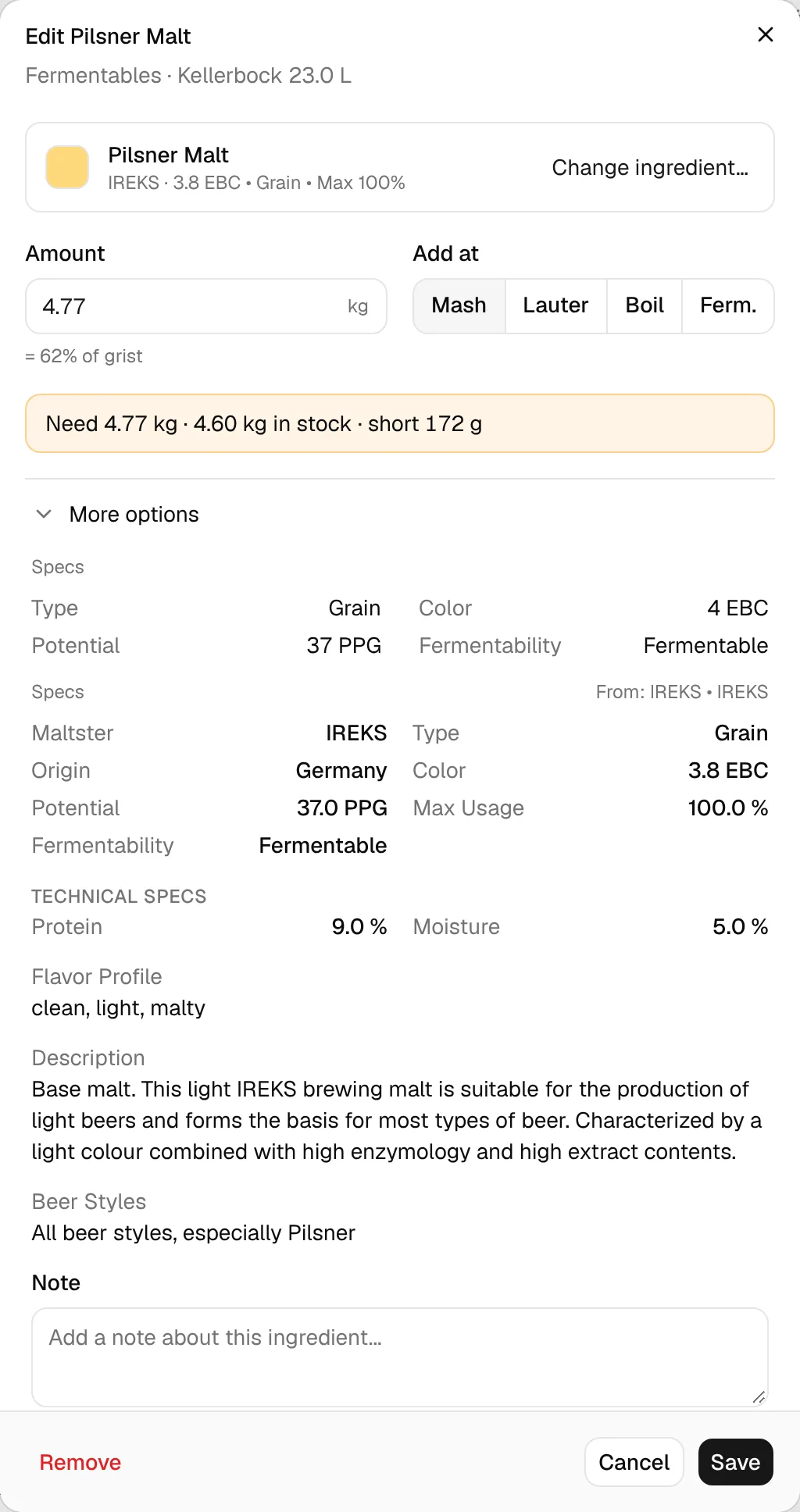
More options shows two kinds of values:
- The recipe line's own values: what BrewForge calculates with. For fermentables type, color, potential and fermentability; for yeast lab, product ID, type, form, attenuation and temperature range. For hops, Alpha acid and Form are fields you can change for this recipe only, for example to the alpha acid printed on your bag.
- Specs with From: …: the data of the library ingredient you picked, as on its package page: fermentables maltster, origin, color, potential, max usage, protein, diastatic power, moisture, flavor and styles; hops supplier, alpha and beta acid, cohumulone, origin, purpose, harvest year, oils, aroma, substitutes and styles; yeasts flocculation, alcohol tolerance, fermentation characteristics, origin and technology, and notes; other ingredients type, default unit and description.
The recipe values are taken from the library ingredient when you pick it, and then stay with the recipe. They can differ from the specs: a hop inventory entry carries its own alpha acid, an import brings its own colors. Changing an ingredient in My Ingredients later doesn't change existing recipes; pick it again with Change ingredient… to take over the new values.
Where a calculation needs a value that is missing, BrewForge uses a default: a fermentable without potential counts with 36 PPG for grain and liquid extract, 44 for dry extract, 46 for sugar, 35 for adjuncts and 10 for fruit (see OG). Colors are shown in your color unit and stored as SRM = EBC / 1.97.
Note adds a note to this recipe line (for example "add 5 minutes before the end"). Rows with a note show a small note icon on the Recipe tab.
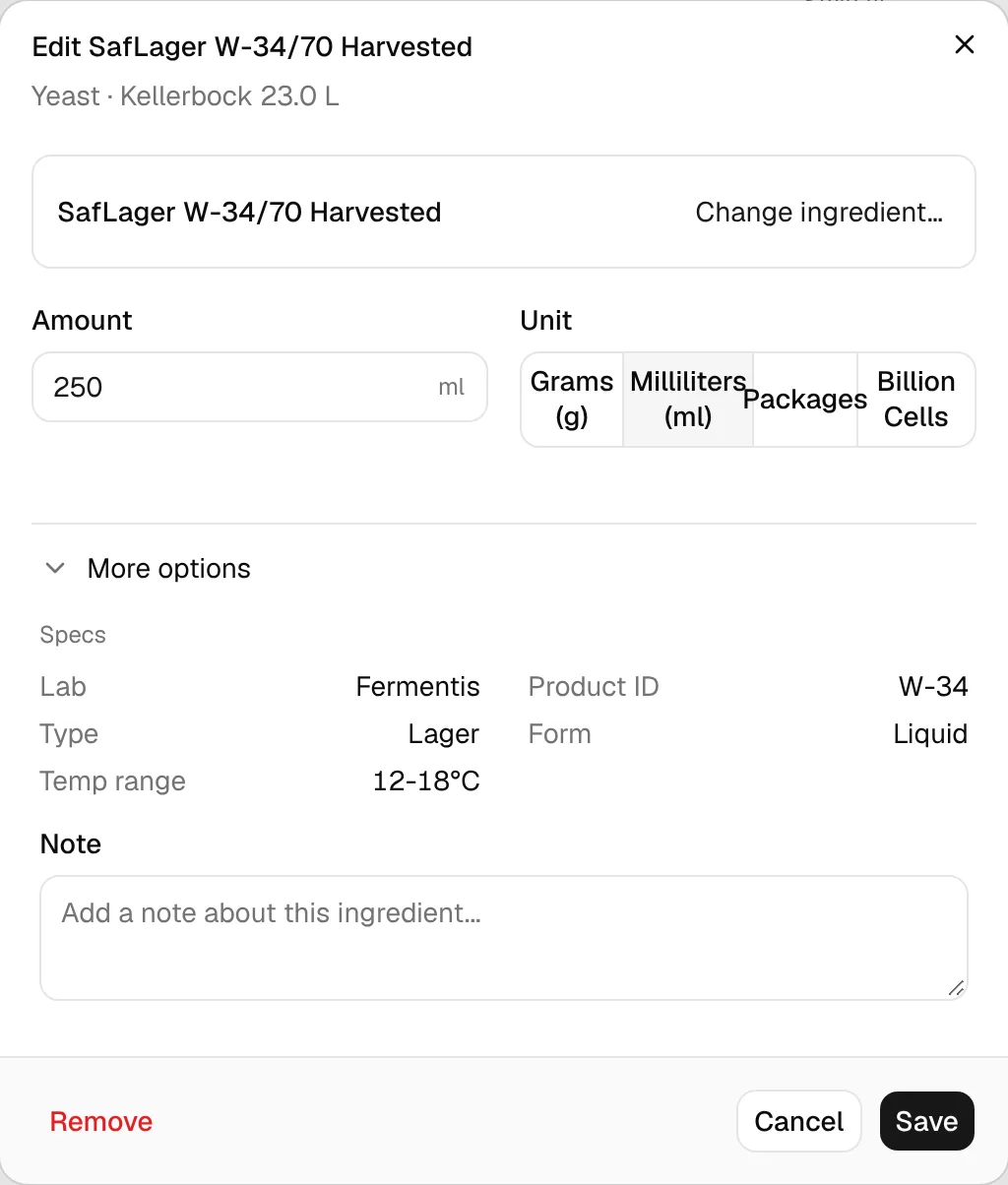
The yeast dialog has no calculated values. For how much yeast to pitch, use Calculator on the Yeast section, which opens the yeast pitch rate calculator with this brew's volume and OG. The yeast's attenuation drives the final gravity.
Your own copy of an ingredient
When you want different values than the supplier's (your own malt analysis, a home-harvested yeast), click Create editable copy in My ingredients at the bottom of More options. BrewForge copies the ingredient with all its specs into My Ingredients and picks the copy for this recipe line (the button then reads Editable copy created in My ingredients); Save keeps it. Change the copy's values on the My Ingredients page, then pick it again here to use them.
Swap, remove, undo
- Change ingredient… on the card of an existing row opens the picker with Choose a replacement. Amount and timing are kept. The new ingredient brings its own values (color, potential, alpha acid, …); amount, timing and note stay. Back to details returns without swapping.
- Remove at the bottom left removes the ingredient at once, without asking.
- Undo and Redo in the page header (or ⌘Z and ⌘⇧Z) step back through every change, including removed or swapped ingredients.
- Cancel or closing the dialog throws away what you typed.
If the recipe uses Grist targets (fermentables as % of the grist), saving a fermentable updates the percentages and the target OG from the weights; removing one spreads its share over the others and keeps the target OG.
Imported and unlinked ingredients
A recipe ingredient is usually linked to an ingredient in your picker: BrewForge knows which library ingredient it is. Some aren't, for example after a BeerXML or MaischeMalzundMehr import, in old recipes, or after you removed the ingredient from My Ingredients. Their dialog starts with Not linked to an ingredient: Link to keep stock and specs in sync. The values below came from the import.
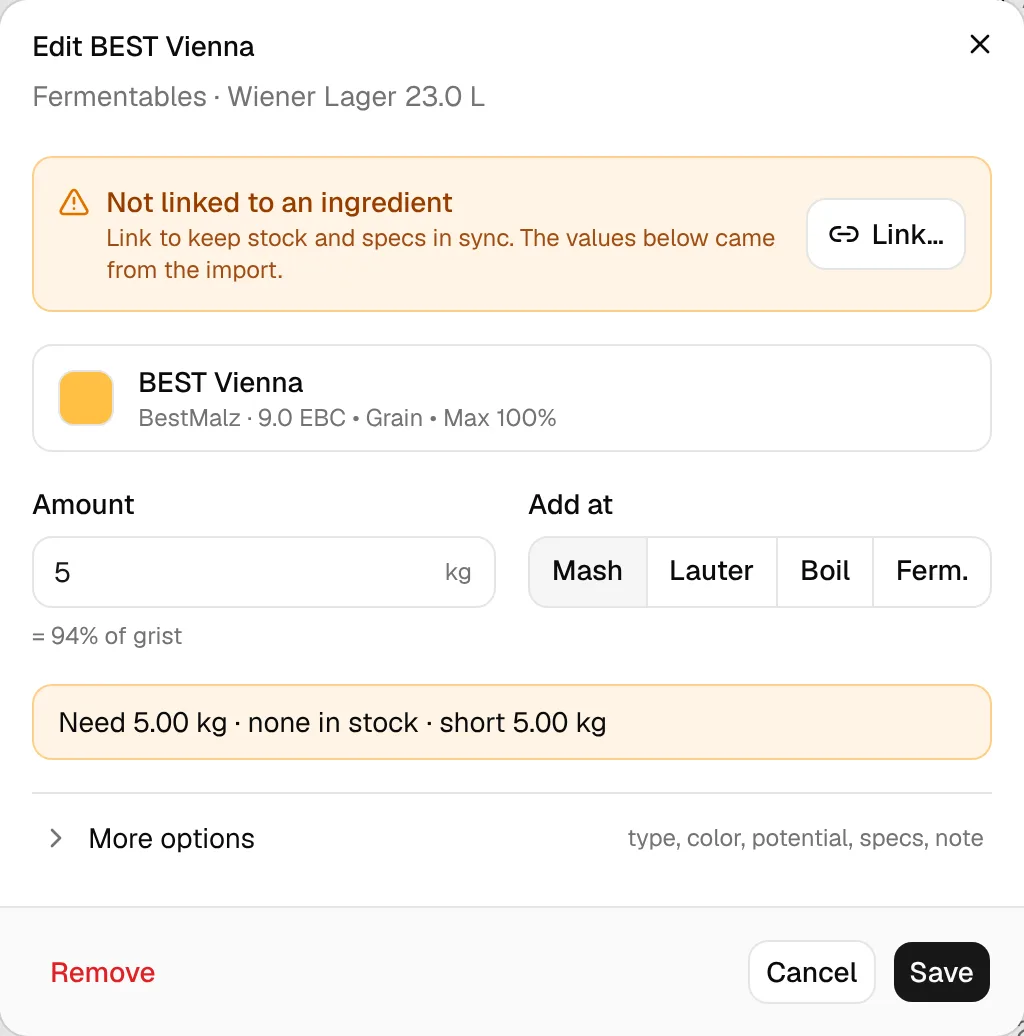
Click Link…. The picker opens with Pick the matching ingredient. Amount and timing stay as they are. Search for the ingredient.
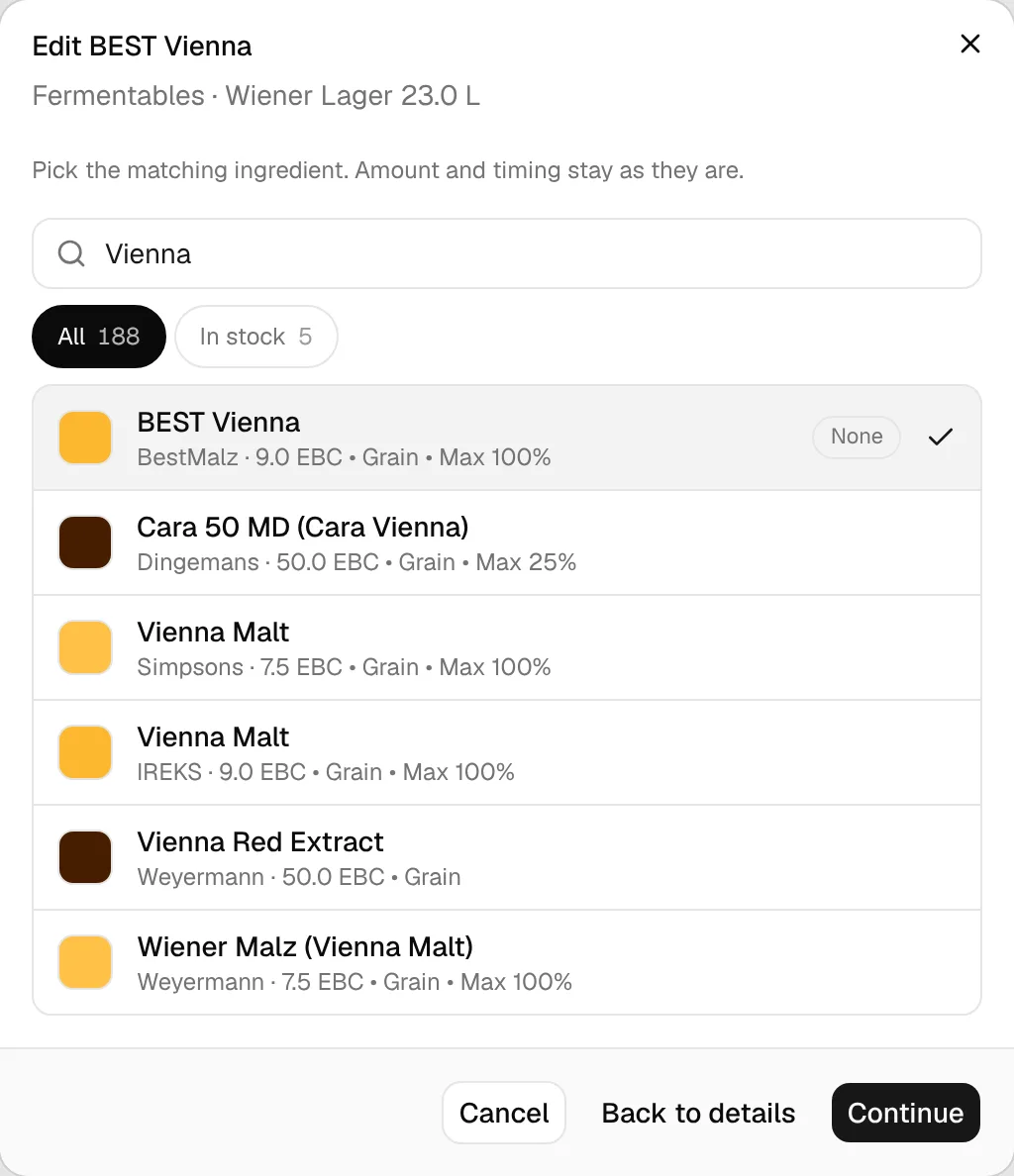
Click the matching ingredient. The dialog goes back to the details.
Click Save. The recipe line is now linked.
What linking does:
- The recipe line keeps its own name, amount, timing and note. Its brewing values (color, potential, type, alpha acid, form, lab, attenuation …) are replaced by those of the library ingredient, so OG, color and IBU can change a little. Check the numbers on the Recipe tab and use Undo if you'd rather keep the imported values.
- The dialog shows the stock line and the library specs.
- The Planner can match the line to your stock and orders; unlinked lines count there as Unlinked, with zero stock.
If an ingredient with the same name (ignoring upper and lower case) is in your picker, BrewForge already shows it on the card (as for BEST Vienna above). Clicking Save without changing anything links the line to it.
Recipes imported with values from another program (OG, IBU, color marked with a small blue dot) must be switched to BrewForge calculations before you can edit them; see Editing and viewing.
Quick bittering
Bittering on the Hops section (⋯ → Quick bittering…) adds a bittering hop by target IBU instead of grams.
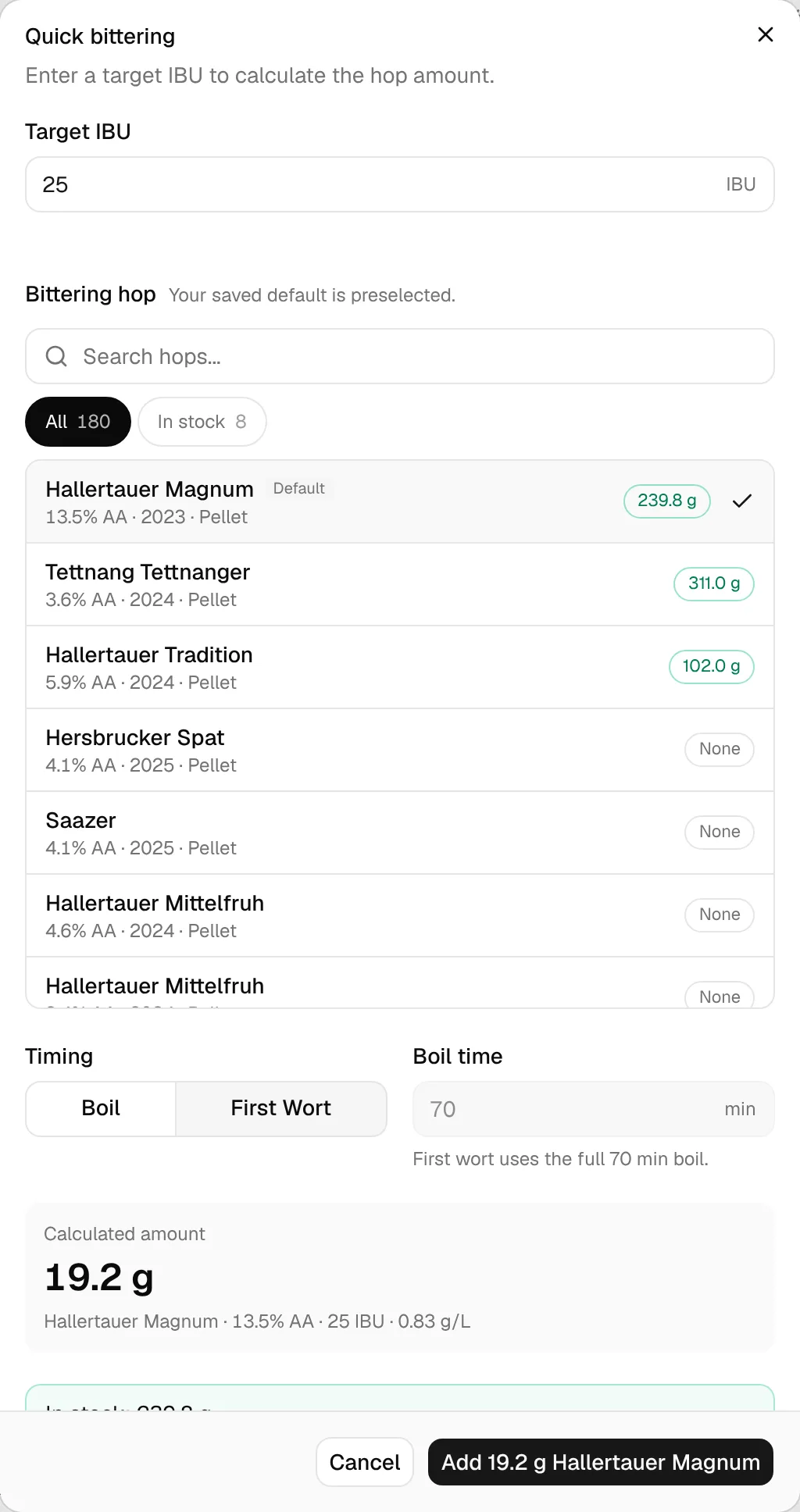
- Enter the Target IBU this one addition should give.
- Pick the Bittering hop. The list shows your hop inventory entries with their alpha acid and stock, and supplier hops with their Package AA.
- Choose the Timing: Boil with a Boil time, or First Wort, which uses the whole boil.
- Calculated amount shows the grams, the alpha acid, the IBU and the dose in g/L. Add 19.2 g Hallertauer Magnum adds the hop.
Remember as my default bittering hop saves the hop, timing and alpha acid in your preferences; next time the dialog opens with it preselected (Your saved default is preselected.). If the saved hop is no longer in your picker, the dialog says so.
grams = target IBU × batch volume in L / (utilization × alpha acid/100 × 1000), rounded to 0.1 g
The utilization comes from the same Tinseth formula as the recipe's IBU, with the recipe's pre-boil gravity, the boil time (first wort: the whole boil + 10 minutes) and BrewForge's default hopstand (80 °C, 20 minutes). The recipe's own hopstand and the equipment's hop utilization are not applied here, so the IBU breakdown can differ slightly afterwards.
Example: 25 IBU, 13.5 % alpha acid, 23 L, first wort in a 70-minute boil, pre-boil gravity about 1.060 → utilization ≈ 0.222 → 25 × 23 / (0.222 × 0.135 × 1000) = 19.2 g.
To plan several bittering additions by IBU, use ⋯ → Bitterness targets (Recipe tab).
Values the Recipe tab calculates from your ingredients
The dialogs show only the values above. What the ingredients add up to is on the Recipe tab and explained in Brew calculations:
- OG and pre-boil gravity from amount, potential and efficiency (OG),
- color from the malt colors (Color),
- the IBU of each hop addition in its row and in ⋯ → IBU breakdown (IBU),
- FG and ABV from the yeast's attenuation (Final gravity).
Related
- Recipe tab: the sections, grist and bitterness targets, hopstand
- Packages: which ingredients are in your picker
- My Ingredients: your own ingredients and editable copies
- Inventory: the stock shown in the picker
- Imports: where unlinked ingredients come from