Planner
The BrewForge Inventory Planner adds up the ingredients of all planned brews, compares them with your inventory and open orders, and lists the shortages you still need to buy.
The Inventory Planner answers one question: do I have everything for the brews I've planned? It adds up the ingredients of every brew with the status Planned, subtracts them from your inventory, counts what is already on its way from orders, and shows what's missing.
Open Planner under Ingredients in the sidebar. Until you plan a brew it waits under More (why).
Pro plan
The Planner is part of the Pro plan and higher.
A brew counts as planned as long as its status is Planned. Once you start brewing it (status Brew Day or later), it drops out of the Planner. Brews with the status Idea are not included either.
Planned Brews
The first tab lists your planned brews, sorted by planned brew date. Each card shows the batch number, style, the planned date (or Not scheduled) and a red badge such as 1 short when the brew is missing ingredients.
Click a card to see its ingredients, grouped into Fermentables, Hops, Yeast and Misc (including water agents). Amounts of the same ingredient are added up.
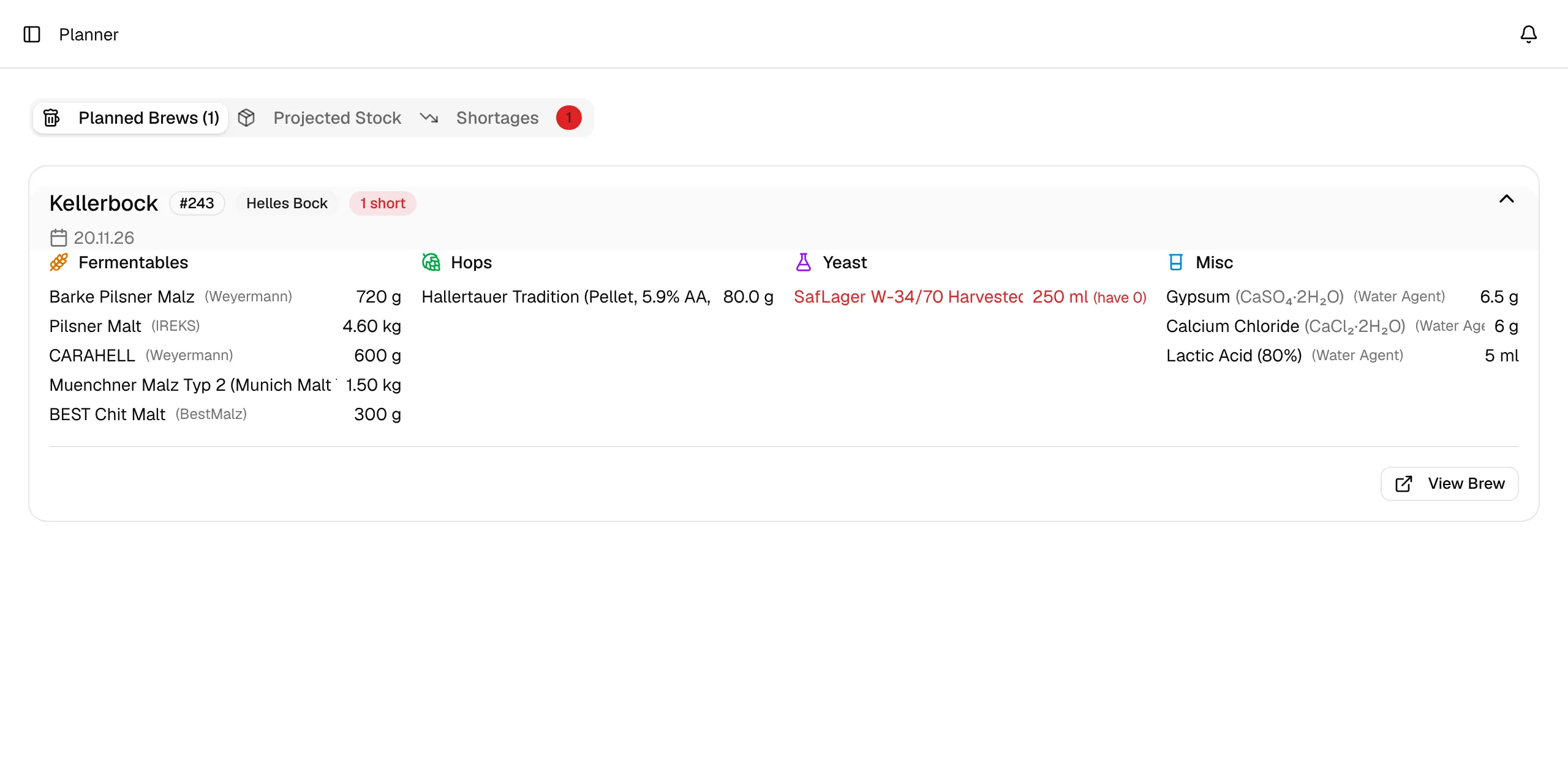
- Red: you don't have enough, even counting open orders. The amount you have (and have on order) is shown next to it.
- Amber: your stock is too low, but an open order covers the rest.
- Unlinked (with an icon): the recipe ingredient isn't linked to the ingredient database, so BrewForge can't look up your stock for it.
This tab checks each brew on its own against your whole stock. To see whether your stock covers all planned brews together, use Projected Stock.
View Brew opens the brew.
Projected Stock
Projected Stock is one table for all ingredients that are either in your inventory or needed by a planned brew.
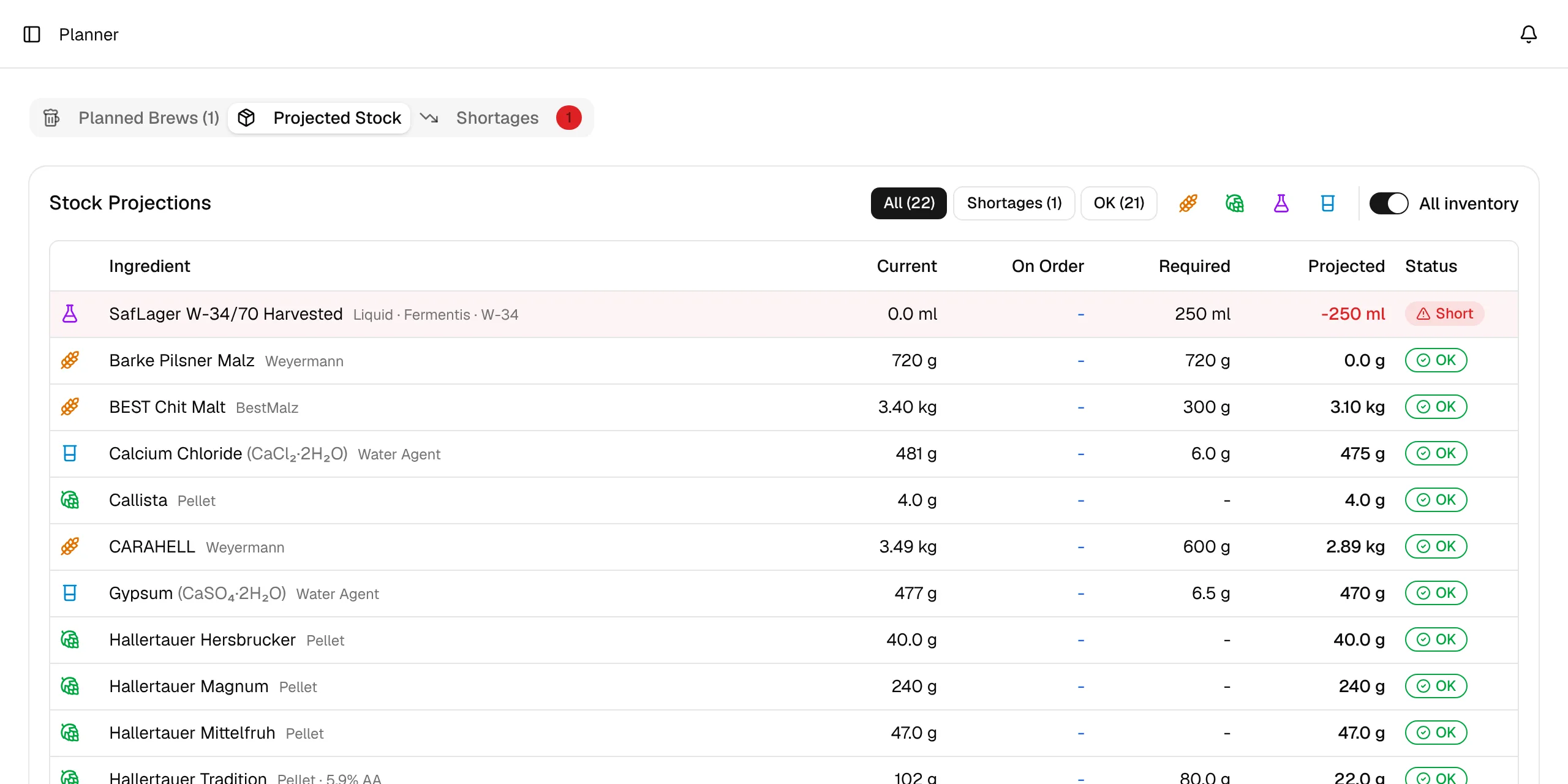
| Column | Meaning |
|---|---|
| Current | What's in your inventory now |
| On Order | What's still expected from open orders |
| Required | The total of all planned brews (hover over the ingredient to see which brews use it) |
| Projected | What's left after brewing all of them; negative means you're short |
| Status | Short or OK |
Shortages are listed first. The filters All, Shortages and OK, the ingredient type icons and the All inventory switch narrow the table; switch off All inventory to see only ingredients your planned brews use.
Shortages
Shortages lists only the ingredients you're short of, with Have, On Order, Need, Short and the brews that use them (Used In).
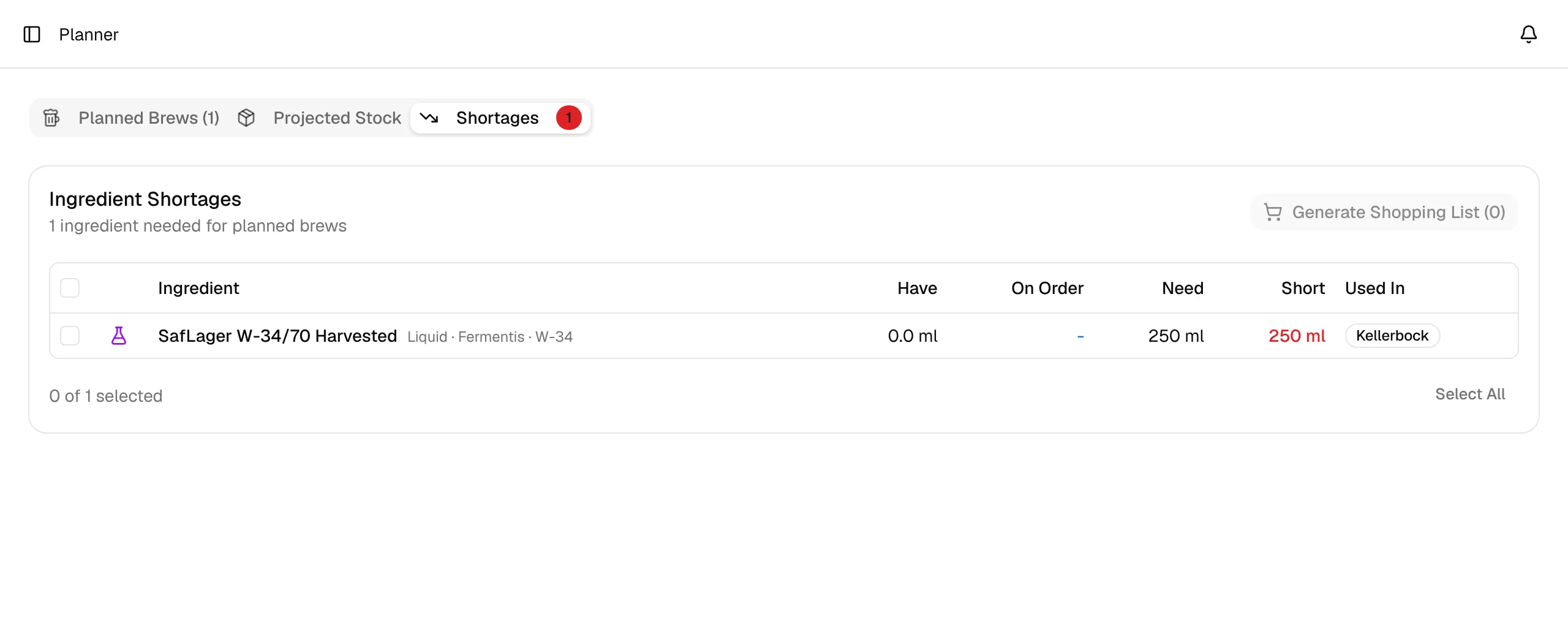
To order the missing amounts:
Tick the shortages you want to buy (or Select All).
Click Generate Shopping List.
Choose Create new order (name, supplier and notes are optional) or Add to existing to put the items on a draft order. Each item is added with its short amount.
Confirm with Create Order or Add to Order. BrewForge opens the order on the Orders page.
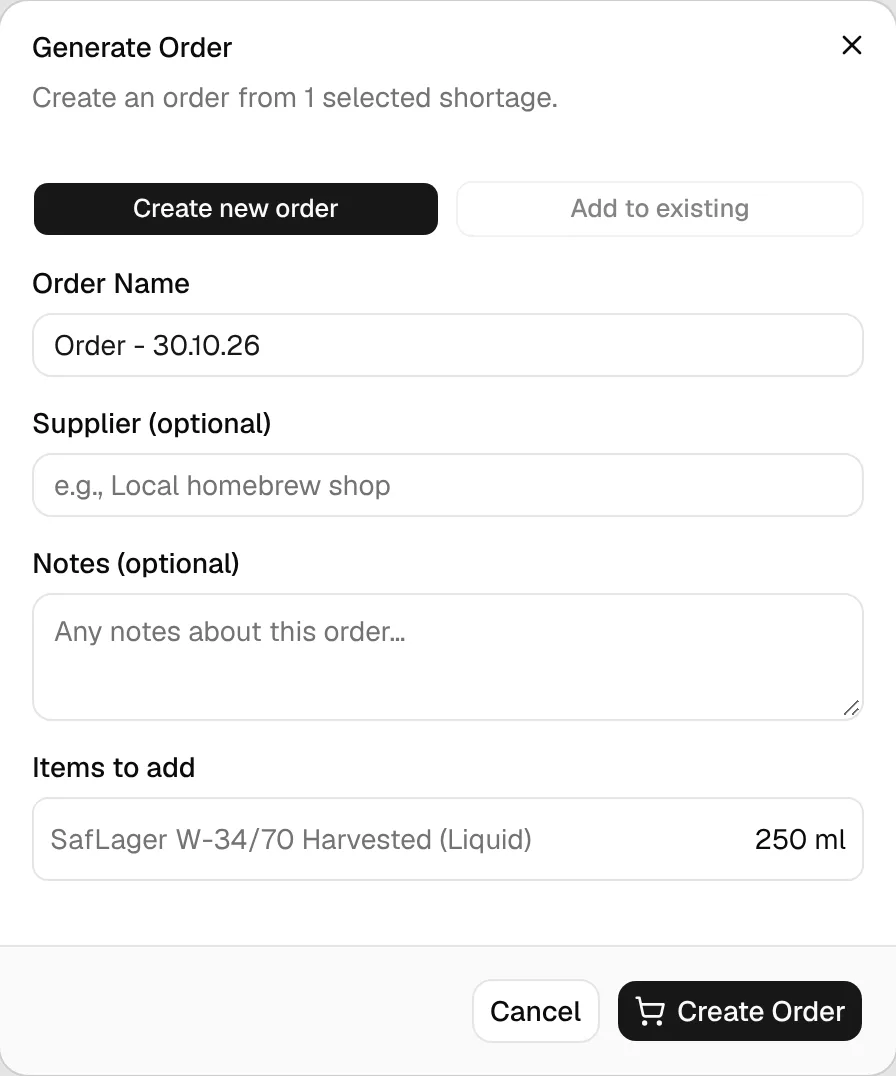
Once you mark the order as Ordered, its items count as On Order and the shortage disappears from the list. A draft order doesn't count yet.
How shortages are calculated
projected = (current + on order) − required
short = required − (current + on order), shown when projected is below zero
- required is the sum of the ingredient over all brews with the status Planned.
- on order is, for every item of an order with the status Ordered or Partial:
ordered quantity − received quantity. If no ordered quantity is set, the needed quantity is used. Draft and received orders don't count.
Example: two planned brews need 3.0 kg and 2.5 kg of Pilsner malt (required 5.5 kg). You have 3.0 kg in stock and 2.0 kg on an open order. Projected = (3.0 + 2.0) − 5.5 = −0.5 kg, so you're short by 500 g. Without the order you'd be short 2.5 kg.
How an ingredient in a recipe is matched to your stock and orders:
- By the linked database ingredient, not by name. Recipe lines that aren't linked (shown as Unlinked) count as zero stock; only open orders with the same name are counted for them.
- Hops are compared per form (pellet, whole, cryo, extract). Open orders count only if form, alpha acid and harvest year match the recipe.
- Yeast is compared per form (dry or liquid), in the unit the recipe uses (for example packages or ml).
- Misc ingredients are compared per type; water agents count in the misc group.
- Fermentables, hops and misc are counted in grams (shown in your weight unit).
The Planned Brews tab applies the same comparison to one brew at a time: an ingredient is red when in stock + on order < required for this brew, and amber when stock alone is too low but open orders make up the difference. There, the stock of a hop, yeast or misc ingredient is your total across all forms.