Ingredient packages
Add ingredient packages from maltsters, hop suppliers and yeast labs (Weyermann, BestMalz, BarthHaas, Fermentis and more) to your ingredient picker so their ingredients show up in your recipes, inventory and orders.
BrewForge's ingredient database is split into packages, usually one per supplier: a maltster, a hop merchant or a yeast lab. You add the packages you actually buy from to your ingredient picker, either whole or only the ingredients you use. Only ingredients in your picker appear when you search for an ingredient in a recipe, in your inventory or in an order, which keeps those lists short.
Open Packages under Ingredients in the sidebar.
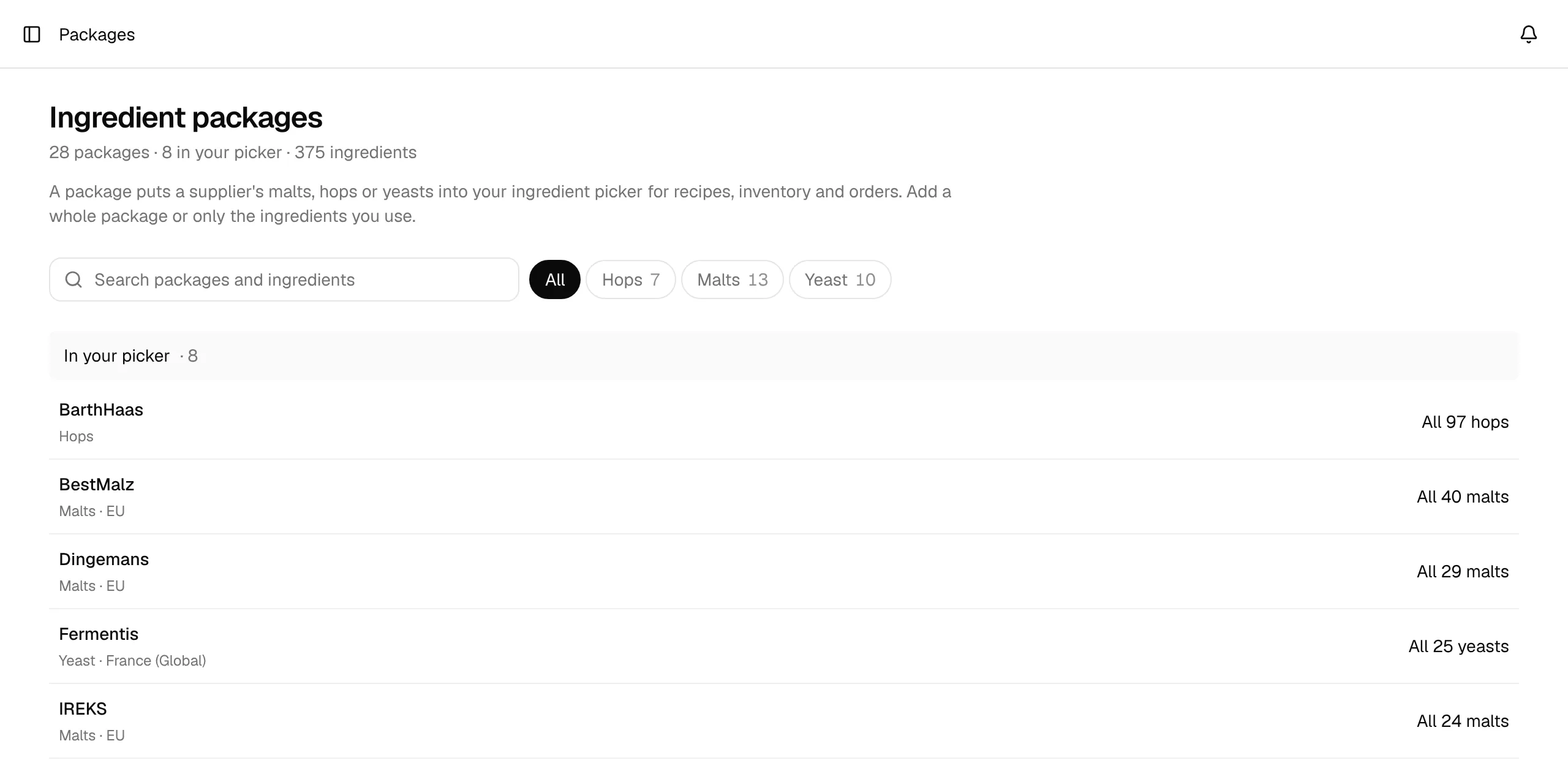
Find a package
The line under the title counts the packages, how many of them are in your picker and how many ingredients that adds up to. Below, the packages are listed in three groups:
| Group | What's in it |
|---|---|
| In your picker | Packages with at least one ingredient in your picker. The right column reads All 97 hops or, if you picked only some, 18 of 56 malts. |
| More packages | Everything else in the catalog, with how many ingredients each package holds. A long list shows the first ten; Show N more lists the rest. |
| Yours | Your own packages (My ingredients and packages created by an import). They are always in your picker. |
- The chips All, Hops, Malts and Yeast narrow the list to packages that contain that type. A mixed package shows up under each type it contains.
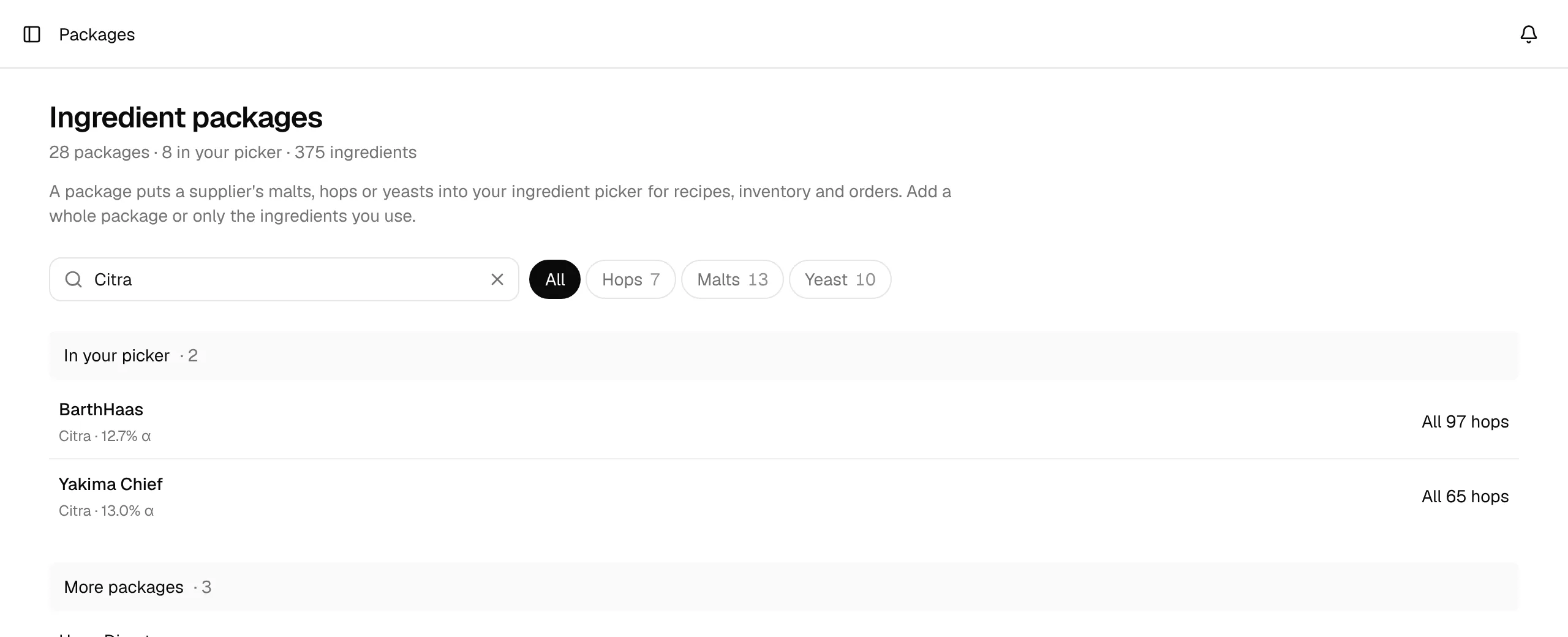
- The search finds package names, descriptions and suppliers, and also ingredient names. Search for
Citraand every package that has it is listed with the matching ingredient and its alpha acid under the package name.
A package page
Click a package to open its page. The header shows the supplier's description and a link to its website. The line below says how much of the package is in your picker, for example All 97 hops are in your picker.
The ingredients are listed by type (malts, hops, yeast, misc) with their key value on the right: alpha acid for hops, color for malts, attenuation for yeasts. A check mark in front of an ingredient means it is in your picker, a dot means it isn't. Long lists show the first rows and a Show N more link.
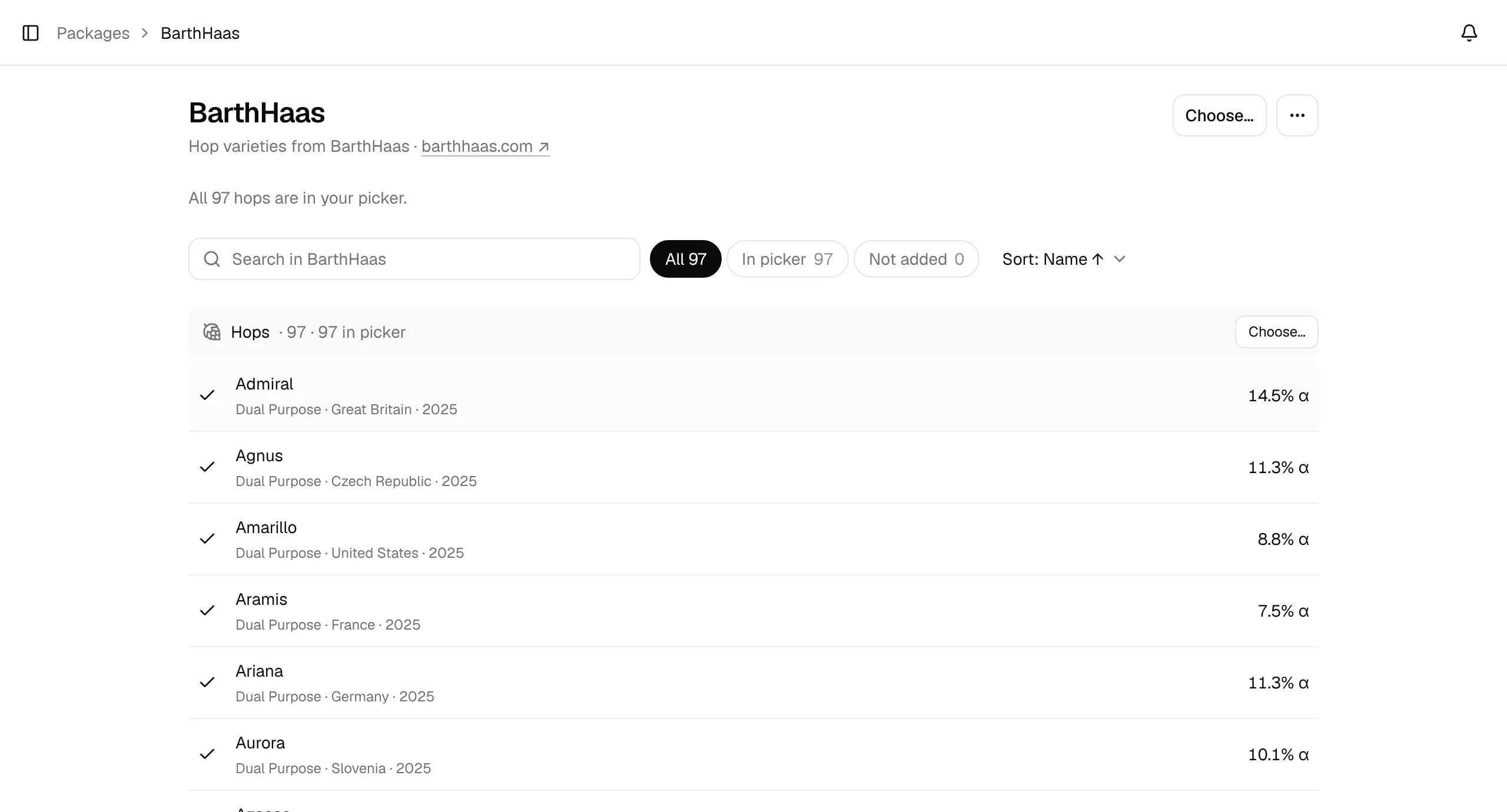
Above the list you can:
- search within the package (Search in BarthHaas),
- show All, only the ingredients In picker or only those Not added,
- sort each type with Sort: by name, alpha acid, origin, purpose and harvest year (hops), color, type and max usage (malts), or attenuation, flocculation and type (yeasts), ascending or descending. BrewForge remembers your sort.
Add a package to your picker
Click Add all N (for example Add all 56) to put every ingredient of the package into your picker. The button shows while not everything is added; it is also in the ⋯ menu as Add all N to picker.
To use only some ingredients, click Choose… (in the header, in the line under it, or next to a type) or Choose ingredients… in the ⋯ menu. Then tick the ingredients you want and click Save.
To take a whole package out again, open the ⋯ menu and choose Remove all from picker. The message that follows has an Undo button.
Whole package or single ingredients
When the whole package is in your picker (with Add all, or by ticking everything in Choose…), ingredients the supplier adds to the package later show up in your picker automatically. When you picked only some ingredients, new ones are not added; open the package and add them when you want them.
Removing ingredients only hides them from the ingredient search. Recipes, brews and inventory entries that already use them keep working.
Choose ingredients
In choose mode every row gets a checkbox and the subtitle reads Choose which ingredients show in your ingredient picker.
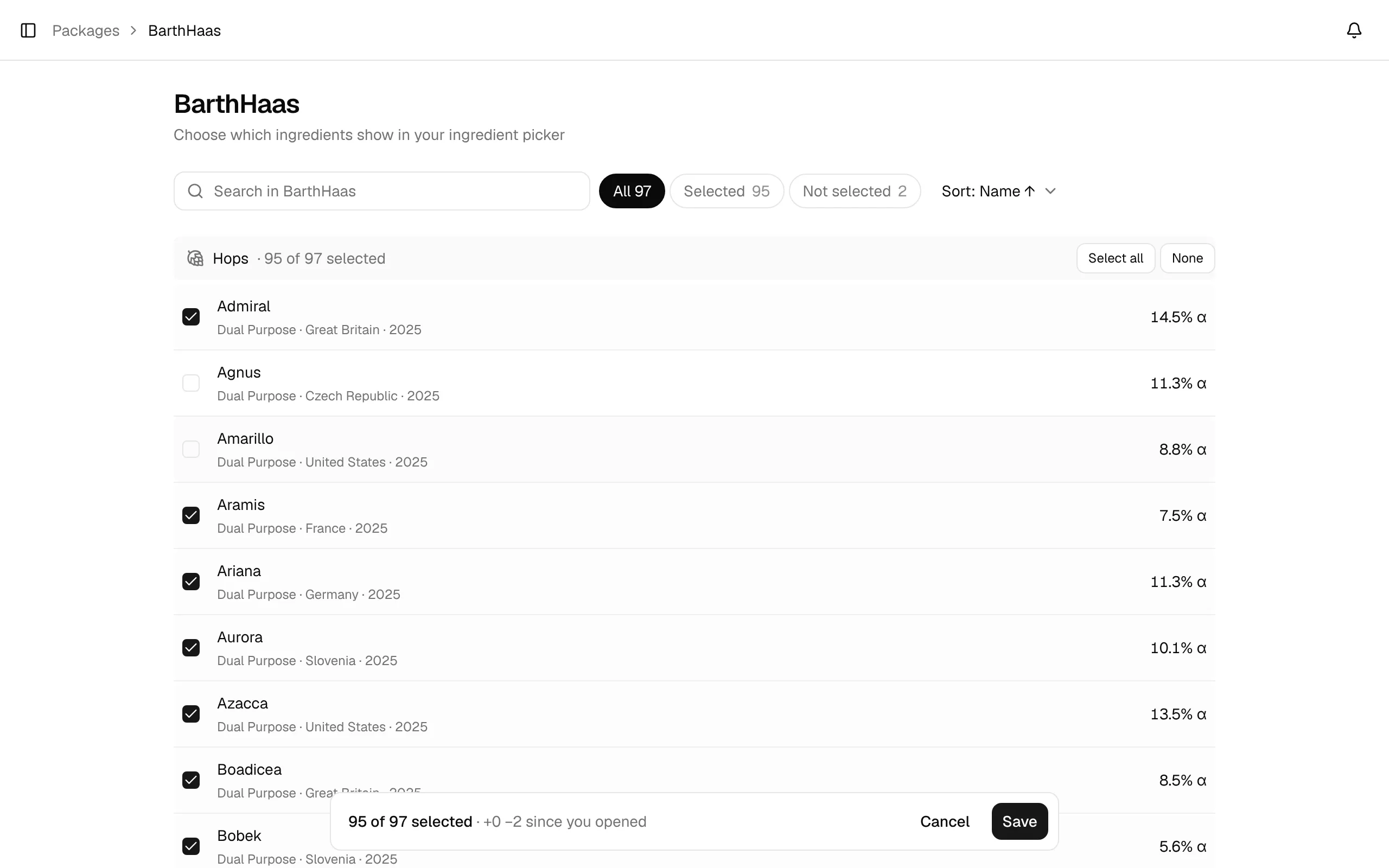
- Each type has Select all and None. After a search or filter they become Select N shown and Clear shown, so you can search for
Saazand tick all matches at once. - The filters read Selected and Not selected while you choose.
- The bar at the bottom shows how many are selected and how many you added and removed since you opened choose mode (
+0 −2 since you opened). - Save applies only the ingredients you ticked or unticked. Cancel leaves your picker as it was.
Ingredient details
Click an ingredient to open its details. The first line says which type and package it belongs to and whether it is in your picker.
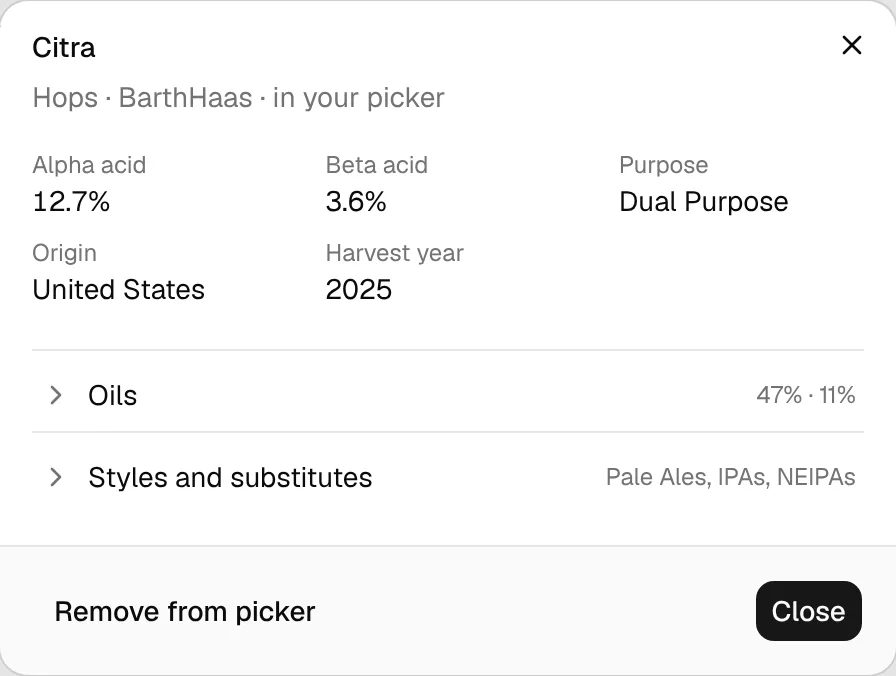
- Hops: alpha and beta acid, cohumulone, purpose, origin, harvest year, aroma and flavor, and folds for Oils (total oil, myrcene, humulene, caryophyllene, farnesene), Brewing notes and Styles and substitutes.
- Malts: color, type, max usage, origin, supplier, flavor and description, and folds for Brewing specs (potential as gravity and PPG, protein, diastatic power, moisture) and Recommended styles.
- Yeasts: attenuation, temperature range, flocculation, type and form, lab and product, alcohol tolerance and description, and folds for Flavor (ester production, phenolic character), Origin and technology (origin, technology, parent strain) and Notes and styles.
- Misc: type, default unit and description.
Add to picker or Remove from picker at the bottom left changes just this ingredient.
Your own packages
My ingredients is your personal package with everything you created or copied yourself; clicking it opens the My ingredients page, where you manage it. Packages created by an import (such as Brewfather Import) open as a read-only page. Both are always in your picker.
Related
- Set up your brewery: adding packages as part of getting started
- My ingredients: add ingredients that aren't in any package
- Inventory: record what you have in stock