Orders
Track ingredient orders in BrewForge from shopping list to delivery, record prices and shipping, and add received ingredients to your inventory with their cost per kilogram.
Orders are your shopping lists. You create them from the Planner's shortages or by hand, mark them as ordered, and record what arrives. Received items go straight into your inventory, including what you paid for them. While an order is on the way, its items count as On Order in the Planner.
Open Orders under Ingredients in the sidebar. Before your first order it waits under More (why).
Pro plan
Orders are part of the Pro plan and higher.
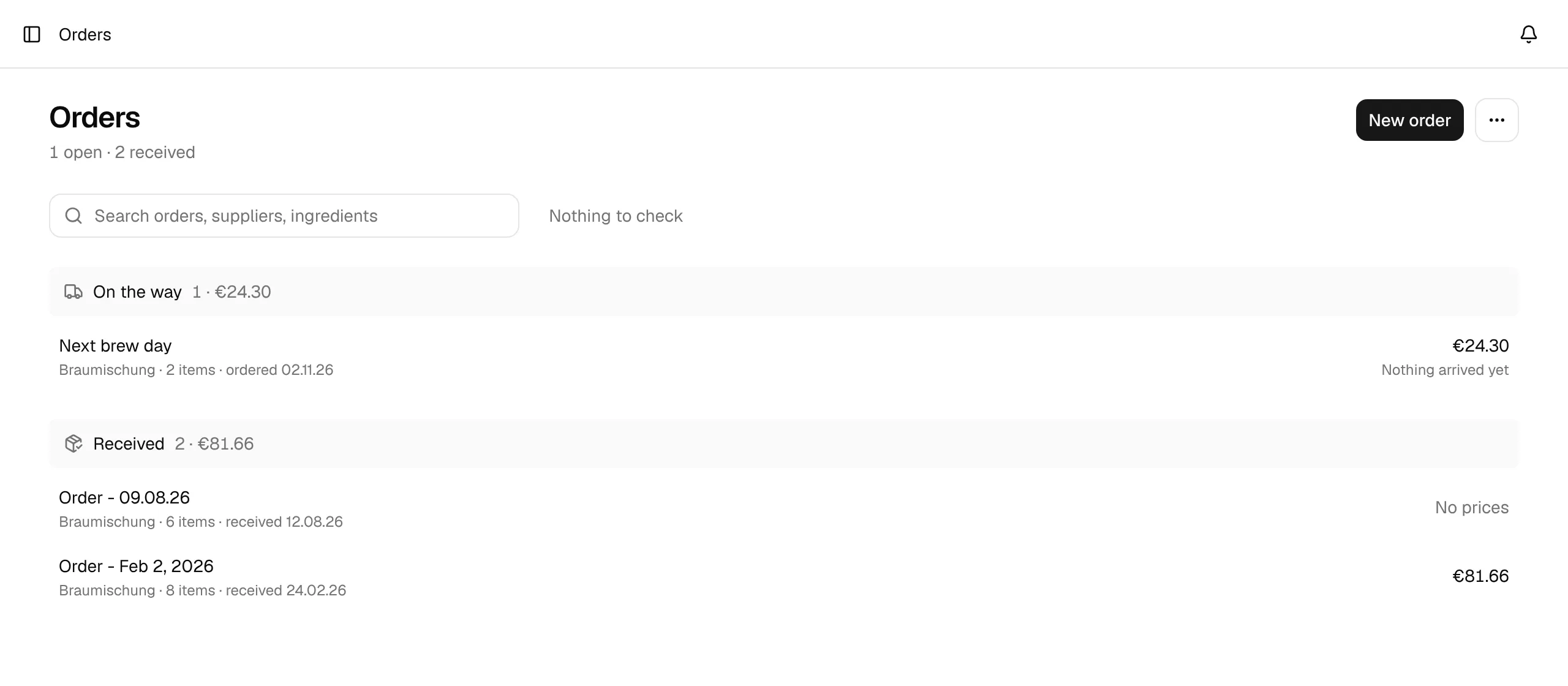
The orders overview
The line under the title counts your open and received orders. Below it, orders are grouped by where they are:
| Group | Orders in it | Right side of the row |
|---|---|---|
| To order | Drafts: shopping lists you are still putting together | Total, or No prices yet |
| On the way | Ordered, nothing or only part of it has arrived | Total and how much arrived, for example 1 of 2 arrived |
| Received | Everything arrived | Total, or No prices |
Each group bar shows how many orders it holds and their total. Each row shows the order's name, the supplier, the number of items and the date of its current stage (created, ordered or received). Orders on the way also show the expected date when you entered one. Click a row to open the order.
- Search finds orders by name, supplier, notes or the name of an ingredient on them.
- With many received orders, Received shows the five most recent ones; Show N more lists the rest.
- Next to the search is the checks line: Nothing to check, or an amber N things to check when items on open orders aren't linked to an ingredient. Click it to see them; each entry opens the item so you can link it (why linking matters).
- The ⋯ menu next to New order has Planner shortages, a shortcut to the Planner.
Order status
An order goes through three stages: Draft, Ordered and Received. In between, while some items are in and others are still missing, its status is Partly in.
| Status | Meaning | Counts as on order in the Planner |
|---|---|---|
| Draft | A shopping list you are still putting together | No |
| Ordered | Placed with the supplier, nothing received yet | Yes |
| Partly in | Some items arrived, others are still missing | Yes, the rest |
| Received | Everything has arrived | No |
Create an order
Click New order. The Name defaults to Order · and today's date; the Supplier is optional. Under More you can enter the Shipping cost, the date you Expected the delivery and Notes (an order number or tracking link, for example). Click Create order. BrewForge opens the new order.
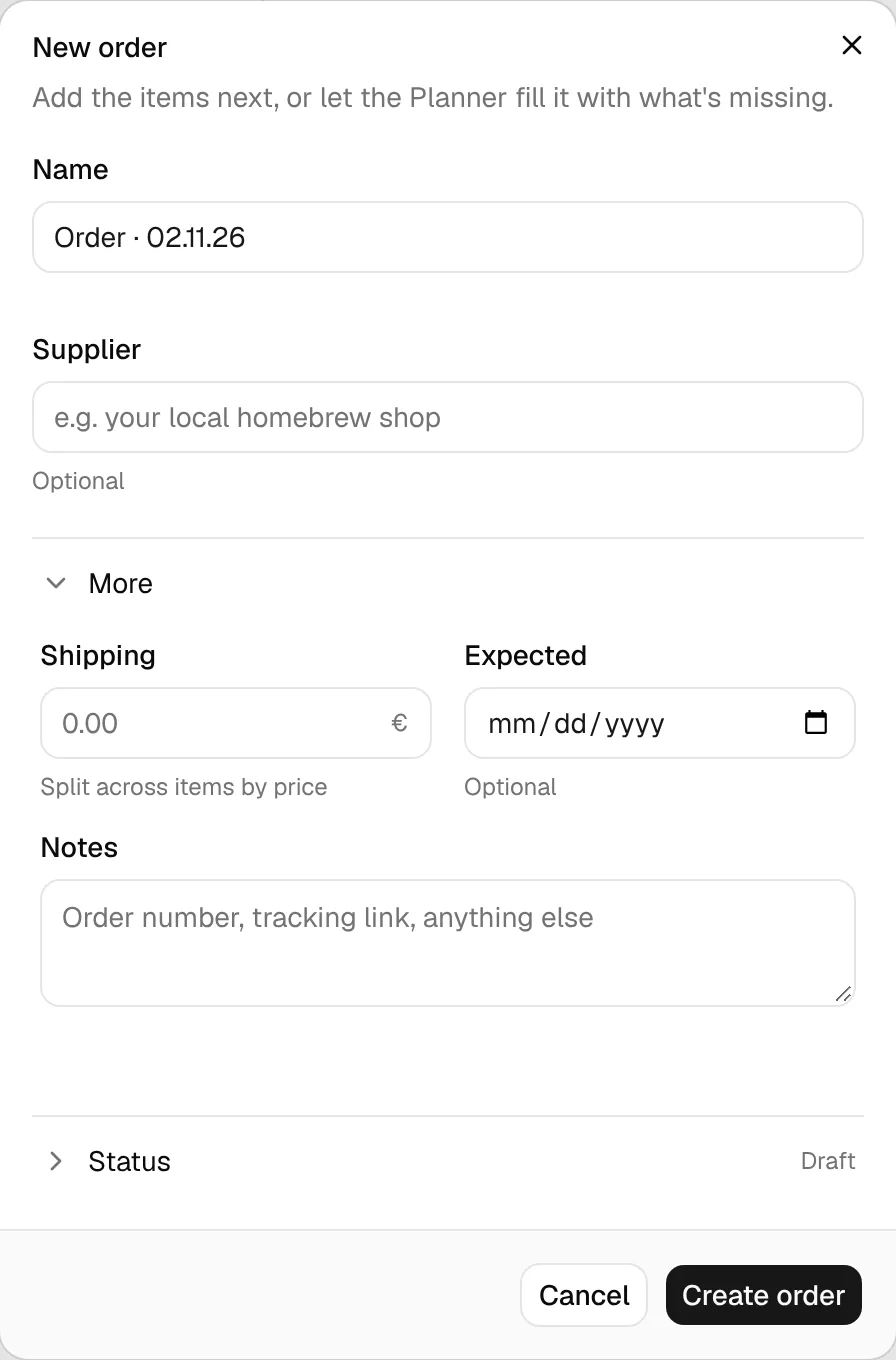
Or let the Planner create it: select shortages and click Generate Shopping List (how).
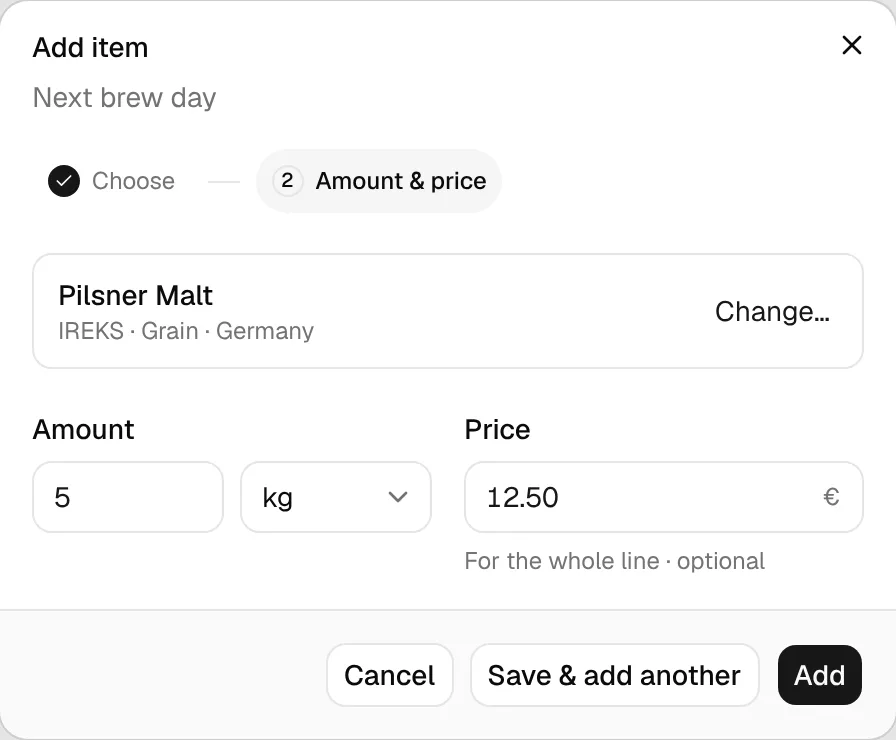
Click Add item. Pick the ingredient type (Fermentables, Hops, Yeast or Other) and search for the ingredient. The search covers your subscribed packages and My Ingredients. Ingredients your planned brews are short of are listed first, under Short in the Planner, with the missing amount and the brews that need them.
Enter the Amount, the unit (g, kg, ml, pkg or each) and optionally the Price for the whole line. When you picked a Planner shortage, the amount is already filled in with what's missing. Click Add, or Save & add another to stay in the dialog.
When you've placed the order with your shop, click Mark as ordered. From now on its items count as On Order in the Planner.
The order page
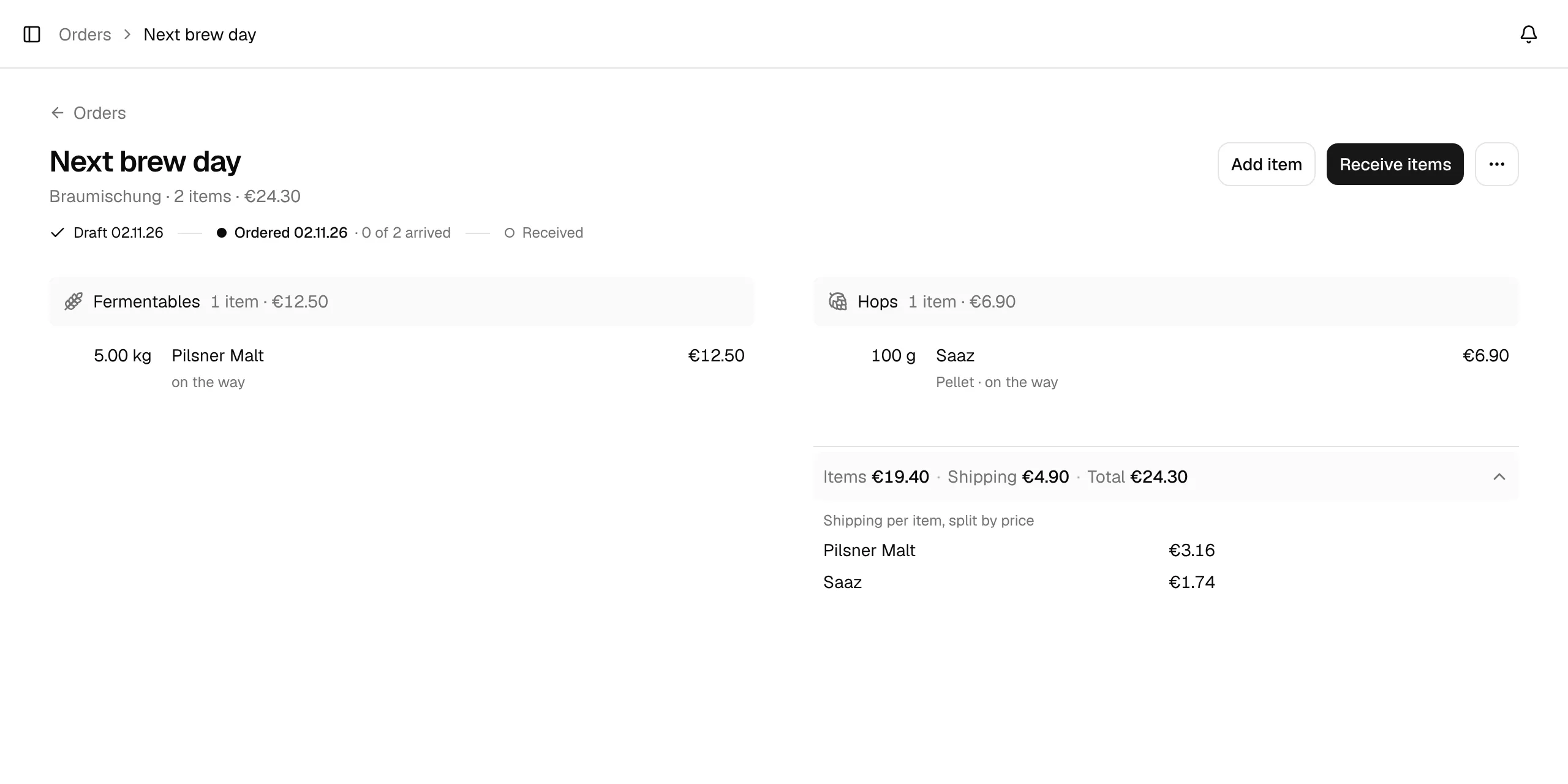
Under the order's name you see the supplier, the number of items, the total and, while it's open, the expected date. Below that, the status line shows Draft → Ordered → Received with the date of each stage reached and, while the order is on the way, how many items have arrived.
The button next to Add item is always the next step for the order:
| The order is | Button |
|---|---|
| Empty | Add item |
| A draft with items | Mark as ordered |
| Ordered or partly in | Receive items |
| Ordered, and every item has arrived | Mark as received |
Items are grouped by type (Fermentables, Hops, Yeast, Other), each group with its item count and cost. Each row shows the amount you ordered, the ingredient with its details (hop form and alpha acid, for example), the price of the line and, once the order is placed, whether it is on the way, partly arrived (2.00 kg of 5.00 kg arrived) or arrived. If you ordered a different amount than you needed, the row also shows needed ….
The footer adds up Items, Shipping and Total. Open it to see how the shipping cost is split across the items (how it's calculated). Without any price or shipping cost, it reminds you to add prices when you order or when the delivery arrives.
Change an item
Click an item to open it. You can:
- change the Ingredient (Change…),
- set the amount you Ordered, for example a full 500 g bag when the Planner says you need 140 g. Until you change it, it equals the needed amount,
- enter or correct the Price for the line,
- see the Needed and Received amounts under More,
- Remove the item. A message with Undo puts it back exactly as it was.
Items that aren't linked
An item that isn't linked to an ingredient in your database is marked with an amber dot and Not linked to an ingredient. This happens, for example, when the Planner puts a shortage from a recipe line that isn't linked on an order. Until it's linked, it doesn't count against the Planner's shortages, and when you receive it, BrewForge can only add it to your inventory if an ingredient with exactly the same name exists.
To link it, open the item and pick the matching ingredient. Planner shortages of the same type are offered first.
More actions
The ⋯ menu on the order page has:
- Edit details…: name, supplier, shipping, expected date and notes. Under Status you can correct the status by hand; usually Mark as ordered and Receive items set it for you.
- Back to draft: only for an ordered order where nothing has arrived yet.
- Reopen as ordered: for a received order, for example when something turns out to be missing. It goes back to Partly in if anything was received.
- Delete order…: deletes the order with all its items. Items you already received stay in your inventory.
Receive a delivery
On an order that's on the way, click Receive items. The dialog lists every item still on the way with the amount you ordered.
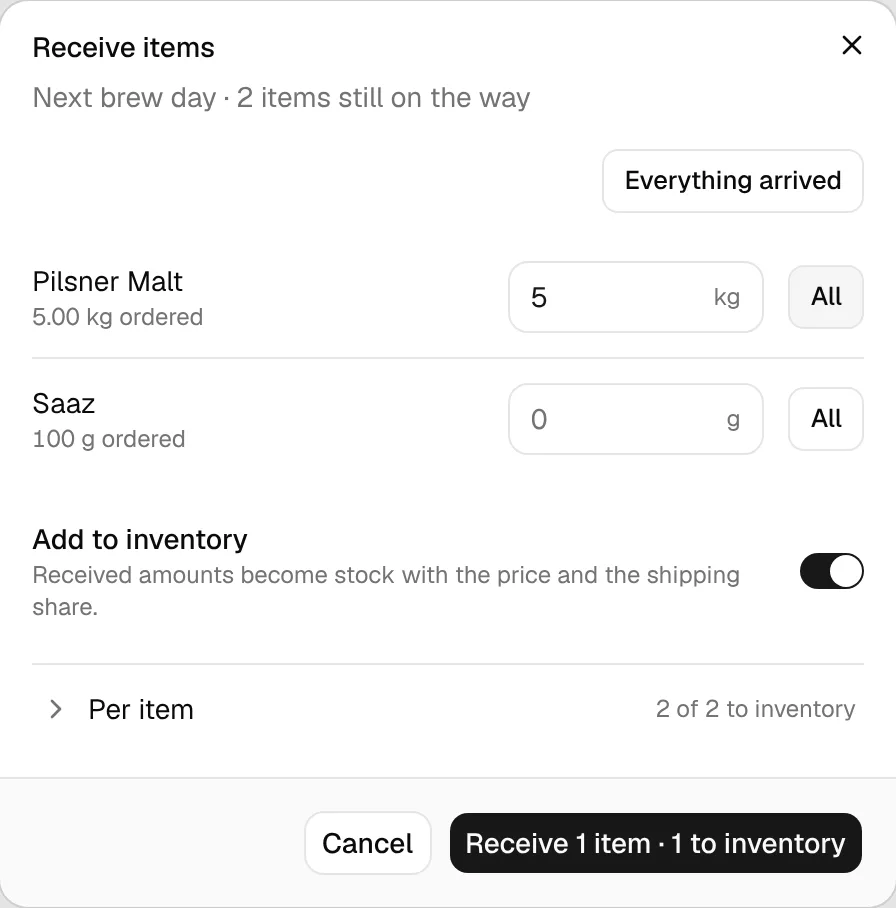
Enter the received amount for each item, or click All for one item or Everything arrived for all of them. You can't receive more than is still open for an item.
Leave Add to inventory switched on to add the amounts to your stock. Under Per item you can switch it off for single items you don't track (they're only marked as received) and enter a Price for the line for items that don't have one yet.
Confirm with the button at the bottom, for example Receive 1 item · 1 to inventory.
BrewForge then:
- adds the received amounts to your inventory. A hop is added to the entry with the same form; the alpha acid and harvest year from the order are kept on it. Items that aren't linked are matched to the ingredient database by name; if no ingredient matches, they aren't added to the inventory.
- sets the order to Received when every item has arrived (its received amount reaches the amount ordered), otherwise to Partly in.
Purchase prices
When you receive an item with a price, BrewForge stores what it cost per kilogram (fermentables and hops) or per unit (yeast and misc) on the inventory entry. Shipping is spread over the items by price. The order page shows the same split in its cost footer.
shipping share = line price / sum of all line prices × shipping cost
cost per kg = (line price + shipping share) / kg received (per unit for yeast and misc)
If the inventory already has stock of that ingredient, the new cost is averaged by quantity:
new cost = (old quantity × old cost + received quantity × received cost) / (old quantity + received quantity)
Example: an order with €30 of malt and €10 of hops and €8 shipping. The malt's shipping share is 30 / 40 × 8 = €6, so 5 kg of it cost (30 + 6) / 5 = €7.20 per kg. If you already had 5 kg at €6.00, the inventory entry then shows (5 × 6.00 + 5 × 7.20) / 10 = €6.60 per kg.
The cost is rounded to two decimals. Lines without a price get no shipping share.