Add and edit inventory items
Add malt, hops, yeast and other ingredients to your BrewForge inventory with amount, lot number, best-before date and price, edit and restock them later, and see how restocking merges items.
Add an item
Open Inventory and click Add at the top of the page, or Add in the title of a section to start with that ingredient type.
Choose: pick the ingredient type (Fermentables, Hops, Yeast or Other) and type to search. Each result shows the supplier, a few key values (color and type for malt, alpha acid and purpose for hops, lab and form for yeast) and, in green, how much you already have. In stock narrows the list to ingredients you already have, All shows everything.
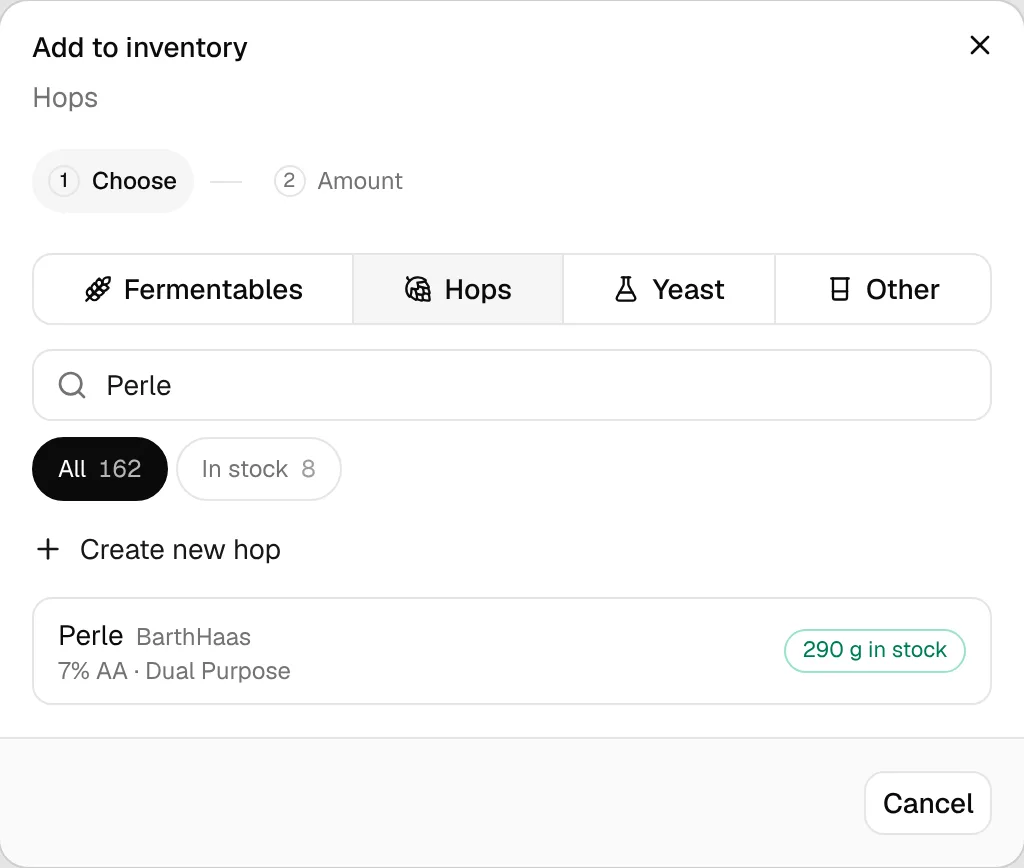
Click the ingredient. The dialog moves on to Amount. Fill in Amount bought and the other fields (see below). If you already have the ingredient, a line shows how your stock changes, for example "In stock 290 g → 790 g".
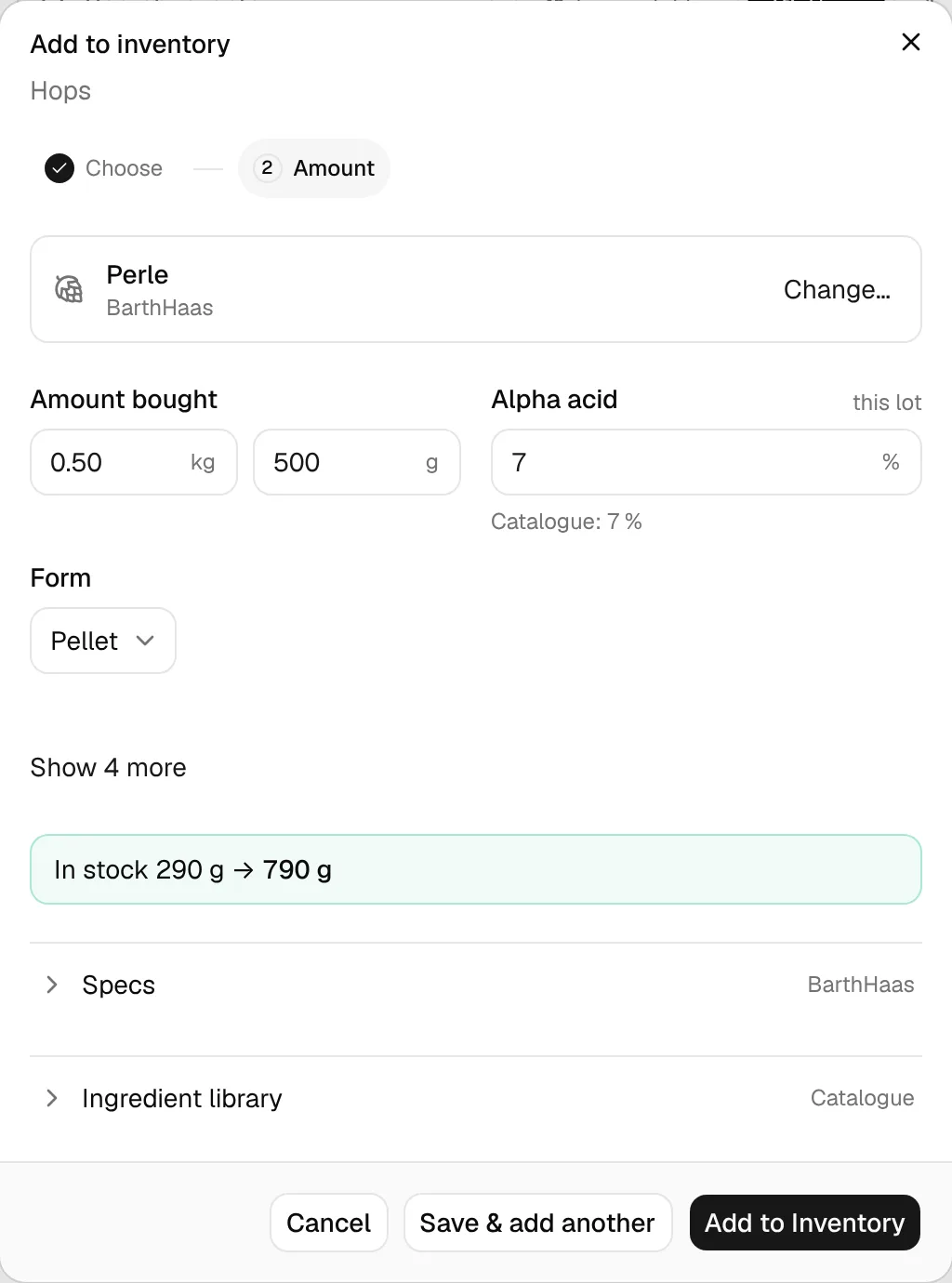
Click Add to Inventory. Save & add another saves and goes back to Choose, so you can enter a whole delivery in one go.
Change… on the ingredient card, or Choose at the top, goes back to the search.
Fields
The dialog starts with the essentials. Optional fields stay hidden behind Show N more until you need them; once a field has a value, it is always shown.
| Field | Types | Notes |
|---|---|---|
| Amount bought | all | Fermentables and hops have two linked fields, kg and g (lb and oz with imperial units): fill in either one. Yeast and other ingredients have one field plus a unit. See Units and costs. |
| Alpha acid (this lot) | hops | Pre-filled with the ingredient's alpha acid, which is shown below the field as Catalogue. Change it to the value printed on your bag; it is stored with this item and shown in the list. |
| Form | hops | Pellet, Whole/Leaf, Cryo or Extract. |
| Harvest Year | hops | The crop year on the bag. |
| Price per kg / Price per unit | all | Per kg or lb for fermentables and hops, per unit for yeast and other ingredients. Used for brew costs. |
| Best before | all | Drives Things to check. |
| Lot number | all | The supplier's batch or lot number. |
Below the fields, Specs shows the ingredient's properties from the supplier's data, so you can check you picked the right one, and Ingredient library has the library actions.
Create a new ingredient
If the ingredient isn't in your packages, click Create new hop (Create new fermentable, Create new yeast, Create new misc ingredient) above the search results. A form for the ingredient's name and details opens in the Amount step, above the stock fields. It is the same form as in My Ingredients: only Name is required, and Show N more opens the less common fields. Create & Add to Inventory saves the ingredient in your My Ingredients library and adds the stock in one go. For a new hop, the alpha acid of the ingredient is used for this lot unless you typed a different one.
When items are merged
If you add an ingredient you already have, BrewForge adds the amount to the existing item instead of creating a second row, as long as it is the same lot:
- same ingredient,
- same Lot number (two empty lot numbers count as the same),
- and a best-before date that fits: the same date, or no date on the existing item. A used-up item takes over the new date.
For hops, the Harvest Year, Form and Alpha acid must match too. Alpha acids within 0.5 percentage points count as the same. A value that is filled in on one side and empty on the other counts as different.
Otherwise you get a new row. That's how you keep last year's hops apart from this year's, or two yeast packs with different best-before dates.
new cost = (existing amount × existing cost + added amount × added cost) / (existing amount + added amount)
The cost of a merged item is the average weighted by amount, rounded to 2 decimals. A missing cost on one side counts as 0; if neither side has a cost, the item stays without one.
Example: you have 1 kg of Pilsner malt at €2.40/kg and add 4 kg at €2.20/kg: (1 × 2.40 + 4 × 2.20) / 5 = €2.24/kg for the 5 kg.
Edit an item
Click a row. The dialog shows the item and lets you change it at the same time: its title is the ingredient, the line under it the type, the supplier (or My ingredients) and used up for empty items.
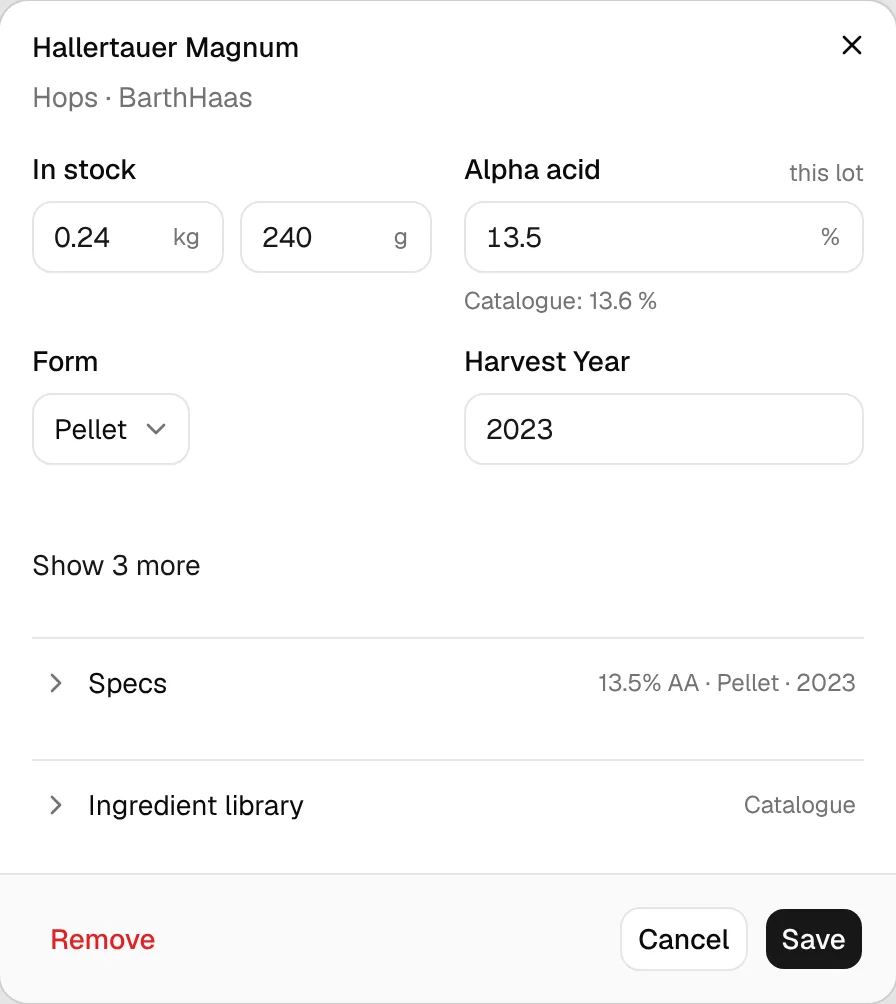
- In stock is the amount you have now. Change it after a stocktake.
- For hops, Alpha acid is the value of your lot; Catalogue below it is the supplier's typical value for the variety.
- Fields with a value (price, best before, lot number, harvest year) are shown; Show N more brings in the empty ones.
- Specs shows all properties from the supplier's data, Ingredient library the library actions.
Click Save to keep your changes. The ingredient itself can't be changed: to switch an item to a different ingredient, remove it and add the right one.
Restock a used-up item
Open the item from the Used up fold of its section. The button reads Restock: enter what you bought under In stock, update the price, best-before date or lot number if they changed, and click Restock. The item moves back into the list.
Remove items
- One item: open it and click Remove at the bottom left of the dialog.
- Several: choose Select items in the ⋯ menu, click the rows (or Select all), then Remove N.
Removing is immediate, but the message that follows has Undo. To keep an item's lot, price and details for the next purchase, set its amount to 0 instead.