Report a problem
Report a bug in BrewForge: open the feedback dialog, describe what you tried and what happened, set how bad it is, add screenshots and send it as a private support ticket.
When something in BrewForge doesn't work, send a bug report. It becomes a support ticket: only you and the BrewForge team see it, and the answer comes to your ticket page and Inbox & Tickets.
Open the feedback dialog
There are three ways in, all open the same dialog:
- The round Send feedback button in the bottom right corner of every page in the app.
- Report a problem at the top of Inbox & Tickets.
- Send feedback on the Bounty points page.
Open it from the page where the problem happens: the report remembers which page you sent it from.
Report a bug
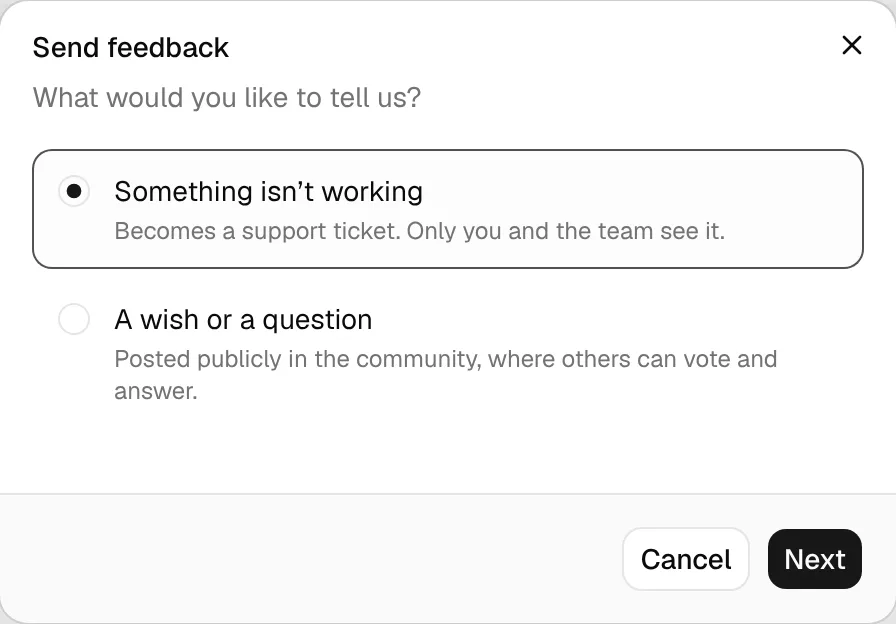
Choose what you want to tell us. The dialog Send feedback asks "What would you like to tell us?":
- Something isn't working: becomes a support ticket. Only you and the team see it.
- A wish or a question: posted publicly in Feedback, where others can vote and answer. Next opens a new feedback post instead of a ticket (see Post a thread).
Pick Something isn't working and click Next.
Describe the problem. Under the title you see the page it is sent from (Sent from /brews).
- What are you trying to do? (required, up to 200 characters): the task, in your words. "Add a dry hop to my fermentation plan" helps more than "Bug in fermentation". This line becomes the ticket's title.
- What happens instead? (optional, up to 2,000 characters): what you see, an error message, what you expected.
- How bad is it?: Small annoyance, Gets in my way (the default) or Blocks me.
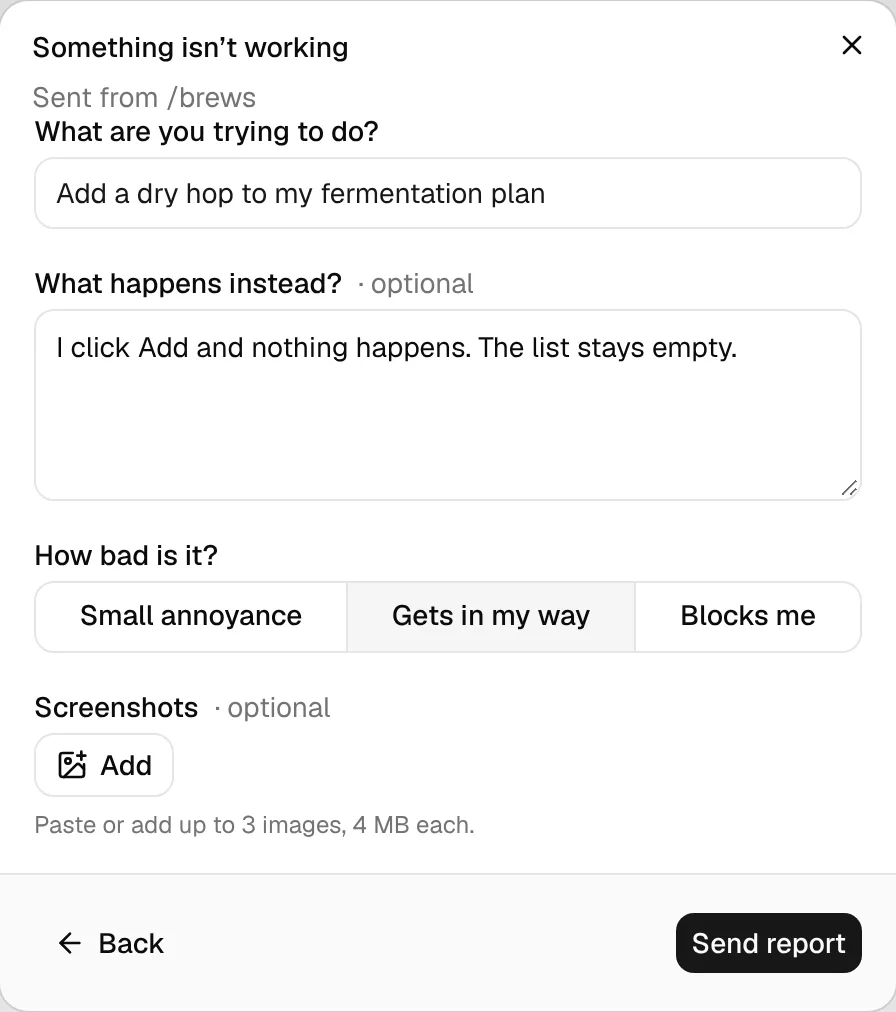
Add screenshots (optional). Click Add, or paste an image from the clipboard (Ctrl+V / ⌘+V) while the dialog is open. Up to 3 images, 4 MB each, as JPEG, PNG, WebP or GIF. Thumbnails appear in the dialog; remove one with its ×.
Click Send report. The dialog closes and the message Bug report sent appears with an Open button that takes you to the new ticket.
Back returns to the first step. If you close the dialog or go back after typing something, BrewForge asks Discard this report?: Keep editing returns to your text, Discard throws away the text and screenshots.
What to include
A report the team can reproduce gets fixed fastest:
- The brew, recipe or device it is about, by name.
- What you clicked, in order, and what you expected to see.
- The numbers involved, when a value looks wrong (for example "strike temperature 78 °C for a 66 °C rest").
- A screenshot of the screen with the problem, and of the settings it depends on (an equipment profile, a device's settings).
- An error message or Error ID, if the page showed one.
Some information is sent with every report so you don't have to type it: the page you sent it from (with the brew's ID on a brew page and the open tab), your screen size, device type (phone, tablet or desktop) and browser.
"This looks like a wish or a question"
Every report is read by an automatic check first. When it reads like a feature request or a question rather than a bug, the dialog doesn't create a ticket yet and asks instead:
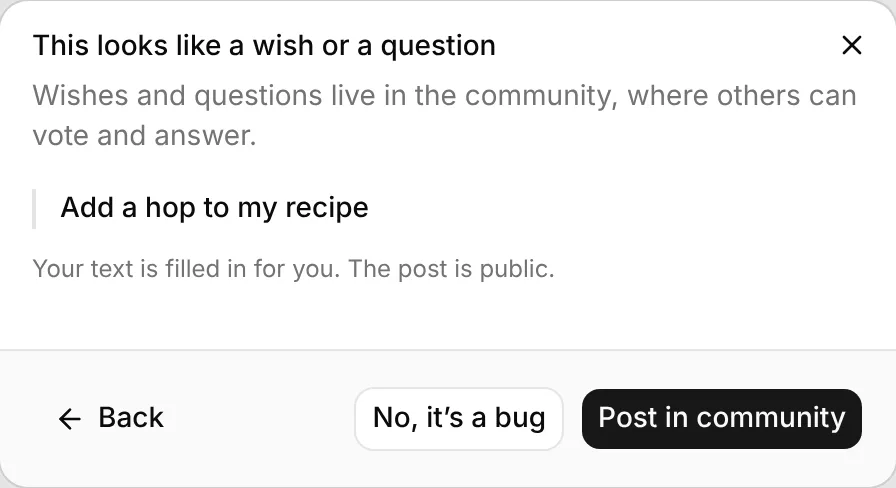
- Post in Feedback: opens a new feedback post with your text already filled in. The post is public.
- No, it's a bug: sends the report as a ticket anyway.
- Back: returns to your filled-in form.
If the check is not available, the report is sent as a ticket without it.
Limits
You can send up to 5 bug reports per hour and 10 per 24 hours. Above that, the dialog shows "You've sent 5 bug reports in the last hour" (or 10 in the last 24 hours) and keeps your text, so you can send it later. If sending fails for another reason, the dialog says Couldn't send. Try again. and keeps the text too.
Bounty points for reports
Helpful bug reports can earn bounty points. The team awards them by hand; the ticket then shows Bounty: 3 points earned (for example) and the points appear in your bounty history.