Your tickets
Follow a BrewForge support ticket: what each status means, the conversation with the team, replies with screenshots, automated answers from the BrewForge assistant, and bounty points.
Every bug report you send becomes a ticket with its own page. There you see your report, the status, and the conversation with the BrewForge team, and you answer the team's questions.
Open a ticket from Inbox & Tickets (click its row under Your reports), or with Open in the message that appears right after you send a report. Old links to My tickets (/tickets) open Inbox & Tickets now.
The ticket page
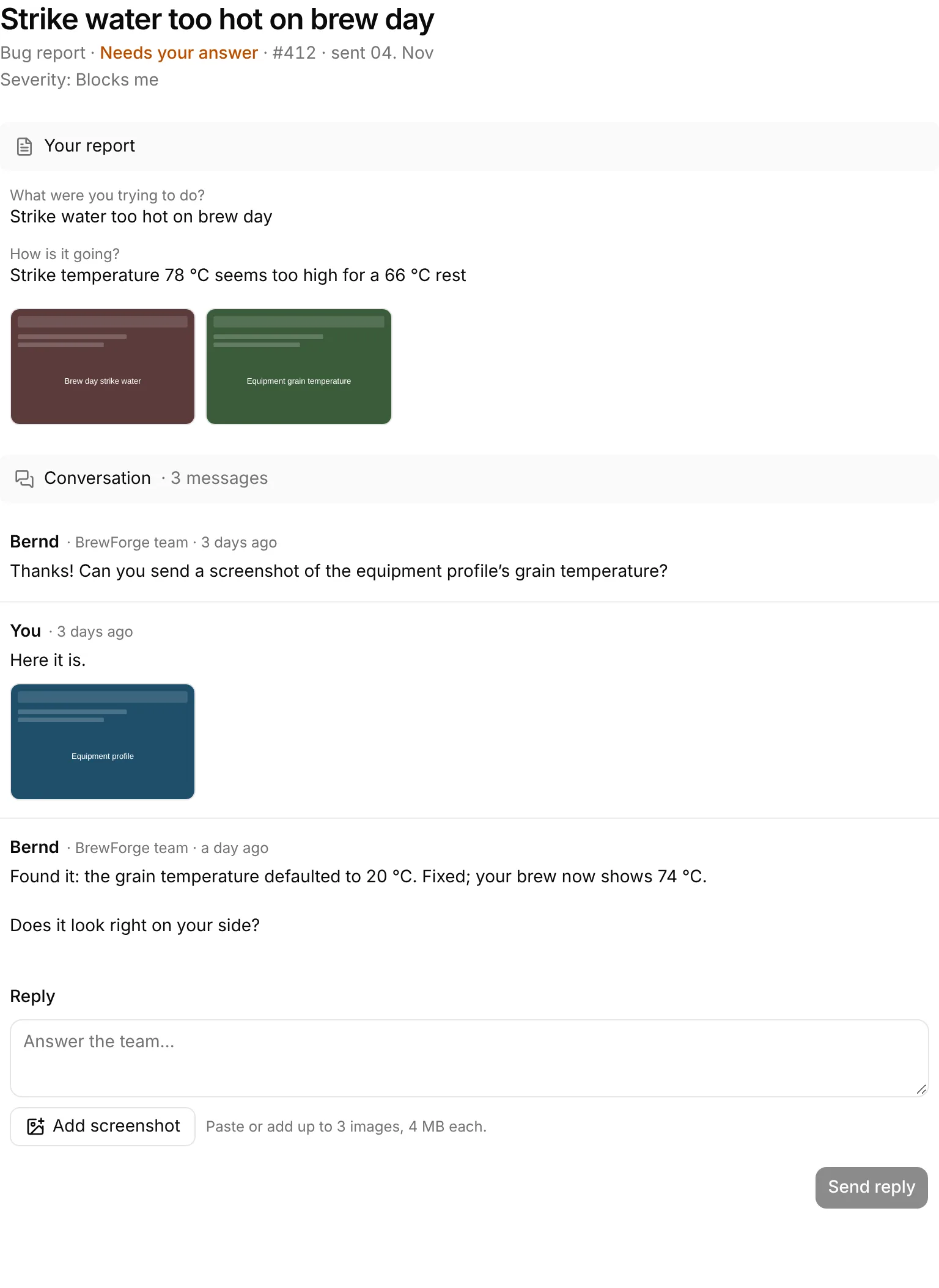
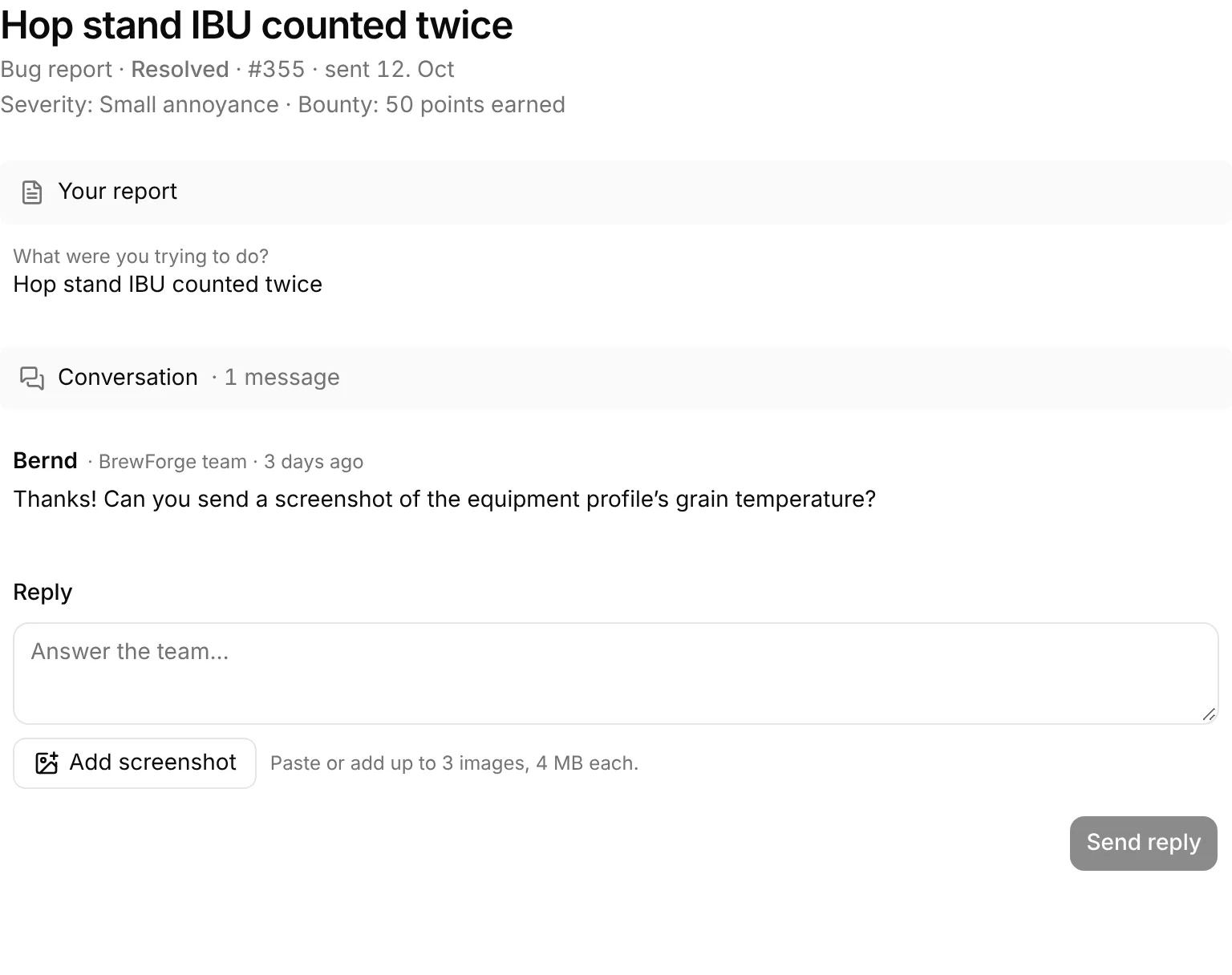
- Title and status line: the title is what you were trying to do. Below it: Bug report · the status · the ticket number (
#412) · the day you sent it. A second line shows the severity you chose, the release the fix is planned for (for example Release 2026-W46) and the bounty points you earned, when there are any. - Your report: What were you trying to do?, How is it going? (what you wrote under "What happens instead?") and your screenshots. Click a screenshot to see it large.
- Conversation: every message between you and the team, oldest first, with the number of messages in the section bar. Your own messages show as You. A reply from a person on the team shows their name and · BrewForge team; a reply from the BrewForge assistant shows only BrewForge team. Before anyone answered, it says "No messages yet. The team answers here and in your inbox."
- Reply: the box at the end of the page.
Opening a ticket marks the team's messages on it as read; the dot in Inbox & Tickets goes away.
Statuses
| Status | What it means |
|---|---|
| Sent | Your report arrived. Nobody has looked at it yet. |
| Received | The team has seen it. |
| In progress | Someone is working on it. With a release name next to it, the fix is planned for that release. |
| Needs your answer | The team asked you something. Shown in amber, here and in Inbox & Tickets. |
| Under review | You replied (or the ticket was reopened), and the team looks at it again. |
| Resolved | Fixed. |
| Closed | Closed without a change, for example because it works as intended or can't be reproduced. |
| Moved to the roadmap | It turned out to be a feature request. It continues as a feedback thread on the roadmap. |
Resolved, Closed and Moved to the roadmap end a ticket: it moves to the closed reports in Inbox & Tickets once you've read the last reply.
Who answers
Answers come from the BrewForge team. Some answers are written by the BrewForge assistant, an automated helper that looks into new bug reports first. You can tell its messages apart from a person's answer: a person's reply shows their name (for example Lagerbernd · BrewForge team), while the assistant's shows only BrewForge team, without a name, and always ends with the line "— BrewForge assistant (automated)" (in German "— BrewForge-Assistent (automatisiert)"). The assistant may:
- tell you the team is looking into it,
- ask you one round of questions when it can't find out what happened on its own,
- explain how a feature works, with a link to these docs,
- point a feature wish to Feedback.
When you answer the assistant's question, it continues with your answer. Anything it can't settle goes to a person on the team.
To reproduce a problem, the team and the assistant may look at the data the report is about (for example the brew you sent it from). They don't change your data to do that.
Reply to the team
Type into Reply ("Answer the team…").
Add images if they help: Add screenshot, or paste one with Ctrl+V / ⌘+V. Up to 3 images per reply, 4 MB each, as JPEG, PNG, WebP or GIF. A reply can also be just an image.
Click Send reply.
Your reply appears in the conversation and the ticket goes to Under review, whatever status it had before. That also works on a resolved or closed ticket: reply when the problem comes back, and the team sees it again.
If sending fails, the page says "Couldn't send your reply." and keeps your text; the button reads Try again. If the conversation can't be loaded, the page says "Couldn't load the conversation." with Try again.
The team can send images too: they show in the conversation below the message, click one to see it large.
Bounty points
When the team awards bounty points for a report, the ticket's second line shows Bounty: 50 points earned (for example) and the row in Inbox & Tickets shows bounty 50 points.