Fermentation tracking with devices
Connect a hydrometer to a brew so its readings become fermentation readings, connect several devices to one brew, and move a device to the next brew when fermentation is done.
A device only adds readings to a brew while it is connected to that brew. A device sends to one brew or one keg at a time; a brew can take readings from several devices, for example a Tilt and an iSpindel in the same fermenter.
Connect from the brew
On the brew's Fermentation tab, the button next to the section title shows Connect device (or the name of the connected device, or how many are connected). It opens Devices for this brew:
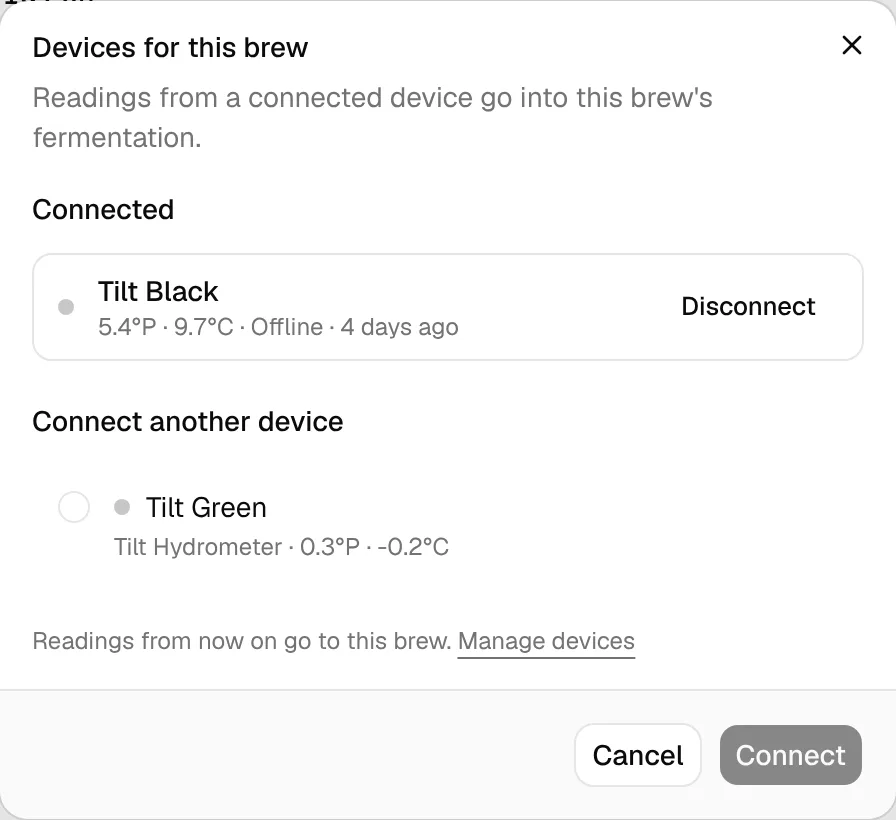
- Connected lists the devices logging this brew, with their latest values and state. Click a name to open its device page; Disconnect stops it, with Undo in the message.
- Connect a device (or Connect another device) lists your other devices. Pick one and click Connect. A device that logs another brew or measures a keg says so (logs another brew now; it moves here): connecting it here takes it away from there.
Manage devices goes to the Devices page, for example to add a new device first.
Connect from the device
On the device page, click Connect in Connected to (or ⋯ → Connect…). Pick the brew and click Connect. The list holds your active brews (Brew Day, Fermenting, Conditioning) with their status, and says when another device already logs one (Tilt Black logs it too). With many brews, a search field appears above the list.
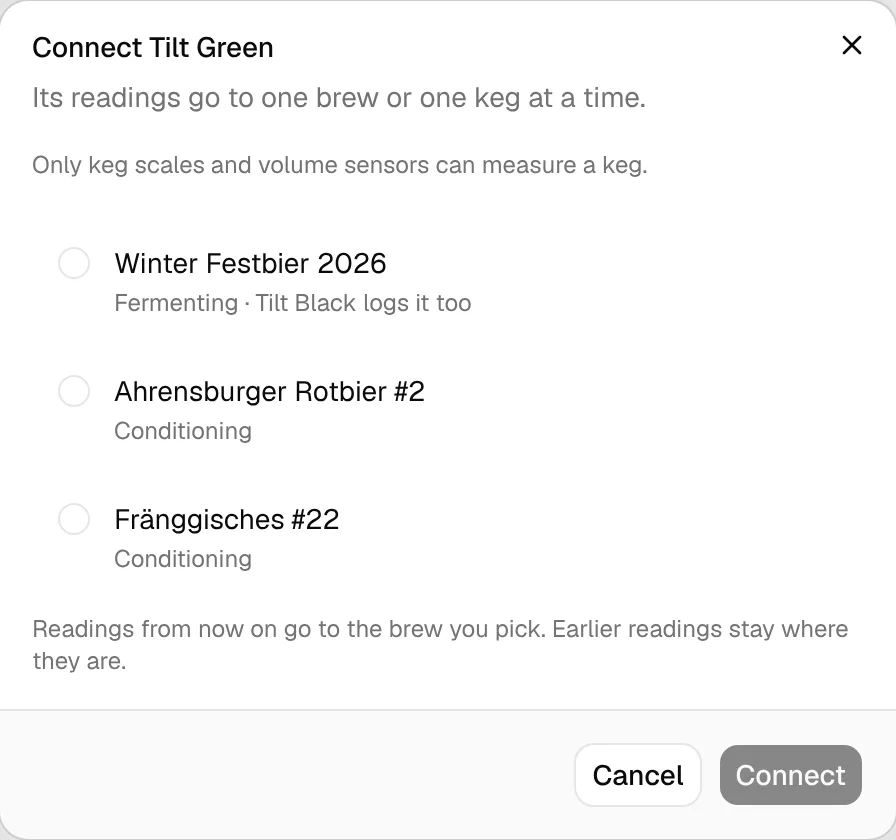
Readings from then on go to the brew you picked; earlier readings stay where they are. If you have the cellar, the same dialog switches between Brew and Keg for keg scales and volume sensors (Keg sensors).
What you get on the brew
Every stored reading with a gravity value becomes a fermentation reading of the brew, with temperature, pH and pressure if the device sends them. Airlocks that send bubbles per minute instead of gravity (Plaato Airlock) add their readings too, and the chart gets a Bubbles/min layer. Next to the device button, the brew shows the device's state and latest values. From the readings BrewForge shows:
- the gravity and temperature chart and a projection of where gravity is heading,
- Latest and All readings, grouped by day with daily averages,
- fermentation progress, attenuation and ABV,
- the spunding forecast for pressure fermentation.
All of this is described in Fermentation tab. Device readings work like manual ones: you can edit or delete them under All readings, and you can still add manual readings next to them, for example a hydrometer sample to check the device.
When fermentation is done
Record the final gravity on the brew (Record FG once the gravity is stable, or Set final gravity…; see Final gravity).
Disconnect the device: Disconnect in Devices for this brew, or ⋯ → Disconnect from … on the device page. Or skip this and connect it straight to the next brew, which moves it.
Clean it and connect it to the next brew.
Readings outside fermentation
The device keeps sending while it is not connected (for example while it lies on the shelf). BrewForge stores them under Recent data on the device page, marked Not logged; they don't touch any brew.