Beer lists, taps and beers
Create a beer list in BrewForge, add beers from your brews or enter guest beers by hand, put them on taps, queue the next keg and change how a beer reads on menus.
A beer list holds everything a menu or screen shows: the taps with the beer pouring on each, and the beers you have (on tap, in bottles, cans or growlers). Open a list from the Tap list page.
Create a beer list
On Tap list, click New beer list.
Enter a Name, for example the place it pours ("Taproom", "Summer fest"). Under New beers, Served as sets how beers you add are served by default: Tap, Bottle, Can or Growler.
Turn on Add finished brews if brews you mark as completed should join the list on their own, and Also brews still conditioning if they should join (and show in the brew picker) once they are in conditioning (details).
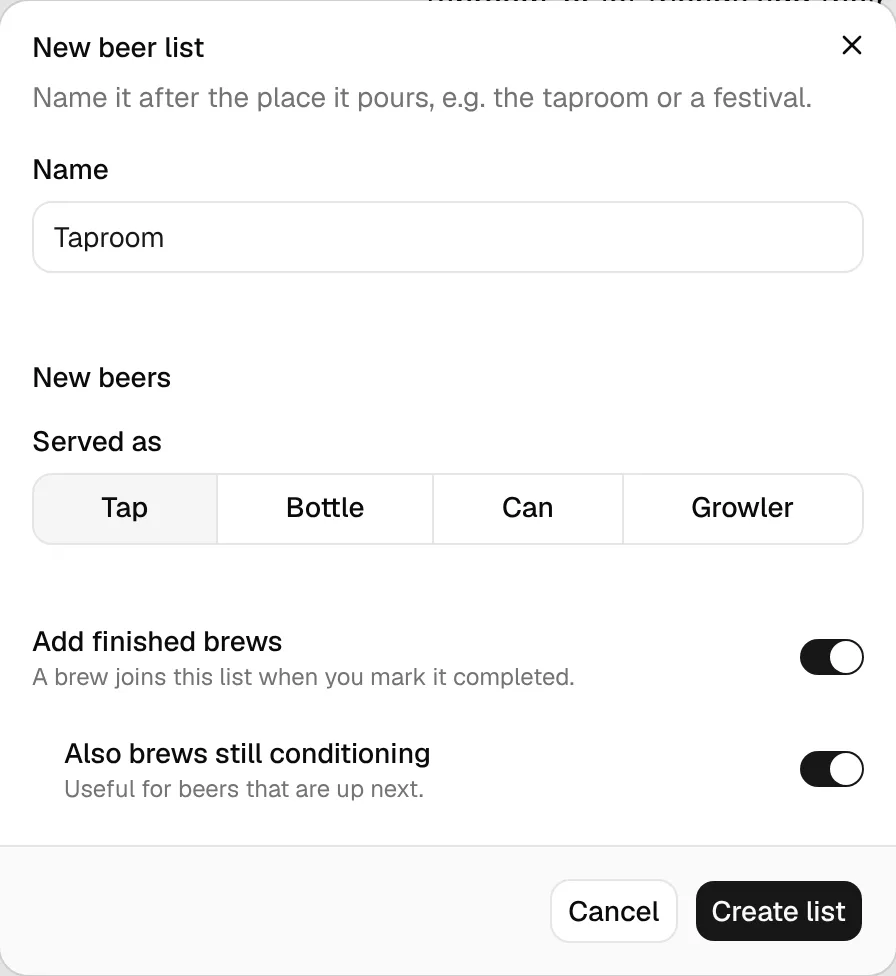
Click Create list. The list opens.
The list page
The header shows how many taps are pouring, how many beers the list has, the screens it is live on and whether it adds finished brews. The ⋯ menu next to it has List settings…, Reorder taps…, Reorder beers… and Delete list….
The page has two columns: Taps and Beers on the left, Menus, Screens, Guest links and Settings on the right. Every row opens a dialog.
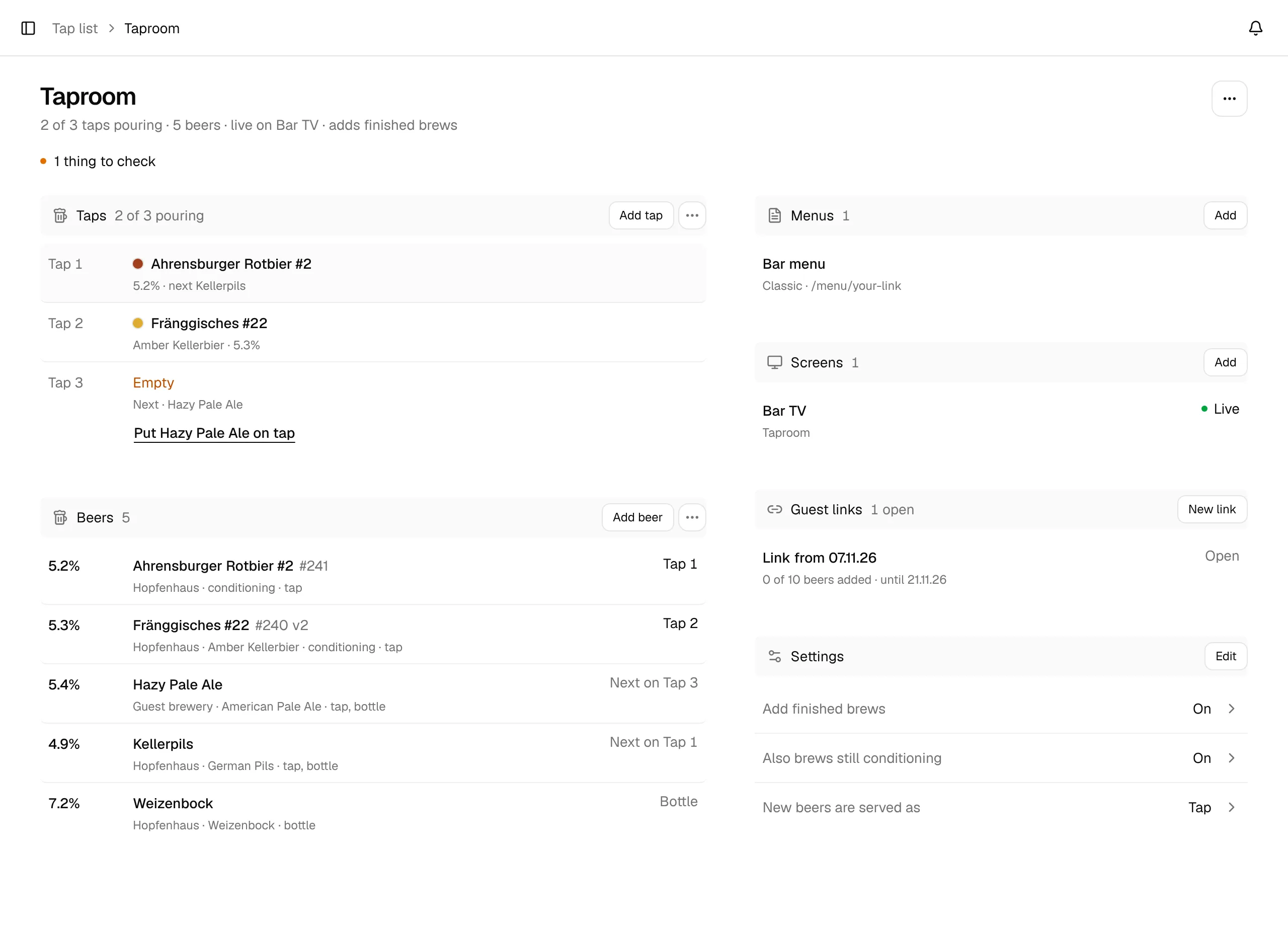
Things to check
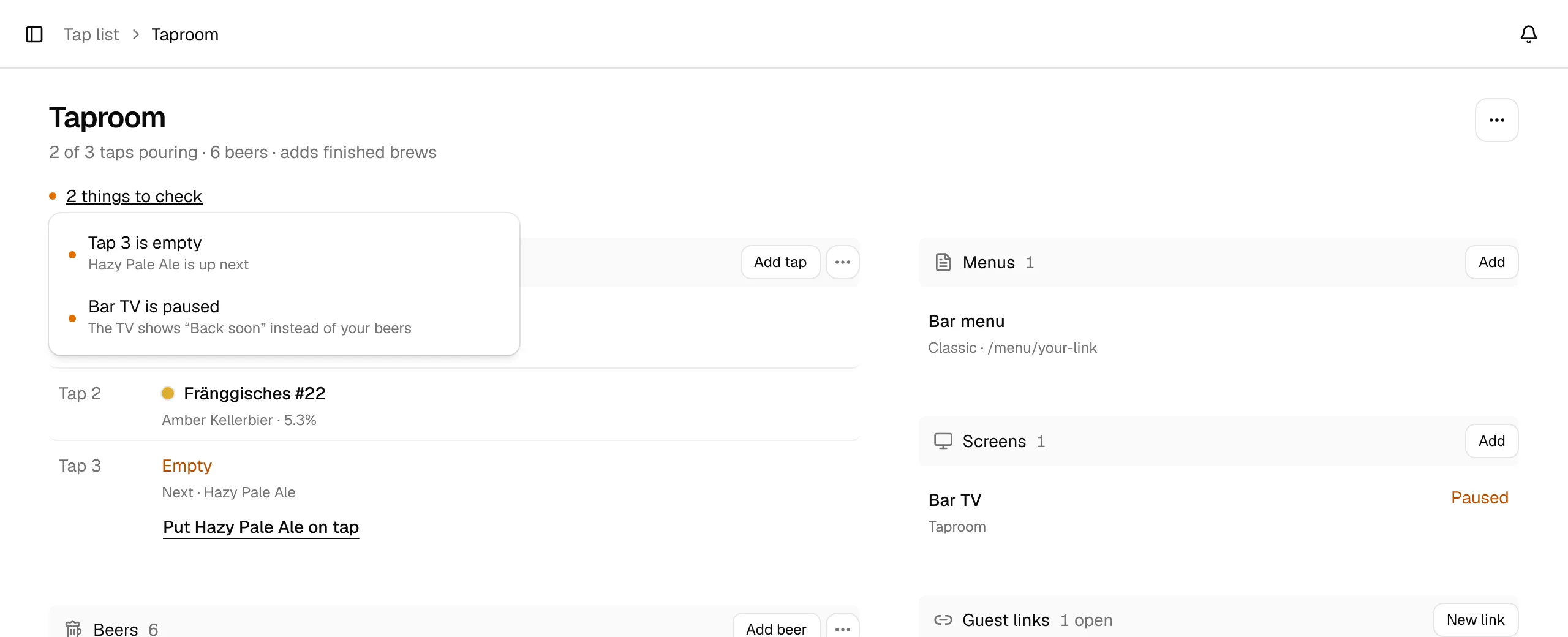
When something needs your attention, a line under the header says N things to check. Click it for the list:
- Tap … is empty: an enabled tap without a beer. If a beer is queued for it, the hint names it; otherwise choose a beer or turn the tap off.
- … is paused: a screen shows "Back soon" instead of your beers (pause a screen).
- A guest link ends on …: an open guest link that ends within the next two days.
Taps
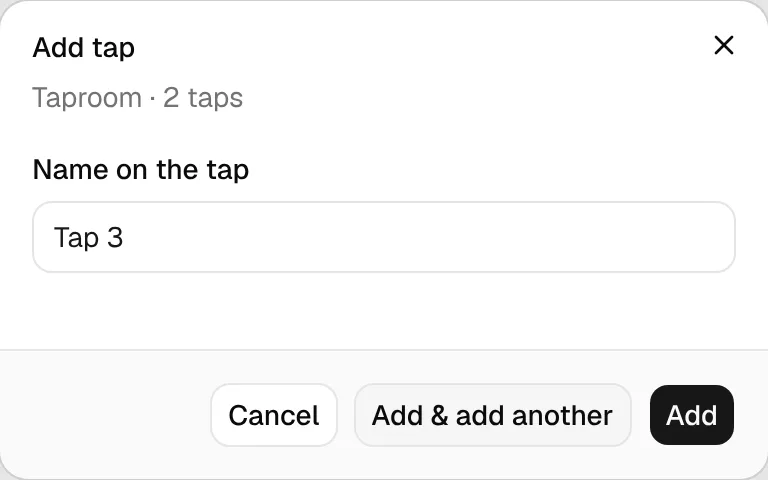
Taps are the lines at your bar. Click Add tap, check the Name on the tap (BrewForge counts on: "Tap 1", "Tap 2", …) and click Add. Add & add another adds it and keeps the dialog open for the next one. Leave the taps empty if the list is for bottles only.
Each tap row shows the beer pouring and, in small text, the one up next. An empty tap says Empty. When an empty tap has a beer queued, the row offers Put … on tap right there.
The tap dialog
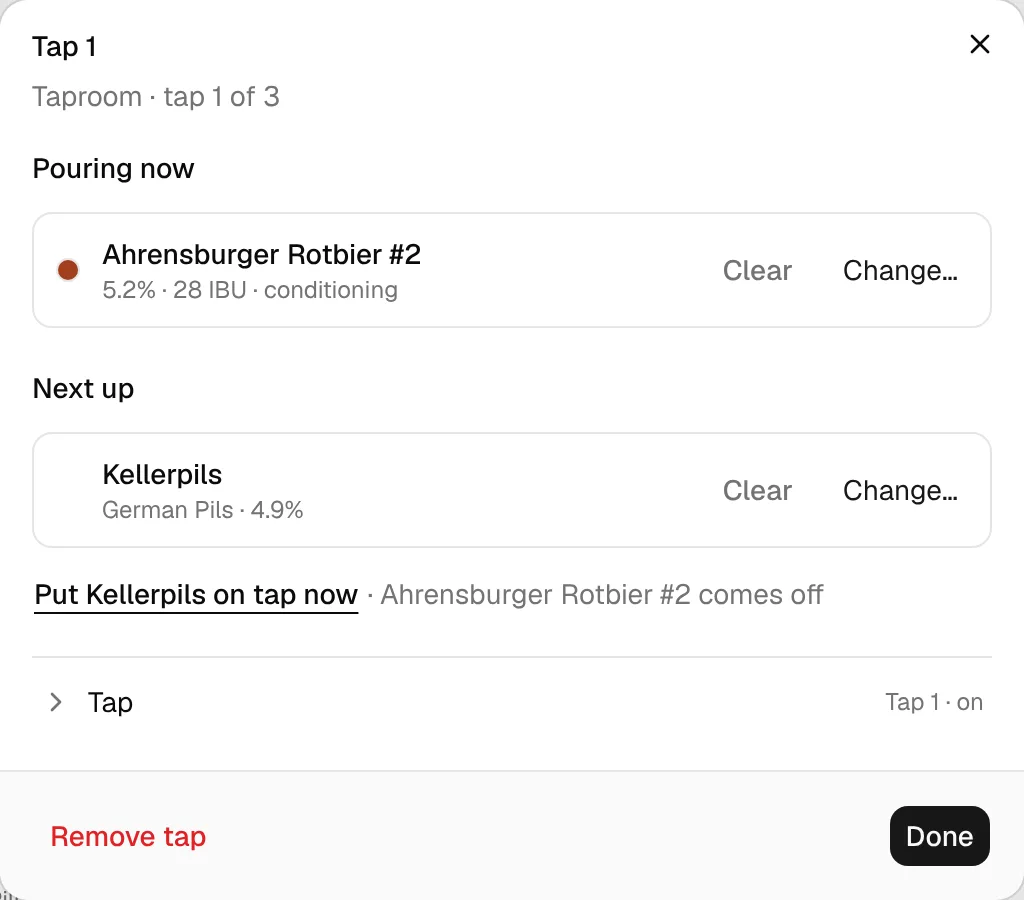
Click a tap to open its dialog. Changes save as you make them; Done closes it.
- Pouring now: Choose a beer… (or Change…) picks the beer on this tap, Clear empties the tap.
- Next up: queue the keg that goes on after the current one with Choose the next beer…. Put … on tap now moves the queued beer onto the tap and clears the queue; the beer that was pouring comes off the tap but stays on the list.
- Tap (a fold): the Name on the tap and Tap is on. A tap that is off is hidden on menus and screens, for a line that is being cleaned, for example.
- Remove tap removes it at once. The message at the bottom of the page has Undo.
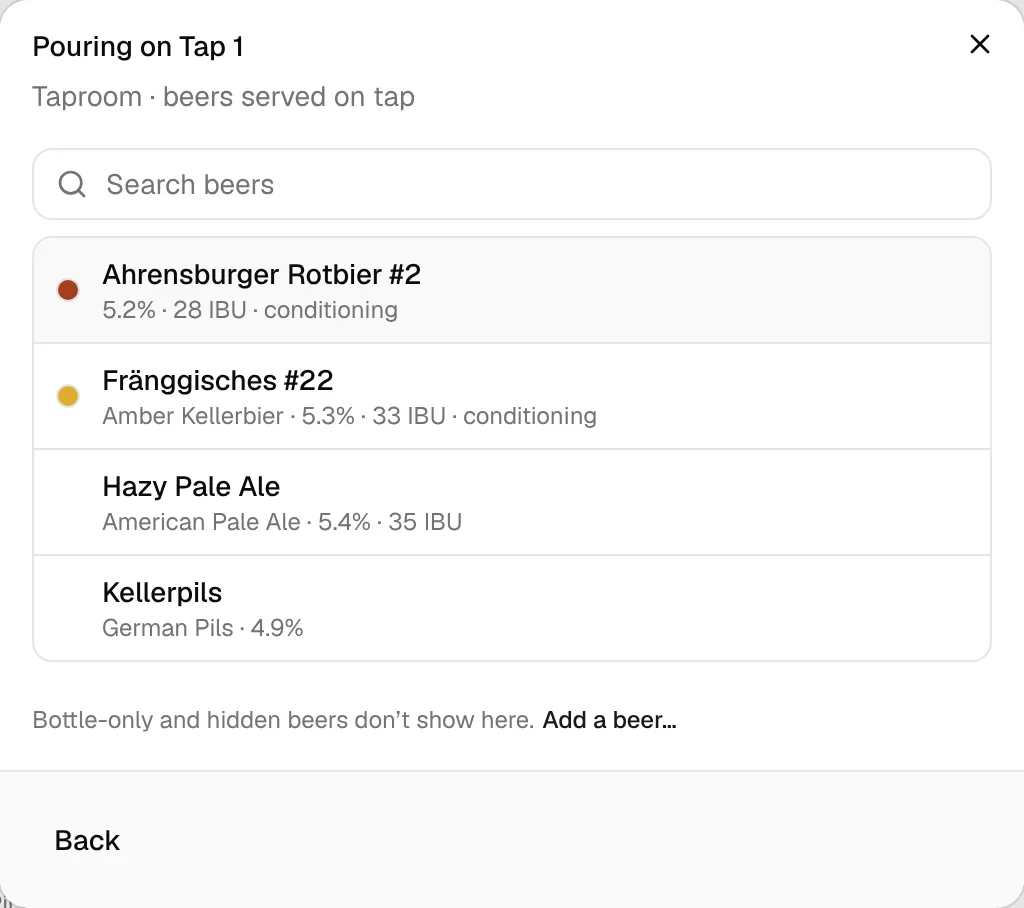
The beer picker lists the beers served on tap. Bottle-only and hidden beers don't show; Add a beer… below the list opens Add beer.
Add beers
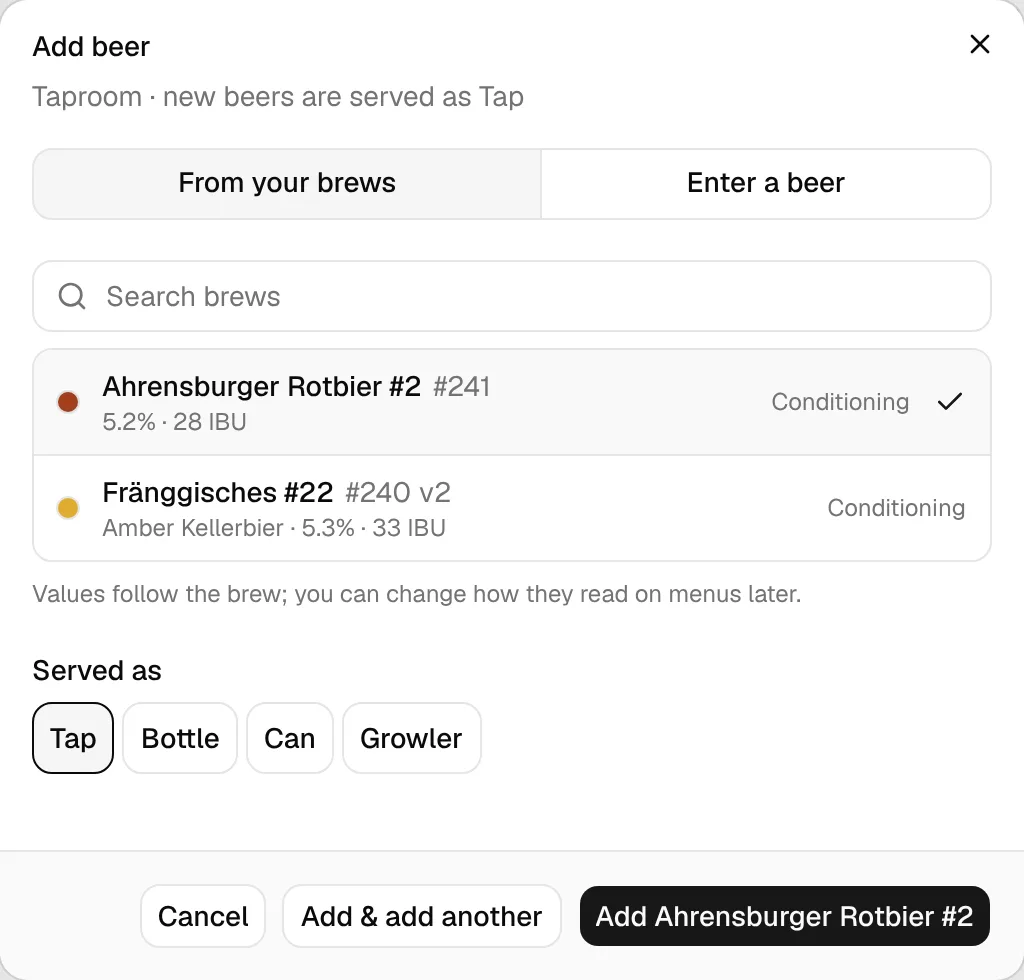
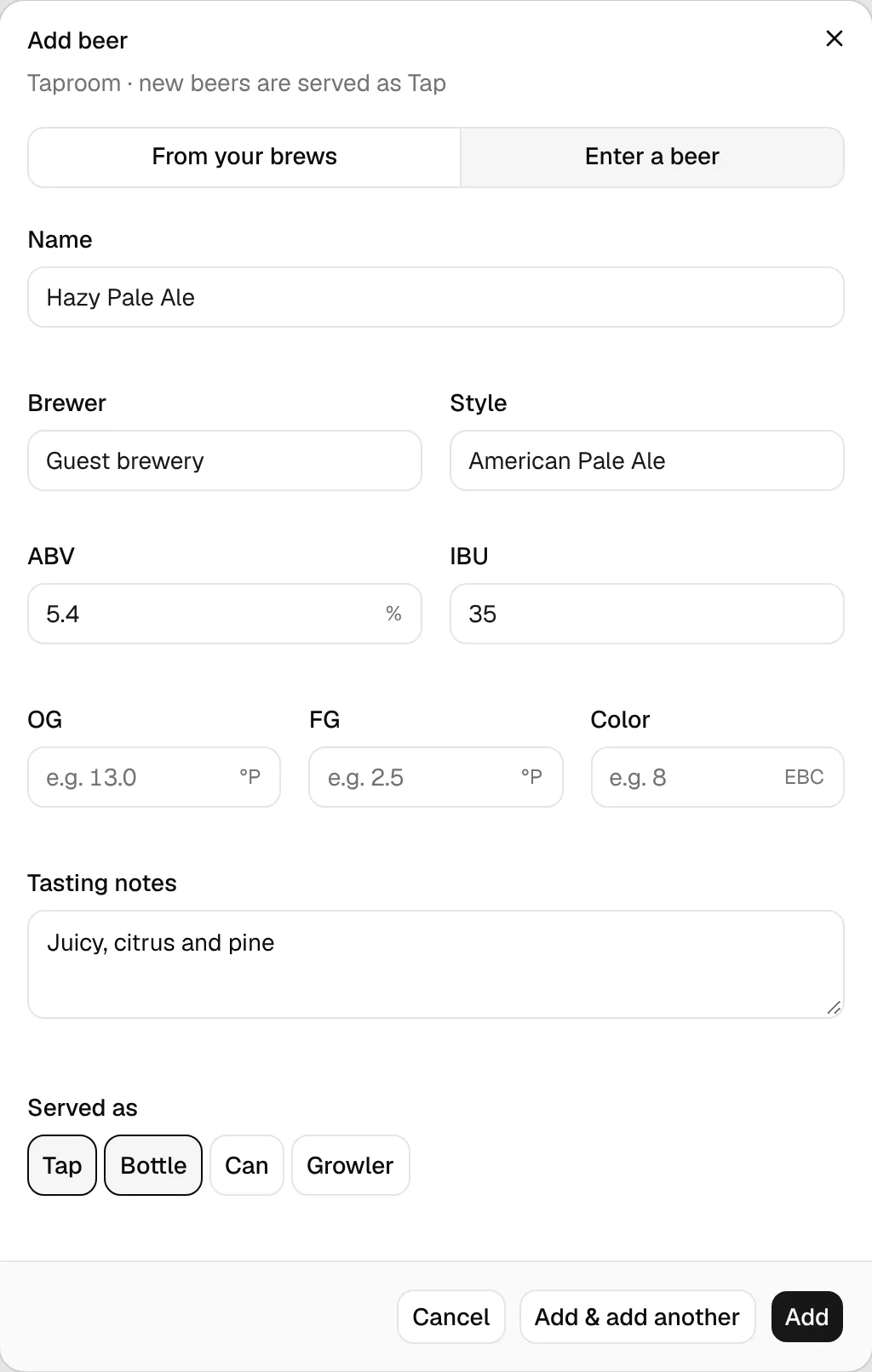
Click Add beer in the Beers section. The dialog has two sources:
From your brews
From your brews lists your completed brews that aren't on the list yet, with batch number, style, ABV and IBU. If the list's Also brews still conditioning setting is on, brews in conditioning show too. Click a brew, check Served as (the list's default is preselected; a beer can have several) and click Add …. Add & add another keeps the dialog open.
A beer from a brew stays linked to it: name, style, ABV, IBU, OG, FG and color come from the brew, so the menu shows the same values as the brew itself. Brewer starts with your brewery name from Settings → General → Brewery. You can change how any value reads.
Enter a beer
For a guest beer or anything you didn't brew in BrewForge, choose Enter a beer. Enter the Name (required) and optionally Brewer, Style and ABV. Show 5 more adds IBU, OG, FG, Color and Tasting notes. OG and FG use your gravity unit, color your color unit (both from your settings). Pick how you serve it under Served as.
The beer list
Each beer row shows its ABV, name, brewer, style and how it is served. The right side says where it is: on which tap, Next on …, its serving style (for example Bottle), or Hidden. Beers in conditioning say conditioning. Long lists show the first 12 beers and Show N more.
The beer dialog
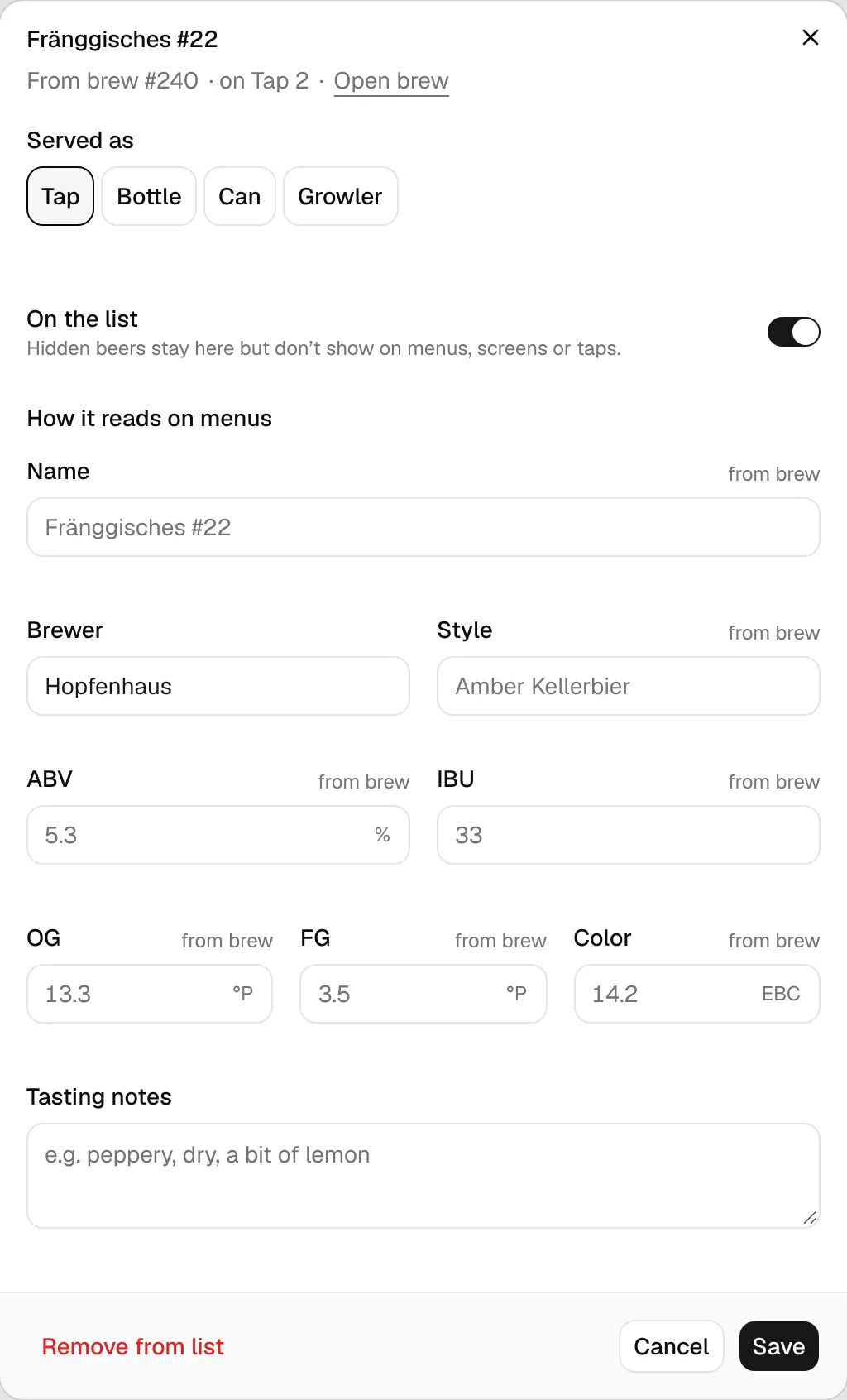
Click a beer to open it. The top says which brew it comes from (with Open brew) or that it's Not one of your brews, and where it pours.
- Served as: tap, bottle, can, growler; at least one stays selected.
- On the list: off hides the beer. A hidden beer stays on the list but doesn't show on menus, screens or taps.
- How it reads on menus: the name, brewer, style, ABV and (with Show 5 more) IBU, OG, FG, color and tasting notes the menu shows. For a linked beer the fields show the brew's values in grey and say from brew; what you type overrides them for the tap list only. Empty a field to go back to the brew's value.
- Remove from list removes it at once (the brew itself is not touched). The message at the bottom has Undo.
Click Save to keep your changes.
If you enter your own OG or FG for a linked beer (and no own ABV), BrewForge recalculates the ABV from the two gravities:
ABV = 76.08 × (OG − FG) / (1.775 − OG) × FG / 0.794 (the same formula as the brew), rounded to one decimal, with OG and FG as specific gravity.
Example: OG 1.054, FG 1.012 → 76.08 × 0.042 / 0.721 × 1.012 / 0.794 = 5.6 %.
Without gravity overrides the beer shows the brew's own ABV, which also counts sugar added during fermentation. An ABV you type yourself always wins. Source: servedAbv in apps/web/lib/brewing/abv.ts.
Reorder taps and beers
Reorder taps… and Reorder beers… (in the list's ⋯ menu and in the section's ⋯) open a list with up and down buttons. Menus and screens show taps and beers in this order.
What menus and screens show
- On Tap (the section title; change it under Sections in the designer): every tap that is on, in tap order. A tap without a beer shows as a dash, so guests see the line is empty.
- Bottles & Cans: every beer on the list that is served some other way than only on tap. A beer served on tap and in bottles appears here as well.
- Taps that are off and hidden beers are left out.
Screens pick up changes to beers and taps by themselves within about 30 seconds (details).
Settings
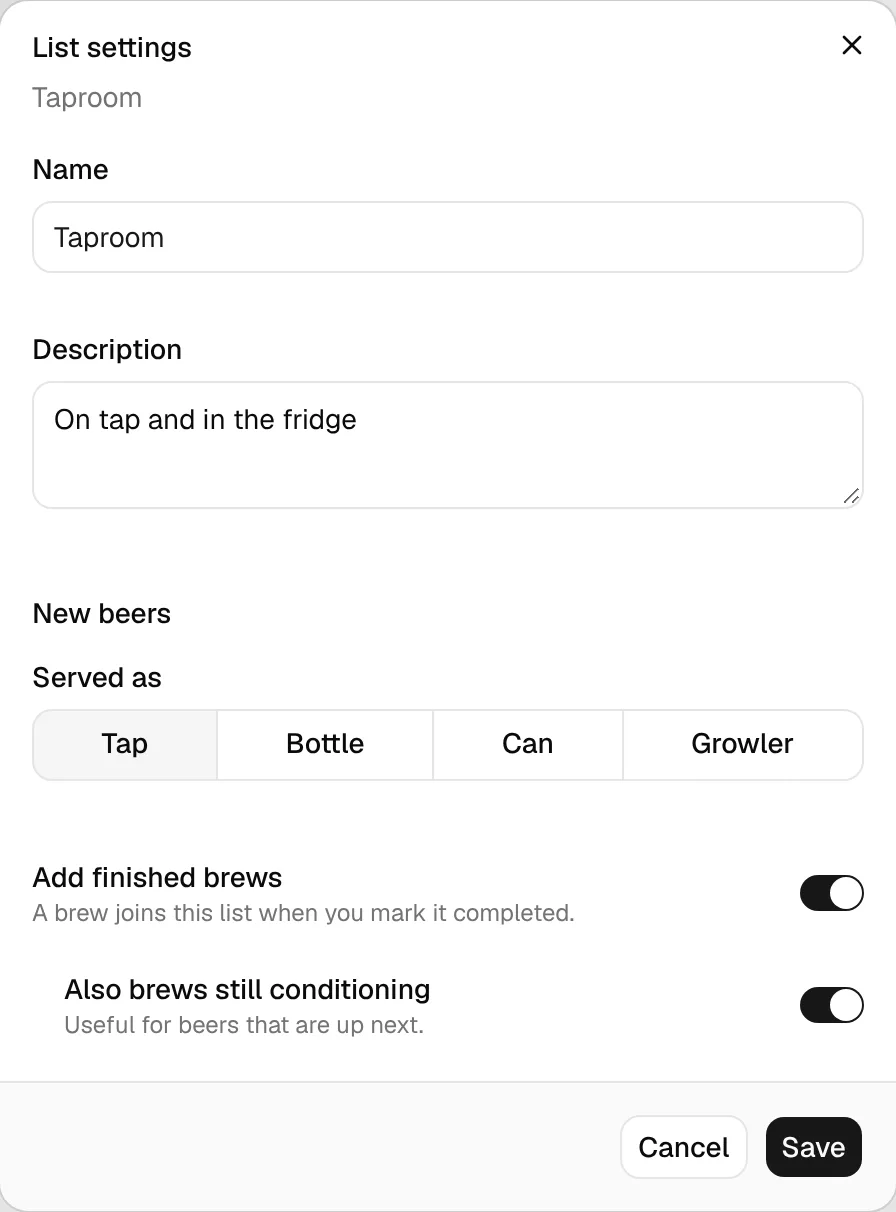
The Settings section (and List settings… in the ⋯ menu) holds the list's Name, Description (shown under the title on menus), the default Served as for new beers and two switches:
- Add finished brews: every brew whose status you change to Completed is added to the list as a beer, with the list's default serving style. A brew that is already on the list isn't added twice.
- Also brews still conditioning (shown once Add finished brews is on): brews are added as soon as you change their status to Conditioning, and From your brews also offers brews in conditioning. With Add finished brews off it no longer applies.
Only status changes made after you turn the switch on add beers. Brews that are already completed (or in conditioning) are not added; add those with Add beer. A beer you remove comes back only if the brew's status changes to Completed (or Conditioning) again. Auto-added beers are ordinary beers and don't go on a tap by themselves.
Delete a beer list
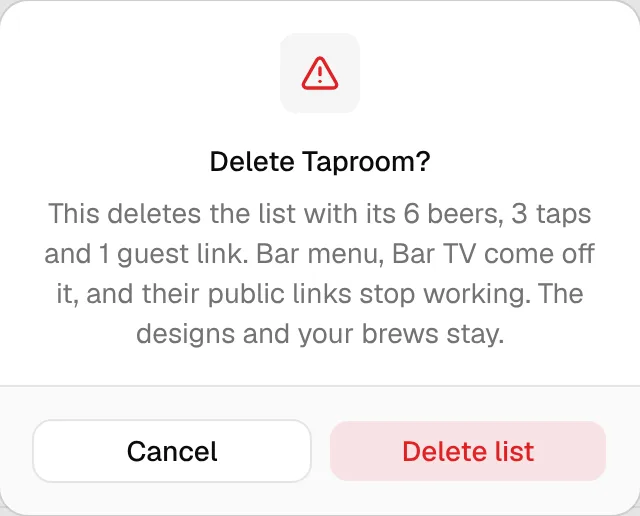
⋯ → Delete list… asks first and names what is lost: the list's beers, taps and guest links. Menus and screens shown on the list come off it, and their public links stop working. The designs and your brews stay.