Menus and screens
Design a drink menu or a TV tap list screen in BrewForge, show it on a beer list and share it as a public link, QR code or PDF. Screens update live when you change a tap.
Menus and screens are designs: a look you make once and then show on one or more beer lists. Each design on a list gets its own public link and shows that list's beers.
- A menu is a drink menu for phones and print: a web page, a QR code for table cards and a PDF.
- A screen is a full-screen display for a TV or monitor. It refreshes itself when you change beers or taps.
Create a design
Create a design from the beer list (Add next to Menus or Screens, then New menu design… or New screen design…), or on the Tap list page with ⋯ → New menu design / New screen design, or New menu / New screen on the Designs tab.
Enter a Name and pick a look under Start from. For a screen, Shows chooses Taps & bottles, Taps or Bottles.
Show on puts the design on a beer list right away (preselected when you start from a list). Choose Not yet to only design it for now.
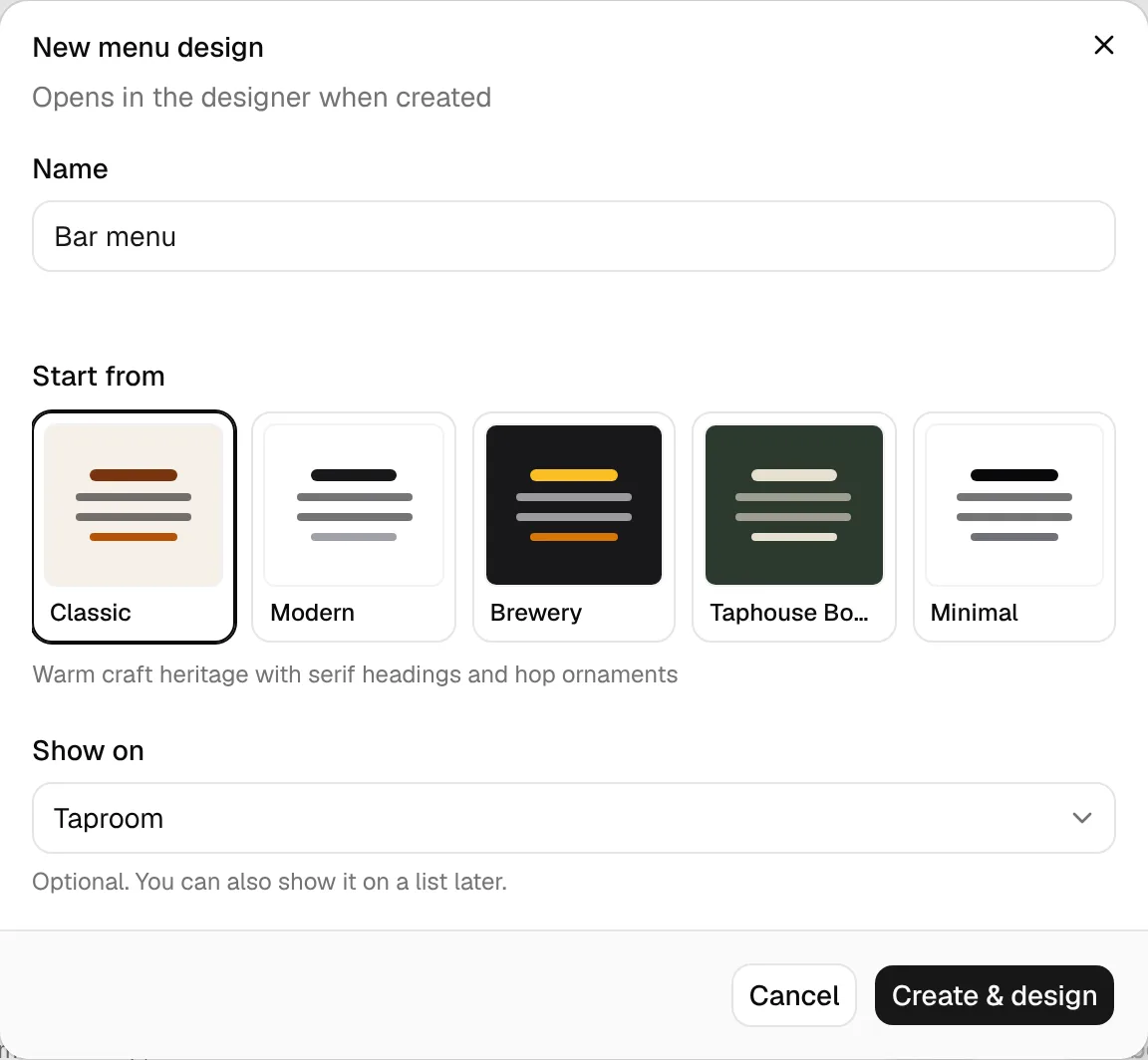
Click Create & design. The designer opens.
Looks for menus: Classic, Modern, Brewery, Taphouse Board and Minimal. For screens: Taproom, Modern, Chalkboard and Taphouse Board.
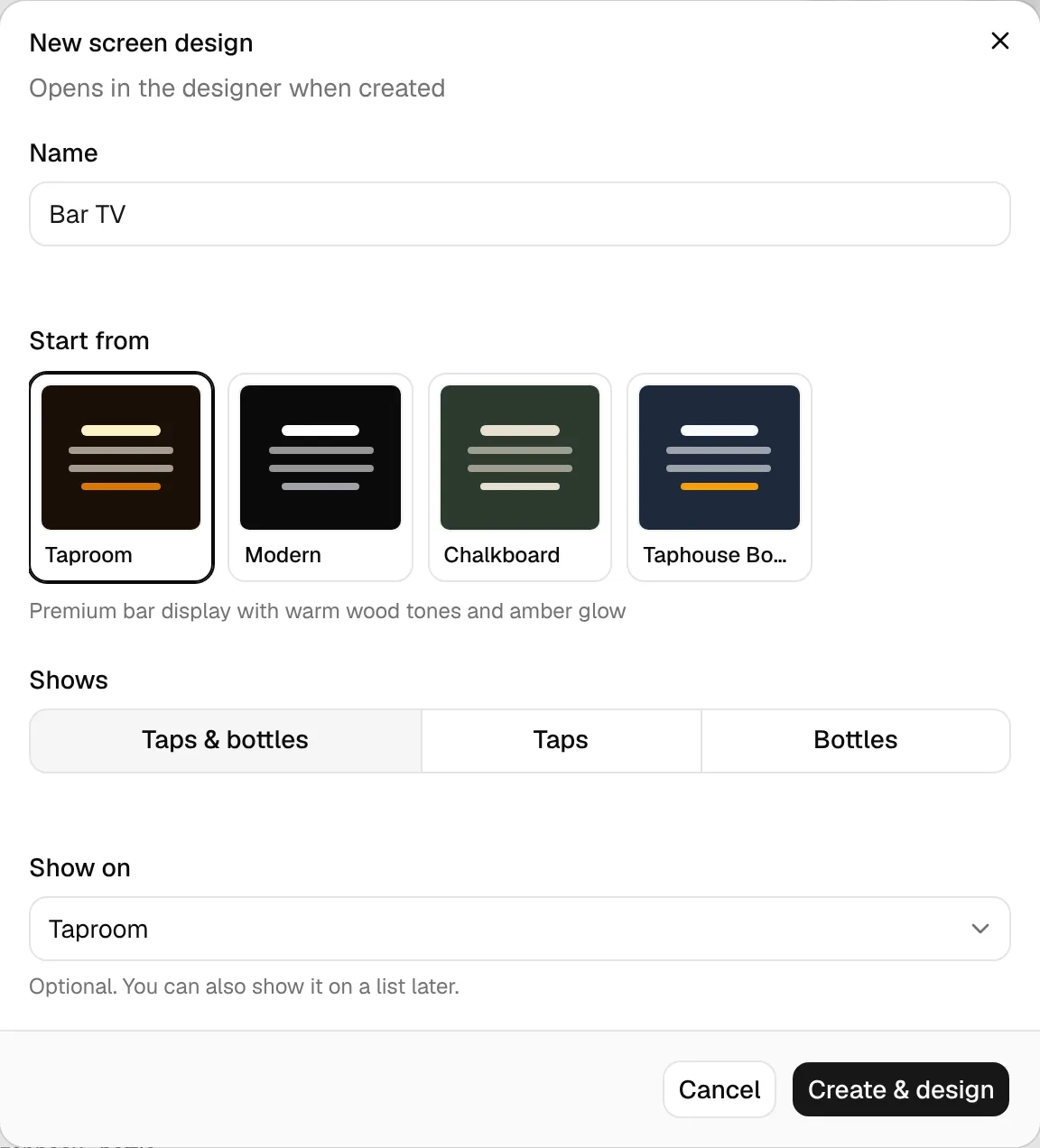
Show a design on a beer list
On the beer list, click Add next to Menus or Screens and choose one of your designs (it says which other lists it's already on), or start a new one. Each design can be on a list once.
The designer
The designer shows a live preview in the middle and the settings on the right. Preview with at the top picks the beer list the preview uses. Without any beer list, Use sample beers fills the preview with example beers.
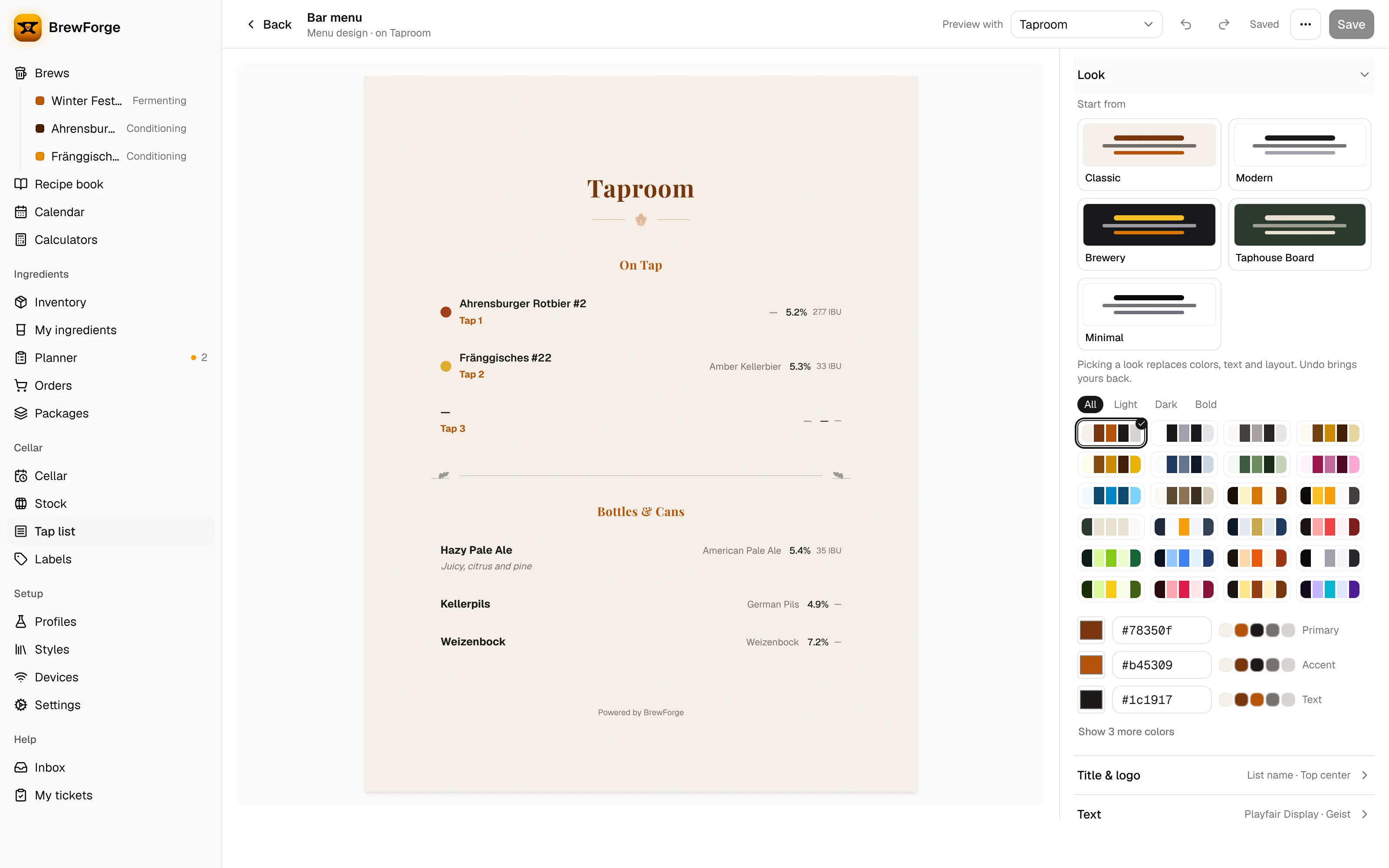
The settings are folds, each with a summary of its current values. Click anything on the preview (the title, a section header, a beer row) to open the matching fold.
- Look: Start from switches to another look (this replaces colors, text and layout; Undo brings yours back), ready-made color palettes (All, Light, Dark, Bold), and your own Primary, Accent and Text colors (Show 3 more colors for muted text, background and border).
- Title & logo: Title override or Use list name, title size and alignment, Show description, the header divider, and the logo: Upload logo (JPEG, PNG or WebP, under 2 MB) or Use brewery logo (from Settings → General → Brewery), its position and maximum height.
- Text: heading and body fonts, heading weight, heading tracking and Uppercase headings.
- Beer rows: which fields a beer shows (tap label, brewer, style, ABV, IBU, OG, FG, description) in three groups (Left · after the name, Center, Right). Drag a field to reorder it; click it to set its position, Show on the menu, size, weight, italic, uppercase and color. Beer color turns the color mark on; Beer color shows as sets it to a color dot, left border or glow. Plus row stripes, rounding and background.
- Sections: what to Show (taps, bottles or both), the section titles, header style and divider, and the number of tap and bottle columns.
- Background & frame: background color, a pattern (dots or grid), noise texture, a border frame and a vignette.
- Page (menus): Auto light background (white background when you print or export the PDF), Page size (A4 or Letter), Orientation and Show footer.
- Display (screens): Aspect ratio of the TV (16:9, 16:10, 4:3, 21:9) and Orientation.
- Animation (screens): how beers appear (Slide in, Fade up, Chalk write or None), the delay between them and the cross-fade when data changes.
- Spacing: maximum width, padding and space between beers.
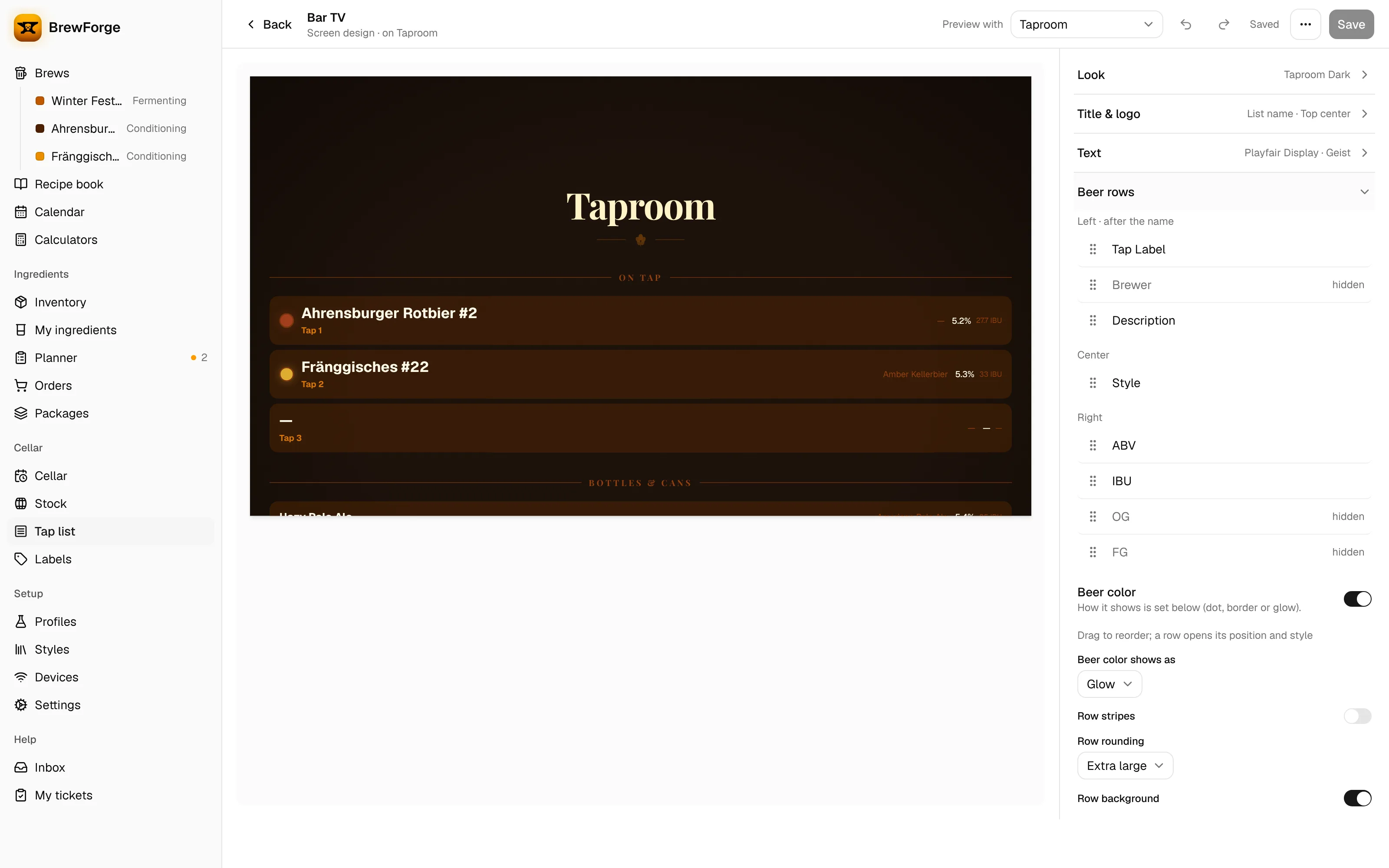
Save, undo and leave
Changes are a draft until you click Save; the top shows Unsaved changes until then. Undo and Redo step through your changes. If you leave with unsaved changes, BrewForge asks whether to Save, Discard or Keep editing. Saving a design that is shown on lists updates it there.
The ⋯ menu has Rename…, Discard changes and Delete design…. Deleting a design that is still shown on lists takes it off them in the same step; its public links and printed QR codes stop working.
On a phone the designer switches between Preview and Settings.
The menu dialog
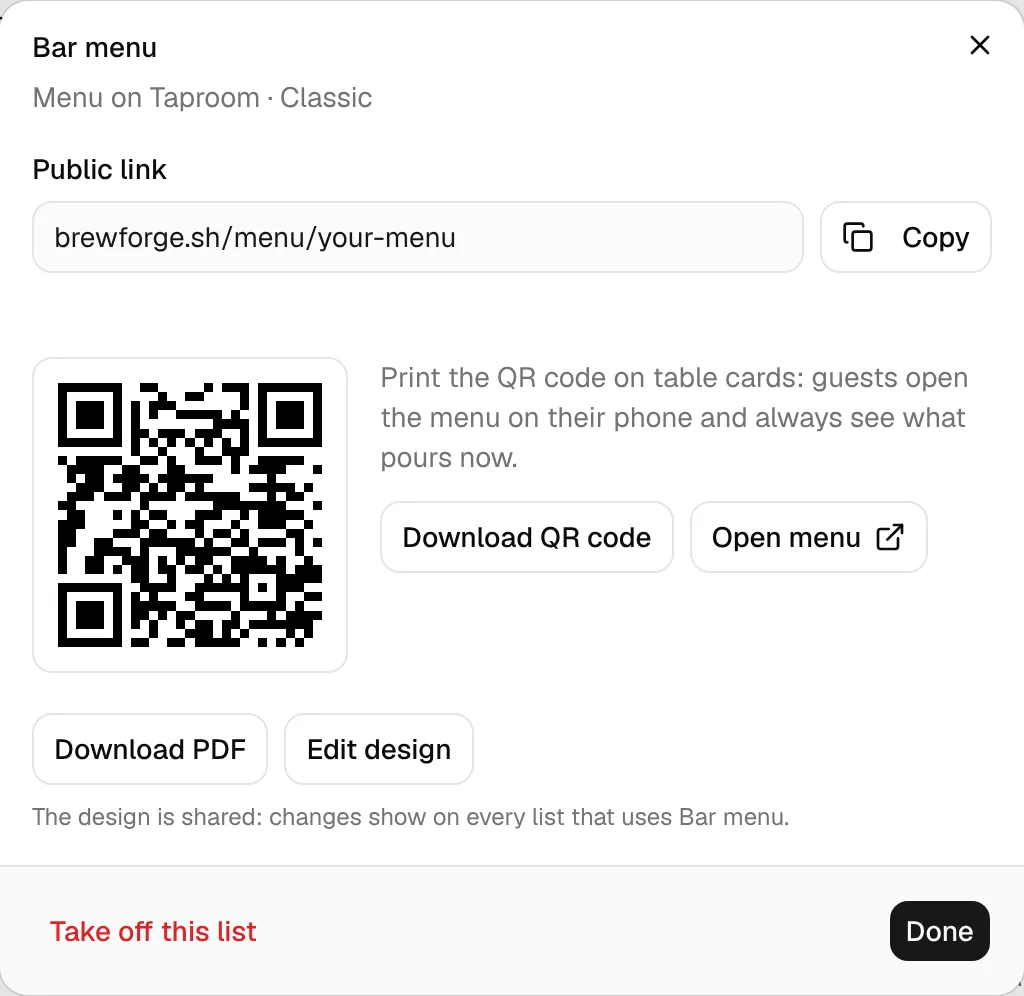
On the beer list, click a menu to open it:
- Public link: the menu's web address with Copy. Anyone with it can open the menu without logging in.
- QR code: print it on table cards so guests open the menu on their phone and always see what pours now. Download QR code saves it as an SVG file; Open menu opens the public page.
- Download PDF: a PDF of the menu in the page size and orientation of the design. It takes a moment (Preparing PDF…); if it fails, try again after a moment.
- Edit design opens the designer with this list as preview. The design is shared: changes show on every list that uses it.
- Take off this list removes the menu from the list. Its public link stops working, and so do printed QR codes; showing it again makes a new link. The design stays.
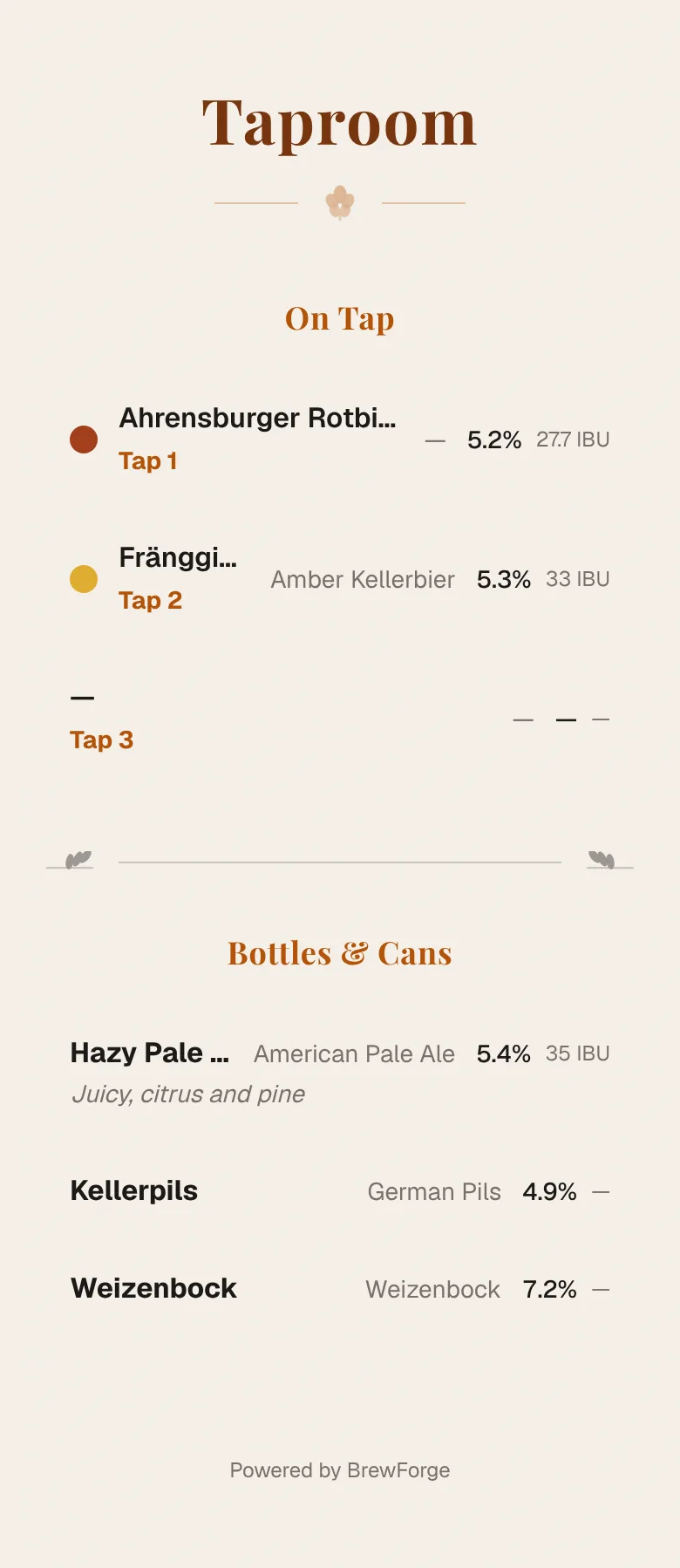
Guests see the menu on their phone like this:
The screen dialog
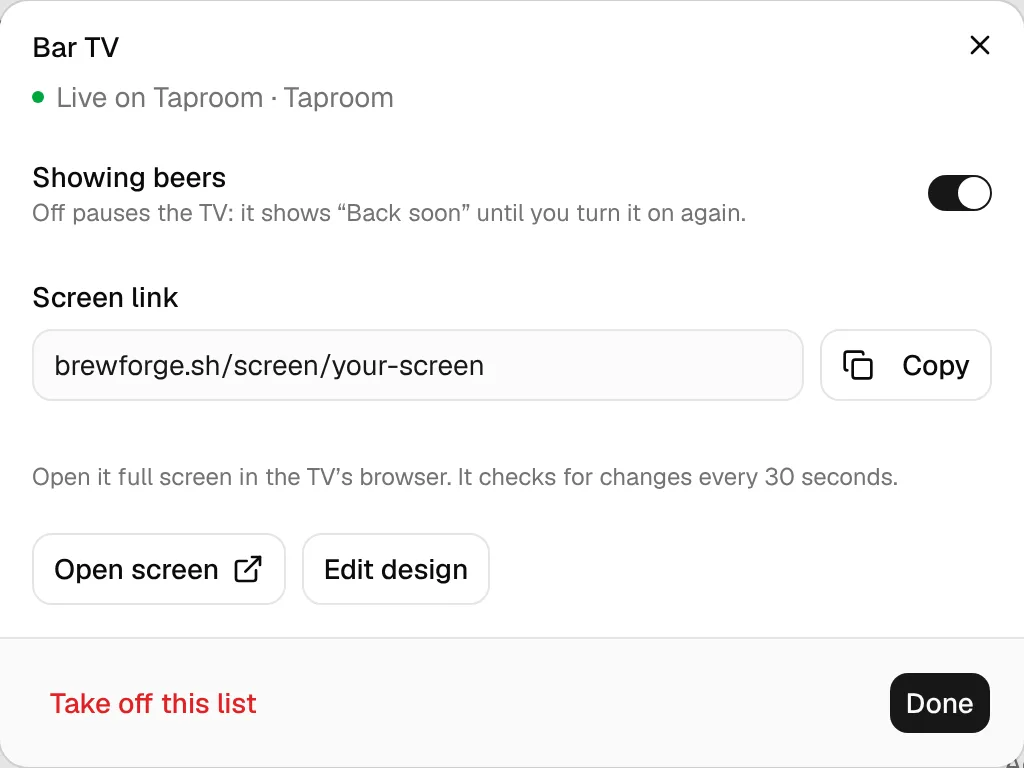
Click a screen on the beer list to open it:
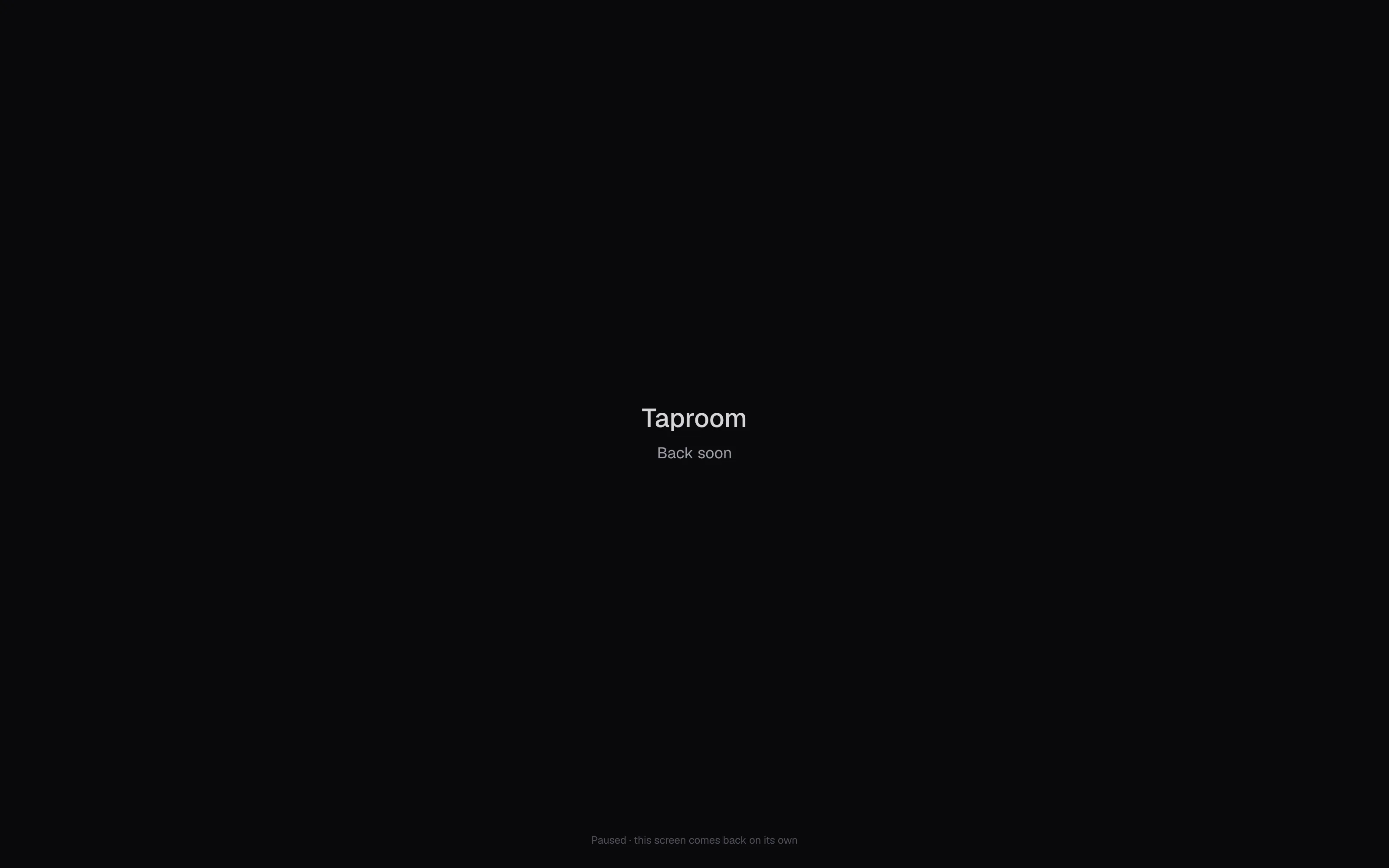
- Showing beers: on by default (the screen is Live). Turn it off to pause the TV: it shows the list name and "Back soon" until you turn it on again, and the link keeps working.
- Screen link with Copy, Open screen, Edit design and Take off this list (the link stops working and a TV showing it goes blank; showing it again makes a new link).
Screens on a TV
Open the screen link in the browser of the TV or of a computer connected to it, and switch the browser to full screen. The mouse pointer hides itself after three seconds.
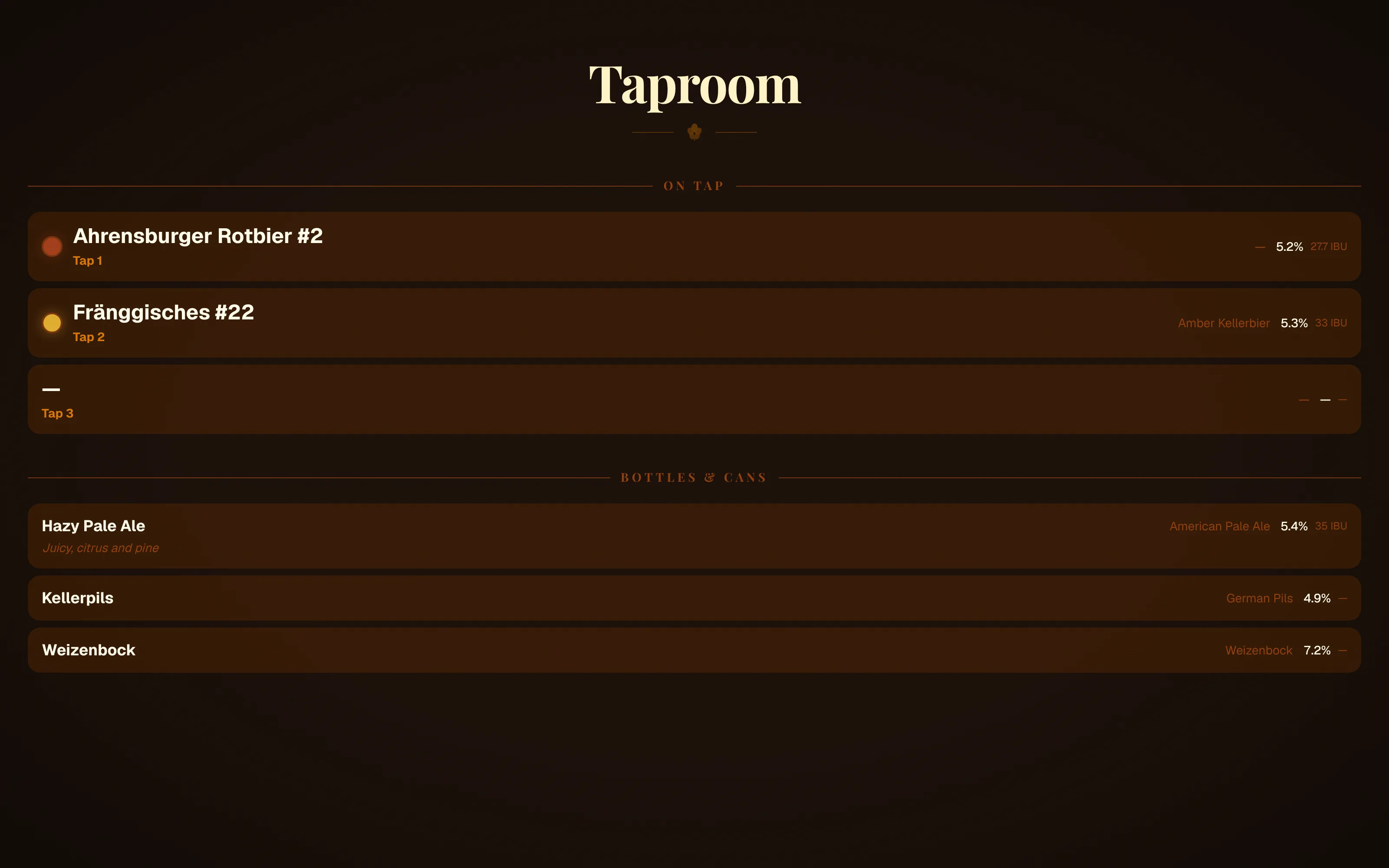
- Live updates: the screen checks for changes every 30 seconds. When you add, edit, hide or remove beers, or change what's on a tap, it fades to the new data without reloading. After saving a new design, reload the page on the TV.
- Paused: a screen whose Showing beers is off shows this within 30 seconds:
Links that no longer work
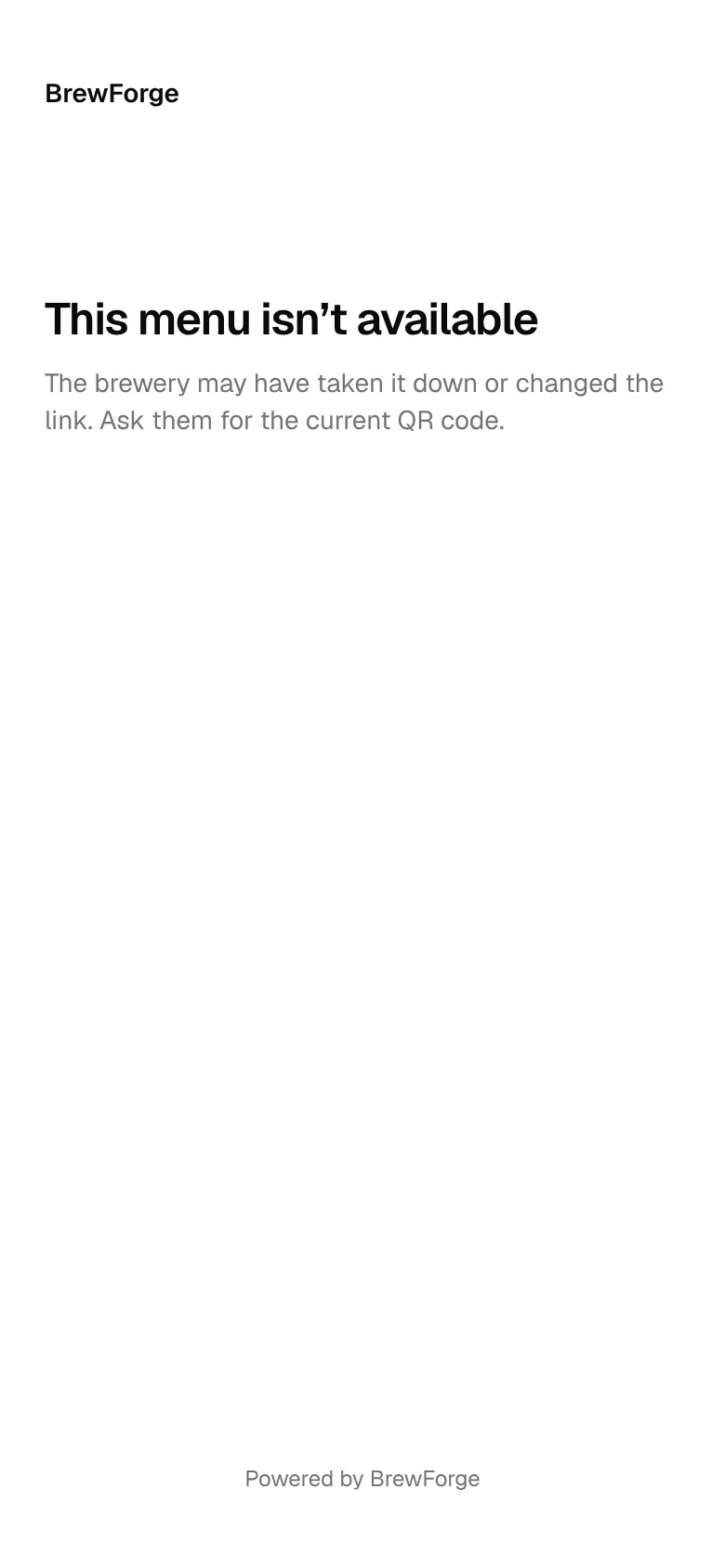
A menu or screen link that was taken off its list (or whose list or design was deleted) shows a short page that the menu or screen isn't available, and asks guests to get the current QR code.
Public links
Anyone with a menu or screen link can open it without logging in. To take one offline, take it off the list. Showing it again creates a new link, so reprint QR codes afterwards.