Custom styles
Create your own beer styles in BrewForge from scratch, from a BJCP style or from one of your styles, adjust OG, FG, IBU, color and ABV ranges, duplicate and delete them.
Your own styles live on the My styles tab of the Styles page. Use them for house styles, competition categories that aren't in BJCP 2021, or a BJCP style with ranges adjusted to your taste.
Each row shows the style number, a dot in the beer color of the style, the name and the ABV range on the right. The line below shows the category, the guideline (when it isn't Custom) and the ranges for OG, IBU and color. A style without a color range says no color range. Click a row to open the style.
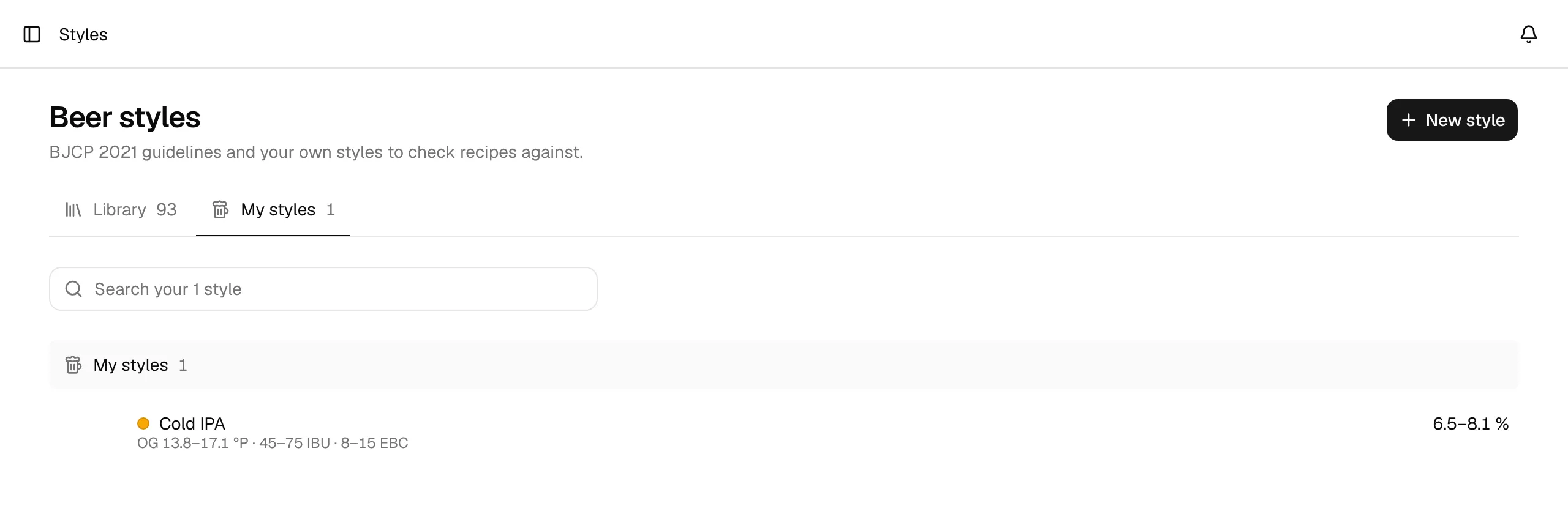
With many styles, use the search field above the list. It matches the name, the style number, the category and the description. The list shows your first 20 styles; Show … more below them shows the rest. As long as you have no own styles, the tab offers Browse the library and New style.
Create a style
Click New style at the top of the Styles page (on either tab).
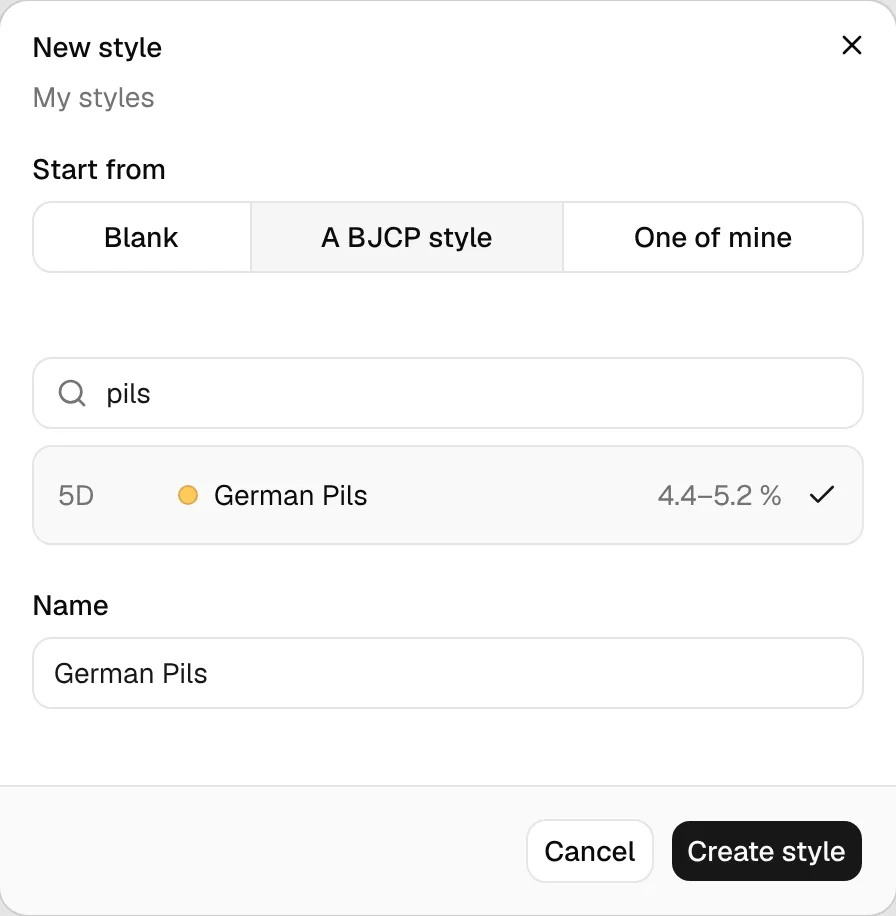
Choose where to start under Start from:
- Blank: an empty style with just a name. Every range starts empty.
- A BJCP style: search the BJCP 2021 library and pick a style. All ranges, the category, the style number and the description are copied.
- One of mine: pick one of your own styles to copy.
When you pick a style, its name is filled in (for your own styles with (copy)). Change it if you like.
Click Create style. The new style opens on its own page, where you adjust the ranges.
You can also copy a style straight from the library: open it on the Library tab and click Copy to my styles (Style library).
The style page
A style page has two sections:
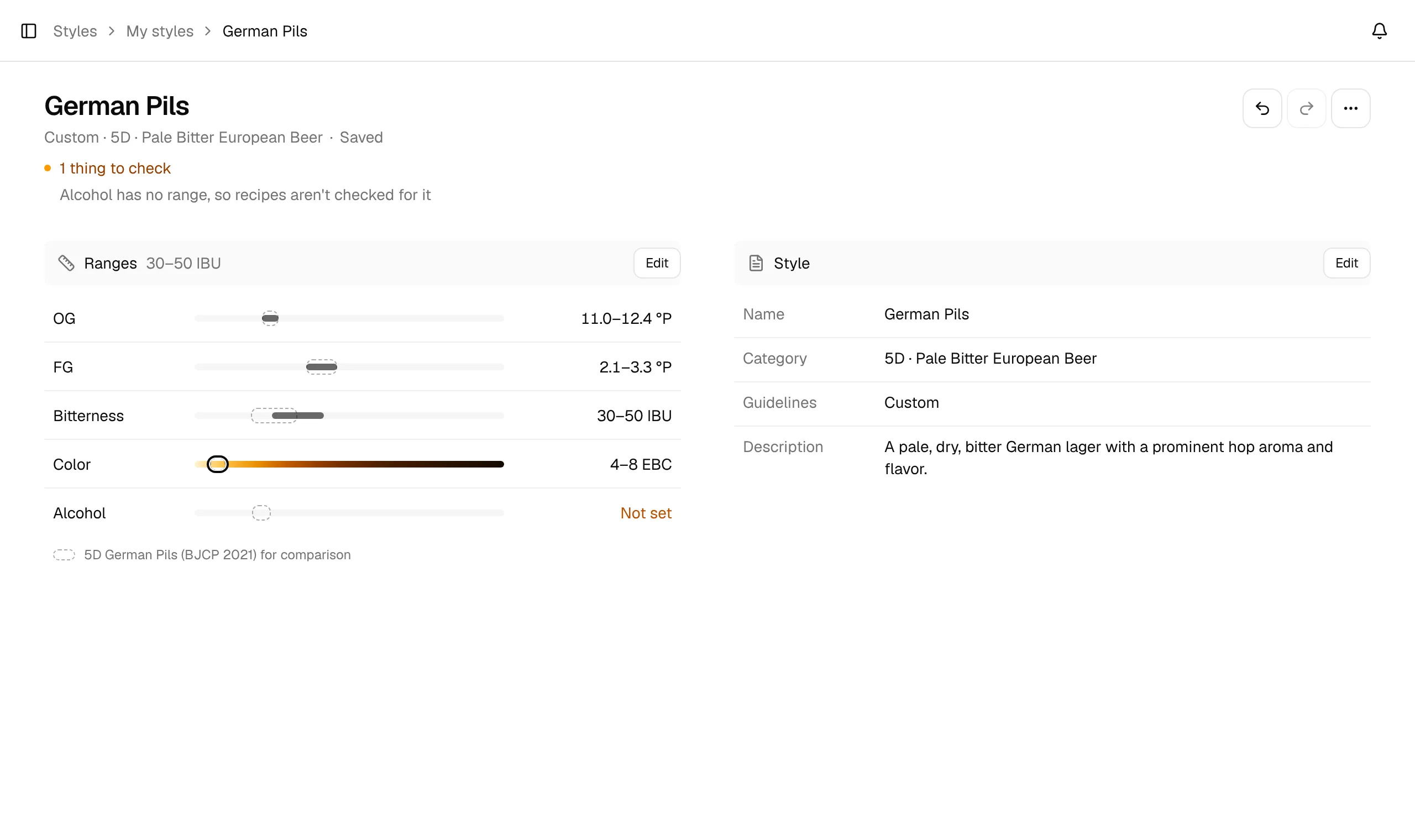
- Ranges: OG, FG, bitterness (IBU), color and alcohol (ABV), each with its range and a bar. All bars use the same fixed scale for every style, so you can compare styles at a glance. Color sits on a bar in beer colors. A range without values says Not set.
- Style: name, number and category, guideline and description.
If your style was copied from a BJCP 2021 style, each bar also shows that style's range as a dashed outline (for example "5D German Pils (BJCP 2021) for comparison"), so you see where your style is narrower or wider.
Above the sections, a line such as 1 thing to check lists what may need your attention:
- a value with no range at all (style matching skips it),
- a minimum above its maximum,
- an FG range that starts above the OG range.
Click an entry to open the ranges.
Edit a style
Every change saves right away. There's no Save button on the page: the line under the title shows Saving… and then Saved. If saving fails (for example while you're offline), the error shows there with Retry; your change stays on the page and is sent again with your next change or when you click Retry.
Undo and Redo (the arrow buttons at the top right) step back and forth through your changes since you opened the page.
Ranges
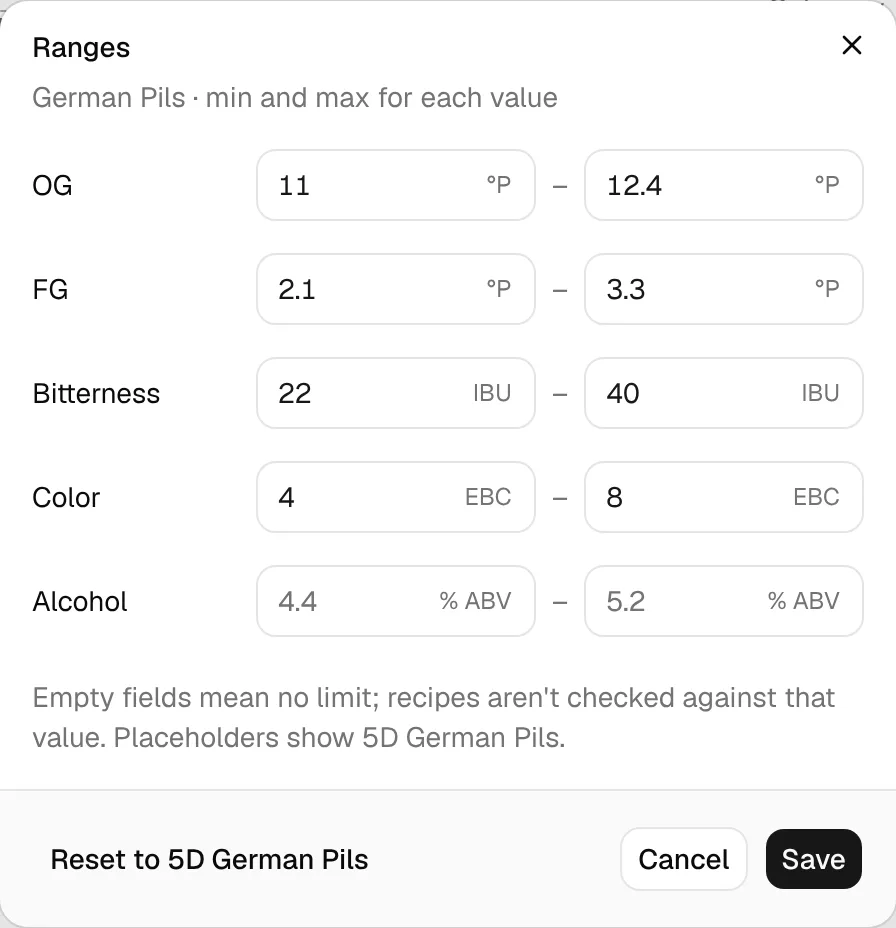
Click Edit on the Ranges bar, or anywhere in the ranges, to open the Ranges dialog. Each value has a minimum and a maximum:
| Value | Unit | Allowed values |
|---|---|---|
| OG | your gravity unit (SG or °P) | 1.000 to 1.200 SG |
| FG | your gravity unit (SG or °P) | 0.990 to 1.100 SG |
| Bitterness | IBU | 0 to 200 |
| Color | your color unit (SRM or EBC) | 0 to 50 SRM |
| Alcohol | % ABV | 0 to 20 |
You type gravity and color in the units from your settings. BrewForge stores them as SG and SRM and converts them back for display, so a style keeps its meaning if you switch units later (EBC = SRM × 1.97).
- Leave a field empty for no limit. An empty range is treated as unknown: style matching skips that value instead of counting it as a miss.
- The minimum can't be higher than the maximum. If it is, the dialog shows a message such as IBU Min must be less than or equal to IBU Max under the value and Save stays disabled.
- For a style copied from BJCP 2021, the empty fields show that style's values as placeholders, and Reset to … (bottom left) fills in all of its ranges again.
Click Save to apply the ranges, or Cancel to leave them as they were.
Name, category, guideline and description
Click Edit on the Style bar to change:
| Field | What it's for |
|---|---|
| Name | Required, up to 100 characters. |
| Number | Optional style number, for example 21A. It's shown in front of the name. |
| Category | Optional group name, for example IPA. |
| Guidelines | BJCP 2021, BJCP 2015, Brewers Association 2022 or Custom. It's a label: it doesn't change any ranges. The dashed BJCP comparison only appears for BJCP 2021 numbers (styles set to BJCP 2021 or Custom). |
| Description | Optional, up to 2000 characters. |
A recipe keeps its own copy of the style it uses. Editing or deleting a custom style later doesn't change recipes that already use it.
Duplicate, reset, delete
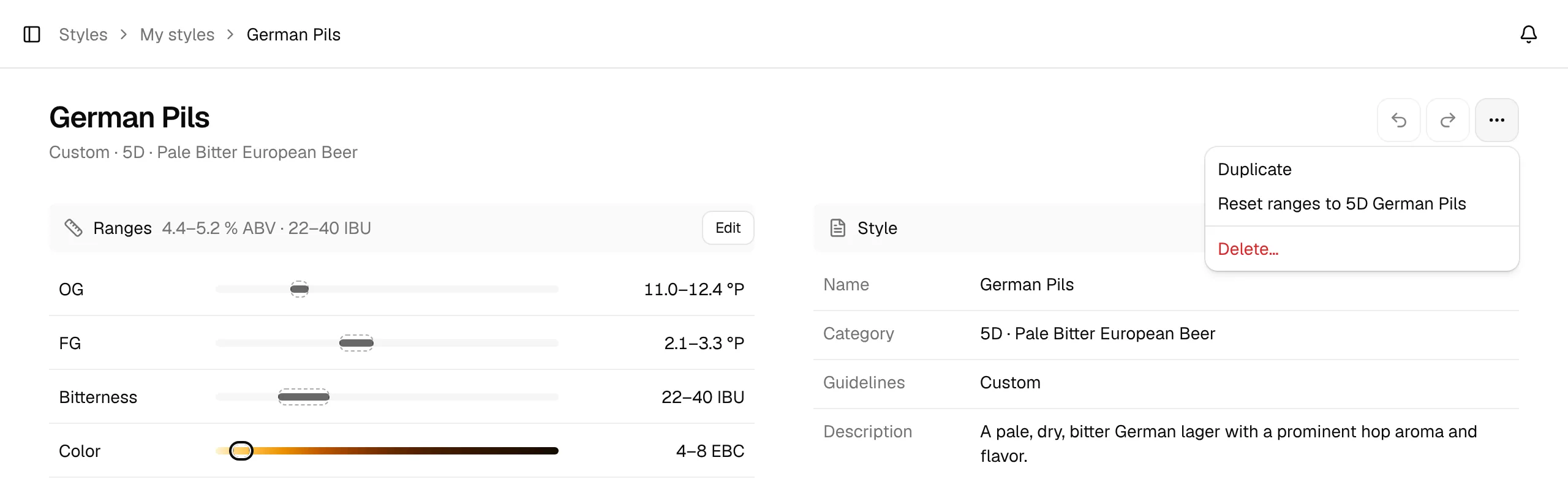
The ⋯ menu (More actions) at the top right of a style page has more actions:
- Duplicate creates a copy named
Cold IPA (Copy)(then(Copy 2),(Copy 3)and so on) and opens it. - Reset ranges to … (for styles copied from BJCP 2021) puts all five ranges back to the BJCP values. You can undo it.
- Delete… asks first. The style leaves My styles; brews that use it keep their own copy of the ranges.