Print labels
Print bottle labels from BrewForge on a Niimbot Bluetooth label printer. Pick a brew and template, set the name, copies and print quality, connect the printer from Chrome or Edge, and fix common problems.
Printing happens on the Labels page. The form is on the left, the preview and the print button on the right (on phones, the preview follows the form). See Labels for which printers and browsers work.
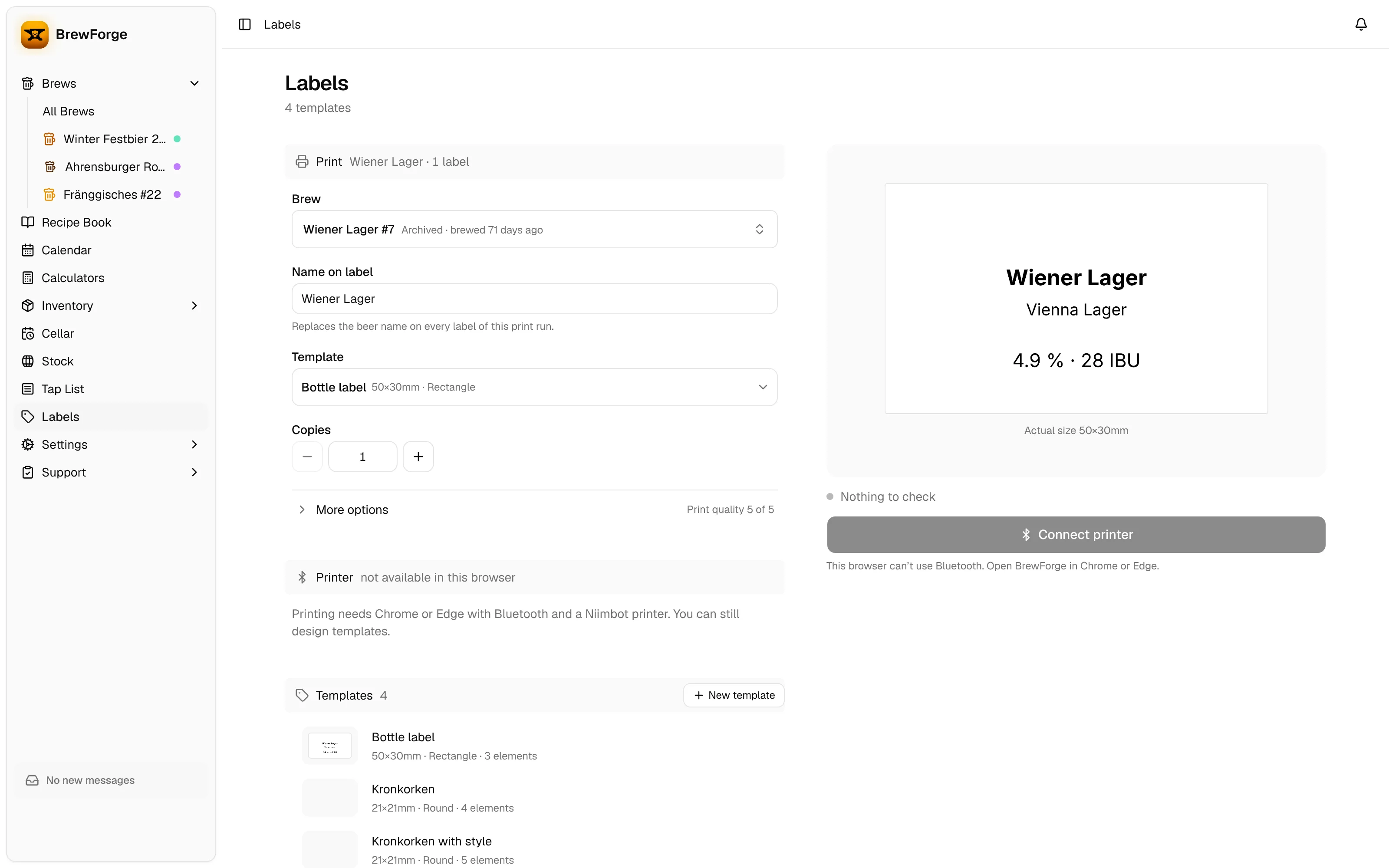
Print a label
Under Brew, click Choose a brew… and pick one. The list shows each brew's status and how long ago it was brewed; type to search.
Check Name on label. It starts as the brew name and replaces every Beer Name placeholder in this print run, so you can shorten it ("Wiener Lager" instead of "Wiener Lager #7") without renaming the brew. The name can't be empty. If it's too long for the label, the field turns amber.
Choose the Template and the number of Copies (1–100). BrewForge remembers both on this device. More options holds the Print quality (the print density; the range depends on your printer).
Look at the preview. It is drawn the same way as the printed label. Before you choose a brew, it shows sample values.
Turn the printer on and click Connect printer. The browser shows a Bluetooth dialog; choose your printer there.
Click Print 1 label (or Print 5 labels, and so on). The button shows the progress and then Printed.
Printer and things to check
Once connected, the Printer section shows the model, its battery level and, for rolls with an RFID tag, how many labels are left; the line below shows the loaded roll and the resolution (DPI). Disconnect ends the Bluetooth connection.
Above the print button, one line collects what needs a look before printing, or says Nothing to check:
- the loaded roll doesn't match the template's size (you can still print, but the label will be cut off or misplaced),
- the beer name runs past the label edge (Name on label jumps to the field),
- the printer is a D110M (reported cases of bricking),
- the printer model isn't on the compatibility list: choose a Print protocol under More options to try it, at your own risk. Printing stays disabled until you choose one.
The Templates section at the bottom lists your templates; click one to open it in the designer (Label templates).
Troubleshooting
| Problem | What to do |
|---|---|
| Connect printer is disabled and says the browser can't use Bluetooth | Use Chrome or Edge. Safari, Firefox and Chrome on iPhone/iPad don't support Web Bluetooth. |
| The printer doesn't appear in the Bluetooth dialog | Turn the printer on, keep it close to your computer or phone, and try again. |
| Couldn't connect to the printer | Switch the printer off and on, then click Connect printer again. |
| The model isn't on the compatibility list | Choose a Print protocol under More options. It may not work and is at your own risk. |
| The print is too light | Raise Print quality under More options. |
| Text is cut off | Shorten Name on label or edit the template: smaller font size or a different position (Label templates). |
| Wrong values on the label | The values come from the brew. Correct them in the brew, or change the template text. |