Vessels and containers
Set up your fermenters, tanks and kegs as vessels, and your bottles, cans and identical kegs as containers, so the BrewForge cellar knows what beer can go where.
Open Cellar → Vessels to get to Vessels & Containers. The page has two parts, because BrewForge tracks two kinds of equipment differently:
- Vessels are named fermenters, tanks and kegs. Each one holds one beer at a time and gets its own row on the cellar timeline.
- Containers are bottles, cans and identical kegs you count instead of naming, for example "0.5 L bottle: 102 owned".
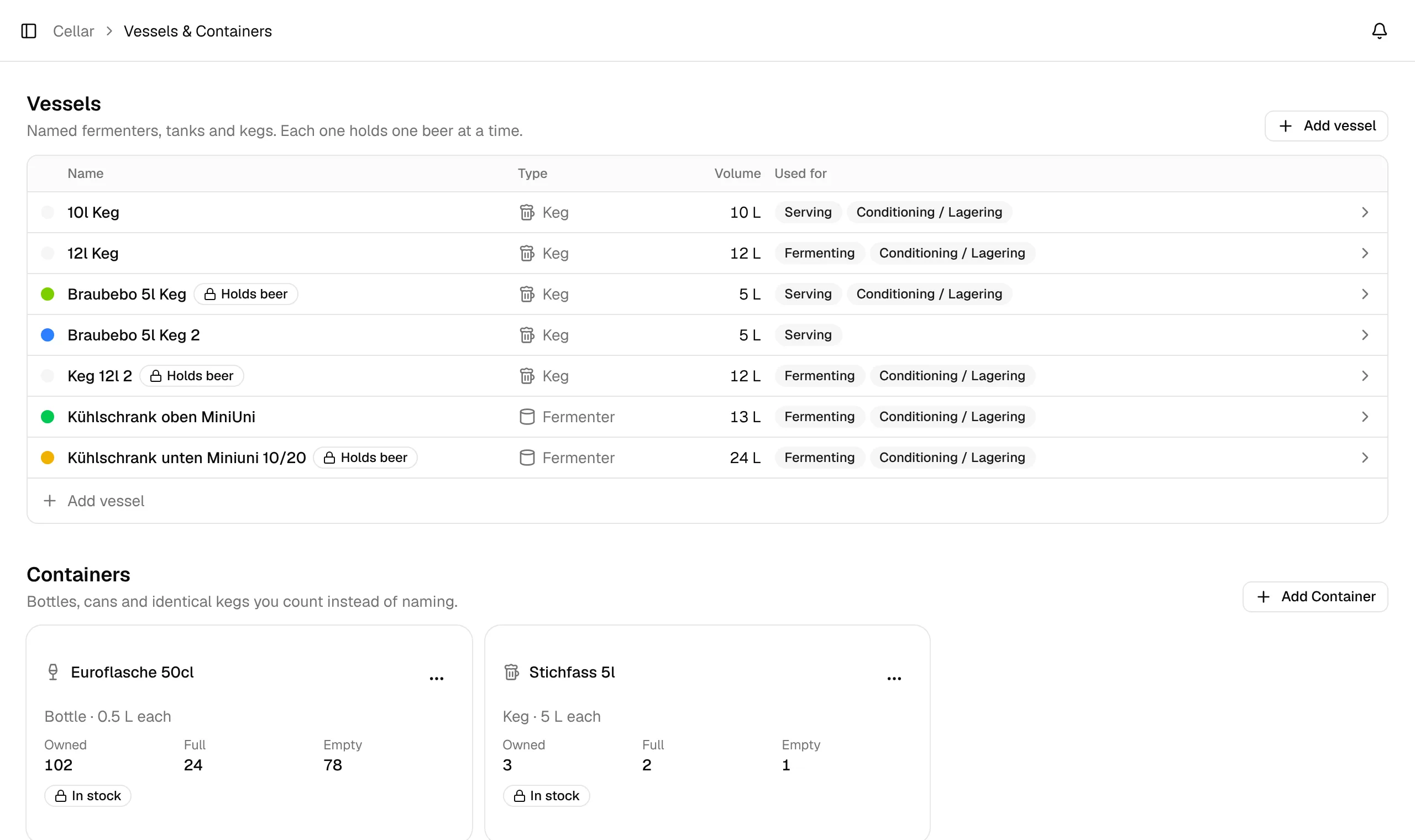
Vessels
The table lists each vessel with its Name, Type, Volume and what it's Used for. A Holds beer badge marks vessels that are in use today, Planned marks vessels with upcoming stays. Click a row to see the details (colour, serial number, empty weight) with Edit and Delete.
Add a vessel
Add vessel opens a four-step wizard. A preview on the right shows the vessel's name and how it will look in your cellar plan.
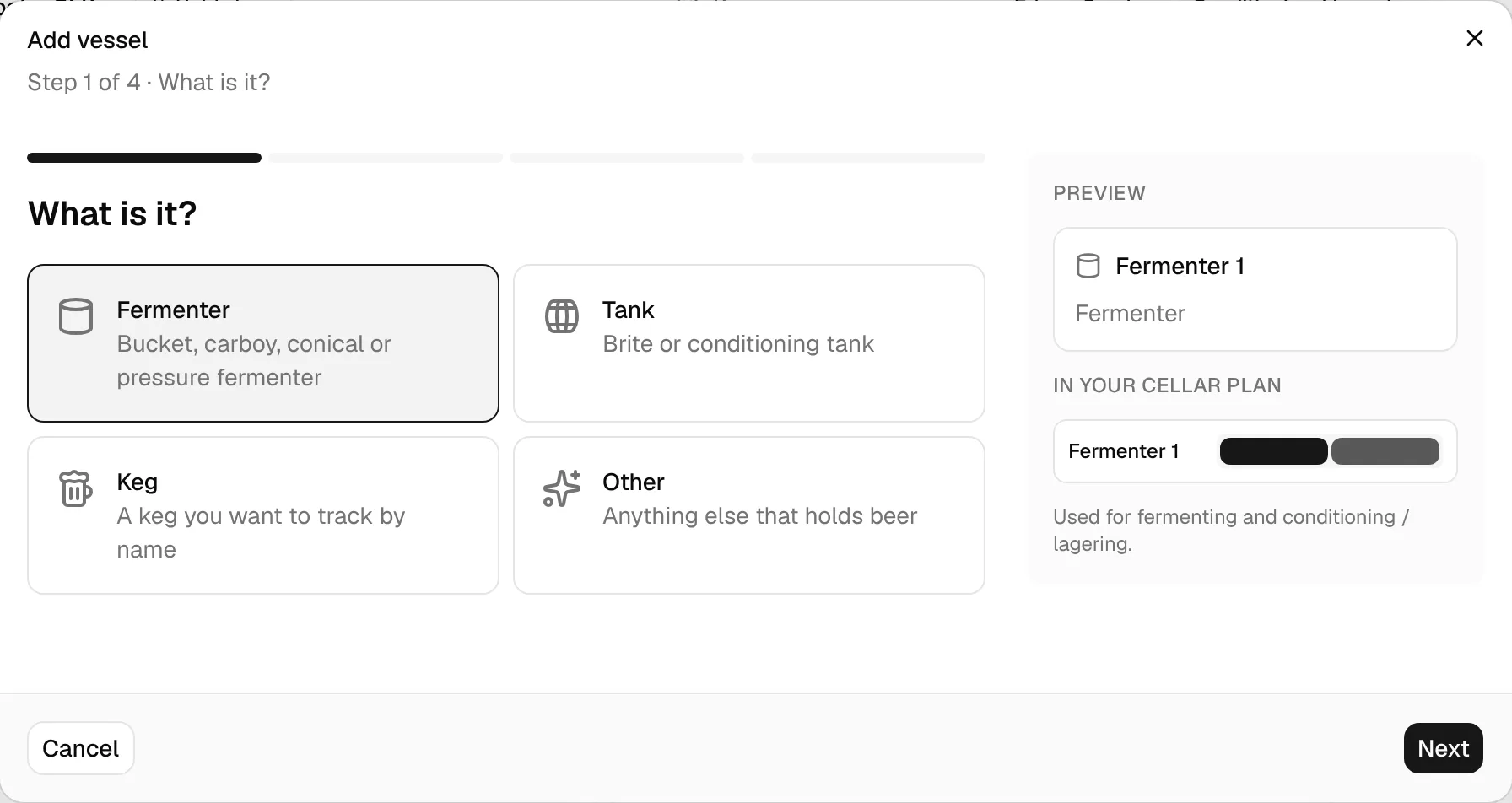
What is it? Pick Fermenter (bucket, carboy, conical or pressure fermenter), Tank (brite or conditioning tank), Keg (a keg you want to track by name) or Other.
How much does it hold? Enter the Volume (L) or tap a suggested size. This is the total capacity, not your batch size.
What do you use it for? Pick one or more roles:
- Fermenting: yeast goes in here, primary fermentation.
- Conditioning / Lagering: beer moves here to clear, lager or dry hop.
- Serving: you pour from it, usually a keg on tap.
The type preselects sensible roles (a fermenter: fermenting and conditioning; a tank: conditioning and serving; a keg: serving). A stay can only use a role its vessel allows.
Make it yours. BrewForge suggests the next free name (for example "Fermenter 3"); change it as you like. Optional: Colour, Serial number, Empty weight, kg (needed for keg scales, see Keg sensors) and Notes.
When you edit a vessel, you can jump to any step and save when you're done.
Where a vessel shows on the timeline
The timeline groups vessels by the latest role they allow, in the order Fermenting → Conditioning / Lagering → Serving. A keg that may also condition still shows under Serving. A vessel without roles is grouped by its type.
Locked fields
- The volume can't change while the vessel holds beer, so litres shown elsewhere stay right. Free the vessel first.
- A vessel with current or planned stays can't be deleted. Move or remove those stays first. Deleting a vessel also removes its past stays.
Containers
Containers are what you count: bottles, cans, and kegs that are all the same and don't need names. Packaging fills them, and your stock counts them per beer.
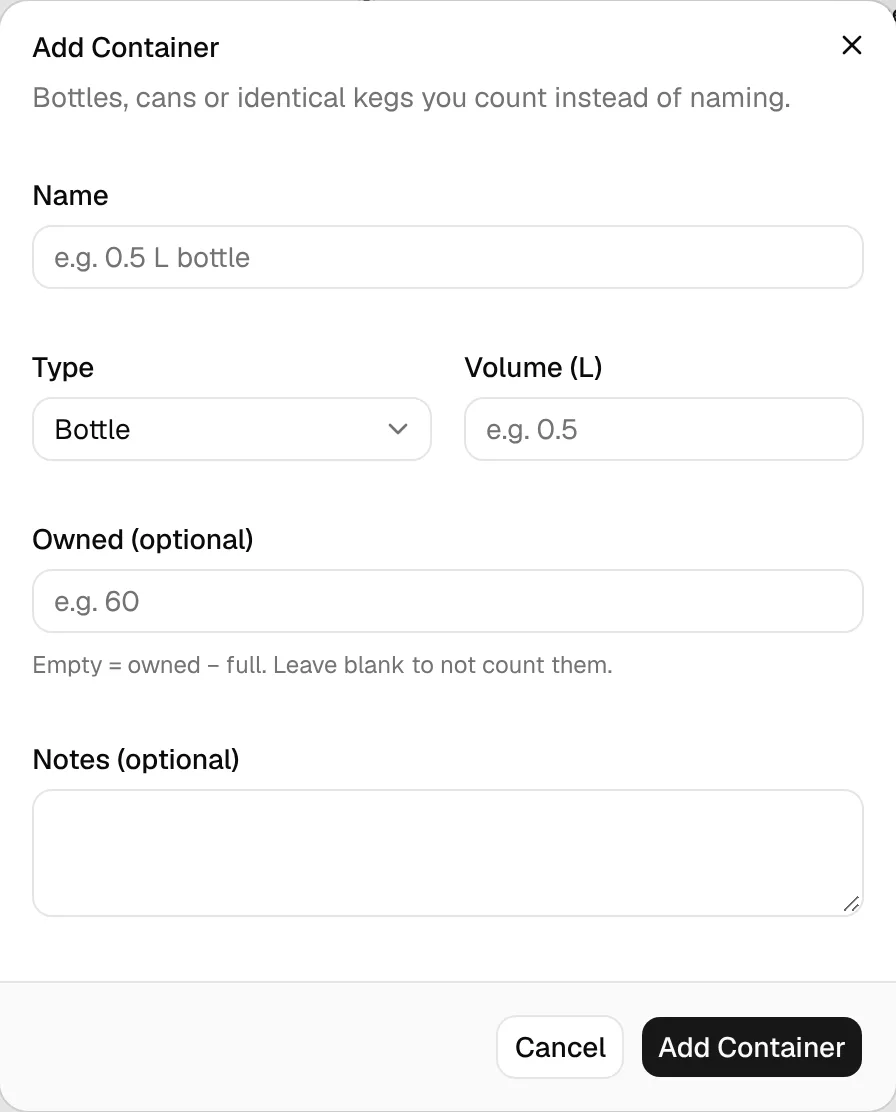
Add Container asks for:
- Name, for example "0.5 L bottle".
- Type: Bottle, Can, Keg or Other.
- Volume (L) of one container.
- Owned (optional): how many you have in total. Leave it blank if you don't want to count them.
- Notes (optional).
Each container card shows Owned, Full and Empty. Full is how many are filled with beer in your stock; empty is owned minus full. If more are full than you own, the card says so: update the owned count if you bought more. Use the ⋯ menu on a card to edit or delete it.
- The volume can't change while beer is stocked in the container (the card shows In stock).
- A container that still has beer in stock can't be deleted.
empty = owned − full
full is the sum of all stock lines in this container. Example: 102 owned, 24 bottles of one beer in stock → 102 − 24 = 78 empty. Without an owned count, BrewForge only shows how many are full.